Objective
The purpose of this article is to provide direction to Outreach users in moving either a group of Prospects or an individual Prospect to another sequence step in Outreach.
Applies To
- Outreach Users
Procedures
Move Multiple Prospects to a Different Sequence Step
- Access the Outreach Platform.
- Click Content > Sequences.
- Click the applicable sequence.
- Click Prospects.
- Click to select the applicable Prospects.
- Click the "..." icon and select Move To Step from the dropdown menu.
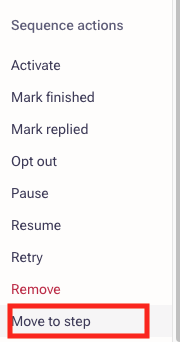
- Select the applicable step from the Sequence Step dropdown menu.
- Click Move.
- Refresh the instance to see updated statuses.
Move an Individual Prospect to a Different Sequence Step
- Access the Outreach Platform.
- Click the Prospects in the navigation sidebar.
- Sort & Filter Prospects as applicable and click the applicable Prospect to access the Prospect's profile.
- Click Sequences in the menu bar.
-
Click the "..." icon and select Move To Step from the dropdown menu.
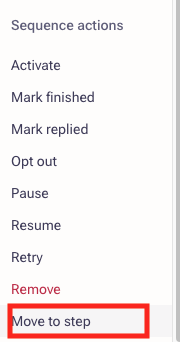
- Select the applicable step to move the Prospect to from the Sequence Step dropdown menu.
- Click Move.
- Refresh the instance to see updated statuses.
Note: Prospects will now follow that step's interval time. For example, if the user moves a prospect to step 2, and step 2's interval doesn't allow it to send for 3 hours, the prospect will wait for 3 hours.
Was this article helpful?
That’s Great!
Thank you for your feedback
Sorry! We couldn't be helpful
Thank you for your feedback
Feedback sent
We appreciate your effort and will try to fix the article