Objective
Add Outreach user seats to your Org via online request form.
Need more than 9 seats? To request more than 9 user licenses (including Kaia Seats, Admins Seats, or any other type of expansion), please contact and work with your Outreach account rep directly.
Applies To
- Outreach Admins
Procedure
Note: As you move through the form, it is important you review all terms, conditions, and agreement callouts.
- Ensure you are logged in to the Outreach Support Portal.
- At the upper right of any page in the Support Portal, click Get Help.
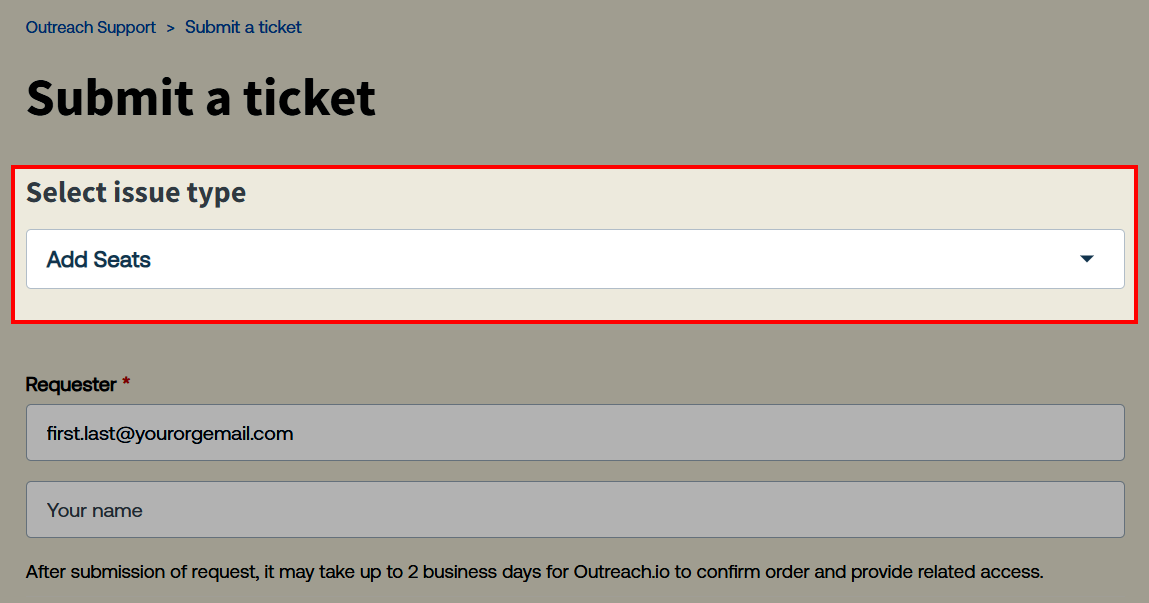
- From the dropdown menu Select issue type, select Add Seats.
- Select the applicable option from the Are you an Outreach Admin? confirmation dropdown menu.
- Select an amount from the # of Seat Adds dropdown menu. (Up to a maximum of 9. Please contact your account rep for more than 9.)
- Review the terms and agreements, then click the checkbox next to I Agree.
- Enter any further details in the Description field.
- Click Submit.
- Review your submitted Add seats ticket on the resulting ticket details page. Note the ticket ID, and optionally add any further details as needed.
It may take up to 2 business days to process requests. You will receive a reply to the submitted ticket when the requested seats have been added to the Org.
Tracking Your Request
One submitted, you will receive an email notification confirming receipt, with a link to review and update your request the same as any other support ticket through the Outreach Support Portal. For detailed guidance, see How to Manage Technical Support Request Tickets.
Note: It may take up to 2 business days to process requests. You will receive a reply to the submitted ticket when the requested seats have been added to the Org.
Additional Information
How To Submit a Technical Support Request
Was this article helpful?
That’s Great!
Thank you for your feedback
Sorry! We couldn't be helpful
Thank you for your feedback
Feedback sent
We appreciate your effort and will try to fix the article