Objective
The purpose of this article is to provide direction to Outreach Admins in locking, unlocking, removing, and adding new user seats to Outreach.
Applies To
- Outreach Admins
Before You Begin
Please keep in mind the following:
- Outreach detects duplicates by email address -- the same login email generally cannot be used twice in Outreach. (If you believe you have a use case for purposeful duplicates, click here.)
- We cannot delete seats or "remove users" outright in Outreach—instead, the seat can be locked/deactivated, which will remove the associated user's access.
Procedure
Reviewing Current Available Seat Count
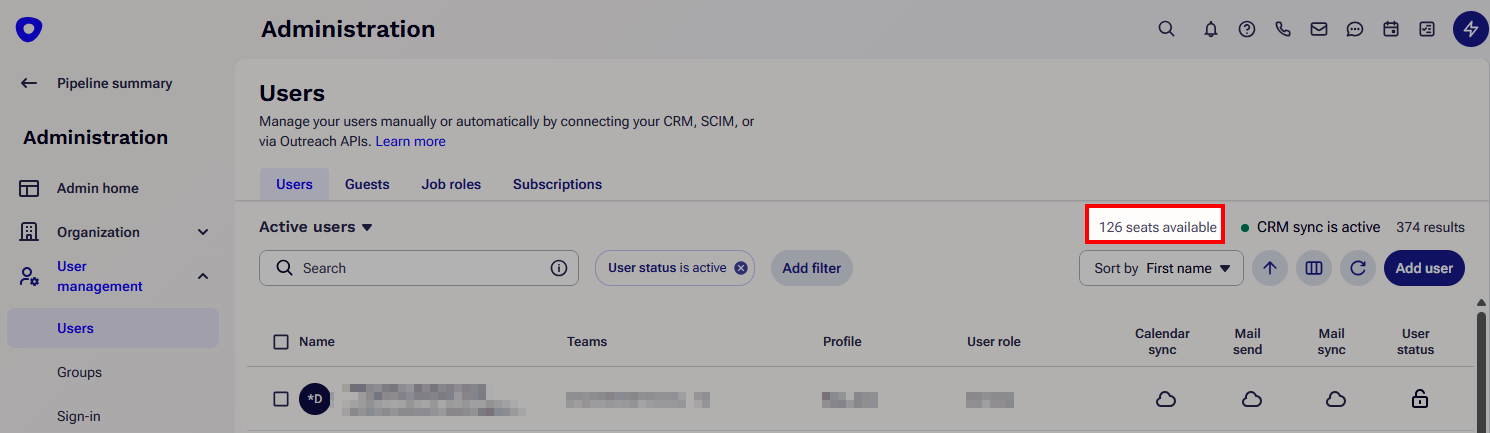
To see how many how many available (unoccupied) seats you have in your Outreach instance:
- Access the Outreach Platform.
- Click Administration > User Management > Users.
- To the upper right of the list, review the number of available seats.
Locking (Deactivating) and Unlocking (Activating) a User Seat in Outreach
This procedure will either restrict (Lock) or allow (Unlock) access to the Outreach platform for the configured user(s).
- Access the Outreach Platform.
- Click Administration > User Management > Users.
- Filter by User status and/or use sorting to find the applicable User(s).
Note: Locked User seats are identified by a padlock icon.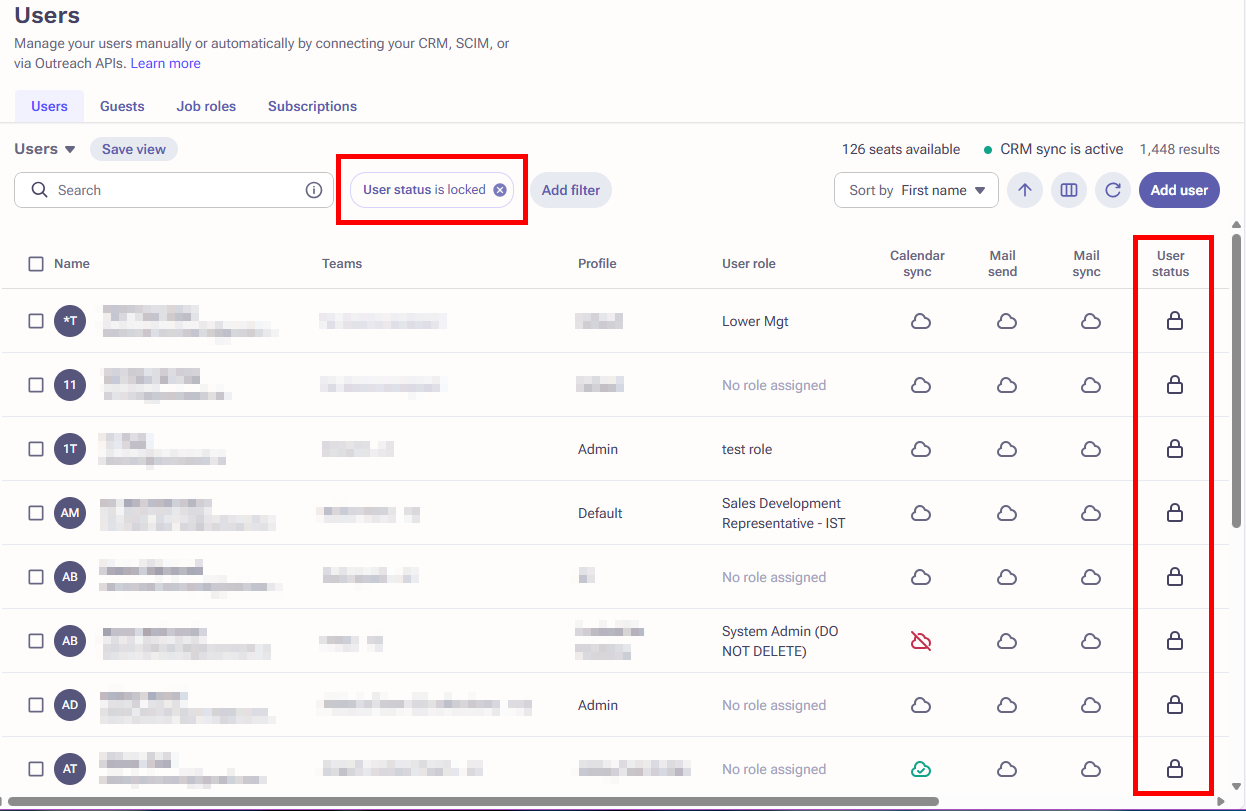
- Select the applicable action: Lock or Unlock.
- Click Confirm. The User seat will be modified as configured.
Note: After you lock a seat, refresh the page in your browser to see your available seats updated in the top right.
Removing User Licenses (Seats)
To request to remove a seat, please reach out to your account representative, who should be able to review your contract and discuss this with you further. If you don't know who your assigned account representative is, please contact Outreach Support for further assistance.
Adding More User Licenses (Seats)
Adding more seats to your Outreach instance can be requested through our web submission process. Currently, Outreach Admins can request up to 9 Standard Outreach User Seats. To add more or for further information, contact your Outreach account representative.
Once you have seats available, you can add users to them.
Additional Information
Was this article helpful?
That’s Great!
Thank you for your feedback
Sorry! We couldn't be helpful
Thank you for your feedback
Feedback sent
We appreciate your effort and will try to fix the article