Objective
Configure User Profile settings to turn access to Outreach Technical Support via Live chat (aka Messaging) and Live voice (phone) from within the Outreach application on or off. This is useful for organizations that prefer that certain users do not engage our live support team directly and instead work via internal company channels first.
Applies To
- Outreach Admins
- Outreach Support
Before You Begin
- Access to Support contact options is managed at the Profile level. Ensure that the users for whom you want to enable/disable these options have an appropriately configured Profile.
- While live chat support is provided to all customers, live voice support is available to customers on the Enterprise Support Plan. (Learn more about Outreach Support Plans here.)
- These profile options do not impact individual Outreach users' ability to access the Outreach Support Portal website or open a web ticket with Outreach Support.
Procedure
- Log in to Outreach as an Admin.
- Click Administration > User Management.
- Navigate to Access Control, then select the appropriate profile.
- Navigate to the Support section.
- Under Choose which support features this profile can access, toggle the access (On/Off) that a user with this Profile in your org will have to Outreach Support.
- Live chat support
- Live voice support
- Click Save.

Support Access Options in Detail
How you manage Support access will dictate what users with a given Profile see in the Outreach web application Resource center dropdown.

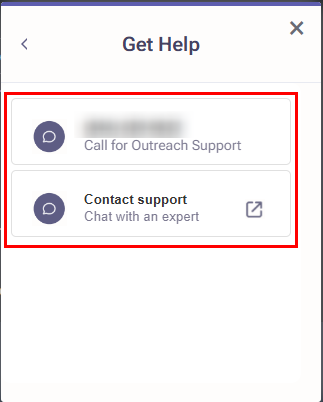
You can configure profiles such that users can:
- access both Live chat support and Live voice support (if available on your support plan) - In the Resource center dropdown in the Outreach web application, Users can click Get help to access the Support Widget and see both options to Start a Conversation and Start a Call.
- access Live chat support, but not Live voice support - In the Resource center dropdown in the Outreach web application, Users can click Get help to access the Support Widget and see only the option to Start a Conversation.
- be restricted from accessing both Live chat support and Live voice support - In the Resource center dropdown in the Outreach web application, Users will not have an option to open the Support Widget (i.e., the Get help button).
You cannot enable Profiles with Live voice support but not Live chat support, as the latter controls access to the Support Widget itself via the Get help button.
Additional Information
Outreach Support Chat: Conversations in the Outreach Support Widget
Calling Outreach Technical Support (Enterprise Support Plan)
Was this article helpful?
That’s Great!
Thank you for your feedback
Sorry! We couldn't be helpful
Thank you for your feedback
Feedback sent
We appreciate your effort and will try to fix the article