Objective
Personalize LinkedIn message steps using AI-generated content. The AI Personalization in LinkedIn Steps feature enables sellers to deliver tailored, context-rich LinkedIn messages at scale by leveraging buyer and seller data, prebuilt templates, and Gen AI-generated personalization.
Applies To
- Outreach Users
- Outreach Admins
- Content creators building personalization content
- Outreach Amplify package
Before You Begin
- This feature is available with the Outreach Amplify package.
- AI personalization must be manually copied and pasted into LinkedIn messages during execution due to platform limitations.
- Personalization blocks used for LinkedIn should be created separately from email blocks due to tone and formatting differences.
- If required data is missing, unresolved variables (e.g.,
{{industry}}) may appear and should be reviewed before sending.
Overview
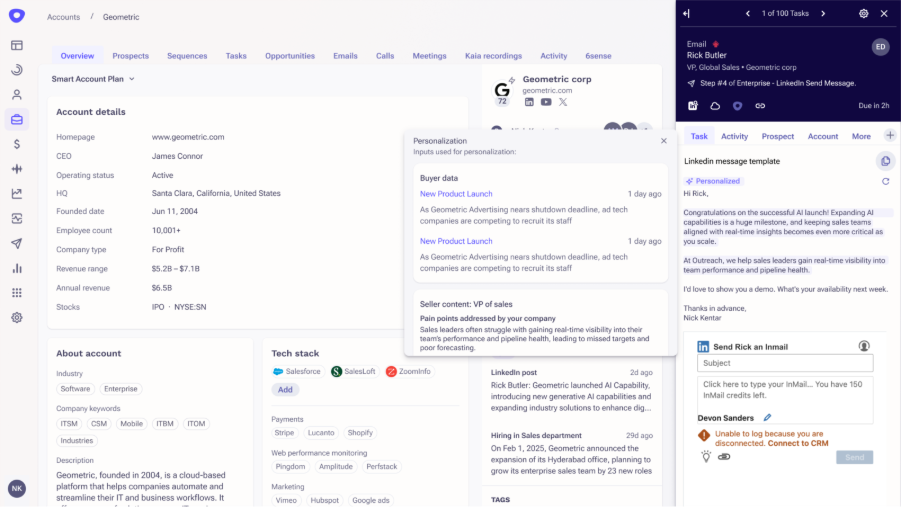
The AI Personalization in LinkedIn Steps feature brings Outreach’s Gen AI-powered personalization capabilities to LinkedIn messages. Sellers can now use personalization blocks—containing predefined AI prompts and real-time buyer signals—to generate tailored content that can be quickly reviewed and shared via LinkedIn.
How it works:
-
Create a Personalization Block
- Go to: Content > AI Content > Personalization, or access it directly from a sequence step.
- Define the title, AI instructions, buyer/seller data inputs, and variables.
- Use a LinkedIn-appropriate tone (e.g., informal, conversational) and preview output for specific prospects using the Preview Playground.
-
Add to a LinkedIn Step
- In a sequence, add a LinkedIn: Send message step.
- Select a personalization block or a prebuilt template with personalization included.
- During task execution, the rep will see:
- a non-editable preview of the message in the Task Note
- a personalization paragraph based on selected data
- the option to edit or copy the message before sending
-
Personalization Handling
- Variables (e.g.,
{{first_name}}) are resolved using Outreach data. - If any variables are missing, they will remain in {{...}} form unless the AI confidently fills them.
- A badge will indicate any unresolved variables and allow reps to review the inputs used to generate the content.
- Variables (e.g.,
Best Practices
- Keep messages short, friendly, and tailored to LinkedIn’s tone.
- Use timely signals like funding news, product launches, or job changes to enhance relevance.
- Always preview blocks with real data to ensure accuracy.
FAQs
Can I edit the AI-generated LinkedIn message?
Yes, reps can edit or copy the message before sending it via LinkedIn.
Will the LinkedIn message send automatically?
No. Reps must manually copy and paste the AI-generated message into the LinkedIn message field.
Can I use the same personalization block for email and LinkedIn?
Technically yes, but it’s recommended to create separate blocks optimized for each channel’s tone and length.
Can I preview personalization before using it?
Yes, the Preview Playground allows you to view how personalization appears for selected prospects.
What happens if variables don’t resolve?
Unresolved variables will remain in curly braces (e.g., {{industry}}) and should be reviewed before use. A visual indicator will help reps identify and inspect these cases.
Was this article helpful?
That’s Great!
Thank you for your feedback
Sorry! We couldn't be helpful
Thank you for your feedback
Feedback sent
We appreciate your effort and will try to fix the article