IMPORTANT NOTICE: From June 15 through September 30, 2026, we will begin migrating all remaining users to the personalized homepage and deprecate the legacy 360 homepage experience. Expect to receive more communications throughout this transition. Please contact your account rep or support for more information.
Objective
Turn on the Personalized Homepage Experience in your Outreach org, enabling a homepage tailored to the most relevant information, workflows, and insights for your team.
Applies To
- Outreach Admins
Procedure
- Access Outreach as an Admin.
- From the left bar, navigate to Administration > Organization > Org info.
- On the Organization page, scroll down to the Personalized Homepage Experience section.
- Click the Edit button.
- In the Enable Personalized Homepage Experience pop-up, review the information then click Enable to activate the experience across your org.


Note: Once enabled for the org, and if no default homepage is enforced by Admins, all users will see a welcome message the next time they return to the homepage and be prompted to select one of the homepage templates to start from. Learn more about individual user setup options in the Personalized Homepage Experience Overview.

Assign and Create a Default Homepage
Assign a Homepage Default Layout
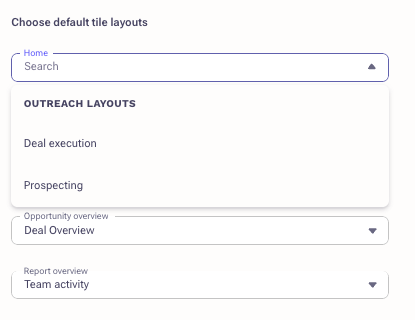
Navigate to Administration > User Management > Access Control to access the settings for selecting a default layout.
Outreach layouts are always available as a selection. Any custom layouts created will be visible in the dropdown upon sharing the layout.
At the Org Level
To set a layout for the entire organization, click Layouts to see the dropdown for Homepage.
At the Profile Level
To set a layout for a specific profile group, select the target profile group and navigate to the Sales intelligence tiles section to see the dropdown for Homepage.
Note: A layout selected at the Profile level will override any default layout set at the org level.
Create a Custom Homepage Layout
To create a custom layout for your organization or a specific team, navigate to the homepage screen after the personalized homepage has been enabled.
Note: If a default tile layout was not set at the org level or for your respective profile level, you will still need to complete the onboarding survey upon return to the homepage.
- Click Manage Layouts. You have the option to create a layout from scratch using the New Layout button, or duplicate an Outreach layout or any other available layout from the dropdown.
- Set a name for the layout then customize the design to your preference. Drag and drop tiles available in the tile library and adjust sizing as needed. See the full list of tile capabilities in the Personalized Homepage Experience Overview.
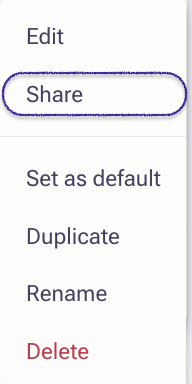
- Save the layout and share it. Make sure to share the layout and set visibility to everyone so the option appears in settings.
Note: Setting a layout as default from the dropdown only changes your personal default homepage view. To set a default layout for the organization or teams, go to settings.
Was this article helpful?
That’s Great!
Thank you for your feedback
Sorry! We couldn't be helpful
Thank you for your feedback
Feedback sent
We appreciate your effort and will try to fix the article