Note: Feature(s) Pending Rollout Features and functionality described on this page are part of our October 2026 release, which is rolling out to eligible customers October 8-October 27, 2026. See our Release Notes here to learn more. |
Objective
Learn how custom reporting layouts let admins and users choose the pre-configured metrics they want to report on and arrange them in the layout of their choosing.
Applies To
- Reporting
- Outreach Admins
- Outreach Users
Before You Begin
- Reporting tiles in custom reporting layouts are limited to Engage-related content. They do not include tiles for Kaia, Forecasting, Deal Management, Admin Health, or other areas of the platform.
- Admins can control the default reporting layout, as well as whether users can create, share, and view other users' layouts.
Overview
Custom reporting layouts let users curate the metrics that matter most to them and view them in one place to streamline decision making.
Users can use either of the two layouts delivered by Outreach (Performance and Team Activity), create a layout from scratch, or clone an existing layout. A preview of the Performance layout is included below:

When creating a new layout, users start with a blank canvas.

Users can then select from the available tiles and add them to the layout. Tiles can be rearranged, resized with snap-to-grid alignment, duplicated, or removed.

After a layout is saved, it appears in the layouts dropdown. Your Layouts lists the layouts you created alongside the layouts delivered by Outreach. Company Layouts lists layouts shared with you by other users in your company.
Users can set any layout as their default reporting layout. The default layout appears when they select the Overview report in the Reports section.
Tile Customization
Users can rename tiles to avoid confusion when a layout contains multiple versions of the same tile with different metric customizations.
To rename a tile:
- Log in to Outreach.
- Open the layout in edit mode.
- Select the three dots icon on the tile.
- Select Rename.
Reporting Tiles
Each tile contains a pre-built set of metrics, charts, and/or tables, each with its own interaction patterns. The sections below describe each tile, its available interactions, and other details.
Call Outcomes
This tile displays total answered calls, not answered calls, and not logged calls, with a stacked bar chart for the same metrics over the selected time range.
- Drill-ins: Select an area of the bar chart to see detailed data for that date by call category. The table lists user name, number of calls (by category), total time spent, and average duration. Select a user to see prospect, account, date and time, duration, and disposition.
- Data refresh: Near-real time.
- Related report: Mirrors the same chart on the Team Activity report.

Email Delivery
When the Delivery states filter is selected, this tile displays total delivered, scheduled, and bounced emails, with a stacked bar chart over the selected time range. When the filter is set to Email origin, it displays in-sequence, one-off, and bulk emails, with a stacked bar chart for the same metrics. Multiple versions of this tile can be added to a single report, and the filter selected in each tile persists.
- Drill-ins: Select an area of the bar chart to see data for that date by email category. The table lists user name and count (by email category). Select a user to see prospect, account, and email message.
- Data refresh: Near-real time.
- Related report: Mirrors the same chart on the Team Activity report.

Email Engagement
This tile displays the percentage rates for email open, reply, opt-out, and click, with a bar chart over the selected time range for the metric selected in the tile. Each metric can be selected.
- Drill-ins: Select an area of the bar chart to see data for that date by email engagement category. The table lists user name and rate (%) by category. Select a user name to see prospect, account, and email message.
- Data refresh: Near-real time.
- Related report: New content. This tile does not mirror an existing chart.

Leaderboard
This tile displays a ranked table of team members by the metric selected in the filter. Available metrics are Calls Made, Emails Delivered, Meetings Booked, Meetings Held, Outbound Calls, and Prospects Added. Each row shows the team member's rank and the value of their activity. The full team list can be paginated. Multiple versions of this tile can be added to a single report, and the filter selected in each tile persists.
- Drill-ins: None.
- Data refresh: Near-real time.
- Related report: New content. This tile does not mirror an existing chart.

Meetings Booked
This tile displays total meetings booked and the meetings booked rate. Depending on the selection, it shows a bar chart (meetings booked) or a line chart (meetings booked rate) over the selected time range.
- Drill-ins: Bar chart: select an area to see meetings booked on that date. The table lists meeting type and total meetings. Select a meeting type to see meeting title, host, date and time, and number of guests. Line chart: select an area to see meeting conversion data on that date. The table lists meeting type and meeting conversion rate. Select a meeting type to see meeting title, host, date and time, and number of guests.
- Data refresh: Near-real time.
- Related report: Mirrors the same chart on the Pipeline Generation report.

Meetings Held
This tile displays total meetings held and the meetings held rate. Depending on the selection, it shows a bar chart (meetings held) or a line chart (meetings held rate) over the selected time range.
- Drill-ins: Bar chart: select an area to see meetings held on that date. The table lists meeting type and total meetings. Select a meeting type to see meeting title, host, date and time, and number of guests. Line chart: select an area to see meeting held rate data on that date. The table lists meeting type and meeting held rate. Select a meeting type to see meeting title, host, date and time, number of guests, and meeting status.
- Data refresh: Near-real time.
- Related report: Mirrors the same chart on the Pipeline Generation report.

User Overview
This tile displays total prospects added, active prospects, outbound calls, delivered emails, overdue tasks, and detailed activities for each team member. The table can be paginated to see the full team list and sorted by column header. Columns are customizable, and the table can be exported. Multiple versions of this tile can be added to a single report.
This tile also includes the following additional metrics:
- Active accounts owned
- Open rate
- Reply rate
- Click rate
- Unsubscribe rate
- In-sequence rate
- In-sequence emails
- One-off rate
- One-off emails
- Bulk rate
- Bulk emails
- Cumulative meetings booked
- Meetings conversion rate
- Meetings held
- Meetings held rate
- Correct connect rate
- Drill-ins: None.
- Data refresh: Near-real time.
- Related report: Mirrors and expands upon the same chart in the Daily Activity report.

Cumulative Meetings
This tile displays total cumulative meetings, with a line chart over the selected time range.
- Drill-ins: Select an area of the line chart to see the total number of meetings by meeting type for that date. Select a meeting type to see meeting title, host, date and time, and number of guests.
- Data refresh: Near-real time.
- Related report: Mirrors the same chart on the Pipeline Generation report.

Cumulative Calls
This tile displays cumulative outbound calls, with a line chart over the selected time range.
- Drill-ins: Select an area of the line chart to see total outbound calls by user for that date, including user name, total outbound calls, connected rate, total time spent, and average duration. Select a user name to see prospect name, date and time, duration, and disposition.
- Data refresh: Near-real time.
- Related report: Mirrors the same chart on the Pipeline Generation report.

Correct Connects
This tile displays correct connect rates, with a line chart over the selected time range.
- Drill-ins: Select an area of the line chart to see the correct connect rate by user name for that date. Select a user name to see the prospect's seniority title and correct connect rate. Select a seniority title to see prospect name, associated account, date and time, duration, and disposition.
- Data refresh: Near-real time.
- Related report: Mirrors the same chart on the Pipeline Generation report and adds drill-ins.

Email Sentiment
This tile displays total email replies and the percentage of replies classified as positive, objection, unsubscribe request, referral request, and other (replies that could not be classified). A stacked bar chart shows all metrics over the selected time range. When you select a metric, the chart updates to show that metric broken out by sentiment.
- Drill-ins: Select an area of the bar chart to see total replies for that date and sentiment, including user name and count of email replies by sentiment. Select a user name to see prospect name, associated account, and email message. Select the prospect to see the email message content.
- Data refresh: Every 24 hours.
- Related report: Mirrors the same chart on the Team Performance report.

Prospects Contacted
This tile displays prospects contacted by seniority (C-level, Director, VP, Individual contributor, Manager, Uncategorized, and Other), with a bar chart for the same metrics over the selected time range.
- Drill-ins: Select a seniority level in the bar chart to see a list of prospects contacted, including associated account, sequencer, and sequence used.
- Data refresh: Every 24 hours.

Best Time to Call
This tile displays a heatmap of all outbound calls by day and time over the selected time range. The color gradient shows calling activity relative to other days and times. Time zones are localized to the person viewing the report.
- Drill-ins: None.
- Data refresh: Every 24 hours.
- Related report: Mirrors the same chart on the Team Performance calls report when filtered to outbound calls only.

Team Overview
This tile displays total prospects added, active prospects, outbound calls, emails delivered, overdue tasks, and detailed activities for each team. The table can be paginated to see the complete list of teams and sorted by column header. Columns are customizable, as in the User Overview tile.
- Drill-ins: None.
- Data refresh: Near-real time.
- Related report: Mirrors and expands upon the same chart in the Team Activity report.

Account Overview
This tile displays total prospects added, active prospects, outbound calls, emails delivered, overdue tasks, and detailed activities for each account. The table can be paginated to see the complete list of accounts and sorted by column header. Columns are customizable, as in the User Overview tile.
- Drill-ins: None.
- Data refresh: Near-real time.
- Related report: Mirrors and expands upon the same chart in the Team Performance report.

Connected Calls
This tile displays total and connected calls, with a bar chart for connected calls over the selected time range.
- Drill-ins: Select an area of the bar chart to see total or connected calls by user for that date, including user name, total calls, answered rate, total time spent, and average duration. Select a user name to see prospect name, associated account, date and time, duration, and disposition.
- Data refresh: Near-real time.

Team Activity Overview
This tile displays summary activity metrics for each team member, grouped into tabs by activity type: Summary, Tasks & activity, Calls, and Emails.
- Drill-ins: None.
- Data refresh: Near-real time.
- Related report: Mirrors the deprecated Team Activity report.
KPI Tiles
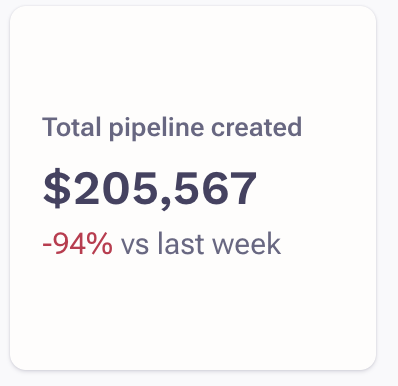
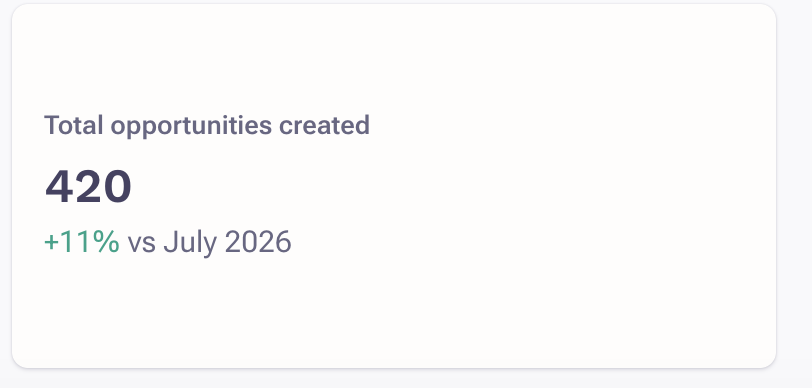
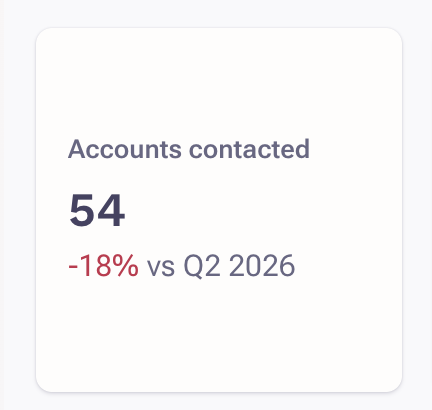
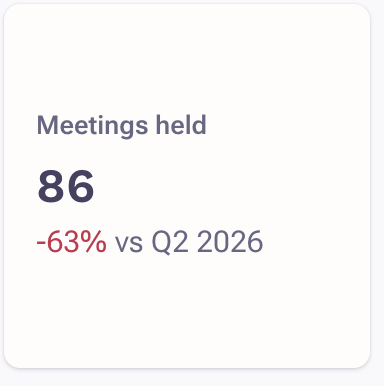
KPI tiles show core seller metrics in one place. Eligible tiles include a period-over-period comparison, displayed as a delta percentage and an indicator versus the prior week, month, or quarter. Comparisons apply to weekly, monthly, and quarterly time periods only.
KPI tile data is near-real time, and KPI tiles do not have drill-ins. The sections below describe each KPI tile.
Total Pipeline Created
This tile displays the sum (amount) generated from opportunities created and associated with the given team.
Total Opportunities Created
This tile displays the total number of opportunities created in a given time period.
Accounts Contacted
This tile displays the total number of unique accounts contacted by email, call, meeting (inbound or outbound), or completed task.
Meetings Held
This tile displays the total number of meetings that took place in a given time period and were not marked as 'deleted', canceled, or no show.
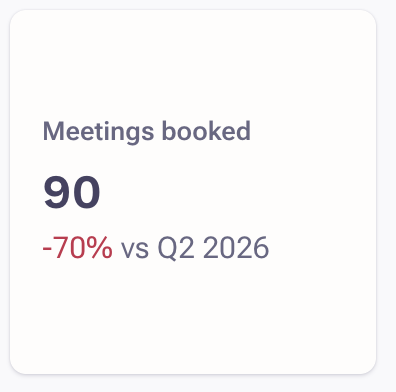
Meetings Booked
This tile displays the total number of calendar invites sent to at least one external guest, regardless of whether the invite was accepted.
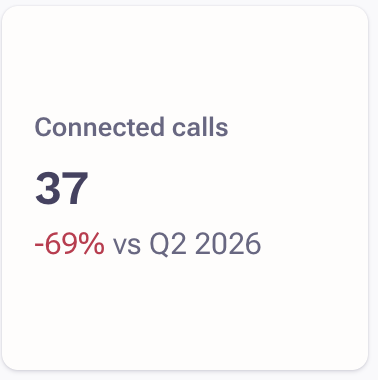
Connected Calls
This tile displays the count of calls that were picked up or went to voicemail (did not end early).
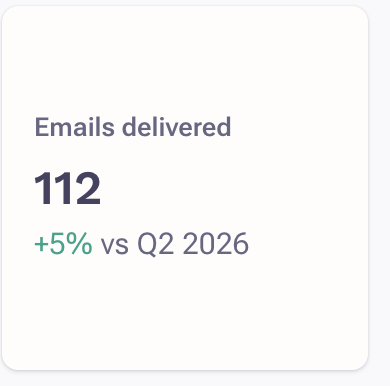
Emails Delivered
This tile displays the total number of emails delivered to prospects.
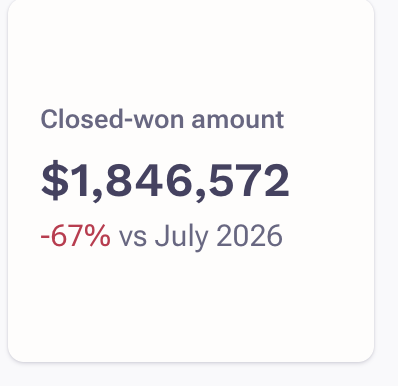
Closed-Won Amount
This tile displays the sum (amount) from closed-won opportunities associated with the given team.
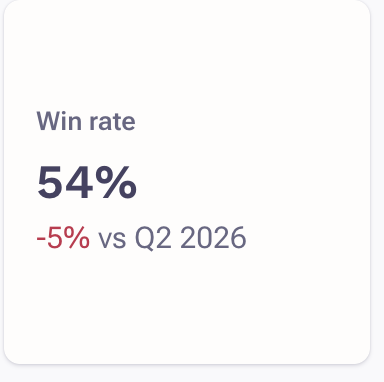
Win-Rate
This tile displays the ratio of closed-won opportunities to total closed opportunities associated with the given team (%).
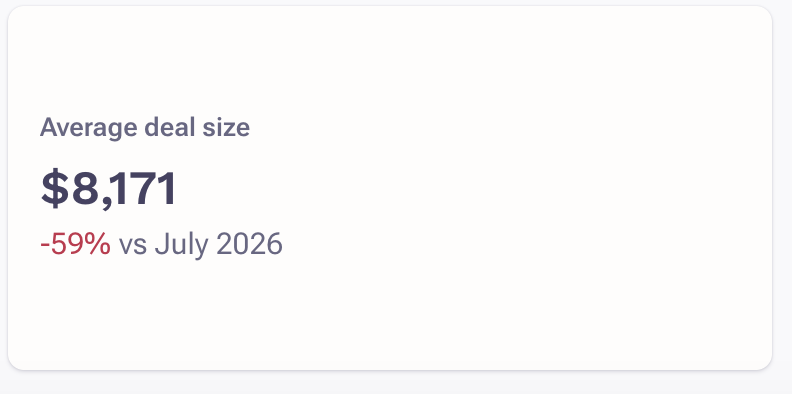
Average Deal Size
This tile displays the average amount ($) of closed-won revenue over a period.
Report Level Filters
Custom report layouts have four delivered filters, described below, that apply to all of the data in the available tiles. Tile-specific filters are described in the tile sections above.
| Filter | Description |
|---|---|
| Date Range | Filters all data in the report's tiles to one of the following ranges:
|
| Teams | Filters tile data to the selected teams. |
| Users | Filters tile data to the selected users. |
| Hide Locked Users | Excludes locked users from user results when enabled. |
| Set as default | Saves the current Teams, Users, and Hide Locked Users selections as the default for future visits. |
Administration
Admins can control this feature in two places.
Organization Default Layout
Under Users & Permissions > Layouts, admins can select the reporting layout that displays as the standard for their organization's Report Overview section.

Profile-Level Controls
Under Profiles > Sales intelligence tiles, admins can configure controls at the profile level. These controls let admins:
- Choose which intelligence tile layouts a profile can view: only the layouts owned by the user, or layouts owned by anyone.
- Set a profile-level default layout, like the organization-level setting above.
- Choose whether users in the profile can create new tile layouts and share the layouts they create.
By default, users can view only the private layouts they own, but anyone can create new tile layouts and share the layouts they create.
Note: These controls apply to all sales intelligence tiles, not just reporting.

Additional Information
Frequently Asked Questions
How can I keep the Company Layouts section from becoming overpopulated with user layouts?
Use profile settings to allow only the users who need it to share the layouts they create or to view private layouts owned by anyone. As a default, Outreach recommends allowing only administrators to view private layouts owned by anyone.
If my users create many layouts, is there a mass delete capability?
Not at this time.
Does team-based governance for reporting apply to custom reporting layouts?
Yes.
Can I bring other sales intelligence tiles, including those from the marketplace, into custom reporting layouts?
Not at this time.
Are the reporting tiles also available on the marketplace, or can they be surfaced in other locations in Outreach?
Not at this time.
Can I set separate controls for viewing, creating, and sharing reporting layouts versus my other sales intelligence tiles?
Not at this time.
There's some overlap between these tiles and other reports like Team Activity and Daily Activity. Which one should I use?
If the fields in the User Overview tile meet your needs, it may be the best place to view this information, and you benefit from the flexibility of custom reporting layouts. The Team Activity report has additional fields not supported by the User Overview table. If you need those fields, that report may remain the best place to view that data.
Outreach plans to continue investing in custom reporting layouts, bringing more fields, filters, drill-ins, and tiles. As the layouts reach full feature parity with reports like Daily Activity and Team Activity, Outreach will aim to consolidate this experience for ease of navigation, and will do so only with an announcement and lead time to prepare.
Was this article helpful?
That’s Great!
Thank you for your feedback
Sorry! We couldn't be helpful
Thank you for your feedback
Feedback sent
We appreciate your effort and will try to fix the article