Objective
Learn to use the Prospect Relationship Map feature, which helps sales reps understand who holds power within an account by showing stakeholders and how they're connected, making it easier to influence the buying process.
Applies To
- Outreach Users
Before You Begin
- Clicking the question mark at bottom right of the map will populate a keyboard and shortcuts guide.
Overview
The Prospect Relationship Map helps you identify key stakeholders, decision-makers, and influencers within your prospects' organizations. It can assist you in developing targeted strategies and building stronger relationships with your prospects.

Additionally, the Prospect Relationship map can be used along with Outreach's Smart Account Plan functionality.
Procedures
Access the Map and Add Prospects
- In the Outreach left nav, click Accounts, then find and click on an account name from the list to open it.
- Ensure the Smart Account Plan layout is enabled. (Learn more here.)
- Near the top of the page, click to open the Prospects tab. In the default list view, all prospects linked to the Account are displayed.
- In the upper left corner, click the Map sub-tab (next to List) to toggle to the Relationship Map view. From here, you can create and customize the relationship map from a blank slate.
- Click +Add Prospect to add prospects to the map. The Account prospects side panel opens.
- Add prospects one of two ways:
- Drag a prospect from the side panel and drop it onto the board or over an existing prospect card to set up relationships or influences.
- Alternatively, in the side panel, first click on a prospect, then configure the prospect’s Sentiment, Relationship with other stakeholders, and their influence on each other. Then click “Add to board” to finish.
- Drag a prospect from the side panel and drop it onto the board or over an existing prospect card to set up relationships or influences.
- Continue to add prospects to the map until all key stakeholder relationships are mapped out, ensuring comprehensive coverage of the account's key stakeholders.

Manage the Map
- As needed, use the zoom controls in the bottom left of the page. You can also click, hold, and drag any open area on the map to move it around.
- To take further actions on prospects:
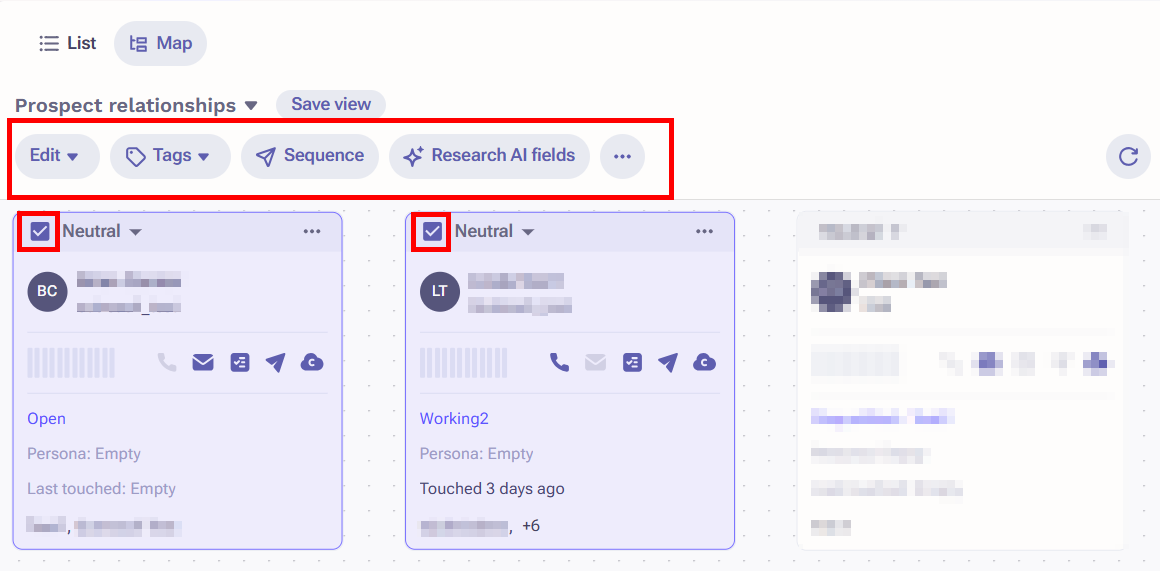
- Hover over a tile in the map and click the checkbox in the corner. (Multiple prospects can be selected.)
- Leverage the options that appear above the map to take actions as needed. (E.g., Edit, add Tags, place in Sequence, Research AI fields, etc.)
- Optionally apply filters by clicking Add filter above the map. The following filters are available:
- Department
- Opportunity
- Product line (extensible)
- To save a configuration as a Smart View, click Save view.
Using the Map in Your Smart Account Plan
You can opt to include the Relationship Map as a tile on the Smart Account Plan, providing easy access for an AE/SDR to reference during interactions.
Manage, view, or adjust the Prospect Relationship Map within the tile on the Smart Account Plan, allowing the rep to continuously update and refine their understanding of the account's dynamics.

Was this article helpful?
That’s Great!
Thank you for your feedback
Sorry! We couldn't be helpful
Thank you for your feedback
Feedback sent
We appreciate your effort and will try to fix the article