Objective
The purpose of this article is to provide information to Outreach Users regarding navigating the 360 view.
Applies To
- Outreach Users
Procedure
The 360 Dashboard is the daily command center that guides you through your day to complete key sales activities. The charts and metrics at the top immediately let you know where you’re at for the week and indicate the upcoming tasks you have today.

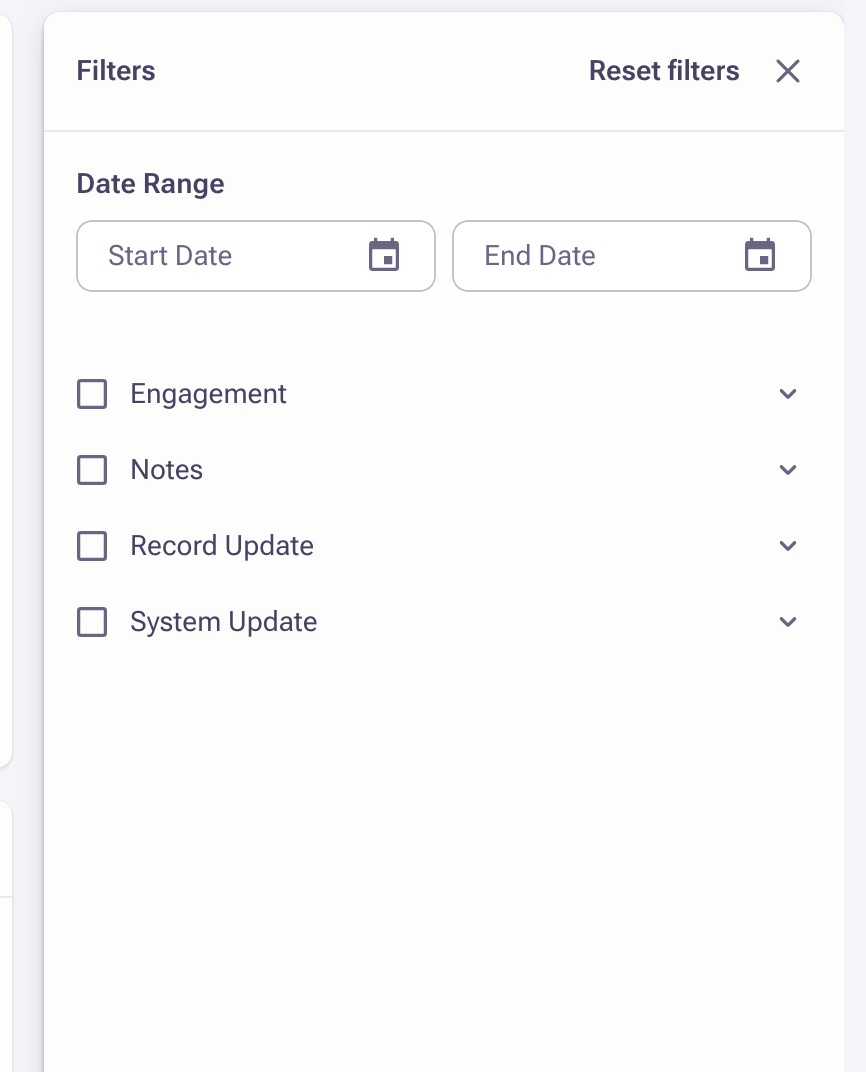
On the right side, you see a live activity feed with in-the-moment updates of email opens, replies, and clicks of the prospects you own. If you’d like to filter this information, you can by date range or event type.

At the bottom, you’ll see a list of your due tasks. This is your command center, a fast and efficient way to work through tasks on one screen.

You can sort this list by priority (which is labeled by the sequence step it comes from), by the prospect’s engagement (which is an algorithm Outreach uses to score prospect engagement), or by sequence name.

The engagement score is calculated by the number of opens/clicks/replies from the most recent mailing received by that prospect.
- Open - 1 point
- Click - 2 points
- Reply - 3 points
The prospect/task with the highest engagement score is positioned at the top so users can prioritize their tasks based on prospects who have shown the most interest.
You can also click on the arrow next to “due tasks” to access any of your preset tasks' saved views.
Most sales reps work through tasks that are similar, so we recommend jumping into either emails, calls, or action items. Once you select the tasks you’d like to get going with, click this blue “play” button to jump-start your task workflow.

Was this article helpful?
That’s Great!
Thank you for your feedback
Sorry! We couldn't be helpful
Thank you for your feedback
Feedback sent
We appreciate your effort and will try to fix the article