Objective
Set up a single sign-on connection between your Salesforce CRM and your Outreach org (leveraging Salesforce as SAML Identity Provider to access Outreach).
Applies To
- Outreach Admins
- Salesforce
Before You Begin
Requirements
In order to set up Salesforce SSO with Outreach, first ensure you:
- Have Admin privileges in Outreach
- Have Admin privileges in Salesforce
- Enable Salesforce as an Identity Provider
Have a different SSO provider?
This article is specific to connecting Outreach and Salesforce. To connect other SSO applications, see the below:
Need to just update expiring or expired certificates?
- Complete Step 1: Create a certificate in Salesforce of the below procedure to create a net-new certificate.
- Attach the new certificate to the existing connected application: Web App Settings > IdP certificate > the new certificate you created.
- Upload the certificate on the Outreach side (Step 5: Enable SSO inside Outreach settings in the procedure below).
Procedure
Step 1: Create a certificate in Salesforce
- Access the Certificate and Key Management settings page in Salesforce via either of the following:
- Direct link: https://login.salesforce.com/lightning/setup/NavigationMenus/home
- Manually navigate in SFDC: In the top right, click the gear (Settings) icon > Setup, then search for and select Certificate and Key Management.
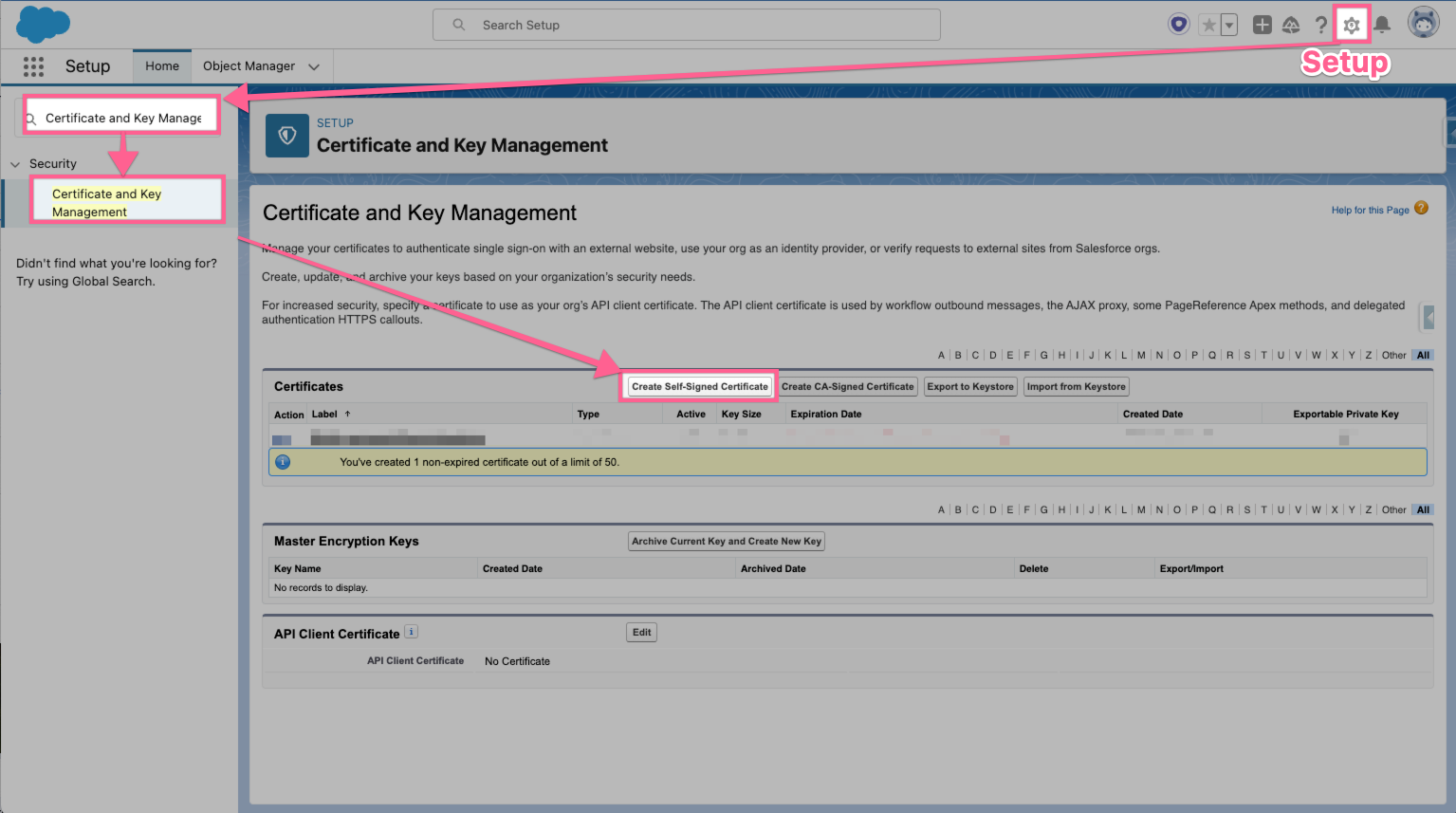
- In the Certificates panel, input the following:
- Label: Outreach_SSO_Cert (or something similar)
- Exportable Private Key: (Check the box.)
-
Key Size: 2048
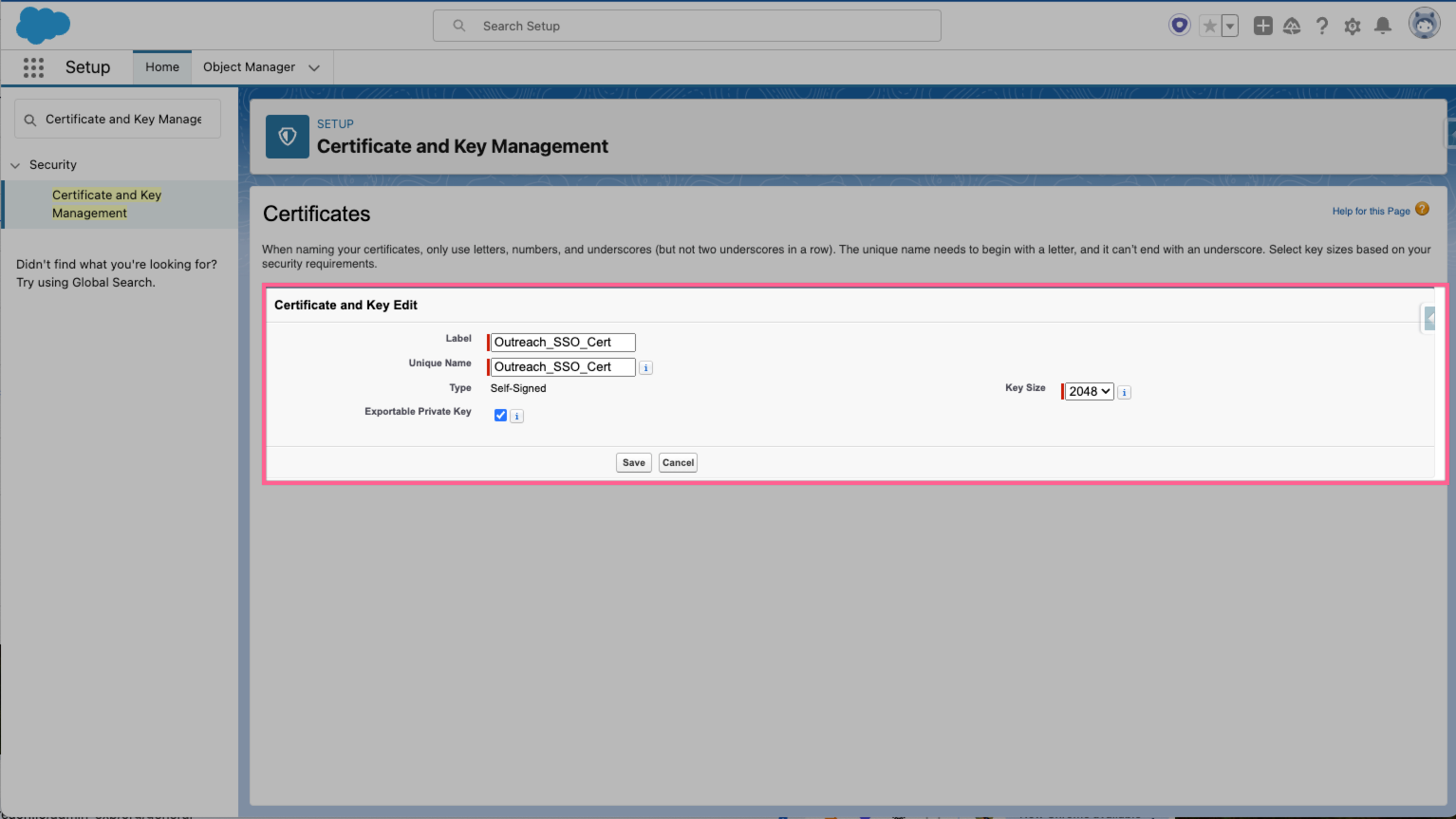
- Click Save.
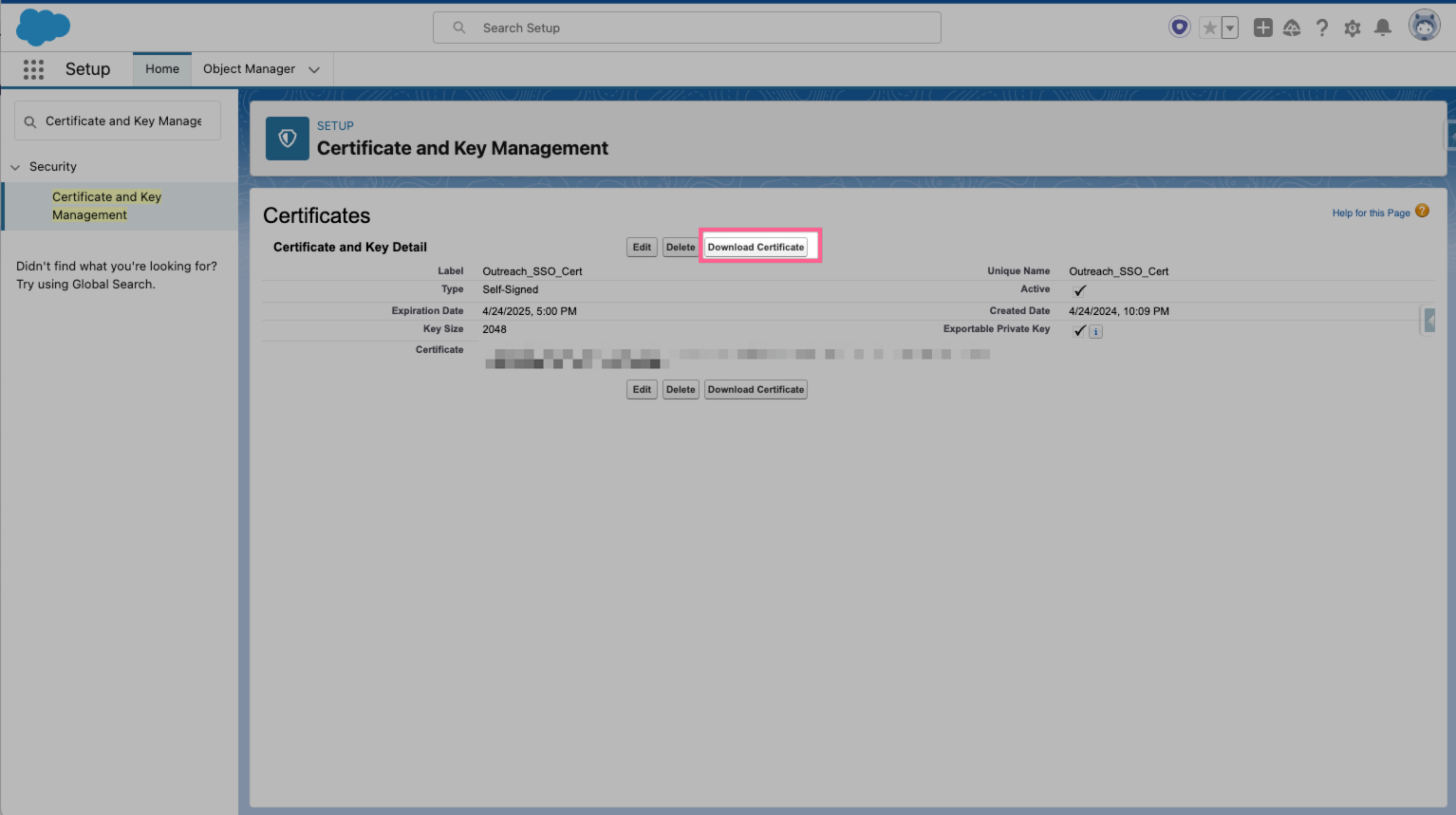
- When the Certificates panel refreshes, click Download Certificate and save it in your device as this will be later required.
Step 2: Create a connected app in Salesforce
- In Salesforce, login utilizing this direct link so you are directed to the App Manager settings or alternatively select the gear icon (top-right) > "Setup" > search for "App Manager" > select it. Finally, select "New Connected App:
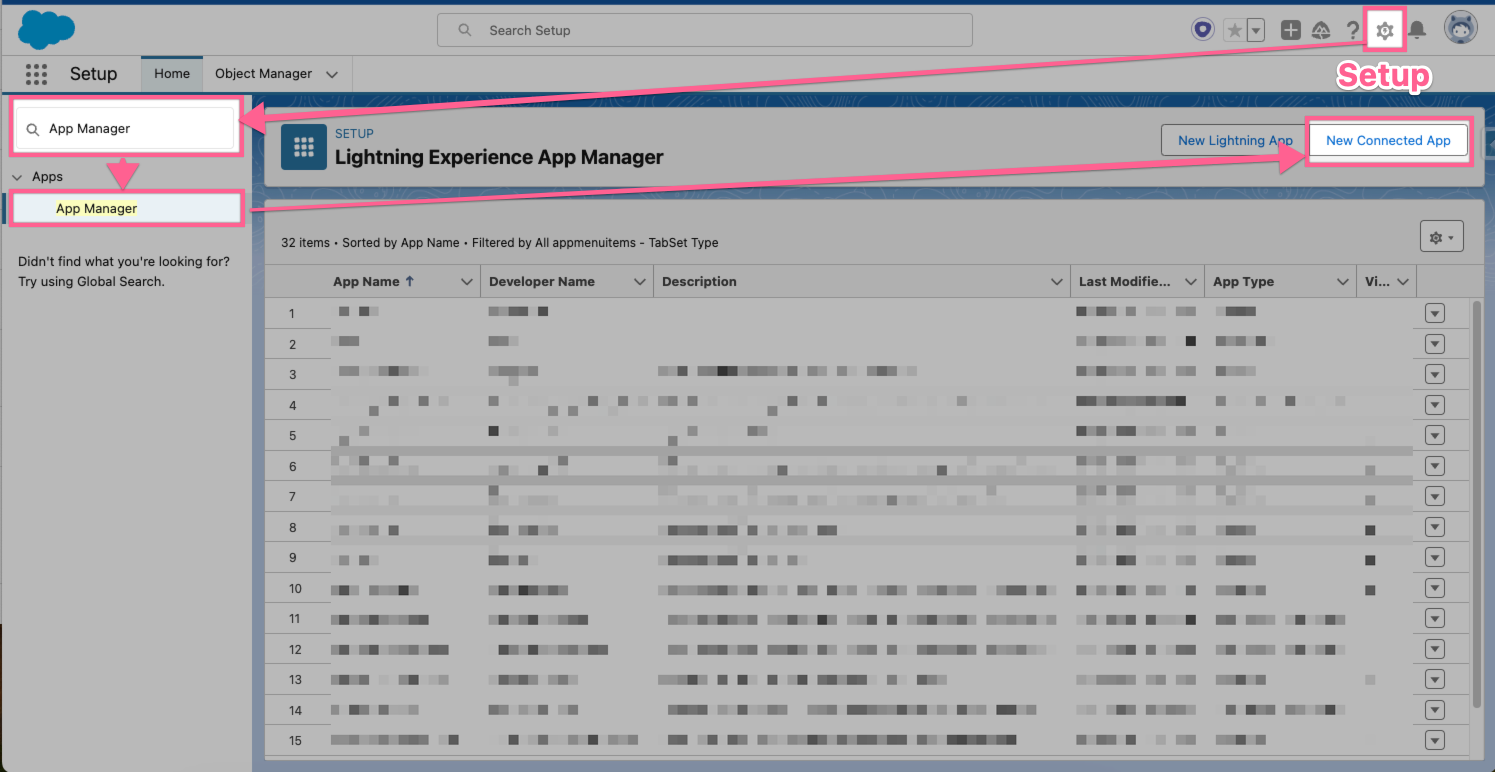
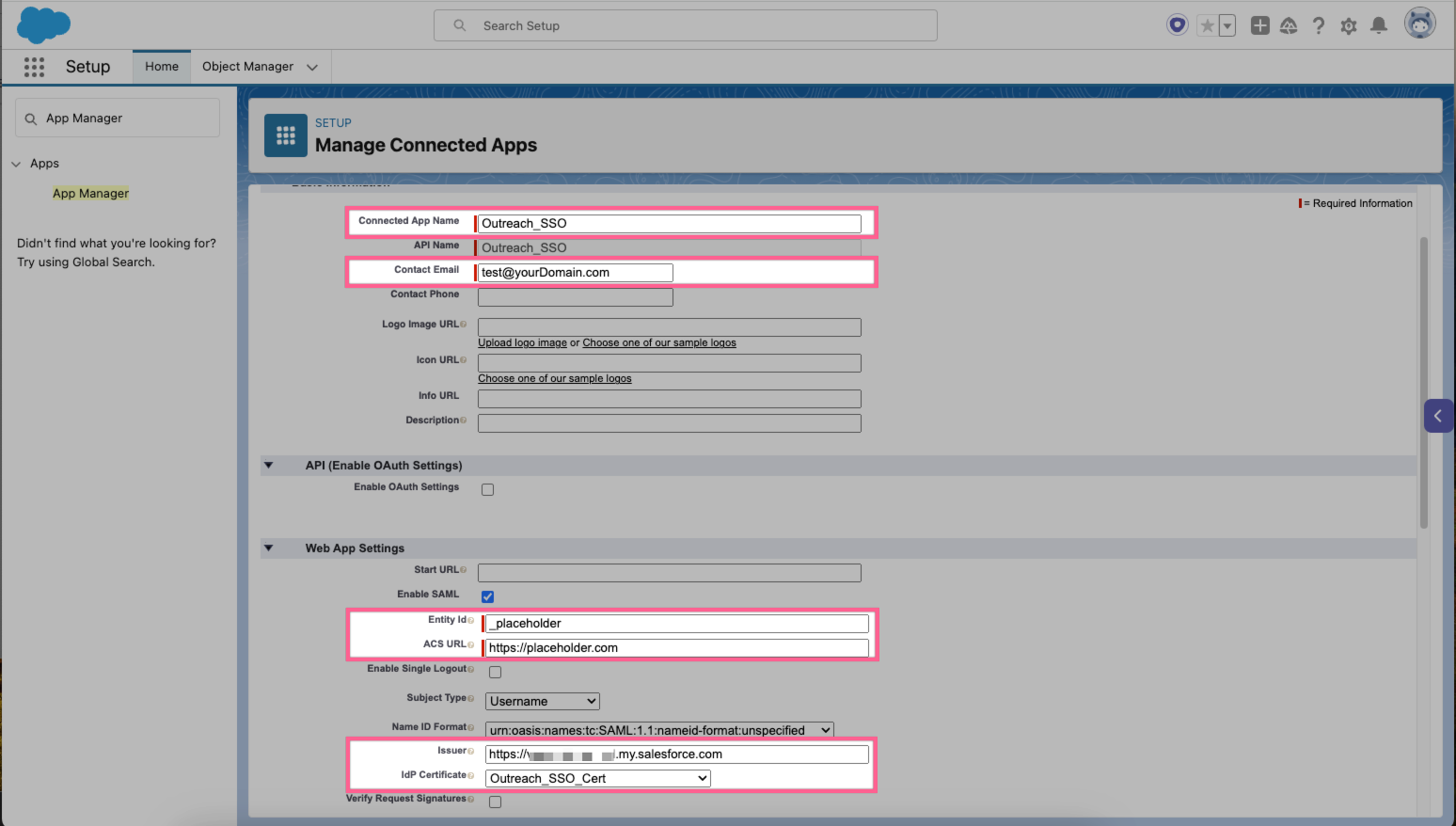
- Within this page, add four fields. Then go all the way down and select "Save".
- Connected App Name: "Outreach_SSO" or similar
- Contact Email: Your email address or a Admin's
- "Enable SAML" must be checked for the below fields to appear
-
Entity ID: _placeholder_
- you will replace this later into the setup
-
ACS URL: https://placeholder.com
- you will replace this later into the setup
- Issuer: https://{your_salesforce_subdomain}.my.salesforce.com
-
IdP Certificate: Select the certificate you created in Step 1. In this guide, we named the certificate "Outreach_SSO_Cert", and thus it is the one selected.
-
Entity ID: _placeholder_
Step 3: Create the Identity Provider inside Outreach accounts
- Click Administration > User management > Sign-in.
- Click Edit.
- On the next page, select “Add Identity Provider”.
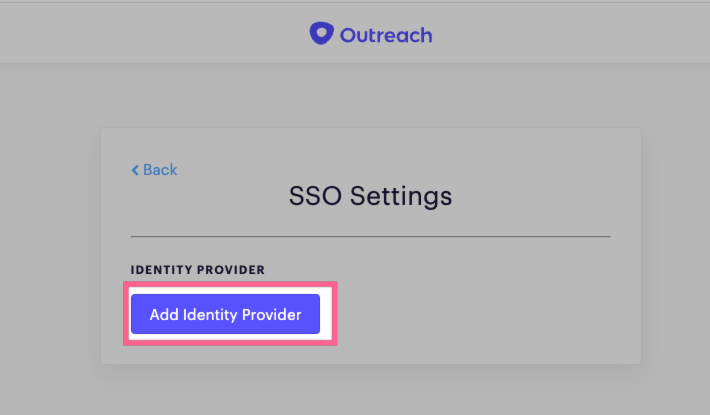
- Add the requested identity provider information as shown below
- Name: This can be "Salesforce_SSO"
- Sign In URL: Exactly as below. Ensure to double check this value.
-
Issuer (Identity Provider Entity ID): Exactly as below. Ensure to double check this value.
-
Certificate: This is the file you downloaded from Step 1.3.
- Choose File and select the downloaded file.
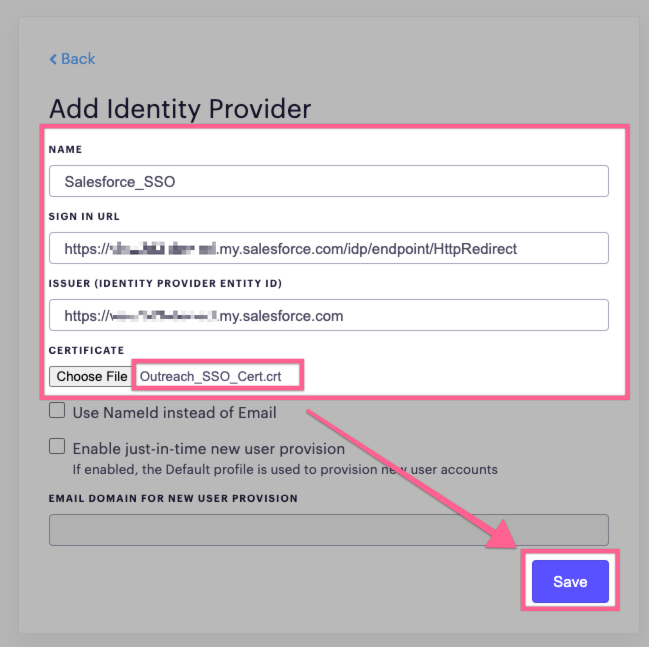 NOTE: The above screenshot contains two advanced settings: "Use NameId Instead of Email" and "Enable just-in-time new user provision". We do NOT recommend checking these options unless the functions of each are understood and needed by your organization. You can read more on these advanced settings in Advanced Settings For Identity Provider (SSO).
- Choose File and select the downloaded file.
- You should be redirected back to "SSO Settings". Within that page, select "Edit"
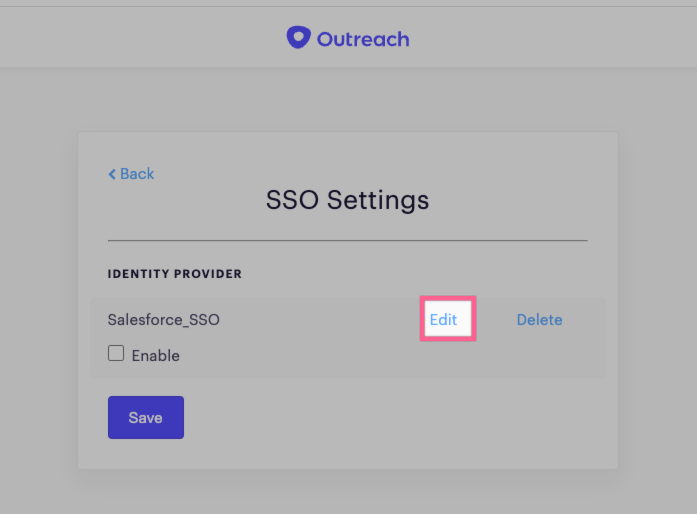
- Now find the “Setup Info” section. There are two important fields you will need to copy later in Step 3 (ideally you should have this tab open as you go through to Step 4)
- Assertion Consumer Service (ACS) URL
- Copy this into a Google Doc or notepad so you may paste this into Salesforce settings on Step 4.
- Service Provider Entity ID / Audience URI
- Copy this into a Google Doc or notepad so you may paste this into Salesforce settings on Step 4.
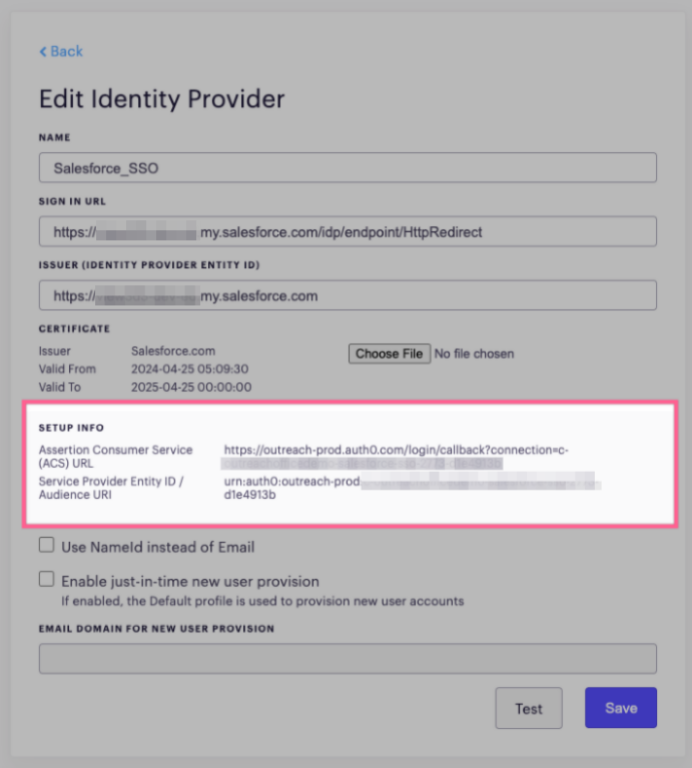
- Assertion Consumer Service (ACS) URL
Step 4: Update the Salesforce App
- Go back to your connected app that was created in Step 2. Login utilizing this direct link so you are directed to the App Manager settings or alternatively select the gear icon (top-right) > "Setup" > search for "App Manager" > select it. Find your connected app, and on the right-side drop-down select "Edit"
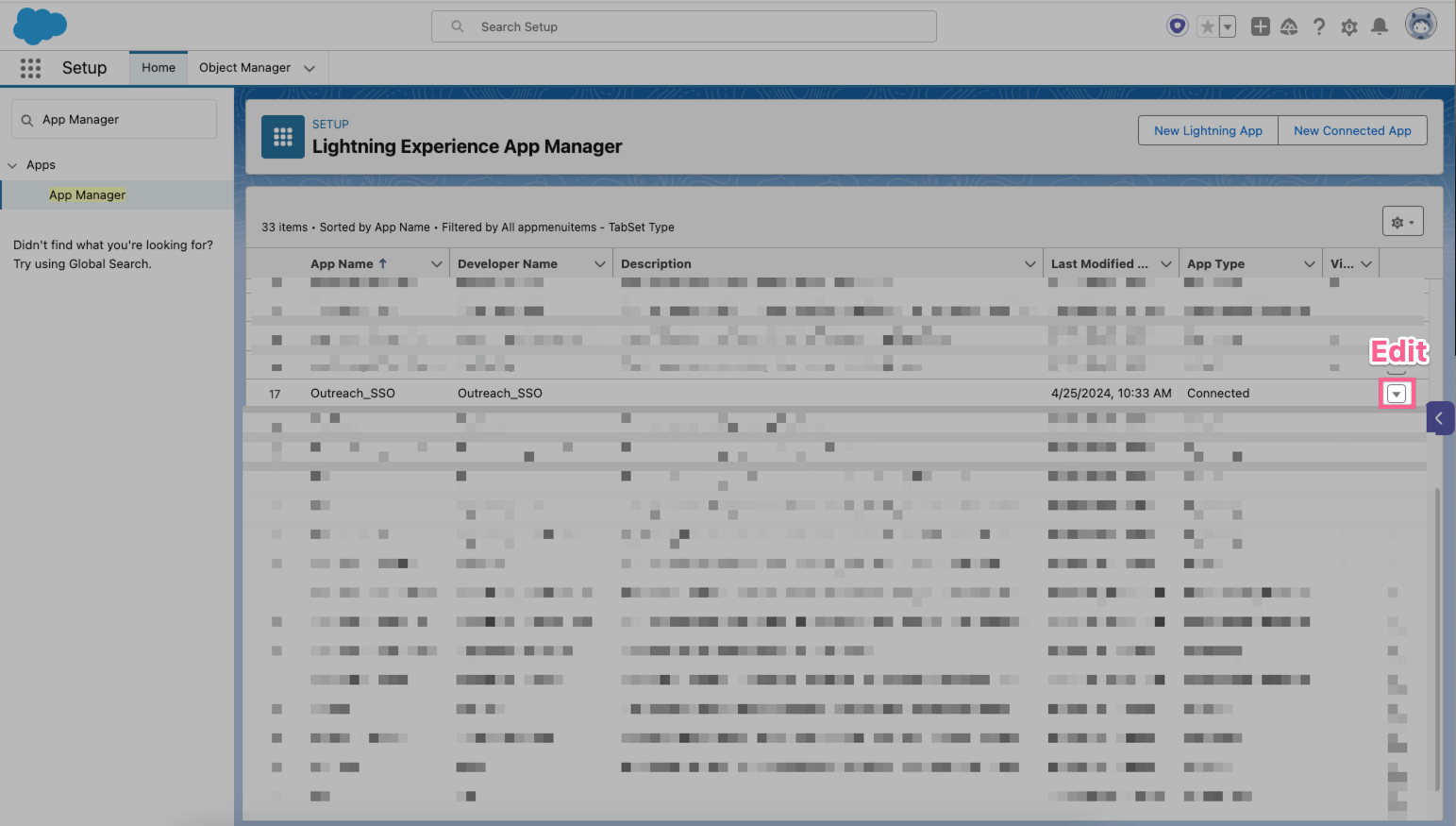
- Add in the values retrieved from Step 3.4 here. These were previously where we placed placeholder values. Select "Save" after.
- Entity Id: Service Provider Entity ID / Audience URI retrieved from Step 3.4
- ACS URL: Assertion Consumer Service (ACS) URL retrieved from Step 3.4
-
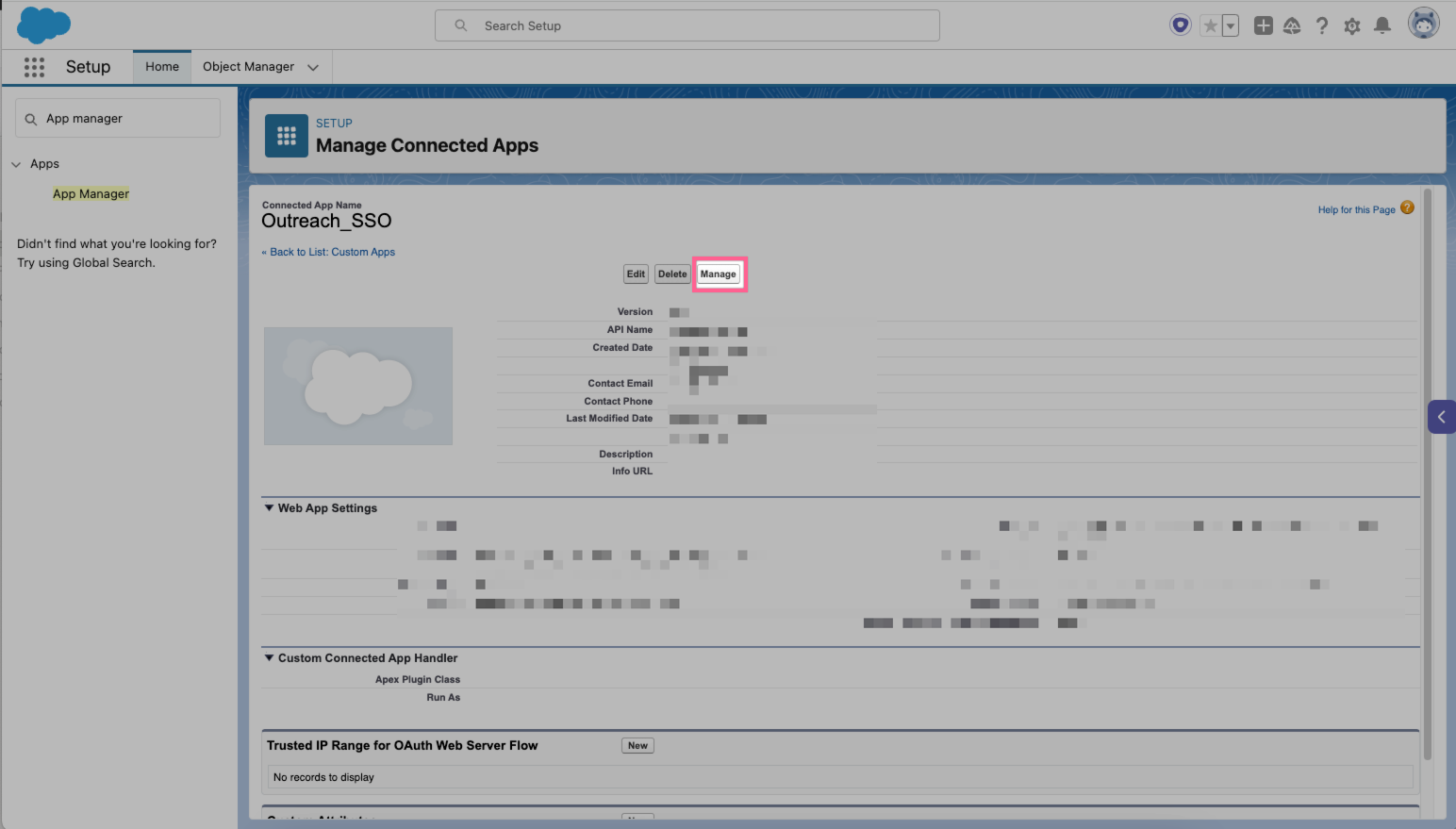
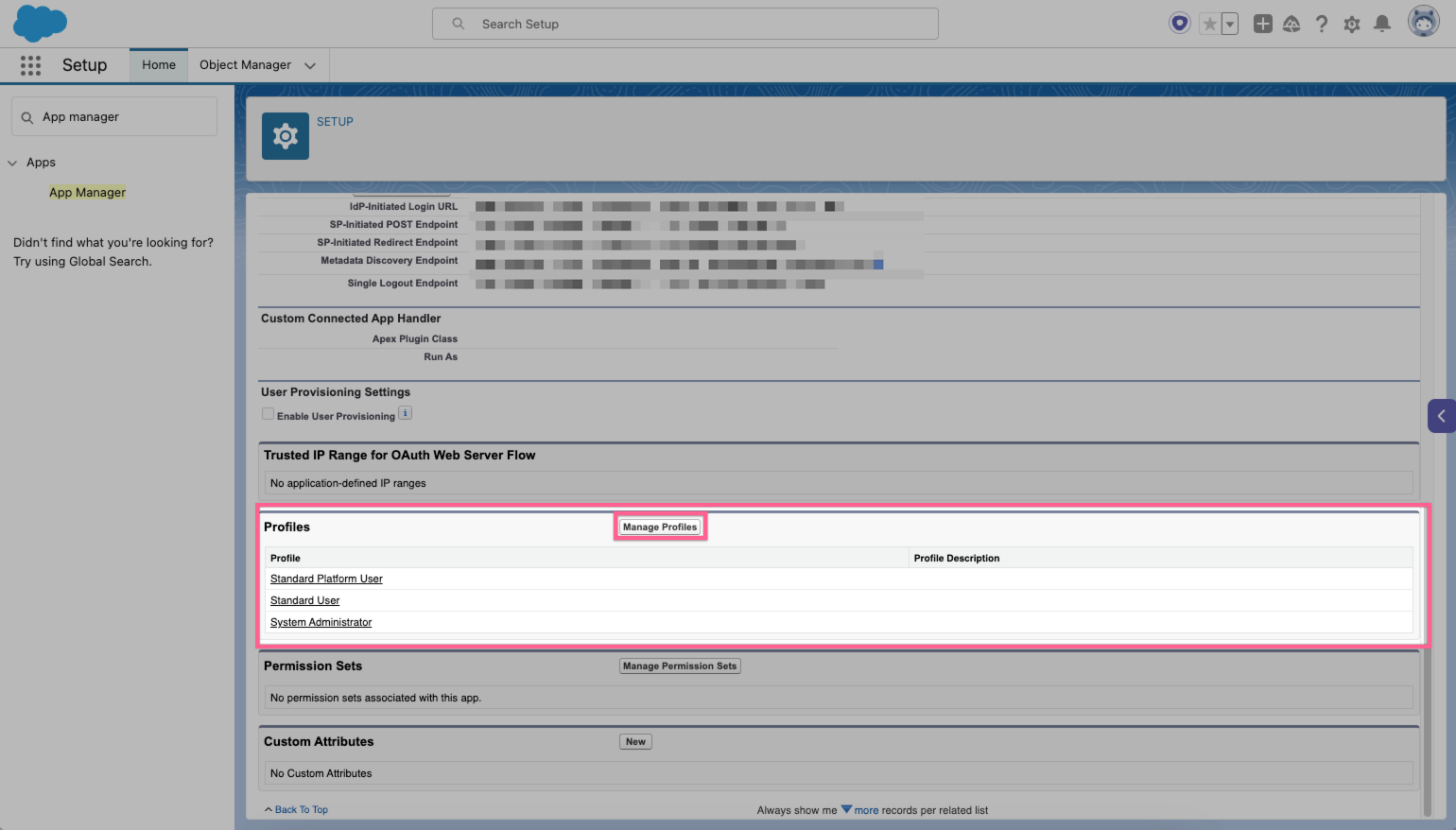
You should be redirected to the connected app overview page. Select "Manage" > On the next page, scroll down and ensure the Outreach users' Salesforce profiles have access to this connected app. If you are a Salesforce Admin, grant yourself access as well as it will be needed for testing in Step 4.
Step 5: Enable SSO inside Outreach settings
- Return to Outreach's SSO settings if you did not not have the settings already opened.
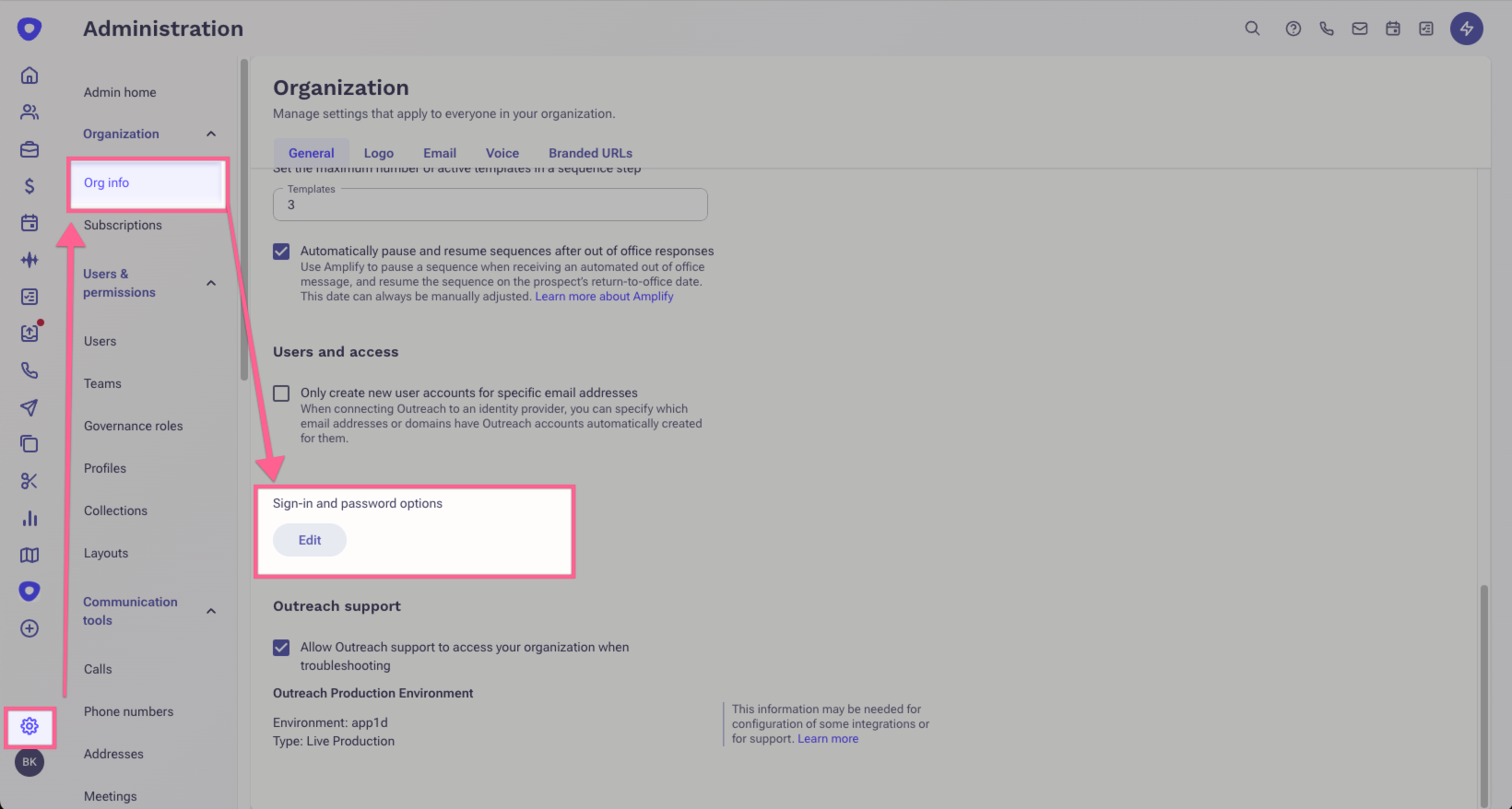
- Select "Single Sign On", then hit "Edit". Here, double check all your settings are properly configured. Please confirm the below values are matching respectively in Outreach or Okta:
- Sign In URL: https://{your_salesforce_subdomain}.my.salesforce.com/idp/endpoint/HttpRedirect
- Issuer (Identity Provider Entity ID): https://{your_salesforce_subdomain}.my.salesforce.com
- Certificate: Confirm it is the same downloaded certificate from (Step 2.3)
- Assertion Consumer Service (ACS) URL: Pasted and saved within Connected App settings (Step 4.2)
-
Service Provider Entity ID / Audience URI: Pasted and saved within Connected App settings (Step 4.2)
-
Once you have confirmed all values are matching, then go back within Outreach's SSO Settings, and select "Enable".
-
Important Note: It is required to enable to test out the setup.
- Your users will not be instantly signed out.
- You should have already assigned yourself to the application in Step 4.3
- You should receive "{"success":true}"
-
In the event of a the failure of Step 5.4, you can go back to this page to uncheck "enable".
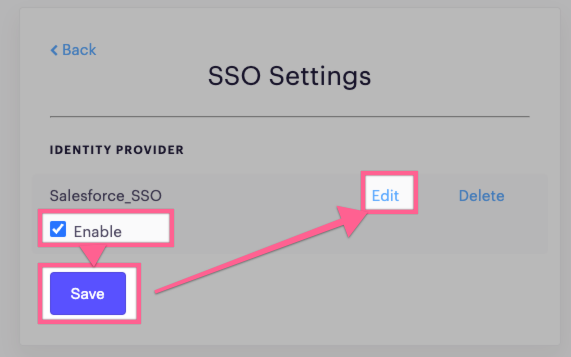
-
Important Note: It is required to enable to test out the setup.
- Select "Test" and a new tab should popup with "{"success":true}". This indicates the SSO connection works and the setup was successful.
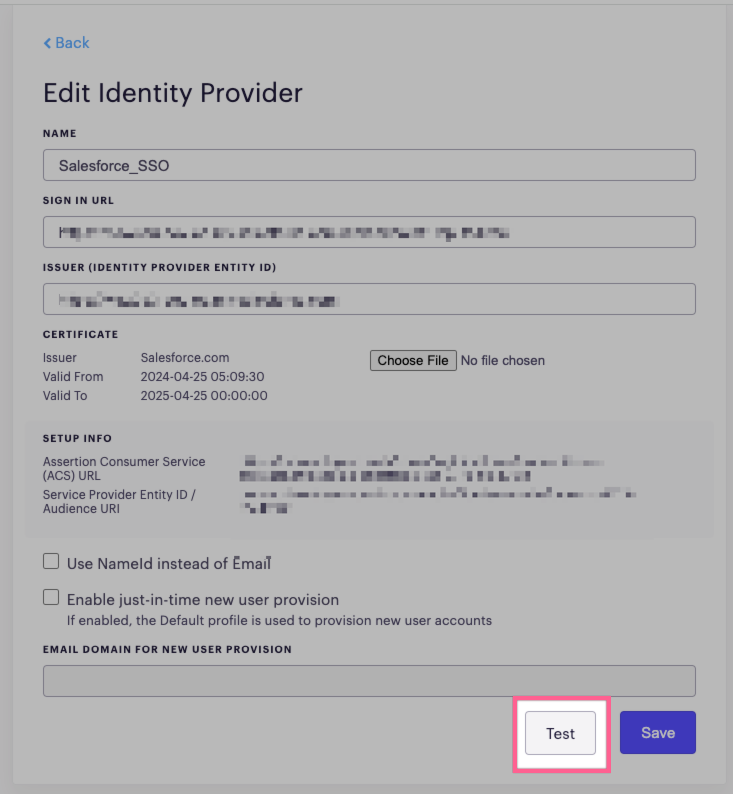

Congrats! SSO is now enabled!
Was this article helpful?
That’s Great!
Thank you for your feedback
Sorry! We couldn't be helpful
Thank you for your feedback
Feedback sent
We appreciate your effort and will try to fix the article