Objective
Learn how to log in to and use the Outreach Support Portal at https://support.outreach.io. This Portal is a one-stop hub for answers and solutions while providing convenient, direct access to the Outreach Support Team and your help request tickets.
For your convenience, general user and admin content on the Outreach Support Portal is available without logging in. However, you must sign in as a customer to contact Support and manage your tickets.
Note: All users in Outreach with an active (unlocked) seat are able to sign in to the Support Portal with their Outreach login – no additional setup, registration, or password is required. It may take up to 2 (two) hours after the creation of a user seat in Outreach before the user’s Support Portal access is available.
Applies To
- Outreach Users
Accessing the Outreach Support Portal
Articles and Search
As the vast majority of knowledge base articles are openly accessible for customer convenience, you can pull up https://support.outreach.io directly in your browser and either search for or manually navigate through our organized repository of guides, solutions, and best practices. You can also ask our helpful chatbot for assistance, or utilize public search engines (Google, Bing, DuckDuckGo, etc.) to get to articles on the Support Portal.
Signing in to Submit and Manage Support Requests
Note: An active (unlocked) Outreach user seat is required to access the Outreach Support Portal to submit and review help request tickets.
From the Outreach Application Resource Center
From within the Outreach application, you can reach the Support Portal by clicking the question mark icon at the top to open the Resource Center. Then click either Knowledge Base (to find a multitude of self-help materials) or Support Portal (to view and manage your help requests). This will redirect you to the Support Portal in a new browser tab/window as logged in.
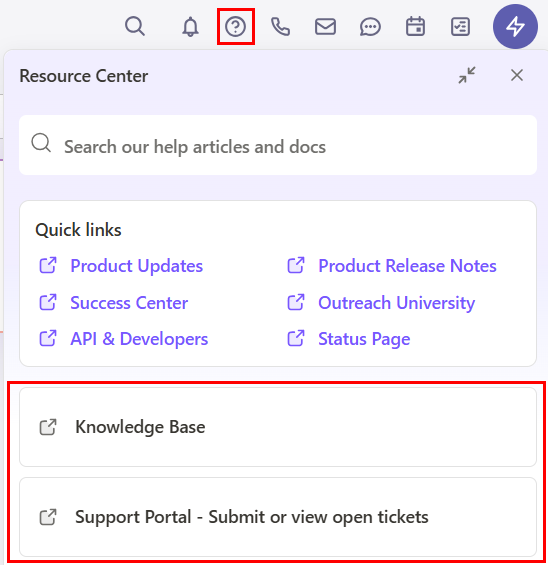
Issues launching the Resource Center?If the Resource Center panel does not load when clicking the Support (?) icon, please try the following:
|
From the Support Portal (this site itself)
From any page in the Support Portal site (https://support.outreach.io), in the upper right, click the Login button.
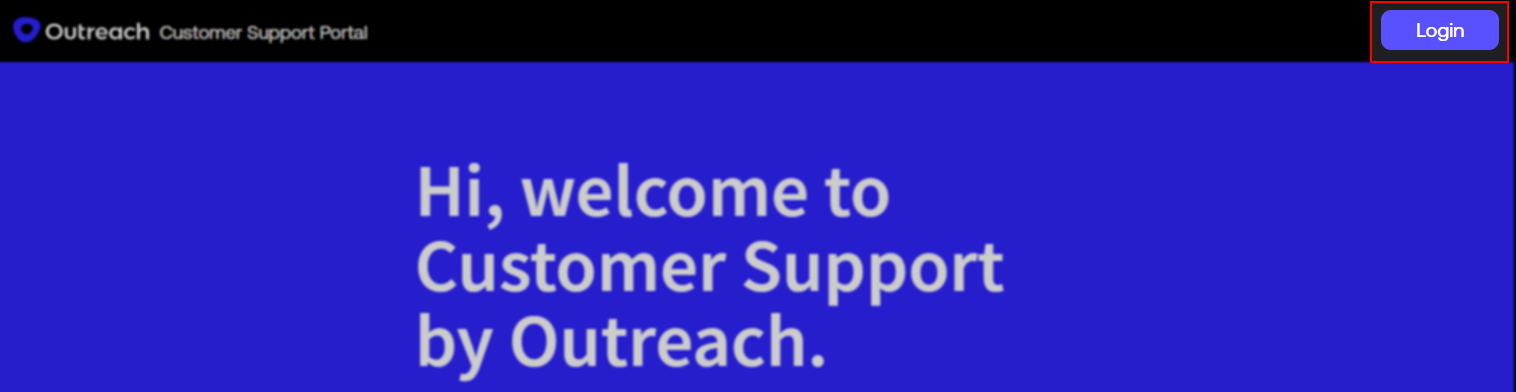
- If you are not currently logged in to Outreach, you will be prompted to do so. Complete login to your Outreach instance as normal. You will then be redirected to the Support Portal as signed in.
- If you are already logged in to Outreach, you will be automatically authenticated in the Portal.
Note for users who access multiple Outreach instances
If you manage support tickets across multiple Outreach instances (including sandbox environments) via the Outreach Support Portal, we recommend you fully sign out of both the Support Portal and each Outreach instance each time you are done working with a given instance.
Issues logging into the Outreach Support Portal?If you encounter problems signing in to the Outreach Support Portal in order to submit or manage help request tickets, please do the following:
If you still cannot sign into the Support Portal after completing the above, please open a help request via one of the following:
|
Additional Resources
Best Practices for Contacting Outreach Support
How to Submit a Technical Support Request
How to Manage Technical Support Request Tickets
Was this article helpful?
That’s Great!
Thank you for your feedback
Sorry! We couldn't be helpful
Thank you for your feedback
Feedback sent
We appreciate your effort and will try to fix the article