Purpose:
The purpose of this article is to provide information to Outreach Users regarding triggers.
Automatically sequencing inbound leads can be a powerful tool for sellers and marketers looking to decrease their time to engage with inbound leads and standardize their approach to various customer segments that come inbound from marketing efforts.
Intended Audience:
- Outreach Users
Automatically Hand Off Sequenced Leads to your Marketing Automation Solution
- Use Rulesets to automatically set a prospect's stage/status to indicate 'unresponsive' if it has finished a sequence without replying
- Create a custom field mapping from Outreach to Salesforce for the marketing handoff on both leads and contacts

- Navigate to the trigger overview page in Outreach
- Click the "+Add" button in the top right to create a new trigger
- Best practice: Click the "edit trigger" link on the bottom right of the quick create window to see all trigger settings
Add the Trigger Event
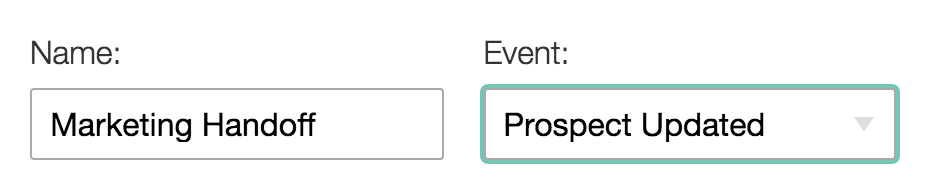
This prompts the trigger to take action if a prospect is updated in Outreach.
The event for this trigger should be "Prospect Updated" so the triggers attempts to take action once a the prospect is updated in Outreach.
Create Prospect Conditions
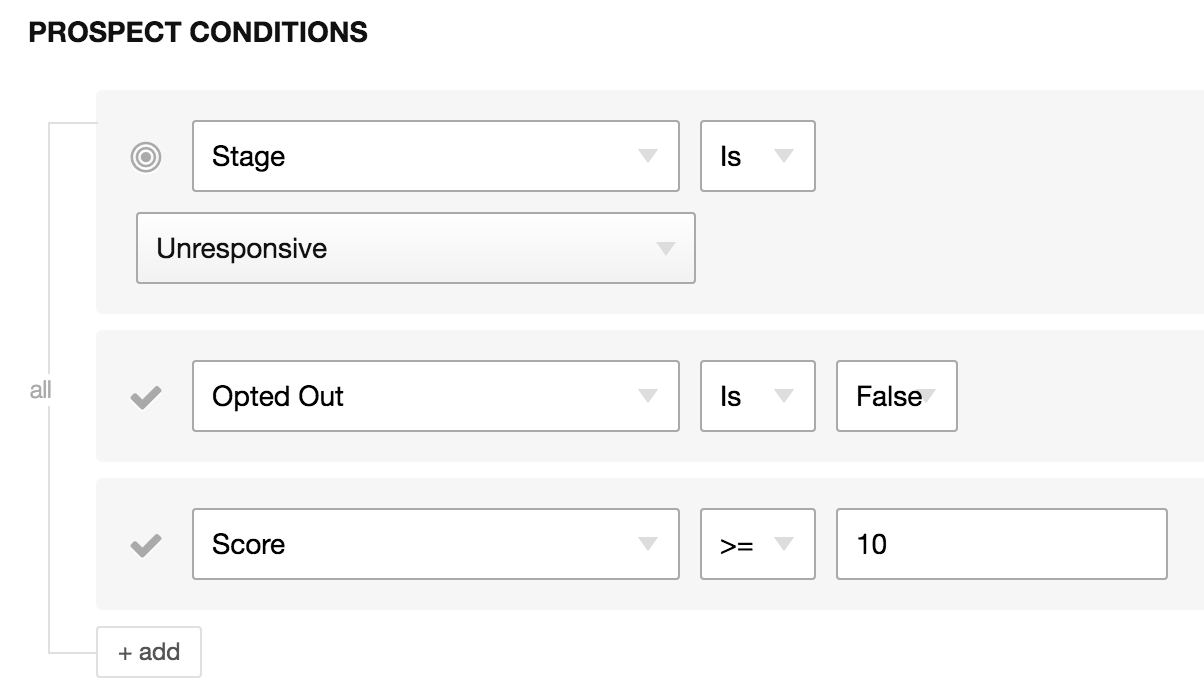
These are the field conditions that need to be met before the trigger takes action on a prospect.
See the conditions grouped together below that denote the Stage field must equal "Unresponsive" - the Opted Out field must equal "False" and the Score must be greater than "10".
Trigger Action
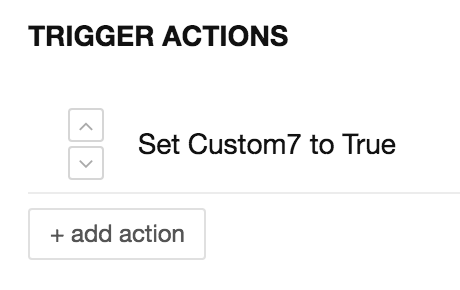
This is the action the trigger finally takes once the event and conditions are met. In this case, you will automatically be setting a field value of "True" for the Marketing Handoff field (currently mapped to the Custom 7 field in Outreach), which will push back to Salesforce to trigger the marketing handoff.
Additional Resources:
Was this article helpful?
That’s Great!
Thank you for your feedback
Sorry! We couldn't be helpful
Thank you for your feedback
Feedback sent
We appreciate your effort and will try to fix the article