Objective
The purpose of this article is to provide guidance in setting up Single Sign On with Google Workspace for Outreach.
Applies To
- Outreach Admins
- Google Workspace Admins
- SSO
Before You Begin
Requirements
In order to set up Okta SSO with Outreach, first ensure you:
- Admin privileges in Outreach
- Admin privileges in Google Workspace
- During this procedure, you will have to navigate between the Google Workspace and Outreach applications several times. It is recommended to have each open in separate browser tabs for convenience.
- This procedure will take 30 minutes to an hour.
Need to just update expiring or expired certificates?
- Go to Google Workspace Admin Console
- Go to Apps -> Web and mobile apps
- Find the existing Outreach SSO application
- Click on Service provider details -> Manage Certificates -> Add Certificate
- Download the new certificate
- Refresh the page, and select the newly created Certificate in the certificate dropdown.
- Upload the active certificate on the Outreach side (Step 5: Enable SSO inside Outreach settings in the procedure below).
Procedure
Step 1: Setting up Google Workspace
- As a Google Workspace admin, go to https://admin.google.com/
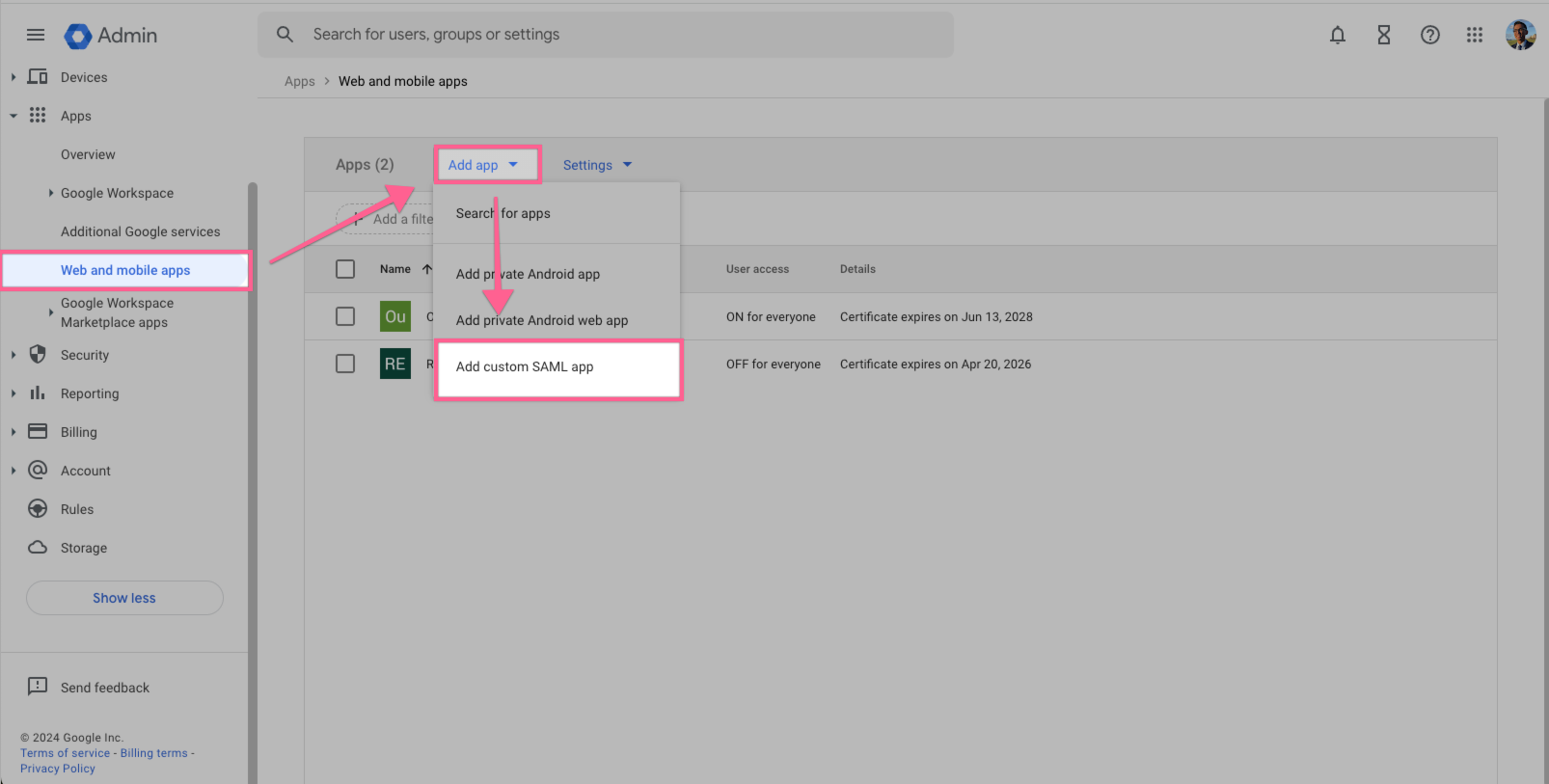
- Go "Apps" category -> Web and mobile apps -> Add app -> Add custom SAML app.
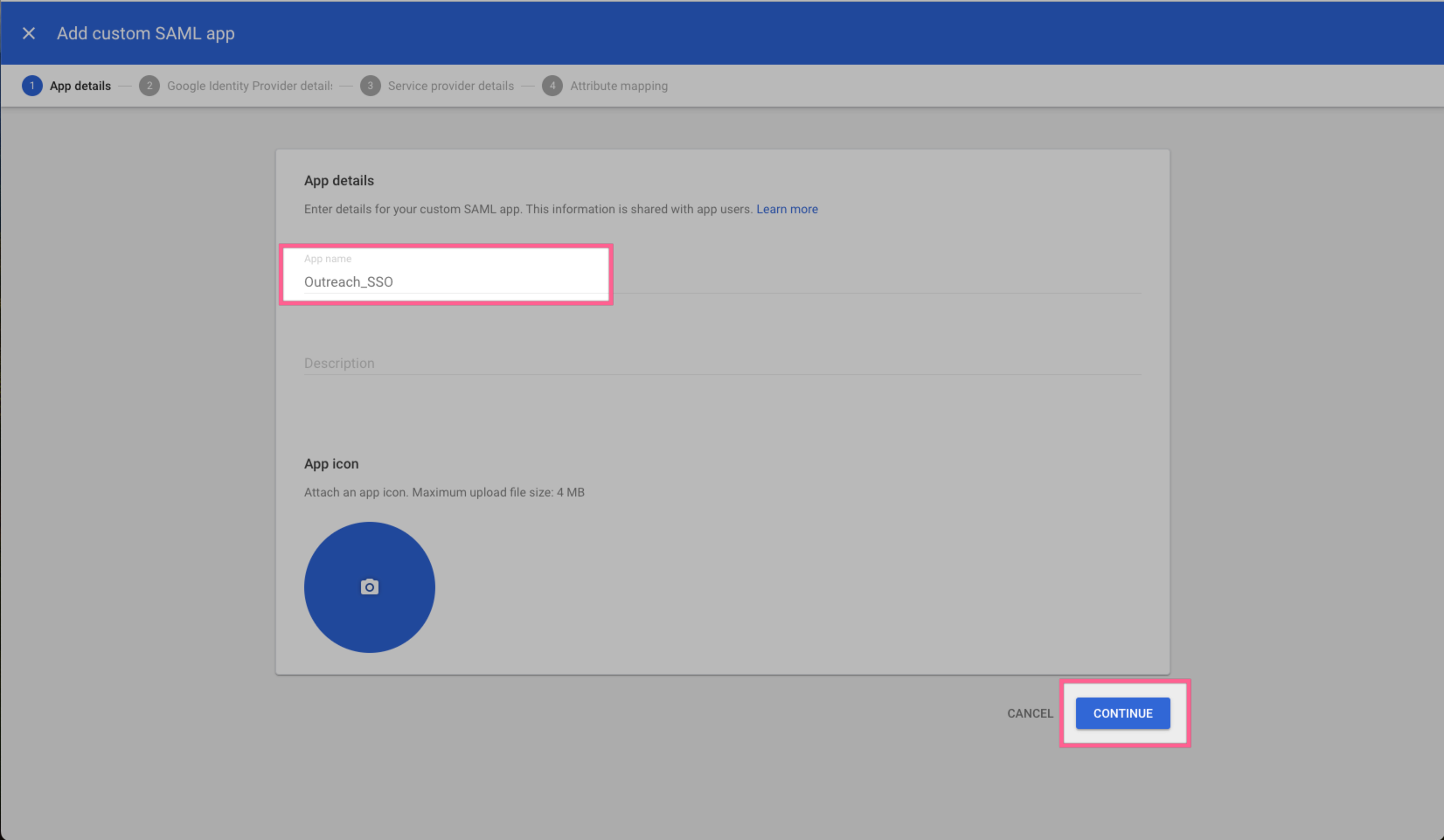
- Name the Custom app "Outreach_SSO" or similar -> Continue to next page
-
On the next page, you will be provided values which is needed later into this guide. Once saved, continue to next page.
- SSO URL
- Copy this into a Google Doc or notepad so you may paste this into Outreach settings later.
- Entity ID
- Copy this into a Google Doc or notepad so you may paste this into Outreach settings later.
- Certificate
- Download this certificate into your device to upload into Outreach settings later.
- Download this certificate into your device to upload into Outreach settings later.
- SSO URL
-
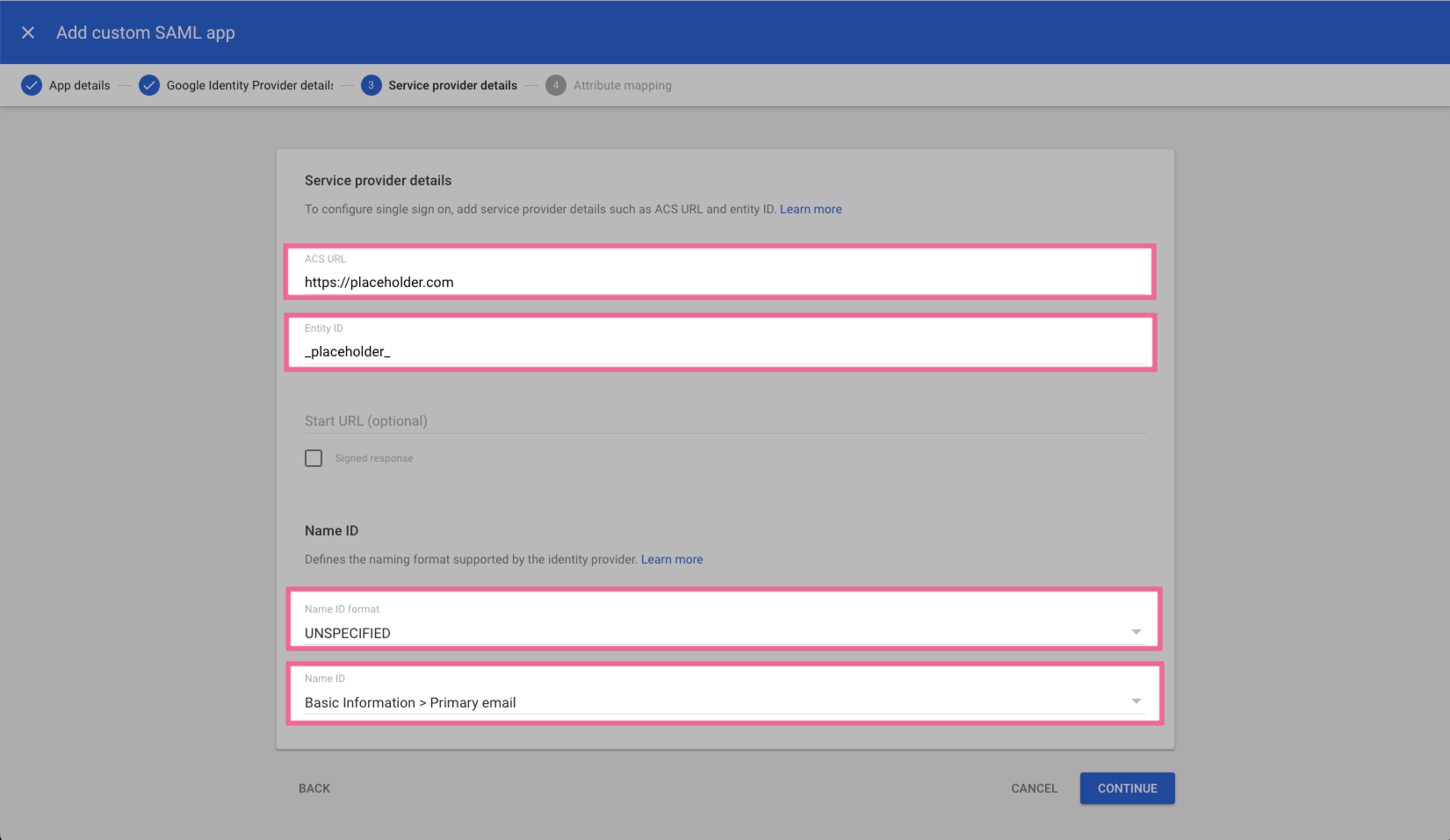
On the this page, input the following. Then "Continue".
- ACS URL: https://placeholder.com
- You will update this later into the guide.
- Entity ID: _placeholder_
- You will update this later into the guide.
- Name ID format: UNSPECIFIED
- Name ID: Basic Information > Primary Email
- ACS URL: https://placeholder.com
- Keep attribute mapping page unchanged and select "Finish"

Step 2: Setting up Outreach
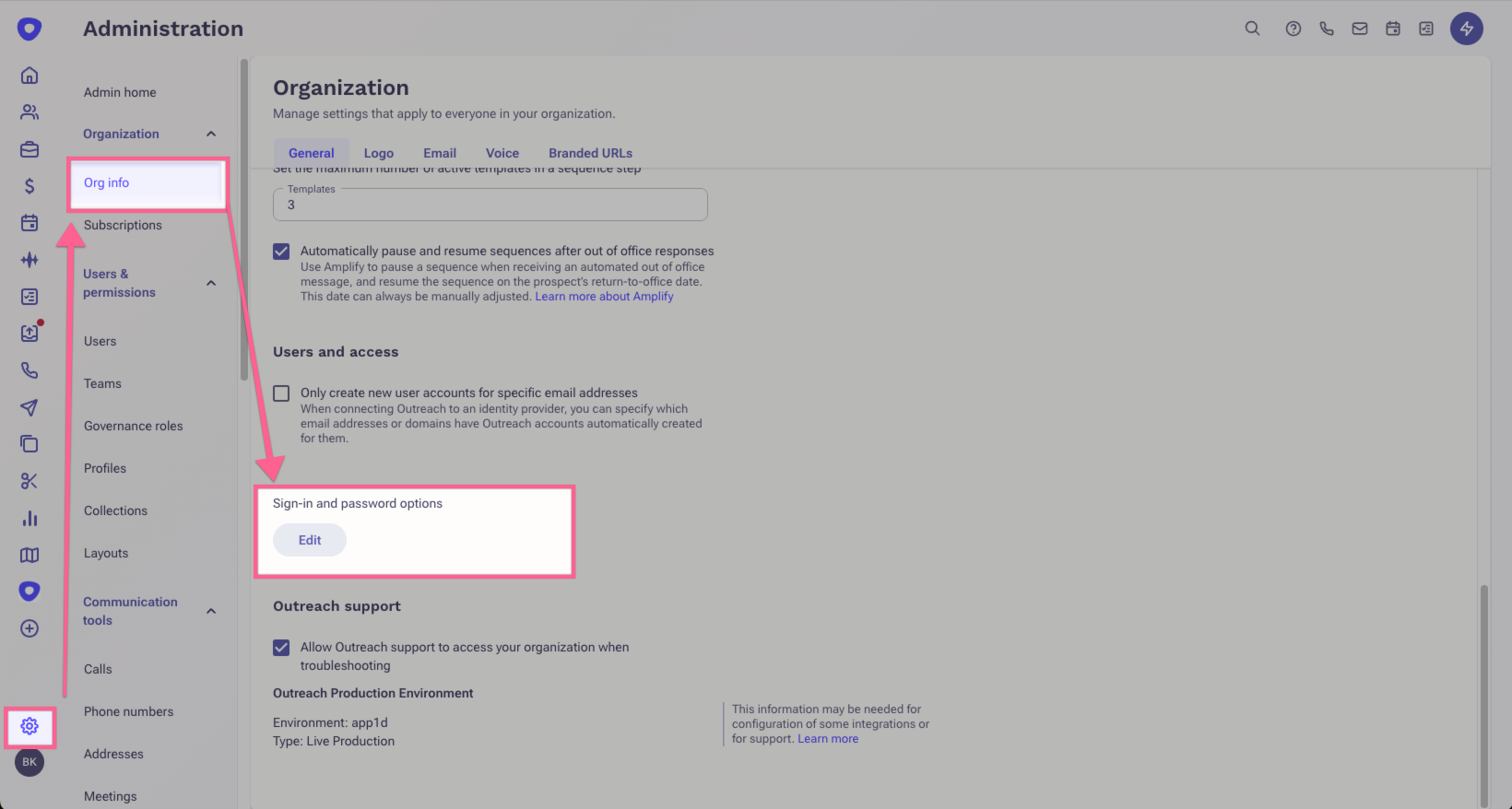
- Click Administration > User management > Sign-in.
- Click Edit.
-
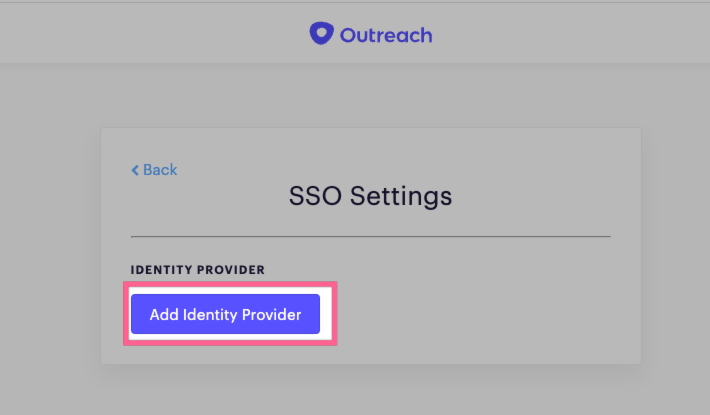
On the next page, select Add Identity Provider
-
Add the requested identity information that was retrieved from Google Workspace.
- Name: This can be "Google_Workspace_SSO"
- Sign In URL: This is the SSO URL from Step 1.4
- Issuer (Identity Provider Entity ID): This is the Entity ID from Step 1.4
-
Certificate: This is the certificate you downloaded from Step 1.4
- Choose File and select the downloaded file.
- Choose File and select the downloaded file.
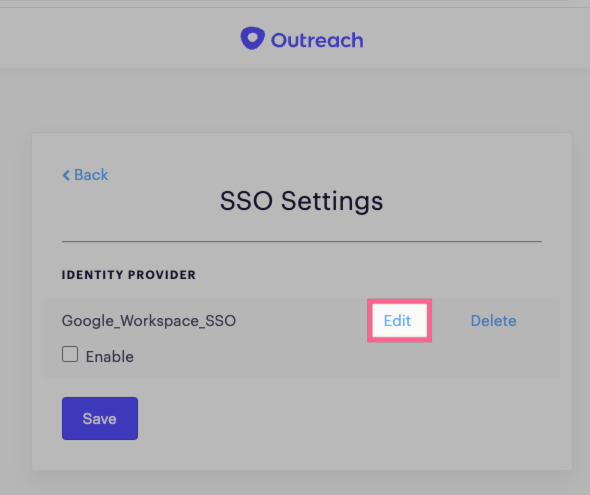
- You should be redirected back to "SSO Settings". Within that page, select "Edit"
-
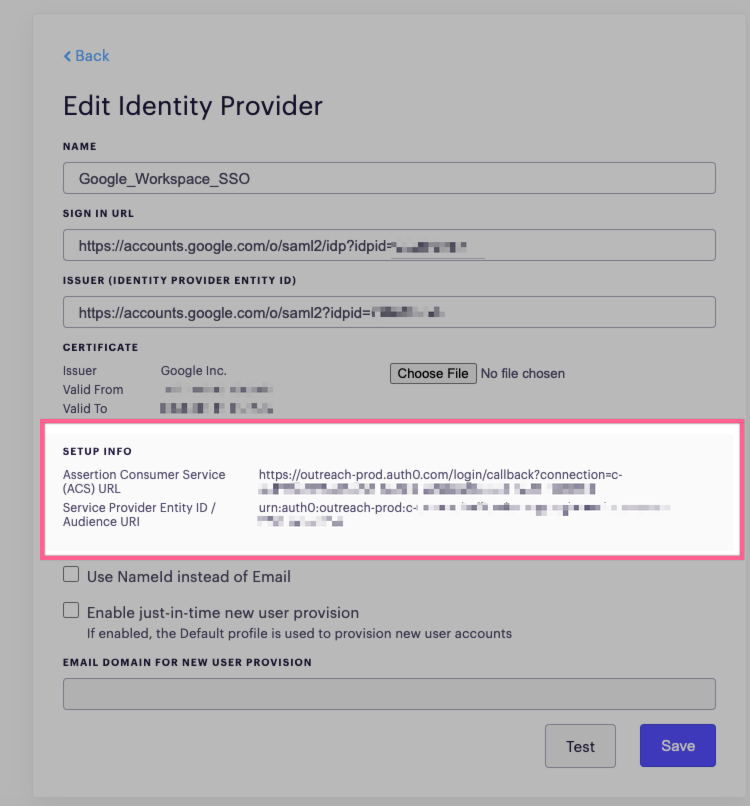
Now find the “Setup Info” section. There are two important fields you will need to copy later in Step 3 (ideally you should have this tab open as you go through to Step 3)
- Assertion Consumer Service (ACS) URL
- Copy this into a Google Doc or notepad so you may paste this into Outreach settings later.
- Service Provider Entity ID / Audience URI
- Copy this into a Google Doc or notepad so you may paste this into Outreach settings later.
- Assertion Consumer Service (ACS) URL

Step 3. Update Google Workspace custom SAML application
- Go back to the custom SAML application. Go "Apps" category -> Web and mobile apps -> Select the application. In this guide, we named it "Outreach_SSO". Within the application's overview page click the "Service Provider details" section.
-
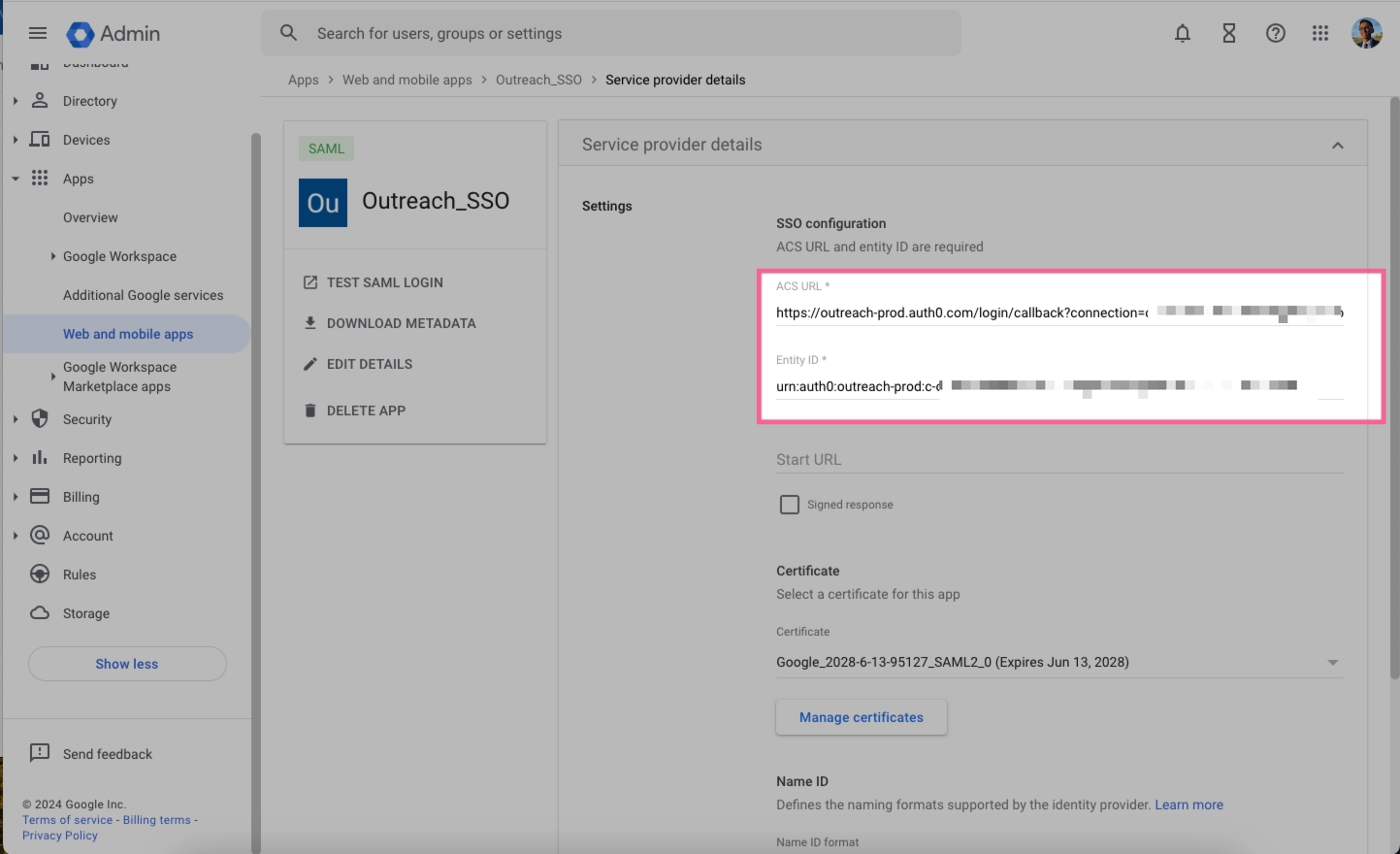
Within the "Service providers details" input the below, then go all the way down and select "Save"
- ACS URL: This will be the Assertion Consumer Service (ACS) URL retrieved from Step 2.5
- Entity ID: This will be the Service Provider Entity ID / Audience URI retrieve from Step 2.5
-
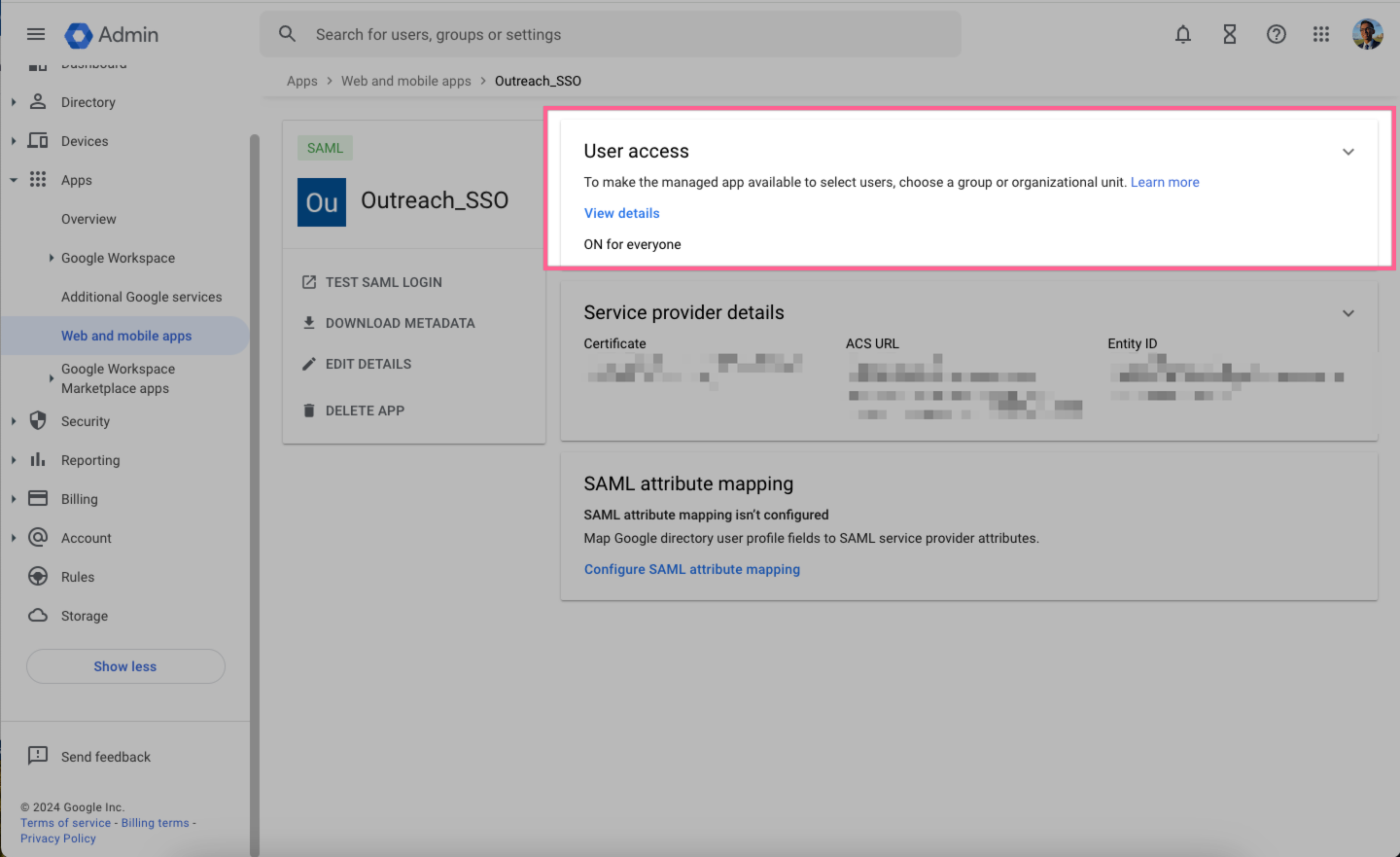
Depending on your organization's security Google Workspace policies, you will likely need to assign users and groups to the application. Go back to the application's overview page and select the "User access" section. Ensure in the next page, the appropriate group is attached to the application and it is "On" for those respective groups.
-
Note: As the admin, you will need to test the configuration so you will need to give yourself access to this application. It will take a few minutes for the configuration take effect.
-
Note: As the admin, you will need to test the configuration so you will need to give yourself access to this application. It will take a few minutes for the configuration take effect.

Step 4. Enable SSO inside Outreach Settings
- Return to Outreach's SSO settings if you did not not have the settings already opened.
-
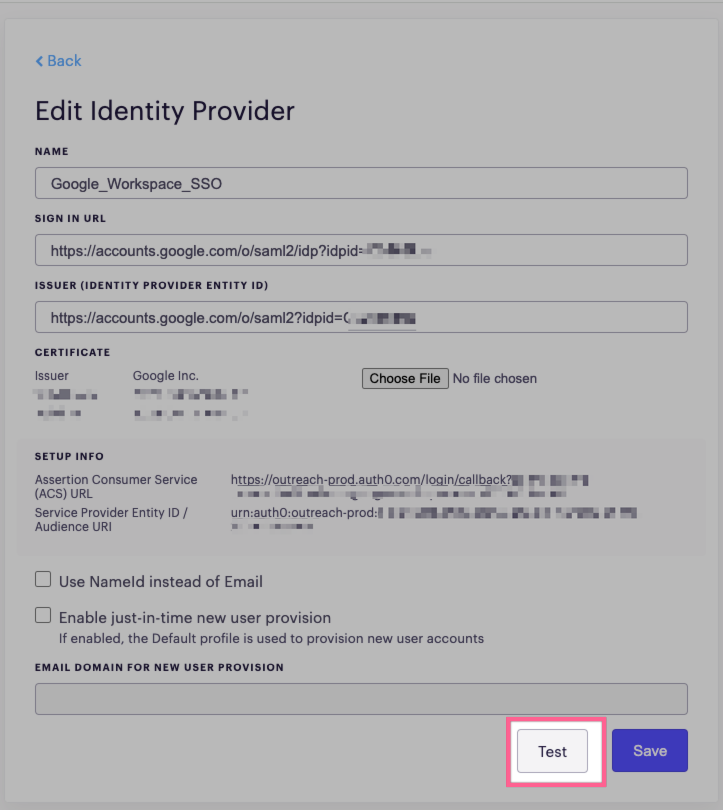
Select "Single Sign On", then hit "Edit". Here, double check all your settings are properly configured. Please confirm the below values are matching respectively in Outreach or Okta:
- Sign In URL: Matches the value from Google Workspace (Step 1.4)
- Issuer (Identity Provider Entity ID): Matches the value from Google Workspace (Step 1.4)
- Certificate: Confirm it is the same downloaded certificate from Google Workspace (Step 1.4)
- Assertion Consumer Service (ACS) URL: Saved within Google Workspace settings (Step 3.2)
-
Service Provider Entity ID / Audience URI: Saved within Google Workspace settings (Step 3.2)
-
Once you have confirmed all values are matching, then go back within Outreach's SSO Settings, and select "Enable".
-
Important Note: It is required to enable to test out the setup.
- Your users will not be instantly signed out.
- You should have already assigned yourself to the application in Step 3.3
- You should receive "{"success":true}"
- In the event of a the failure of Step 4.4, you can go back to this page to uncheck "enable".
-
Important Note: It is required to enable to test out the setup.
-
Select "Test" and a new tab should popup with "{"success":true}". This indicates the SSO connection works and the setup was successful.

Congrats! SSO is now enabled!
Was this article helpful?
That’s Great!
Thank you for your feedback
Sorry! We couldn't be helpful
Thank you for your feedback
Feedback sent
We appreciate your effort and will try to fix the article