Purpose:
The purpose of this article is to provide direction to Outreach Admins in configuring the field-level security in Salesforce.
Intended Audience:
- Outreach Admins
Notes:
- In order to minimize potential Field Level security issues, Outreach recommends having the Salesforce Admin connect the Salesforce Plugin and act as the Plugin Authorization User.
- Salesforce Admin permission is required to complete this process.
- This process illustrates setting field-level security on Opt-Out fields as a thorough example for setting all field-level security.
Setting Field Level Security - Opt Out Field
- Access the Salesforce instance.
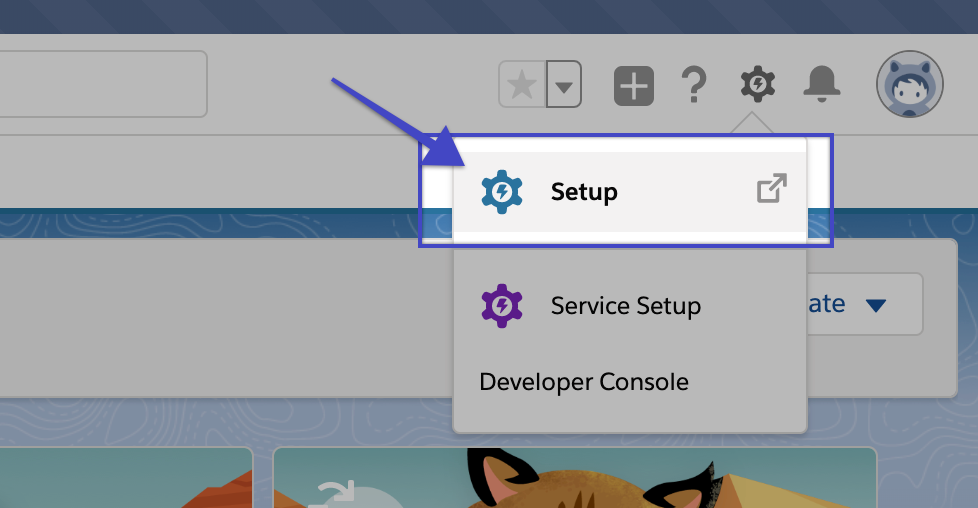
- Click the user name on the top right-hand side of the screen.
- Click Setup.
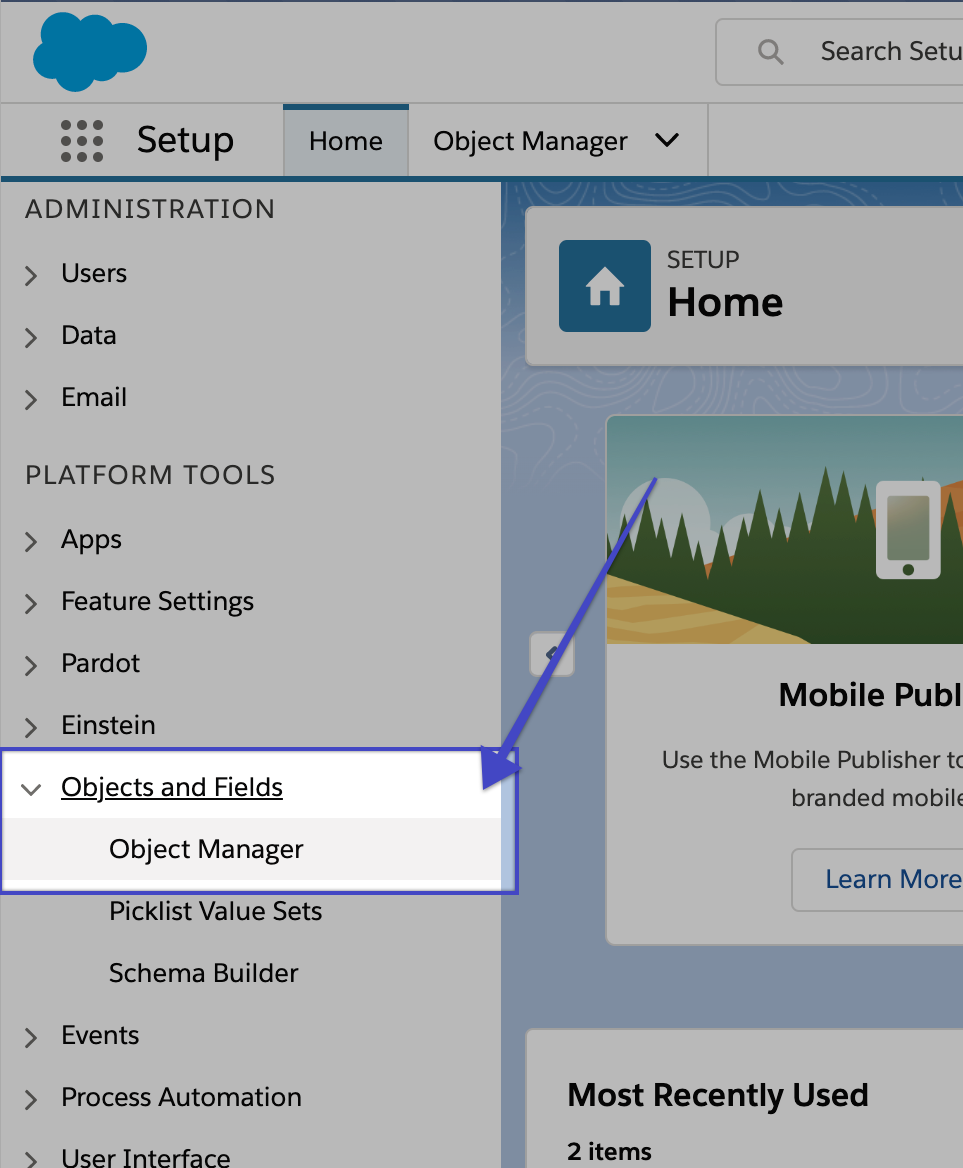
- Click the arrow next to Object and Fields and select Object Manager under the Platform Tools section.
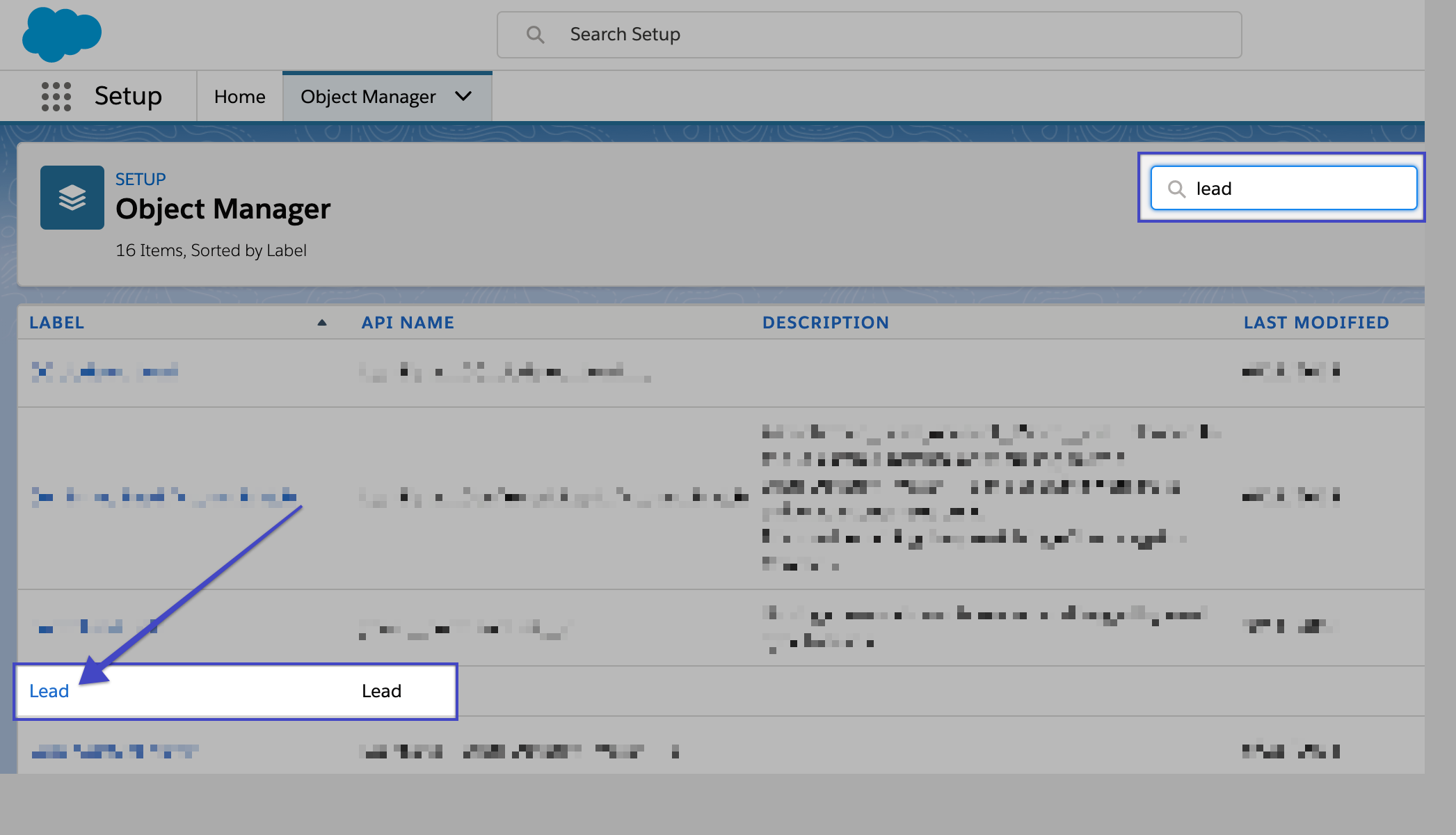
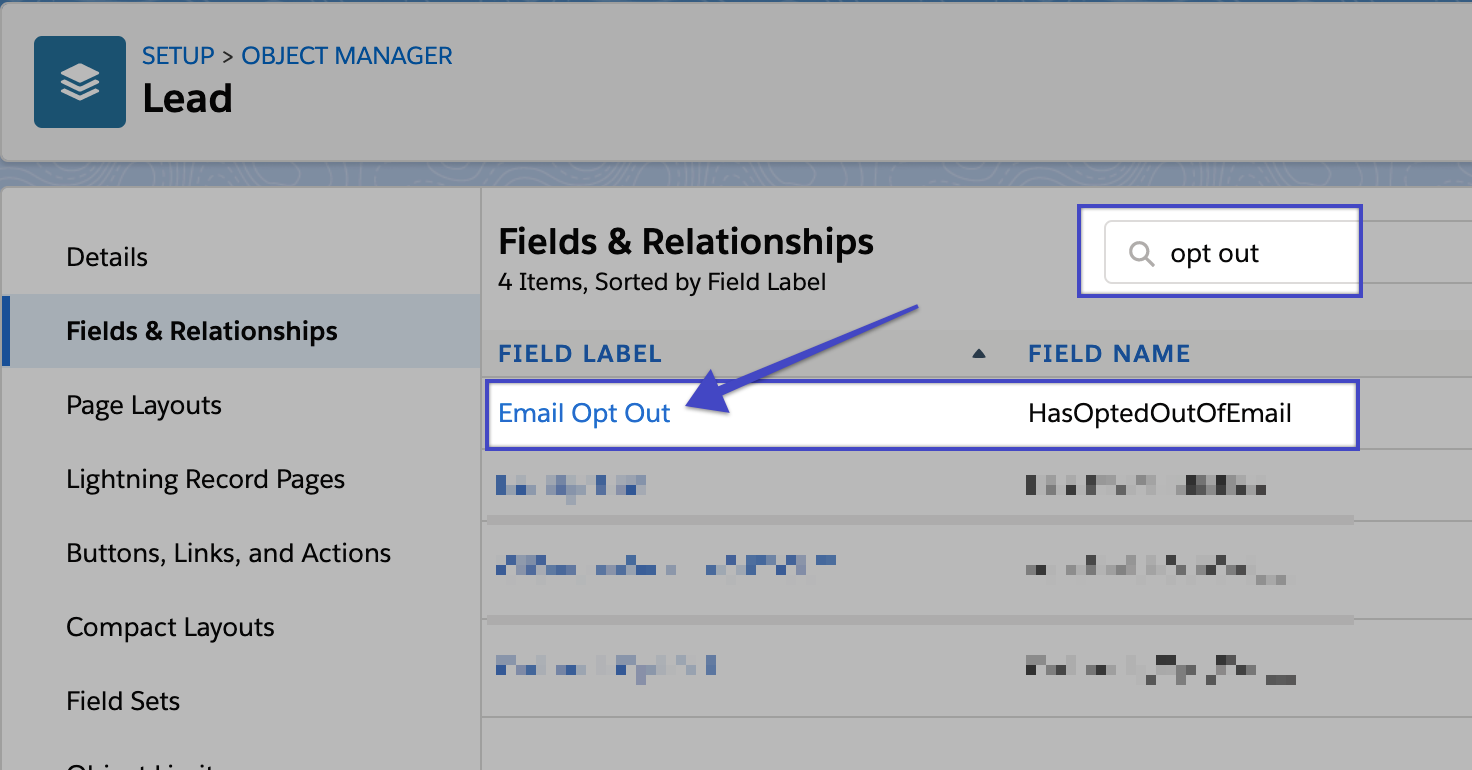
- Search for the applicable Leads and Contacts.
- Click the Lead or Contact link to edit the object.
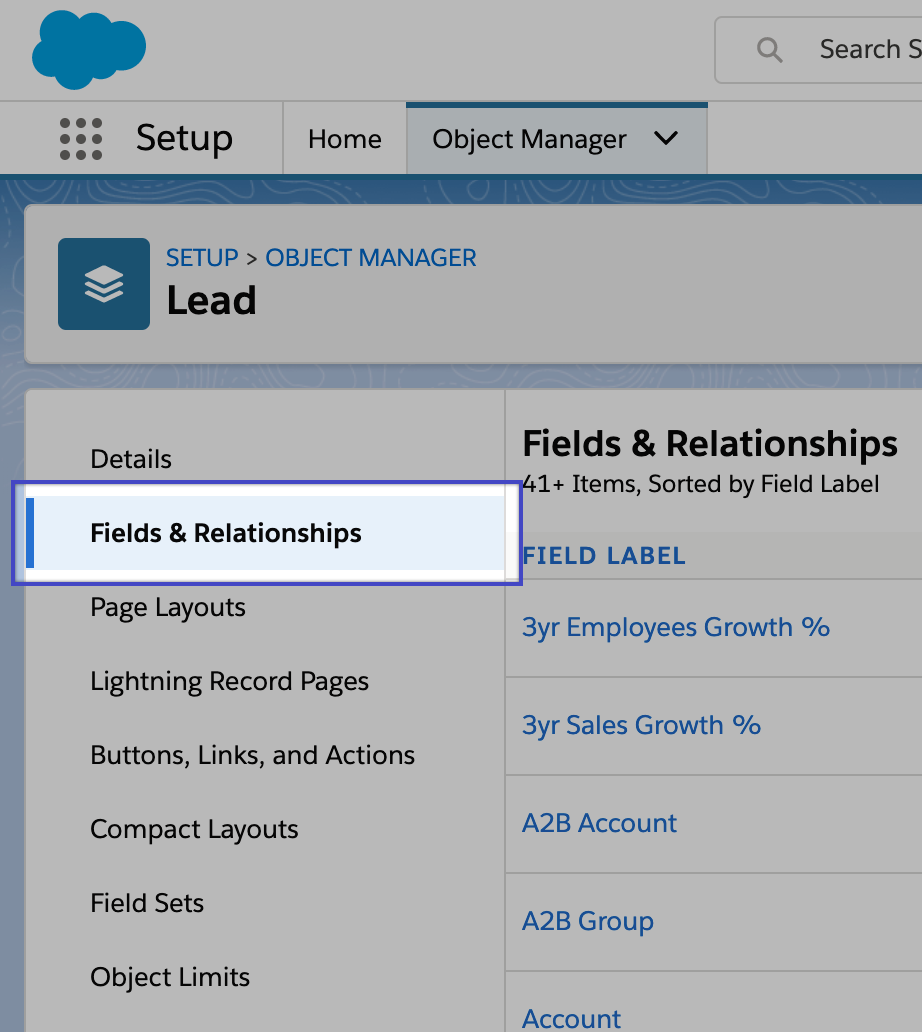
- Click Fields and Relationships.
- Locate and click the Email Opt Out field.
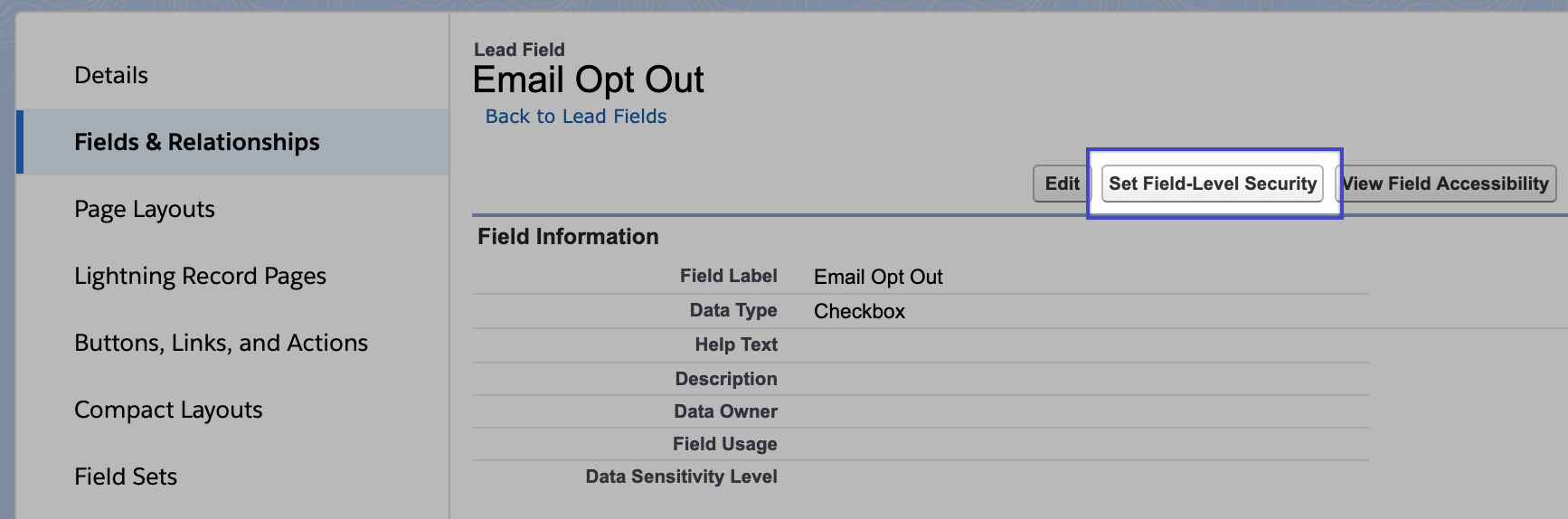
- Click Set Field-Level Security.
- Click to enable the Visible option.
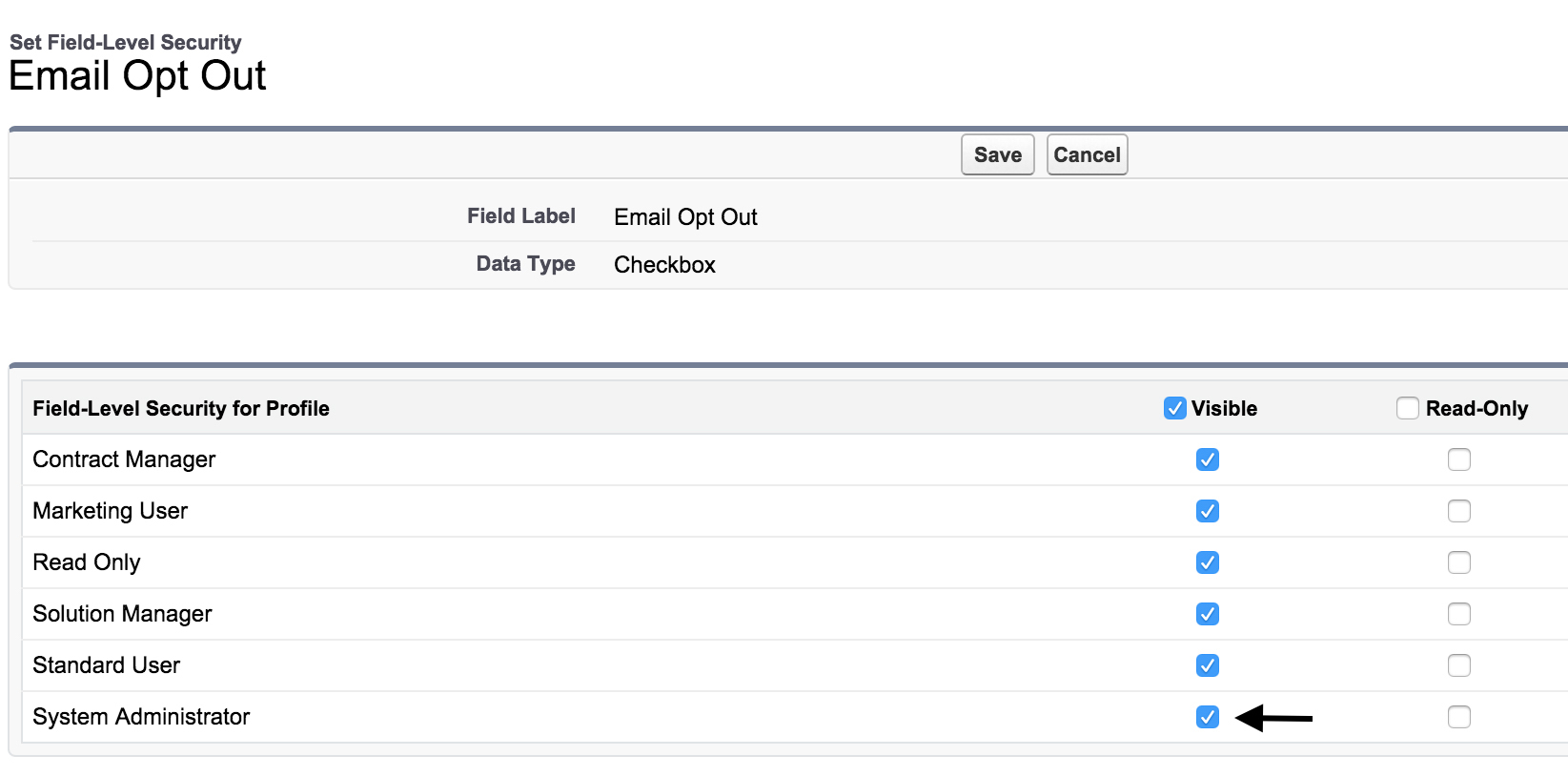 Note: Outreach requires the System Administrator be visible. Additional roles can be selected as applicable.
Set Field Level Security: Salesforce Professional
- Access the Salesforce instance.
- Click Setup.
- Click Customize in the App Setup section.
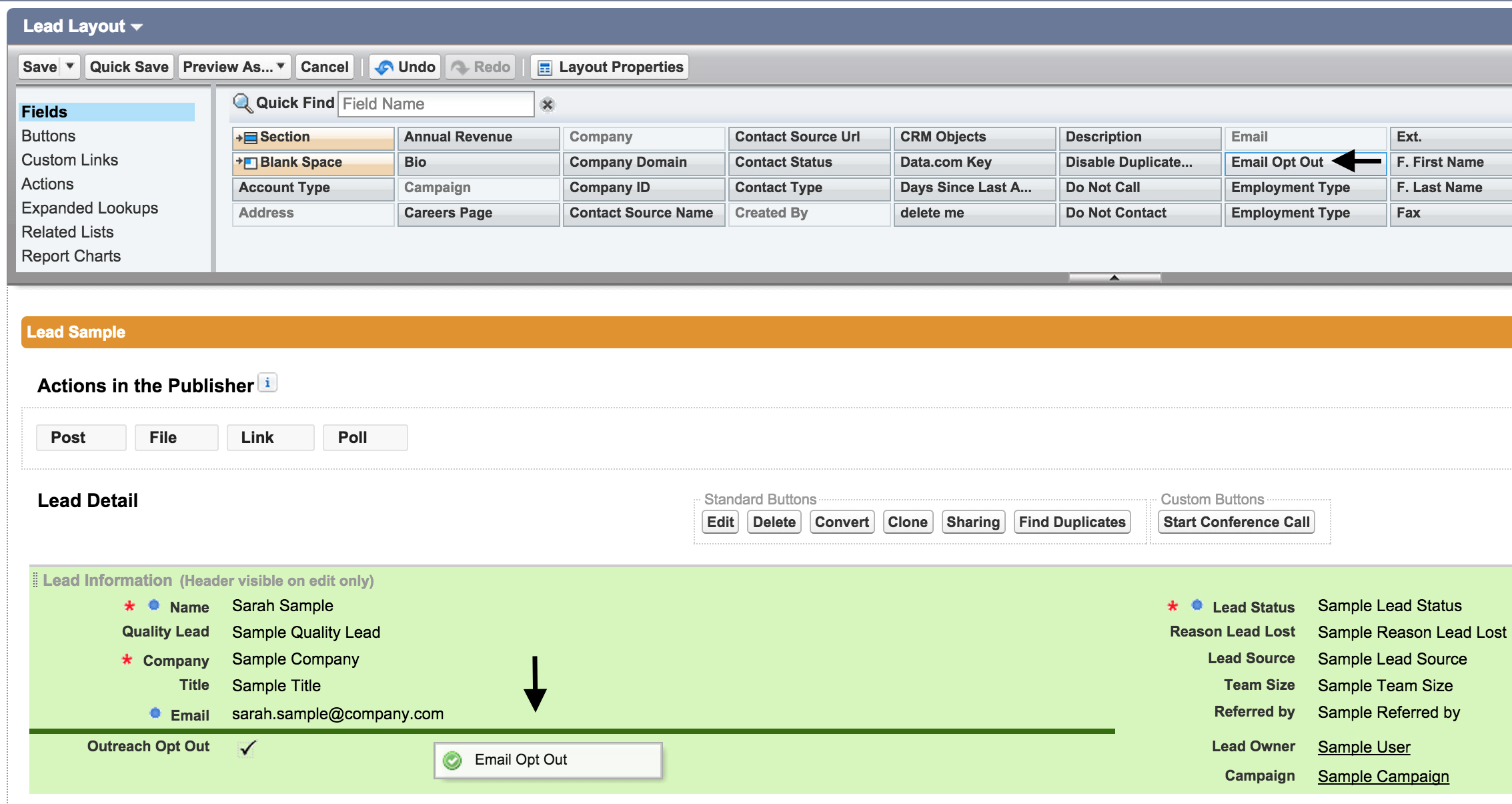
- Select Page Layouts from the Leads dropdown menu.
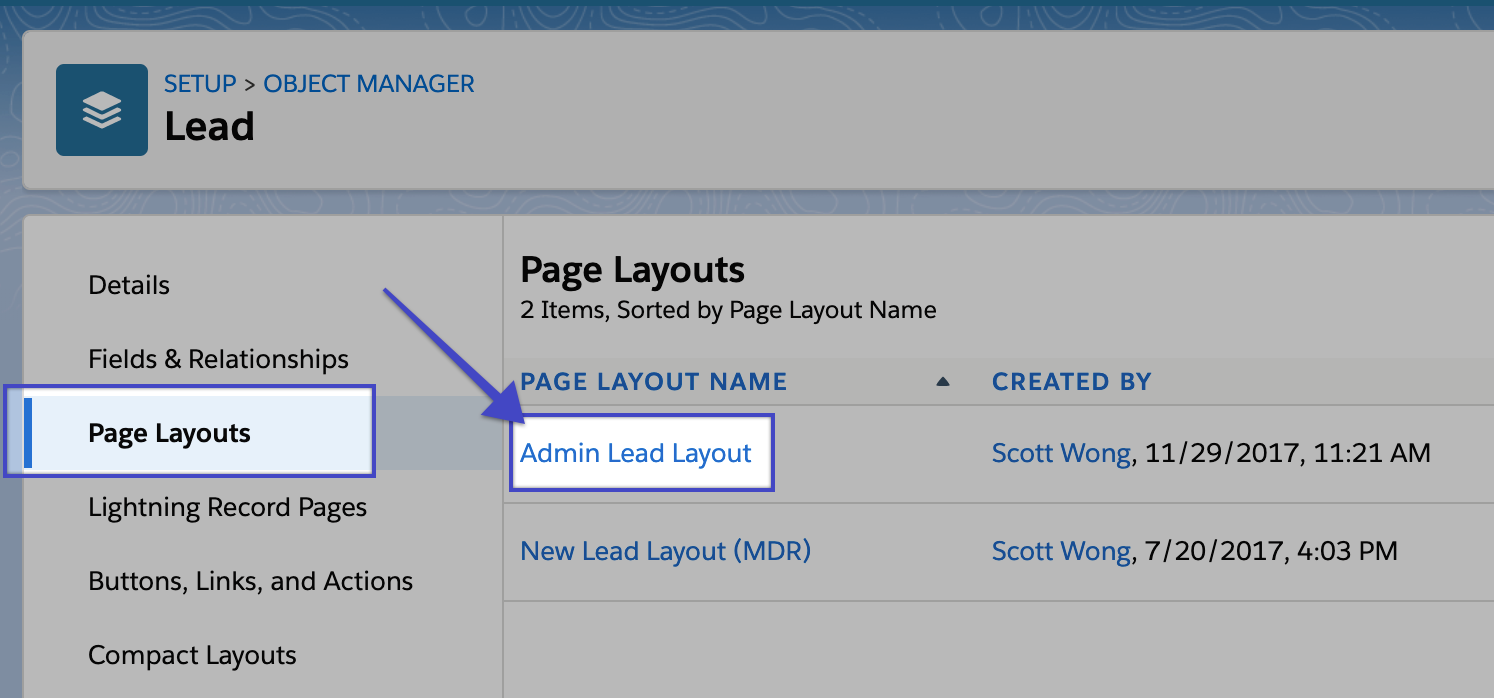
- Drag Email Opt Out from Lead Layout header and pull into any area within Lead Information.
Was this article helpful?
That’s Great!
Thank you for your feedback
Sorry! We couldn't be helpful
Thank you for your feedback
Feedback sent
We appreciate your effort and will try to fix the article