Purpose:
The purpose of this article is to provide direction to Outreach Users in adding a Prospect to a Sequence from the Opportunities List View.
Intended Audience:
- Outreach Users
How To Add a Prospect to a Sequence from Opportunities List View:
- Access the Outreach Platform.
- Click the Opportunities icon (dollar sign) in the navigation sidebar.
- Sort, filter, and click the applicable Opportunity.
- On the Opportunities Settings page, click Prospects in the menu bar.
- On the Prospects landing page, click to select the applicable Prospects.
- Click the Sequence icon (paper plane) in the menu bar.
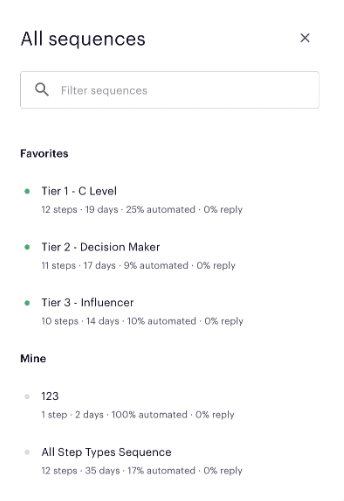
- On the All Sequences window, search and filter to select the applicable Sequence.Note: To view steps in a Sequence, click the Show Stepslink to the right of a Sequence.
- On the Sequence Prospects window, select the applicable Sequence Type as defined in the table below:
Note: Click Edit Steps to update Auto and Manual Emailsteps as applicable.Sequence Type Description Individual Prospects move through the sequence without copying additional Prospects in email threads. Grouped All Prospects will be included on the same email thread (To: and CC:); the primary Prospect will be listed in the To: field and additional Prospects are added to the CC: field. - Click the clock icon on the Add to Sequence button to customize when Step 1 in a Sequence will initiate.
- Click Add to Sequence.
-
Click Done.
The selected Prospects are added to the Sequence.
Note: Outreach produces an error informing users a Prospect cannot be added to a Sequence. Click View All and make the applicable adjustments to remedy the error.
Was this article helpful?
That’s Great!
Thank you for your feedback
Sorry! We couldn't be helpful
Thank you for your feedback
Feedback sent
We appreciate your effort and will try to fix the article