Objective
The purpose of this article is to provide direction to Outreach Users in applying tags to various features and records in Outreach. Using tags makes organizing, searching, and filtering content easy.
Applies To
- Outreach Users
Before You Begin
- Tags can be applied to the following record types: Prospects, Accounts, Opportunities, Calls, Sequences, Templates, Snippets
- Some Outreach views and options require admin-level governance permissions. If the options outlined in this article are unavailable, contact the Org's Outreach Administrator as applicable. For more information regarding governance profile settings, refer to the Governance Profile Settings Overview article.
- You can't add the same tag example and Example to the same record, however, you can add both at the same time in Outreach.
Procedures
Tagging Records from a List View
- Access the Outreach Platform.
- From the left nav, navigate to the applicable list view.
- Prospects
- Accounts
- Opportunities
- Activity > Calls
- Content > Sequences
- Content > Templates
- Content > Snippets
- Optionally filter the view as needed.
- Click the checkbox(es) to select the applicable record(s). (You can tag multiple records at once.)
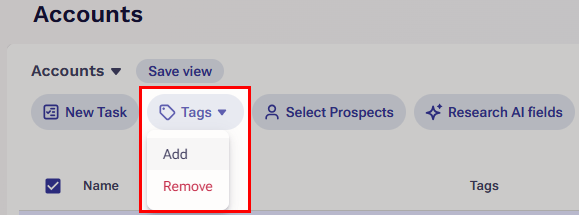
- Above the list, click Tags > Add.
- Select a tag from the list or input a new tag as applicable.
- Click Add.
Note: Click Remove Tags to remove any stored tags on the selected items.
Adding Tags During Import
During the import process, Outreach provides users with an Additional Tags field to either add existing or create new tags for records being imported.
Alternatively, users can add a column to the .csv labeled tags and map the tags column to the tags field in Outreach after import. For more information on mapping fields, refer to How To Map a Field In Outreach.
Note: At this time, it is only possible to add one tag per record per import. To add multiple tags, you can run multiple imports, being sure to not overwrite data for duplicates.
Additional Information
Governance Profile Settings Overview
How To Map a Field in Outreach
How To Bulk Create Prospects and Accounts in Outreach via .CSV File
How To Add A New Tag To A Sequence
Was this article helpful?
That’s Great!
Thank you for your feedback
Sorry! We couldn't be helpful
Thank you for your feedback
Feedback sent
We appreciate your effort and will try to fix the article