Objective
Overview of the trigger experience for Outreach Admins.
Applies To
- Outreach Admins
Procedure
Add a Trigger
- Log in to Outreach as an Admin.
- Click Administration.
- Click Workflow automations > Triggers.
- Click Add Trigger.
- Fill out the following fields and logic:
- Trigger Name
- Owner
- Set Trigger event:
- Prospect
- Account
- Meeting
- Call
- Mailing
- Opportunity
- Sendoso
- Drift
- Intercom
- Seismic
- Vidyard
- BombBomb
- Event:
- Updated
- Created
- Created or Updated
- Define trigger action settings:
- Target
- Frequency
- Click Save.
Once the trigger conditions and actions are configured, additional prospect conditions can be added.
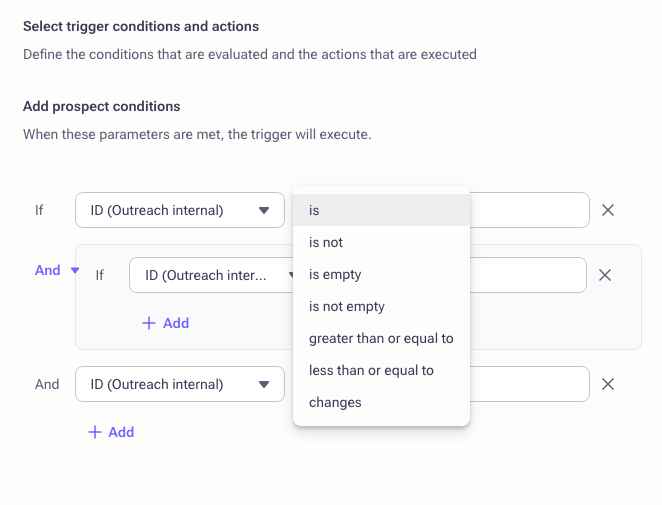
Time-Based and Team Queue Assignment Triggers
These triggers extend automation capabilities by controlling when automations fire relative to an external event and who receives the resulting tasks.
Team Queue Assignment Triggers
Team queue assignment triggers simplify task distribution by allowing tasks from triggers to be assigned to a team. When the trigger executes, tasks are distributed in a round-robin manner among team members, ensuring balanced workload distribution.
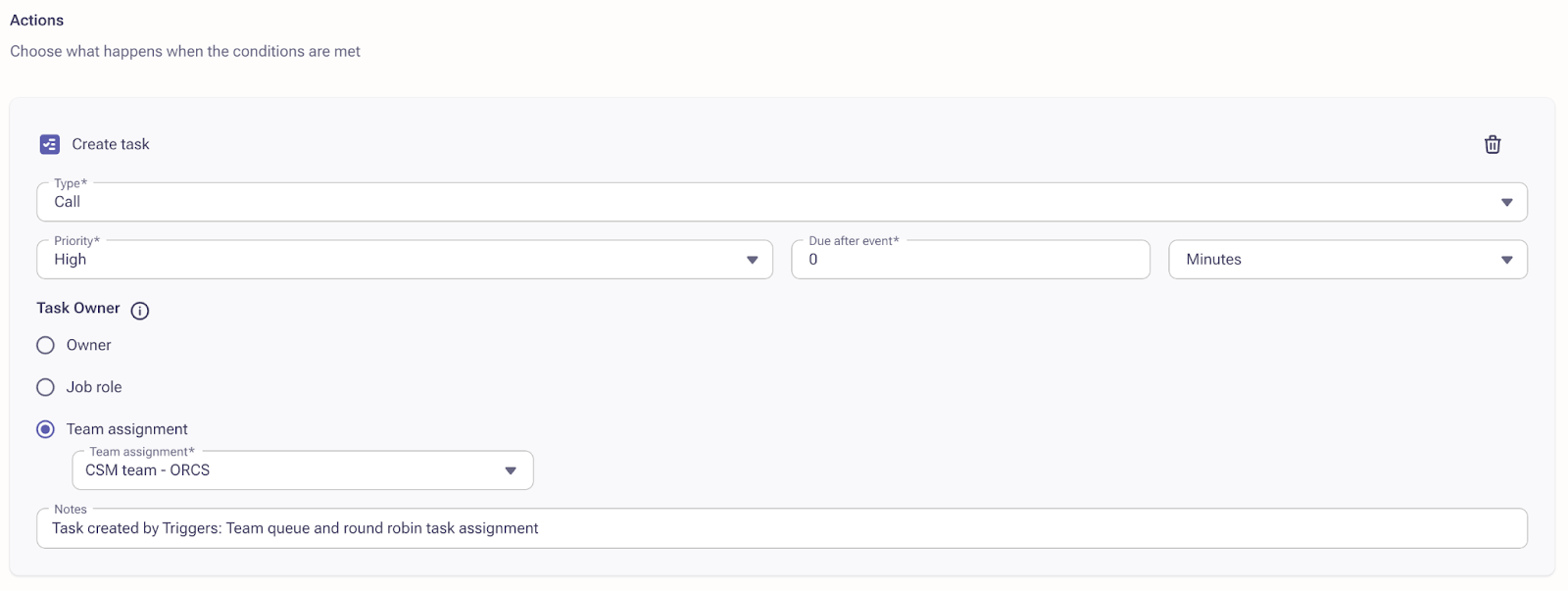
When creating triggers, tasks can be assigned to a team instead of individuals. This is particularly useful for roles managing large customer bases where workload distribution needs to be efficient and manageable. Tasks are auto-assigned in a round-robin manner among the team members.
Example use case: Account Health Monitoring. An organization monitors account health using a custom field with values "Red," "Yellow," and "Green."
- Branching Condition 1: Account type is "Commercial" AND account health changes to "Red." Action: Create a task and assign it to the "Commercial CSM" team.
- Branching Condition 2: Account type is "Micro" AND account health changes to "Red." Action: Create a task and assign it to the "Micro CSM" team.
When the trigger fires, tasks are created and assigned to the appropriate team in a round-robin manner among available members.
Time-Based Triggers
Time-Based Triggers automate actions based on specific dates related to entities such as prospects, accounts, opportunities, calls, meetings, emails, and renewal dates.
To configure a time-based trigger, access the trigger configuration in the Admin interface, select the "Scheduled" event type, specify the date field in Timing, and set the offset (before or after the event). Then define the action to automate.
Note: The minimum offset is 20 minutes. The trigger will fail if set to a shorter duration.
Example use cases:
- Meeting Preparation: When an in-person meeting is created, a "meet in person" task is automatically created for the prospect owner 2 days before the meeting start date.
- Renewal Reminders: 90 days before a renewal date, a calendar task is created for the CSM to initiate a call with the customer.
- Opportunity Engagement: If the "touched at" date for an opportunity exceeds 30 days, an "action item" task is created for the opportunity owner.
Field change-based triggers allow admins to initiate actions when a specified field is updated on a prospect, account, or opportunity record. Conditions include:
- When the value of a field changes.
- When the value of a field changes from [x].
- When the value of a field changes to [y].
Task Ownership and Sequencer Assignment
Task ownership and sequencer assignment can be automatically determined based on job roles (for example, Account Manager, CSM, Owner). Job roles can be created in two ways:
- Job roles using MUA (Beta only): Users with MUA capabilities enabled can manually create job roles in Administration > Users and permissions > Job roles.
- Job roles synced from Salesforce: Job roles sync into Outreach via Salesforce. These are read-only in Administration > Users and permissions > Job roles.
Note: Both methods can coexist if MUA is enabled.
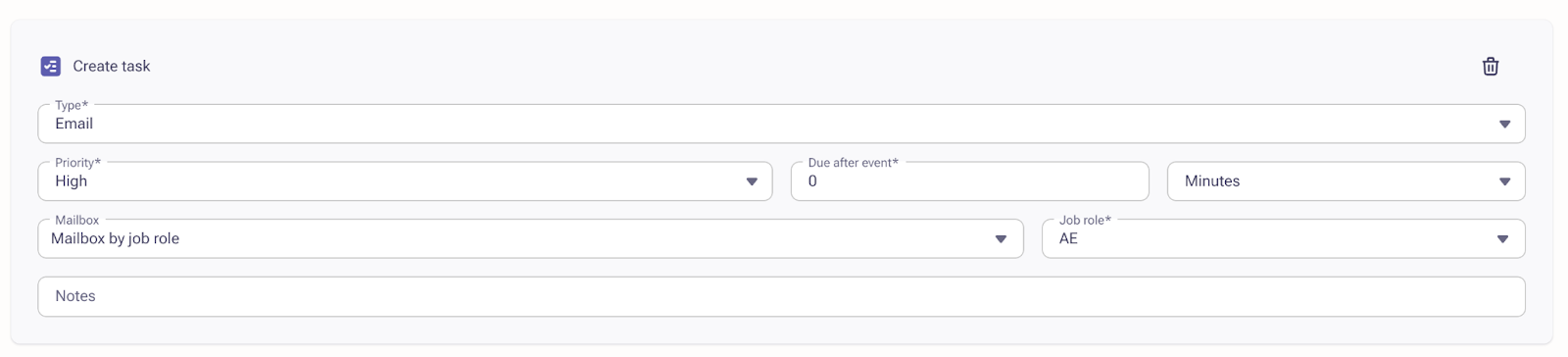
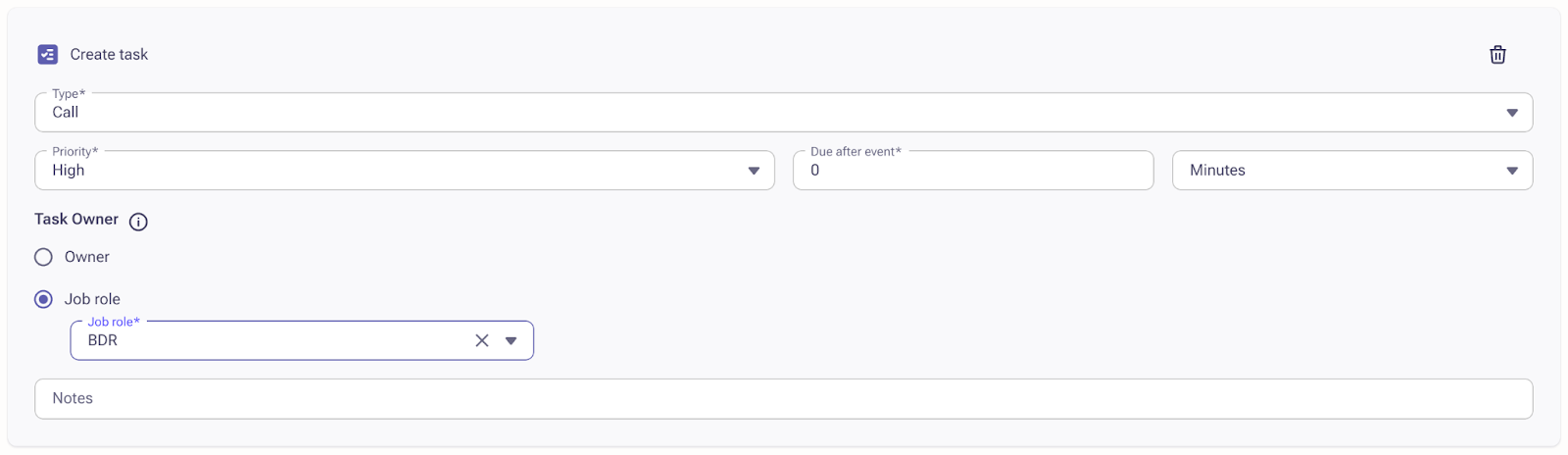

How Task Ownership and Sequencer Assignment Works
Trigger: Add to Sequence Logic
When adding a prospect to a sequence, the system checks in the following order:
- MUA Job Role on prospect
- MUA Job Role on account (associated account of the prospect)
- Account Team Job Role
- Owner on Prospect
- Owner on Account
- If no match is found across all levels, the Add to Sequence action is skipped.
When Mailbox by Team is selected inside a Trigger's Add to Sequence action:
- The sequencer mailbox is automatically and randomly assigned to eligible members of the designated Outreach Team.
- Assignment is not strict round-robin but naturally balanced over time so no member is consistently overloaded.
- Only users with an active seat and a valid connected mailbox are eligible.
- Ineligible members are skipped automatically.
Task Creation for Triggers Targeting Accounts
- MUA Job roles
- Account Team Job Roles (synced from Salesforce)
- Account Owner
- If no match is found, task creation is skipped.
Task Creation for Triggers Targeting Prospects
- MUA Job Role on prospect
- MUA Job Role on account (associated account of the prospect)
- Account Team Job Roles (associated with the prospect's account)
- Prospect Owner
- Account Owner
- If no match is found, task creation is skipped.
Task Creation for Triggers Targeting Opportunities
- MUA Job roles
- Account Team Job Roles (associated with the opportunity's account)
- Opportunity Owner
- Primary Prospect Owner
- Account Owner
- If no match is found, task creation is skipped.
Message Templates for Trigger Tasks
Admins can configure Message Templates for Email and LinkedIn messaging tasks when setting up triggers. This allows admins to pre-fill Email and LinkedIn (Send Message) tasks with templates, snippets, or personalization blocks directly from the Trigger setup.
When configuring Email or LinkedIn (Send Message) tasks through Triggers, admins can:
- Select an existing Template (with or without variables)
- Insert a Snippet
- Add a Personalization Block, including AI-powered content (Amplify package only)
For Email Tasks:
- Choose a template to pre-fill the body of the email
- Define task priority, due time, and sending mailbox (default, team, role-based, or custom)
- Add internal notes for reps
For LinkedIn Tasks (Send Message or Send Connection Request):
- Insert content using snippets, templates, or personalization blocks to guide rep actions
- Rich Text Editor support is available in the task content section within Trigger setup
Note: If admins create a new personalization block during setup, they will be prompted to save it under AI Content > Personalized Blocks for future reuse.
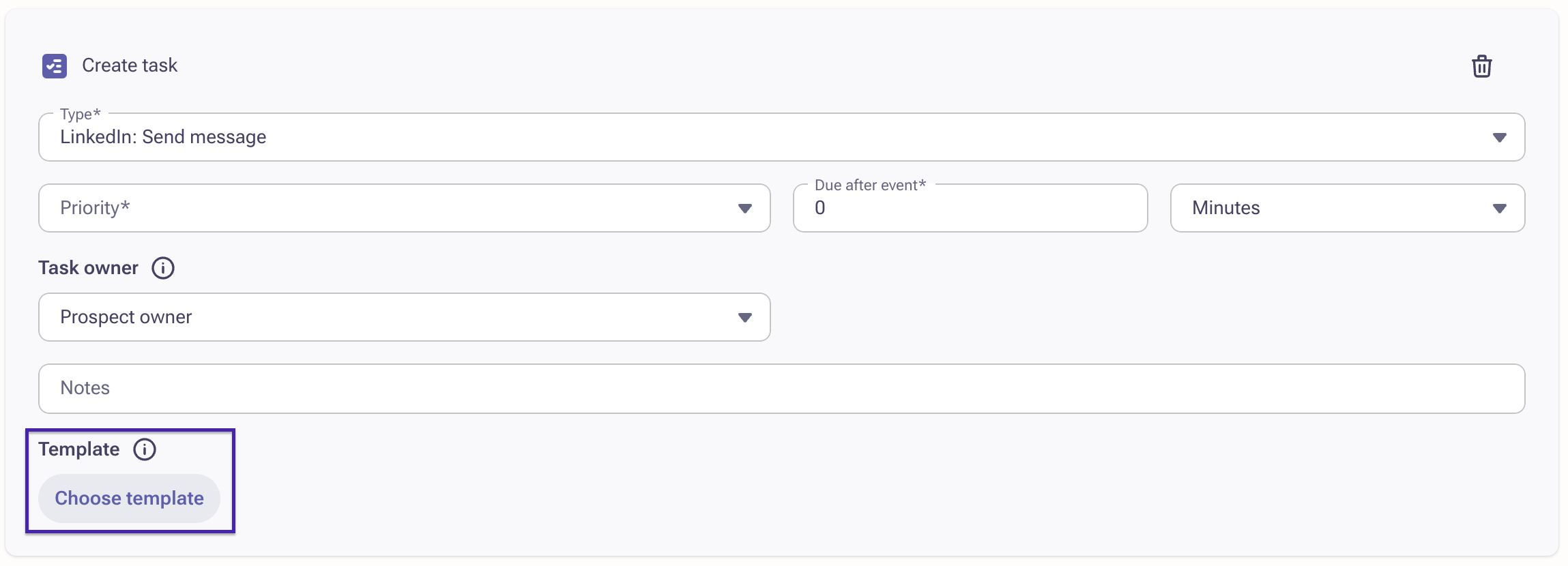
End-user experience: Reps will see pre-filled task content when executing Email or LinkedIn tasks generated by Triggers. For LinkedIn messaging tasks, pre-filled text appears in the Notes section and must be copied and pasted for execution. This allows reps to focus on execution rather than drafting messages manually.
Trigger List Views
The trigger list view is organized as follows:
| List View | Description |
|---|---|
| Name | The name of the trigger |
| Status | Indicates if the trigger is Active or Inactive |
| Object Trigger On | Displays the source object (for example, Account, Prospect) that activates the trigger. This column can be added via Manage columns. |
| Last Activity | Shows the most recent action taken by the trigger |
| Last Updated | Displays when the trigger was last modified |
| Created At | Shows when the trigger was first created. Can be added via Manage columns. |
| Owner | Identifies who owns the trigger |
Filtering and Sorting Triggers
The following filters and sorting options are available to help admins find and manage triggers:
Filters
- Created At
- Last Activity
- Last Updated
- Name
- Object Triggering On
- Status (Active/Inactive)
- Owner
Sorting
- Status (Active/Inactive)
- Last Activity
- Object Triggering On
Bulk Actions
The following bulk actions are available:
- Activate multiple triggers
- Deactivate multiple triggers
- Delete multiple triggers
Operator Support for Custom Field Data Types
Operator standardization for custom fields:
- Numeric and Percentage Fields: Numeric operators (greater than, less than, equals) appear when these data types are used in trigger conditions.
- Date Fields: Custom date fields now support operators like "is," eliminating manual workarounds for time-sensitive workflows.
- String, Picklist, and Other Data Types: Now aligned with standard fields, offering consistent operator options for text-based custom fields.
Pass Opportunity Reference When Source Object Is Opportunity
When the trigger's source object is an Opportunity and the action is "Add to Sequence" or "Create Task," the associated Opportunity ID is automatically passed. The Opportunity ID is stored with the task or sequence state, ensuring proper linkage for reporting and tracking.
Task Owner Assignment Options by Account/Opportunity Owner
Users can assign tasks or sequences to the Account Owner, Opportunity Owner, or Prospect Owner when configuring trigger actions. These are manually selectable options in the Triggers Action panel.
- Dynamic Sending Capabilities: Supports automated task and sequence assignment based on the source and target object combination (Account, Opportunity, or Prospect).
- Mailbox Flexibility: Triggers can send emails from the appropriate owner's mailbox (Account Owner, Opportunity Owner, or Prospect Owner).
| Source Object | Target Object | Action | Owner Assignee Options |
|---|---|---|---|
| Account | Account | Create Task | Account Owner |
| Account | All Prospects for Account | Create Task / Add to Sequence | Account Owner, Prospect Owner |
| Opportunity | Opportunity | Create Task | Opportunity Owner, Account Owner |
| Opportunity | Primary Prospect / All Prospects | Create Task / Add to Sequence | Opportunity Owner, Account Owner, Prospect Owner |
| Prospect | Prospect | Create Task / Add to Sequence | Account Owner, Prospect Owner |
Note: Owner assignee options are resolved from the target object. For example, if the Source is Opportunity and the Target is Primary Prospect, and the assignment is Account Owner, the Account Owner of the primary prospect is used for assignment.
Frequently Asked Questions
What is the main purpose of field change-based triggers?
Field change-based triggers allow admins to automate actions based on specific field changes within objects such as prospects, accounts, or opportunities, enabling more precise sales process automation.
How does this differ from existing trigger functionality?
Traditional triggers fire on record creation or update. Field change-based triggers fire specifically when a designated field is updated, with conditions that can be scoped to the value before the change, after the change, or both.
Can this feature trigger on a defined range of values?
Not independently, but combining field change conditions with existing operators such as "is less than" or "is greater than" can deliver that outcome.
Can you provide examples of how field change triggers can be used?
- When a prospect stage changes to "Demo Completed," automatically add the prospect to a follow-up sequence and create tasks for next steps.
- When a prospect moves to a "Qualified" stage, automatically add them to an engagement sequence.
- When the "Last Interesting Moment" field changes, create a task for the prospect owner to review the change.
- When the "Primary Contact" field is updated, create a task for the account executive to schedule a meeting with the new contact.
How do users configure field change triggers?
Access the trigger configuration in the Admin interface. Specify the object conditions, including the value change, the value before the change, or the value after the change, then define the action to automate.
How does Task Ownership and Sequencer Assignment work with MUA disabled?
If MUA is disabled, all MUA-related checks are skipped. The logic proceeds by checking job roles within the Account Team first, and all other checks function the same as when MUA is enabled.
Where can admins configure templates for Email or LinkedIn tasks in Trigger setup?
Templates, snippets, or personalization blocks can be configured directly in the Trigger setup screen under the content section of the Task Type (Email or LinkedIn: Send Message). A rich text editor is available to compose or insert saved content.
What types of content can be included in a task?
- Outreach Templates (with variables)
- Snippets
- AI Personalization Blocks (Amplify package only)
- Custom free-form content using the rich text editor
Can I mix templates, snippets, and personalization blocks together?
Yes. Templates and snippets can be combined, or a personalization block can be added to the body to create a hybrid version tailored to your messaging needs.
Can I create a new personalization block during Trigger setup?
Yes. When you add a new personalization block in the content editor, you will be prompted to save it in AI Content > Personalized Blocks for reuse in future triggers or sequences. Note: Personalization is available for Amplify package customers only.
Will the email content be visible to the rep at task execution?
Yes. The task will be pre-filled with the content configured by the admin, including the selected template, snippet, or personalization. Reps can review, edit if needed, and send immediately.
Can the rep edit the content before sending?
Yes. Reps can modify the pre-filled content before completing the task, the same as any normal email or LinkedIn task.
For LinkedIn tasks, where does the content appear?
The content appears in the task notes section when reps are on the task, allowing them to copy it into the LinkedIn interface for execution.
Additional Information
Was this article helpful?
That’s Great!
Thank you for your feedback
Sorry! We couldn't be helpful
Thank you for your feedback
Feedback sent
We appreciate your effort and will try to fix the article