Objective
Manage open and click tracking for emails sent with Outreach at the Admin, Profile, & User levels.
Applies To
- Email Tracking
- Outreach Users
- Outreach Admins
Procedures
Manage Email Tracking at the Org Level (Admins)
Only Admins can enable/disable the availability of tracking options across the Org, for both emails and templates.
- Access the Outreach Platform.
- Click Administration in the bottom left corner of the navigation sidebar.
- Click Org Info.
- Click top open the Email tab.
- Scroll down to the Tracking section.
- Optionally check or uncheck the boxes for:
- Allow click tracking for emails sent using Outreach
- Allow open tracking for emails sent using Outreach
- Click Save so save your changes.

When a box is checked, Users will be able to access the toggle for the applicable tracking option when creating emails and email templates.
Manage Email Tracking at the Profile level
- Access the Outreach Platform.
- Click Administration in the bottom left corner of the navigation sidebar.
- Click User management > Access control.
- Select a profile.
- Navigate to Mail.
- Toggle the following permissions as needed:
- Enable open tracking for emails they send
- Enable click tracking for emails they send
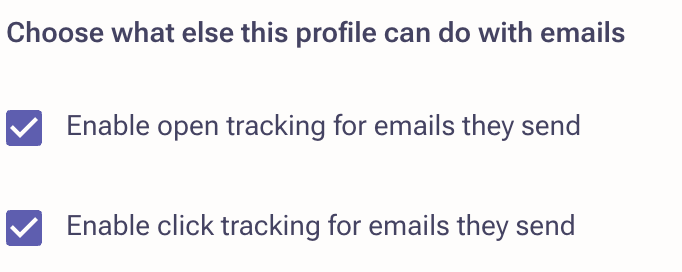
- Click Save.
Manage Email Tracking as an Outreach User
- Access the Outreach Platform.
- Optionally, do either of the following:
- Start a new email
- Create or open an email template
- Along the bottom of the message/body field, click the Add tracking (arrowhead) icon.
- Check the box(es) to enable/disable any of the applicable options shown in the pop-up menu:
- Opens - Provides the User the ability to track if an email is opened.
Note: When allowed in your Org, Track Opens is enabled by default. - Clicks - Provides the User the ability to track if a link is clicked.
Note: The link must be a hyperlink by using the Add link button in the template toolbar. It cannot be the full URL link directly in the message body. If you're simply typing in www.Outreach.io in the message body, click tracking won't work. It must be added as a hyperlink.
- Opens - Provides the User the ability to track if an email is opened.
- Continue to complete your email or template as desired.

Additional Info
Outreach Email Tracking Options Overview
Was this article helpful?
That’s Great!
Thank you for your feedback
Sorry! We couldn't be helpful
Thank you for your feedback
Feedback sent
We appreciate your effort and will try to fix the article