Purpose:
The purpose of this article is to provide direction to Outreach Admins in customizing activities posted to Microsoft Dynamics.
Outreach gives users the ability to customize the subject line for tasks posted to Dynamics, which reflects the communication type for each activity. Most commonly, organizations choose to post call, email, and generic task activities. System administrators can choose which activities they wish to have posted to Dynamics by accessing the object's settings and modifying options under the Message & Events section.
How To Customize Activity Subject Lines Posted to Dynamics
- Access the Outreach Platform.
- Access the Dynamics Plugin.
- Access an object to customize.
- Click Sync or the Advanced settings tab in the menu bar.
- Click to enable the appropriate options under the Messages & Events section. See table below for a list of configuration options.
- Click the Settings icon to the right of the option to customize.
- On the Advanced Settings window, click to enable the Customize Title option.
- Input a string value as outlined in the table below.
| Configuration | String |
|---|---|
| Inbound Emails | [Outreach][Activity:Email][Direction:Out][Source:App][:{{auto_manual}}][Sequence:{{sequence_name}}][Step:#{{sequence_step}}][Subject:{{message_subject}}] |
| Outbound Messages Sent From Outreach | [Outreach] [Activity: Email] [Direction: Out] [Source: App] [: {{auto_manual}}] [Sequence: {{sequence_name}}] [Step: #{{sequence_step}}] [Subject: {{message_subject}}] |
| Outbound Messages Outside Outreach | [Outreach] [Activity: Email] [Direction: Out] [Source: Gmail/Mobile] [Manual] [Subject: {{message_subject}}] |
| Email Open | [Outreach] [Activity: Email] [Action: Opened] [Sequence: {{sequence_name}}] [Step: #{{sequence_step}}] [Subject: {{message_subject}}] |
| Email Click | [Outreach] [Activity: Email] [Action: Clicked] [Sequence: {{sequence_name}}] [Step: #{{sequence_step}}] [Subject: {{message_subject}}] |
| Completed Task | [Outreach] [Activity: Task] [Sequence: {{sequence_name}}] [Step: #{{sequence_step}}] [Action: {{task_title}}] |
Note: Outreach retains the [Outreach] tag on all activities posted so system admins know which user/system is responsible for posting that activity. Then, Outreach uses the [App] or [Gmail/Mobile] or [Office 365/Mobile] or [Exchange/Mobile] for the email service designation, to help reinforce that these were messages initiated from or received at the regular inbox.
Titles of Outreach Activities in Dynamics
An example of an email posted to Dynamics with the scheme described above:
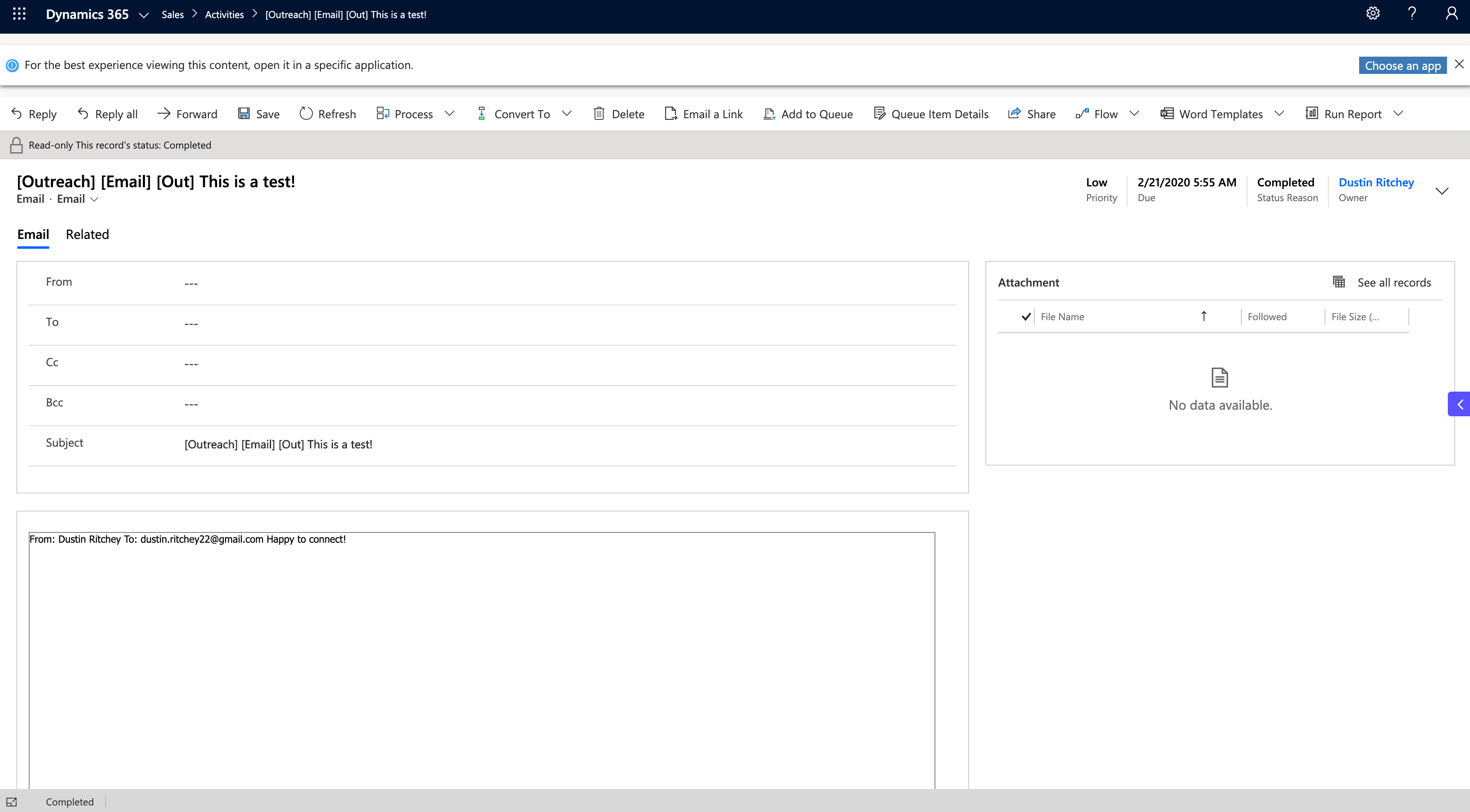
Note: The activity titles must be configured on the Contact and Lead separately. Outreach suggests that the Outreach admin completes setup on the lead object, and then copies those settings over to the contact object to complete the configuration.
Was this article helpful?
That’s Great!
Thank you for your feedback
Sorry! We couldn't be helpful
Thank you for your feedback
Feedback sent
We appreciate your effort and will try to fix the article