Objective
Easily put prospects into an Outreach sequence on behalf of another user in your org. The sequence steps will operate and messages fire as if the user had set up the sequence with the target prospects themselves.
Applies To
- Outreach users
Before You Begin
Configure user permissions
Admins must configure the applicable permissions for users to send on another user's behalf. Depending on the user(s) in question, this may involve granting access to Prospects/Sequences/Mailboxes associated with them and their reports or anyone.
To manage these permissions as an Admin:
- Navigate to Administration > User management > Access control.
- Find and click on the applicable Profile associated with the user(s) who will be sequencing prospects on others' behalf.
- Ensure to select appropriate permissions in these sections:
- Prospects
- Sequences
- Click Save to complete Profile configuration with the selected permissions.
Set up the outgoing mailbox
The mailbox from which a user would like to send must:
- be associated with an active user in Outreach
- be connected
- have a send method enabled
- have sync enabled
See also How To Connect a Primary Email to Outreach.
Procedure
- In the Outreach platform, open the Prospects List View.
- Select the applicable Prospects. (Adjust any filters as needed.)
- Above the Prospects list, click the Sequence button.
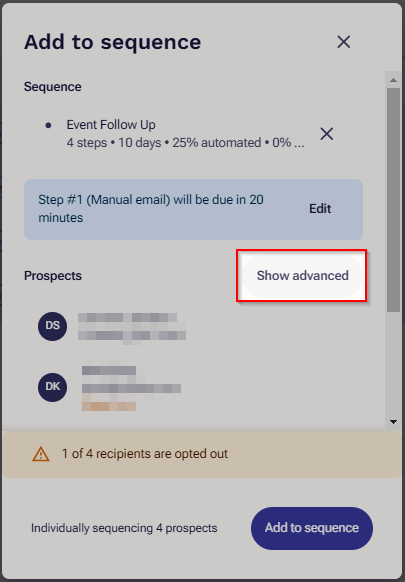
- In the Add to sequence window, select the applicable sequence to add the Prospect(s) to.
- Just above the prospects list in the window, click Show Advanced.
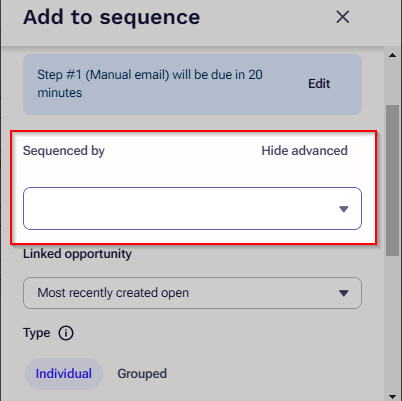
- In the Sequenced By dropdown menu, select the user you are sequencing on behalf of.
- Complete configuring the sequence as applicable in the rest of the Add to sequence window.
- When done, click Add to sequence.
Additional Information
See below to take other actions on behalf of users in your Outreach org:
Was this article helpful?
That’s Great!
Thank you for your feedback
Sorry! We couldn't be helpful
Thank you for your feedback
Feedback sent
We appreciate your effort and will try to fix the article