Objective
Learn how to manage Call Dispositions and Call Purposes options for end users as an Outreach Admin.
Applies To
- Outreach Admins
Before you begin
- Some Outreach views and options require admin-level governance permissions. If the options outlined are unavailable, contact the Org's Outreach Administrator as applicable. For more information regarding governance profile settings, refer to the Governance Profile Settings Overview article.
- Outreach provides Users an indicator of whether the Prospect will be marked finished in the Sequence, paused, or if the Prospect will continue to the next step depending on the call disposition selected upon completion of a Call Task within a Sequence.
- When deleting a Call Disposition from Outreach, any calls with that disposition in the past will show as not logged. Be aware that this may impact reporting. There is not a way to reverse these changes once they are made. The call disposition type, Answered vs. Not answered, will have an impact on sequence tasks where you've configured the sequence to mark the prospect as finished or continue to the next step based on if they've replied (Replies section under the sequence setting). For that sequence setting, Replies will apply to both email replies and a call logged with a call disposition that is mapped to 'Answered'.
Procedures
Create a New Call Disposition
- Access the Outreach Platform as an Admin.
- Click Administration > Tools > Calls.
- Click the Dispositions tab to open the list.
- Click Add disposition.
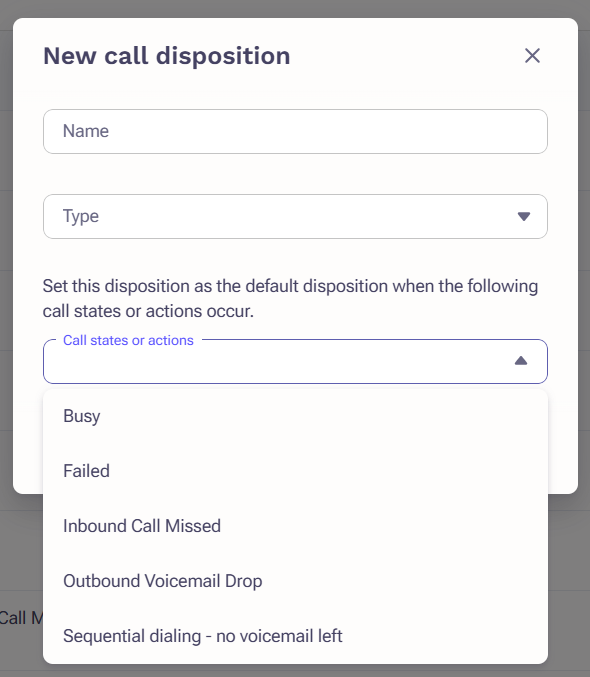
- Input a descriptive Name for the new call disposition.
- Select the applicable Type:
- Name - Descriptive name of the Call Disposition.
- Type - 'Answered' or 'Not Answered.' This will also affect the sequence setting for What to do when a prospect replies... (See below.)
- Call states or actions - Disposition automatically selected based on call states or user action.
- Click Save.
The new call disposition has been added and is available for use as configured.
Edit an Existing Call Disposition
- As an Outreach admin, navigate to the Dispositions list: Administration > Tools > Calls > Dispositions.
- Clicking on an existing disposition.
- Make any updates.
- Click Save.
Delete an existing disposition: In the Dispositions list, to the right of the applicable disposition, click More actions (⋯) > Delete.
Create a New Call Purpose
- Access the Outreach Platform as an Admin.
- Click Administration > Tools > Calls.
- Click the Purposes tab to open the list.
- Click Add purpose.
- Input a name for the new call purpose and click Save.
The new call purpose has been added and is available for use as configured.
Edit an Existing Call Purpose
- As an Outreach Admin, navigate to the Purposes list: Administration > Tools > Calls > Purposes.
- Click an existing purpose.
- Update the name, then click Save.
Delete an existing call purpose: In the Purposes list, to the right of the applicable purpose, click More actions (⋯) > Delete.
Require Call Purpose for Logged Calls
Note: Organizations using Sequential Dialing should not make Call Purpose required.
Admins can require that Users complete the Call Purpose field before a call can be logged, ensuring the field is consistently filled in rather than left blank. This is an org-level setting.
- Access the Outreach Platform an an Admin.
- Click Administration > Organization > Org info.
- Click Voice.
- Under Outreach Voice call settings, check the box next to Require users to select a call purpose in the call log.
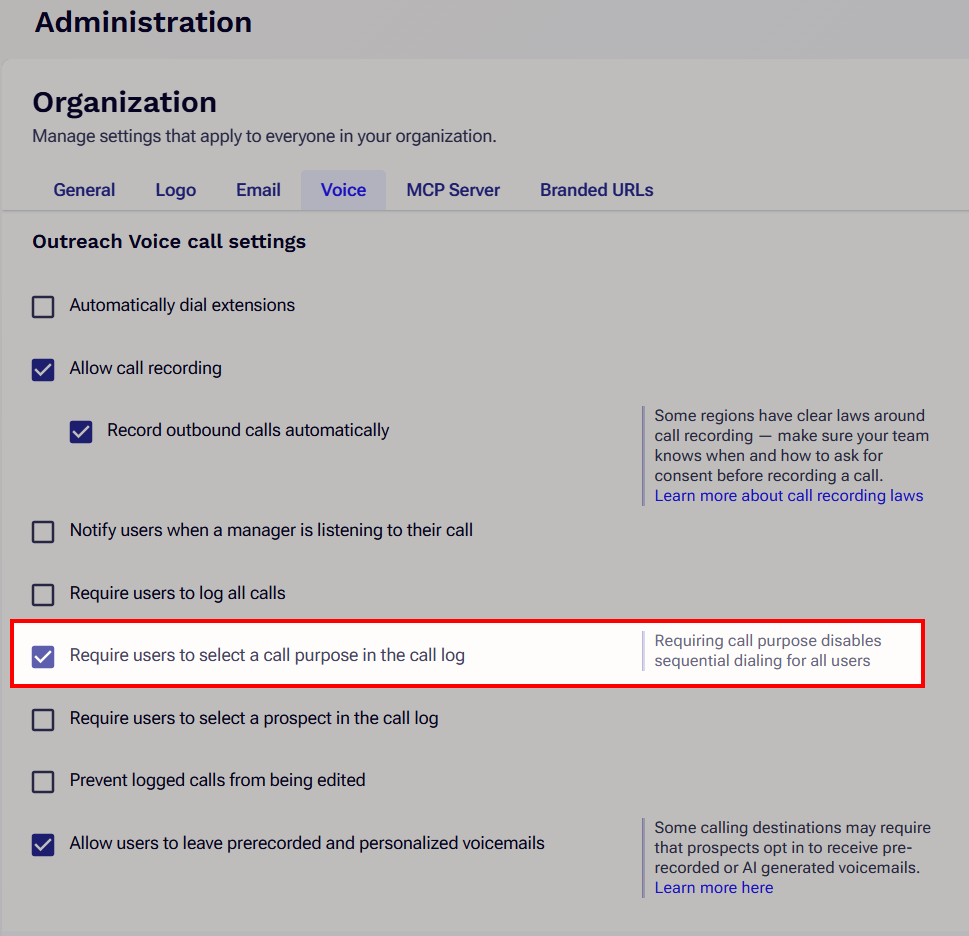
Once enabled, Users cannot save a call log without completing the Call Purpose field.
Configure for Sequential Dialing
- Access the Outreach Platform as an Admin.
- Navigate to the Dispositions list: Administration > Tools > Calls > Dispositions.
- Click on a disposition.
- Click Edit.
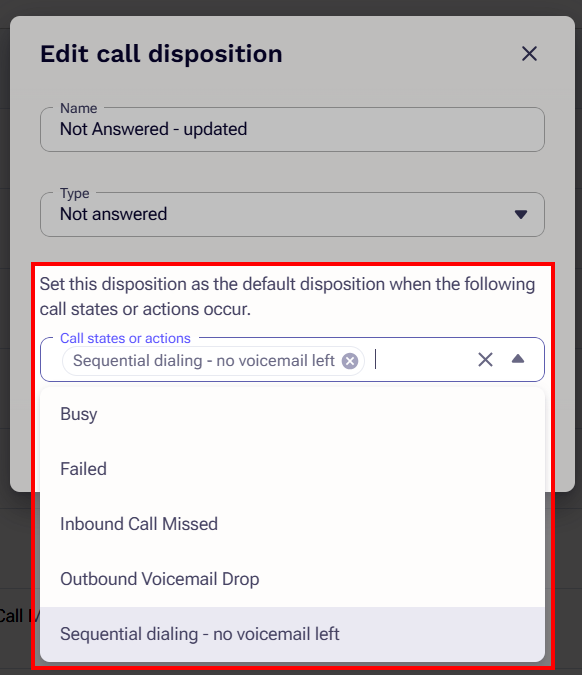
- Under Set this disposition as the default disposition when the following call states or actions occur, select Sequential dialing - no voicemail left.
- Click Save.
It is recommended to also assign a default all disposition to the call states Busy and Failed so that these call outcomes don't pause Sequential Dialing.
Additional Information
Was this article helpful?
That’s Great!
Thank you for your feedback
Sorry! We couldn't be helpful
Thank you for your feedback
Feedback sent
We appreciate your effort and will try to fix the article