Purpose:
The purpose of this article is to provide direction to Outreach Admins on testing data syncing from the Outreach platform to a Microsoft Dynamics instance in a sandbox environment.
Intended Audience:
- Outreach Admins
Notes:
- The CRM Sync experience listed here includes both the Classic Plugin experience and the new Enhanced CRM Sync Experience.
Before Completing This Process, Admins have:
- Created a Dynamics Sandbox Environment.
- Created Test Prospect profile with applicable data for testing (e.g. First Name, Last Name, Phone Number, etc.).
Procedure
Classic Plugin
- Access the Dynamics Sandbox.
- Click Types.
- Click the object to sync (i.e. Leads, Contacts, Accounts, etc.).
- Click to enable Pushing and click Save.
- Click Fields in the menu bar.
- On the Fields Settings landing page, click to enable the Updates In and Updates Out options as applicable, and click Save.
Note: The Updates In option syncs data from Dynamics to Outreach; the Updates Out option, syncs data from Outreach to Dynamics.
Access the Dynamics instance to confirm the pushed data synced.
Enhanced CRM Sync
- Access the CRM Integration.
- Click the object to sync (i.e. Leads, Contacts, Accounts, etc.).
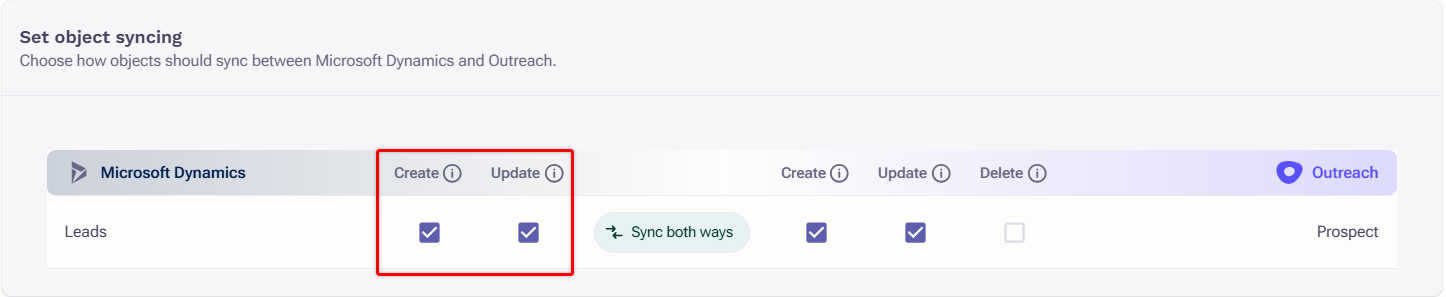
- Under the Set object syncing section check the Create and Update in Microsoft Dynamics checkboxes.
- Under the Set field mapping section check the box for update in Microsoft Dynamics as applicable.
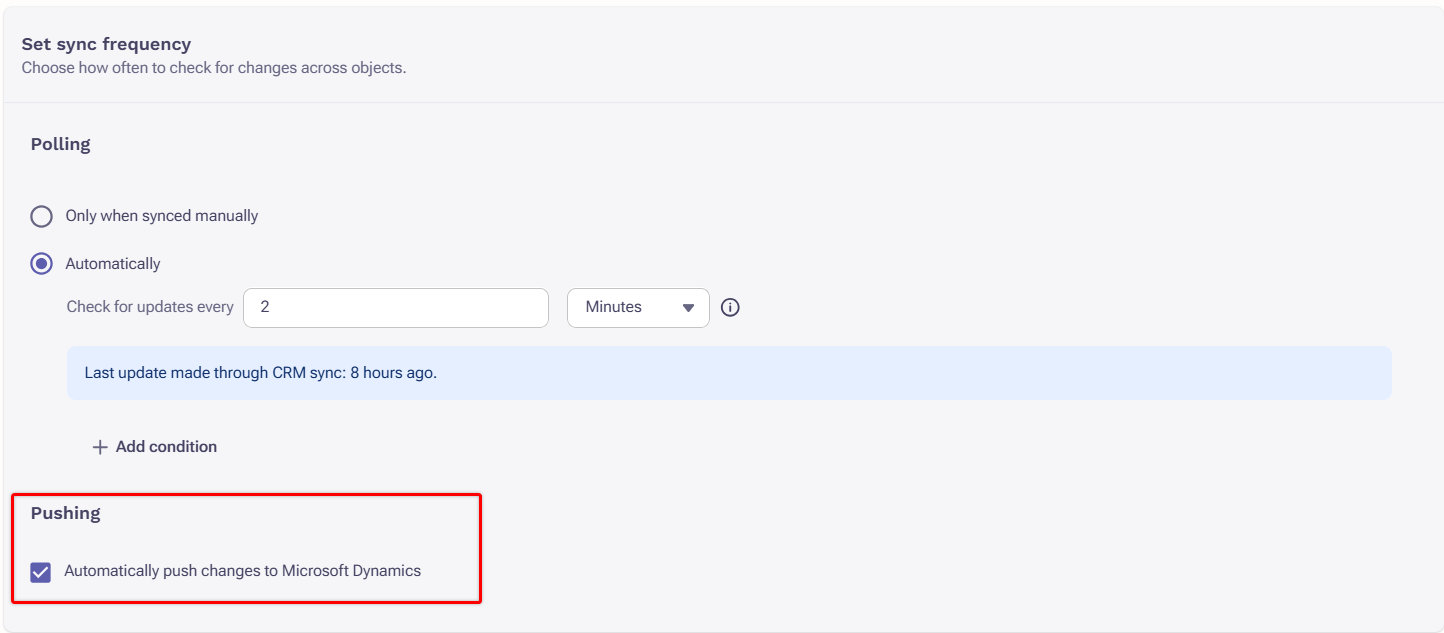
- Under Set sync frequency, check the box for “Automatically push changes to Microsoft Dynamics”.
- Click Save.
Access the Dynamics instance to confirm the pushed data synced.
Was this article helpful?
That’s Great!
Thank you for your feedback
Sorry! We couldn't be helpful
Thank you for your feedback
Feedback sent
We appreciate your effort and will try to fix the article