Objective
The purpose of this article is to provide direction to Outreach Users in applying templates to an email in Gmail.
Applies To
- Outreach Users
Procedure
- Ensure the Outreach Everywhere Chrome Extension is installed and enabled in your browser.
- Compose a new email or access an existing email.
- Add the applicable Prospect(s) to the To field.
- Click the Templates icon in the email composition window.
- Search and select the applicable Template.
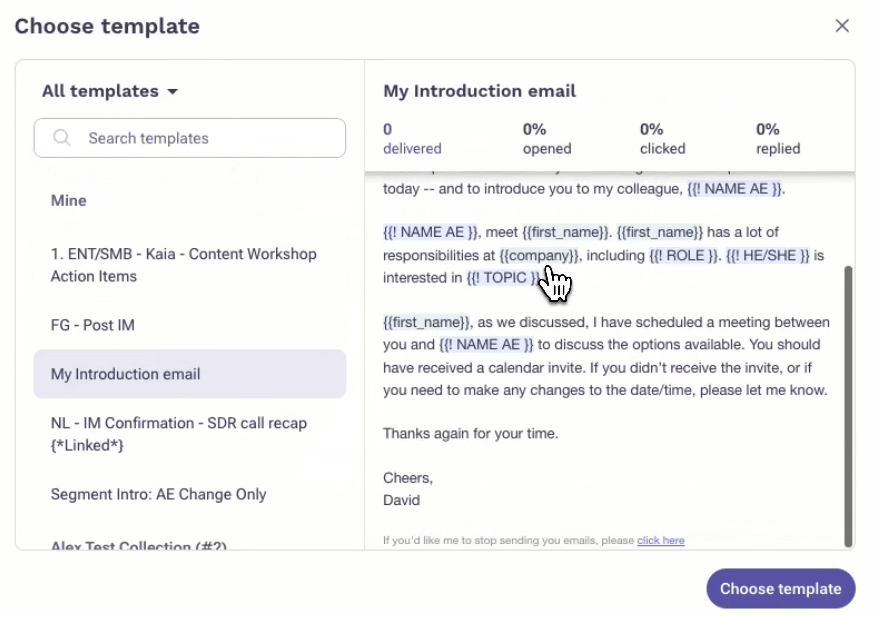 The selected template appears in the body of the email for additional input and customization as applicable.
Note: To access Templates that are part of a Collection, click the All Templates dropdown, then select from the list of available Collections.
Additional Information
Was this article helpful?
That’s Great!
Thank you for your feedback
Sorry! We couldn't be helpful
Thank you for your feedback
Feedback sent
We appreciate your effort and will try to fix the article