Objective
Configuring Vidyard GoVideo with Outreach as an Admin.
The Vidyard integration for Outreach allows user to record videos in their emails and feed events direction to Outreach's activity feed to trigger their next action.
Applies To
- Outreach Admins
- Vidyard GoVideo
Before You Begin
- Admin governance is required to enable the Vidyard integration.
- Adding the Vidyard integration is an Org-wide action.
- Admins must download the Vidyard integration prior to enabling.
Procedures
Install the Application
- Access the Outreach Platform as an Admin.
- Click Administration > Integrations > Installed Apps.
- Click Install new apps.
- Search for Vidyard.
- Click Install.
- Follow the steps onscreen to complete installation.
Manage the Application
- Access the Outreach Platform as an Admin.
- Click Administration > Integrations > Installed Apps.
- Select Vidyard.
- Complete configuration options:
- Add your Vidyard API Token: Connect your paid Vidyard account to Outreach.
- Enable Vidyard-branded events in your Outreach Activity Feed: Displays Vidyard content on the Outreach Activity Feed.
Note: Ensure you've filtered in External activities in your Activity Feed. - After a prospect engages with your Vidyard videos, they will by default, remain in the sequence that drove them there. To ensure that Prospect's next step is contextual, you can trigger custom actions within Outreach so they don't continue in the current sequence unless desired. Outreach recommends setting up a new trigger to designate what should happen after a Vidyard event occurs.
Note: For more information regarding these configurations, refer to Vidyard's configuration page.
Using the Vidyard & Outreach Integration
Open a new email compose window in Outreach, view a prospect’s profile, create new content (sequences, templates, and snippets), or open the task flow. You will now see the Vidyard icon added to the other icons on the bottom of the compose window.
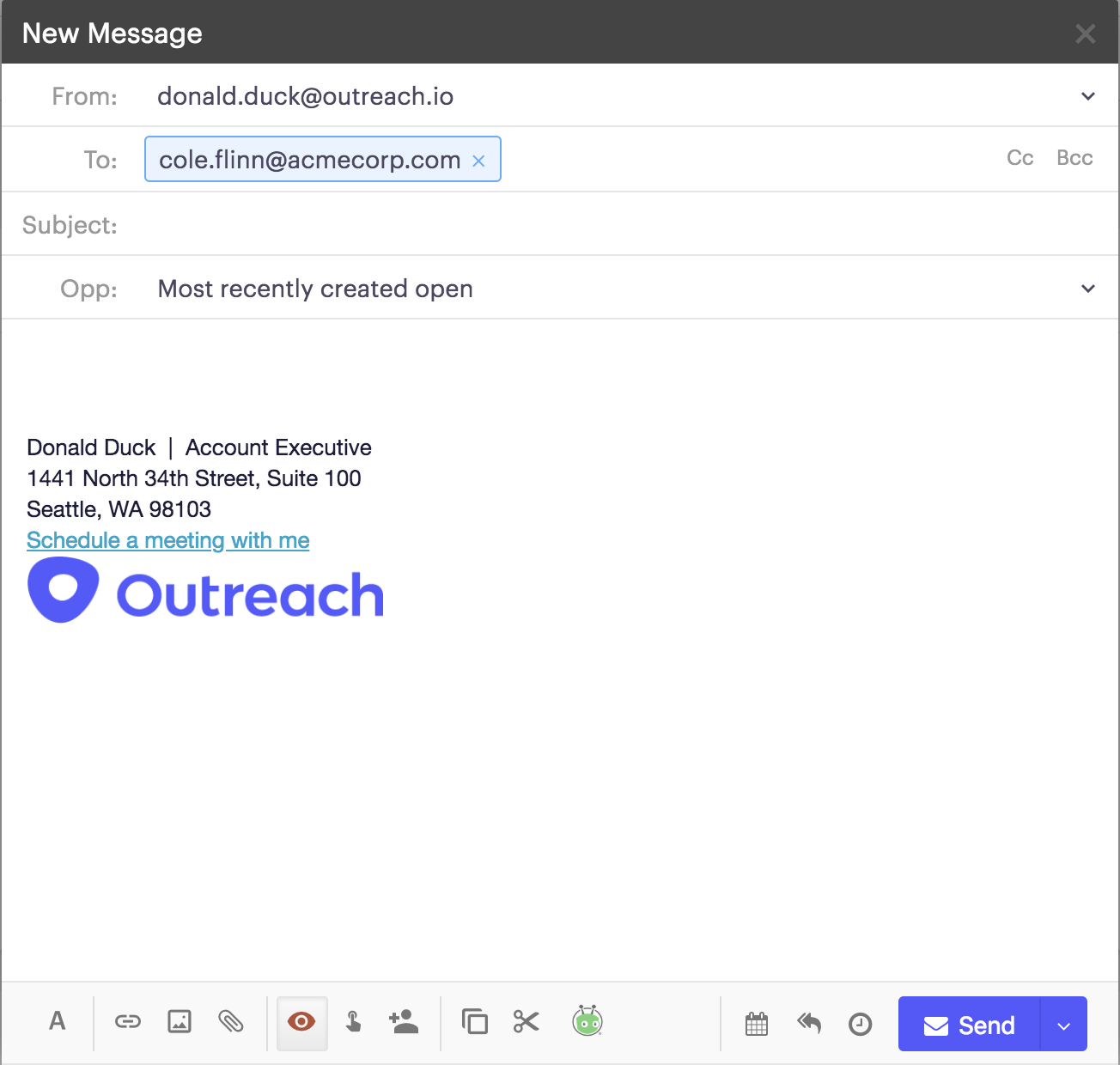
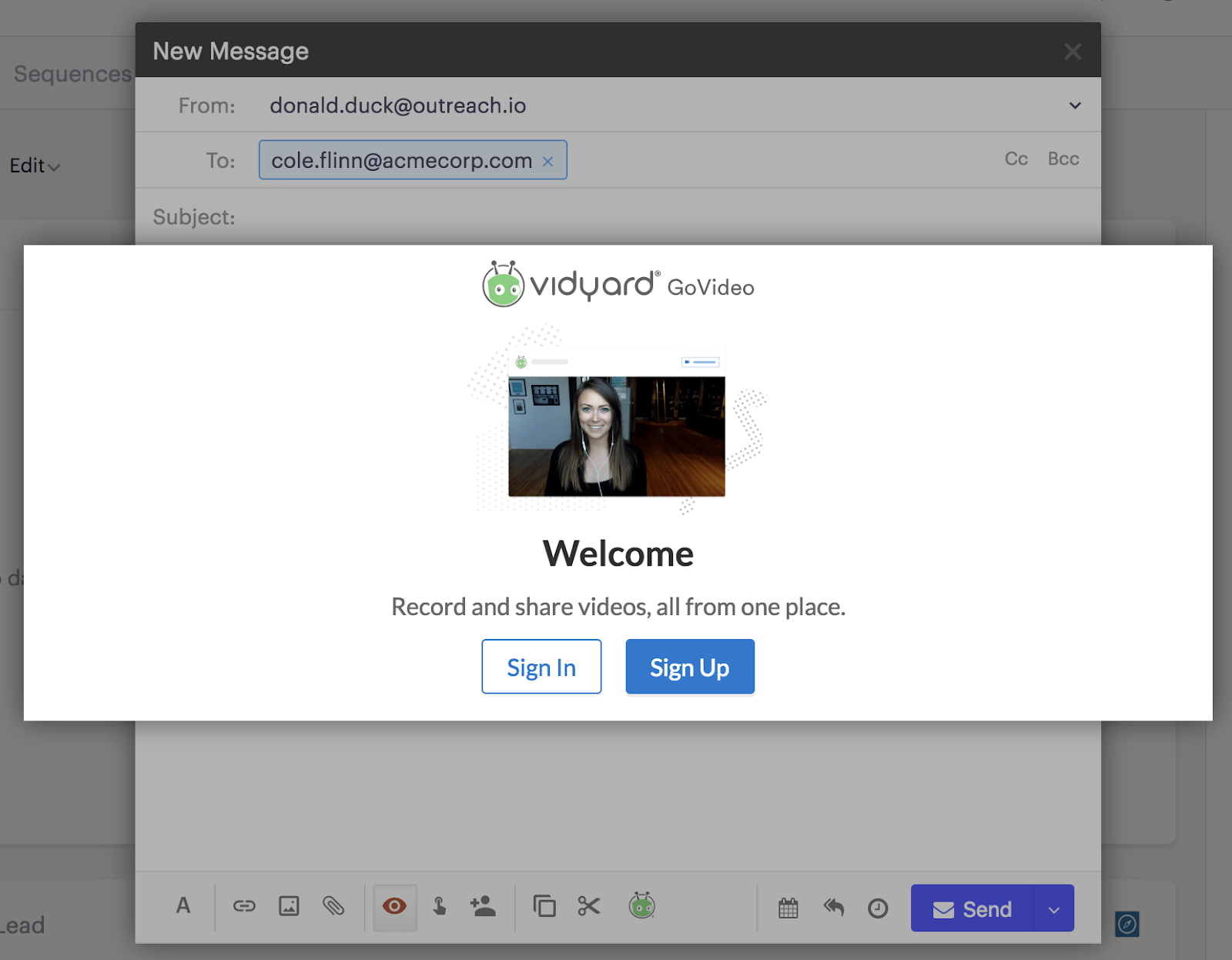
Click on the vidyard logo on the bottom of the compose window. A pop-up window will appear in Outreach. If it’s your first time using Vidyard, click “Sign Up” and authorize the application to work inside Outreach. Otherwise, click “Sign In”, enter your Vidyard login credentials, and authorize the integration.
- When you're ready to record, click on the Vidyard icon to record your face, your screen, or access videos from your personal & shared Vidyard libraries. Once you’ve selected your video(s), click Insert to add a thumbnail & link of your video to your email.
Additional Information
Frequently Asked Questions
What happens if the Vidyard icon isn’t appearing in my Outreach email?
First, has your admin installed the integration in your Org Settings? If the integration is on and the icon still isn’t appearing, contact Outreach Support.
How does Vidyard GoVideo pricing work?
Refer to Vidyard’s pricing here.
I’m on the free Vidyard plan. Can I still record videos in Outreach?
Yes! Anybody can record and share Vidyard videos in Outreach today for free.
What do I get if I’m on a paid Vidyard plan?
Contact Vidyard to understand exactly what’s included in your package. In Outreach, you can record and share Vidyard videos for free. Plus, for users on the Vidyard GoVideo for Teams plan,;you’ll see Vidyard activity in Outreach which you can use to trigger your next step.
Why can’t I see Vidyard views and watches in my Outreach activity feed?
First, have you cleared the filters on your activity feed? If “External” events are checked/filtered in and you still aren’t seeing your Vidyard activity, contact Outreach Support.
What triggers should I set up?
Every situation is different, but we recommend starting with more manual triggers until you know your process. For example, trigger an action item to decide how to follow up after your video is viewed. Or trigger a follow-up sequence with the first step being a manual email, allowing you to decide on personalized messaging.
Was this article helpful?
That’s Great!
Thank you for your feedback
Sorry! We couldn't be helpful
Thank you for your feedback
Feedback sent
We appreciate your effort and will try to fix the article