Objective
This article is intended to help Outreach Users and Admins understand how to enrich Account and Prospect records using external data providers. Data enrichment enhances these records with additional, valuable information - empowering users with deeper insights for personalization and engagement.
Note: Please refer to this article on configuring Smart Data Enrichment.
Applies To
- Outreach Users
- Outreach Admins
Overview
Sales teams often waste time switching between tools to find critical data about prospects and accounts. With data enrichment, Outreach brings external sales intelligence directly into your workflows, so you get the information you need without leaving the platform.
What types of data are enriched
Once your data provider is set up, you can enrich records with:
| Record type | Data type | Examples |
| Accounts | Firmographic | Company description, HQ address |
| Accounts | Technographic | Tech stack used |
| Prospects | Demographic | Email, phone number, job title |
| Both | Signals | IPO announcement Read more about Signals Overview |
Note: Available data varies by provider. Check our data coverage table for details.
How Data Enrichment works
Enrichment automatically updates selected Accounts or Prospects with data from the connected data provider. The enrichment process is billed according to the customer’s contract with the data provider. Every enrichment set up through Outreach is continuous, with data being refreshed daily, weekly or monthly.
Records marked for enrichment - either manually by the user or by the Revenue Agent—are regularly processed by the enrichment pool. Read more about How to trigger data enrichment.
Once records are marked for enrichment, their status changes to "Pending" and they are placed in the enrichment queue. How quickly they are enriched depends on three main factors:
- Queue size - how many other records are also waiting to be enriched.
- Enrichment pool prioritization:
- New (never enriched before) - prioritized by creation date, with the most recently created records processed first.
- Previously enriched records - eligible and marked for daily/weekly/monthly enrichment. These are also prioritized by creation date, with more recently created records processed first.
- Enrichment pace - the speed set in your enrichment settings, which controls how fast records are processed. Read more about Data enrichment settings.
Enrichment criteria:
Only accounts with a filled-in domain and prospects with an email address can be enriched. These fields serve as unique identifiers for the records between Outreach and the third-party data provider.
Enrichment status:
Enrichment status details for each record can be found in the Account or Prospect detail view, located in the sidebar under the "Enrichment" section. If applicable, this section also displays the date the record was marked for enrichment, as well as the date of the last enrichment run.
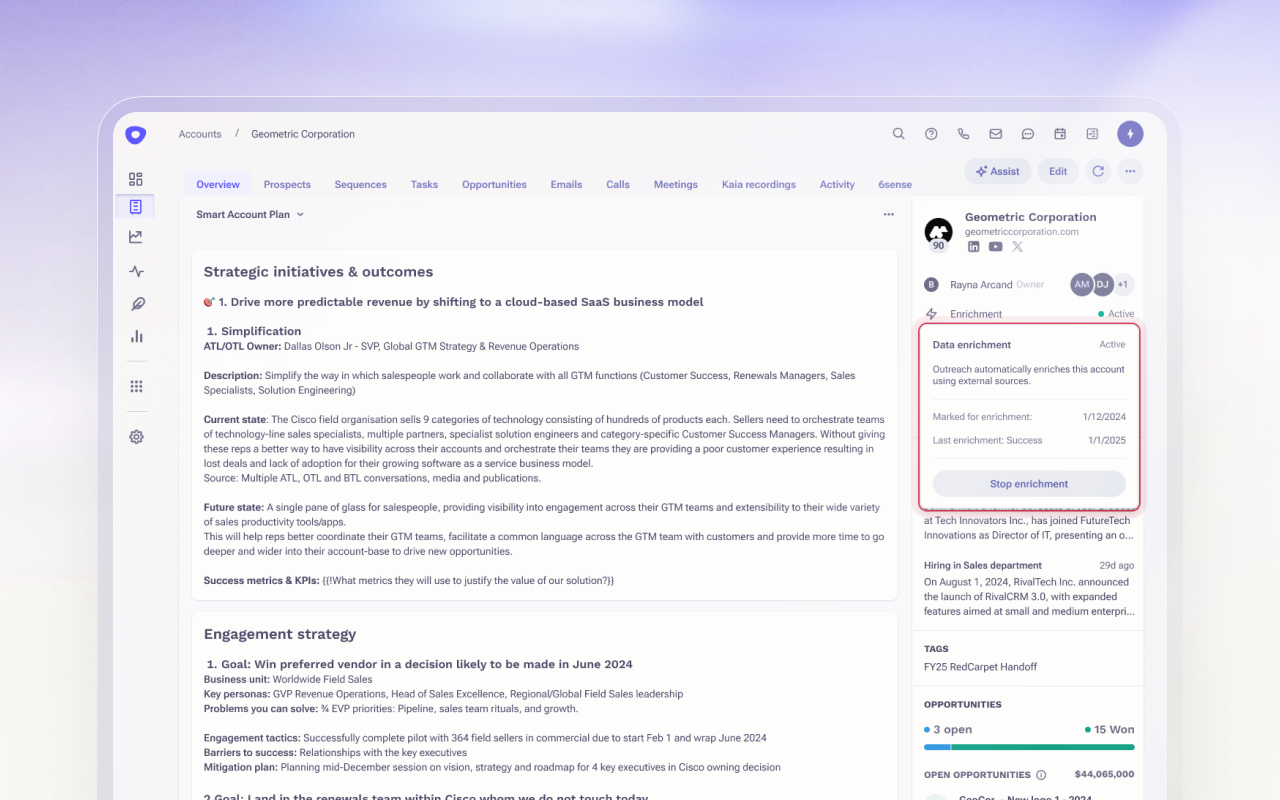
Use enrichment filters to monitor record status in the enrichment queue
Use enrichment filters in Account and Prospect views to quickly identify which records have been enriched, are pending enrichment, or where enrichment has failed.
Enrichment status
Indicates the current status of a record in the enrichment queue. Available as a filter, in the Enrichment section of the record detail, and in the Status column (under the lightning bolt icon) in the Account and Prospect views.
- Active – The record is in the enrichment pool, has been successfully enriched during last enrichment run and remains in the enrichment pool, awaiting a scheduled refresh.
- Inactive – The record has never been enriched or has been removed from the enrichment pool.
- Pending – The record is in the enrichment pool and awaiting its first enrichment.
- Failed - The record is in the enrichment pool and has had enrichment attempts, but their last result was either Failed or No match.
Last Enrichment updated
Indicates the timestamp of the most recent enrichment attempt. Available as a filter, in the Enrichment section of the record detail, and in the Status column (under the lightning bolt icon) in the Account and Prospect views.
- Timestamp – Timestamp of the last enrichment attempt.
Last Enrichment Status
Indicates the outcome of the most recent enrichment attempt. Available as a filter, in the Enrichment section of the record detail, and in the Status column (under the lightning bolt icon) in the Account and Prospect views.
- Success – The last enrichment attempt was successful.
- Failed – The last enrichment attempt failed.
- Unmatched – The last attempt failed to match the record.
Enriched
Indicates whether the record was ever successfully enriched. Available as filter in the Account and Prospect views.
- True – The record was successfully enriched at least once.
- False – The record has never been successfully enriched. This could mean it’s not in the queue or all attempts have failed.
Where enrichment data is stored
All enriched data is stored in a dedicated enrichment database linked to your main records. It includes:
- Newly sourced records
- Existing records that are enriched
This ensures enrichment doesn't overwrite your CRM or Outreach data unless explicitly configured to do so.
Enrichment of existing vs. new fields
Outreach’s enrichment process enhances both existing standard fields (e.g., Company description) and adds entirely new data points (e.g., NAICS and SIC codes) to your Account and Prospect records.
Existing standard fields
By default, Outreach does not overwrite existing values in your standard fields.
If a field is empty, enrichment data appears as a suggested value, but won’t be saved automatically unless:
- “Conditional overwrite” is enabled — enrichment data will populate empty fields on existing records.
- The record is a new Prospect created by the Agent — enrichment values are written automatically.
Learn more about these options in Configure and enable Data Enrichment.
New enrichment fields
In addition to existing fields, enrichment introduces new data fields from your connected provider.
- These fields are visible in the Account and Prospect detail views and list views.
- You can also use them in personalization snippets.
Note: These new fields are currently not supported in triggers, CRM sync, variables, or other automated workflows.
Visual indicators
All enrichable fields — both standard and new — are marked with a bolt icon in the UI so you can easily identify them.
Seller Experience
Account Activity
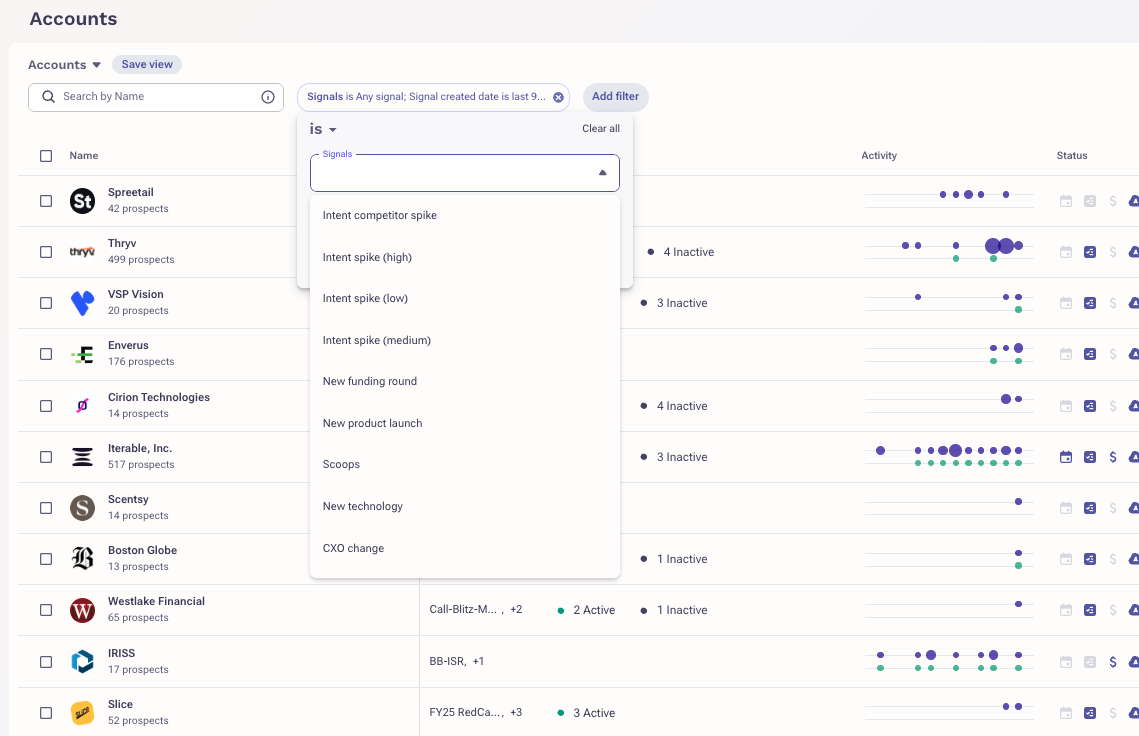
Filtering Accounts by Signal type:
- Navigate to Accounts.
- Click Add Filter and type
Signalsin the search field. - Select the signal type(s) you want to filter by and click done.
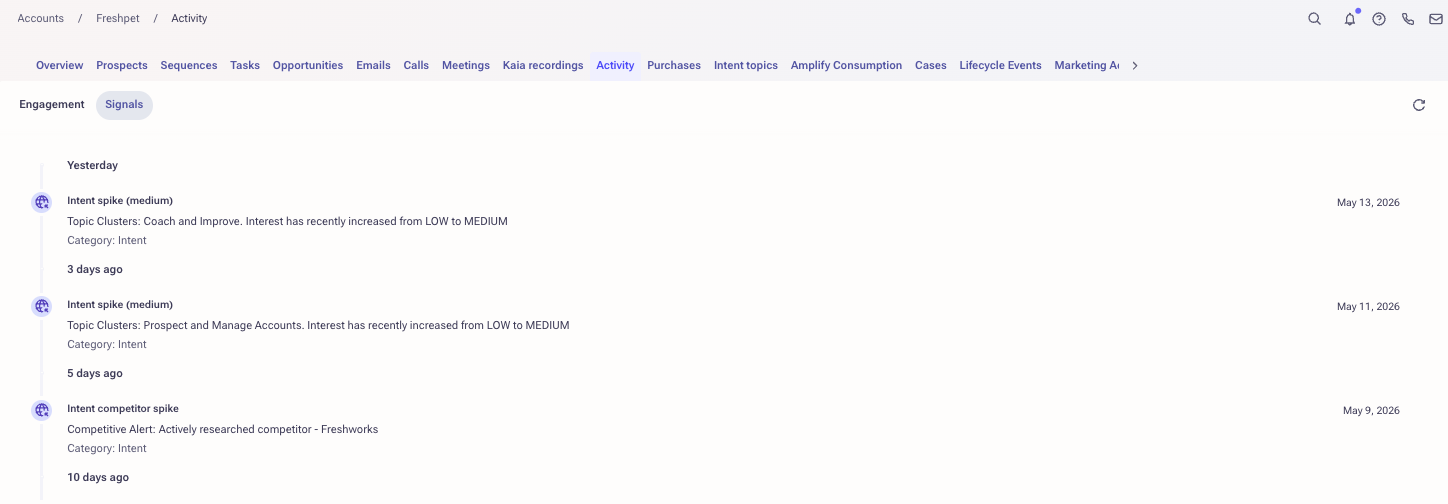
Viewing signal details in the Account Activity feed — active signals for an Account are visible directly in the Account’s activity stream:
- Navigate to an Account record.
- Open the Activity tab and select Signals.
- View signal details including type, strength (where applicable), and date.
Including Website Activity
Active website visit signals for an Account are visible in the Account's activity stream.
Sellers can see details such as the strength, visited URL, and visited date for Account signals. For Prospect signals, sellers can also see the visitor's name.
Revenue Agent
The Revenue Agent allows Rev Ops and Sellers to target accounts based on active signals. Signals such as funding rounds, leadership changes, or intent spikes serve as powerful targeting triggers.
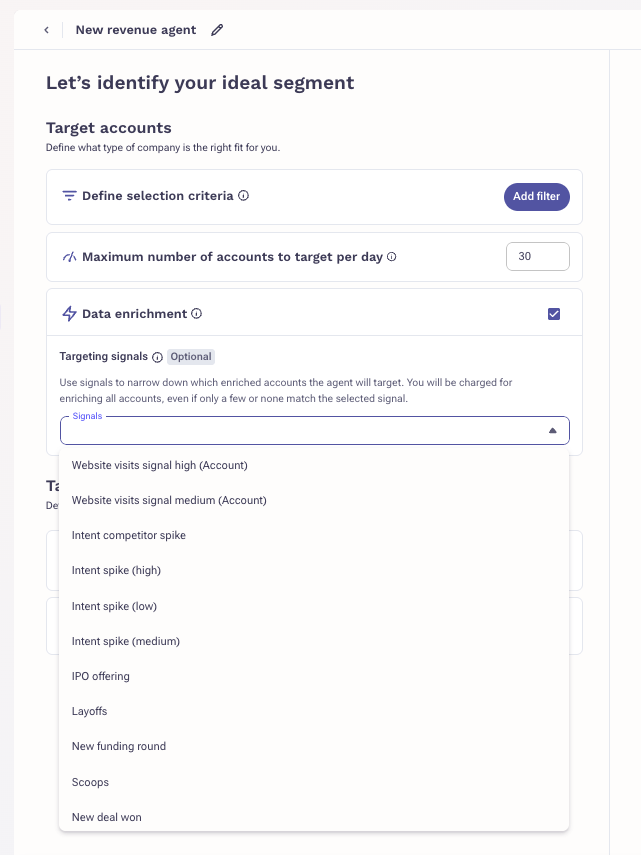
Including Website Activity
The Revenue Agent allows RevOps and Seller personas to target Accounts based on these signals. Increased website visits are a clear indicator of intent and, therefore, a powerful targeting tool.
Personalization Agent
The Personalization Agent lets sellers craft personalized messages using live signal data, including signal strength and signal detail text.
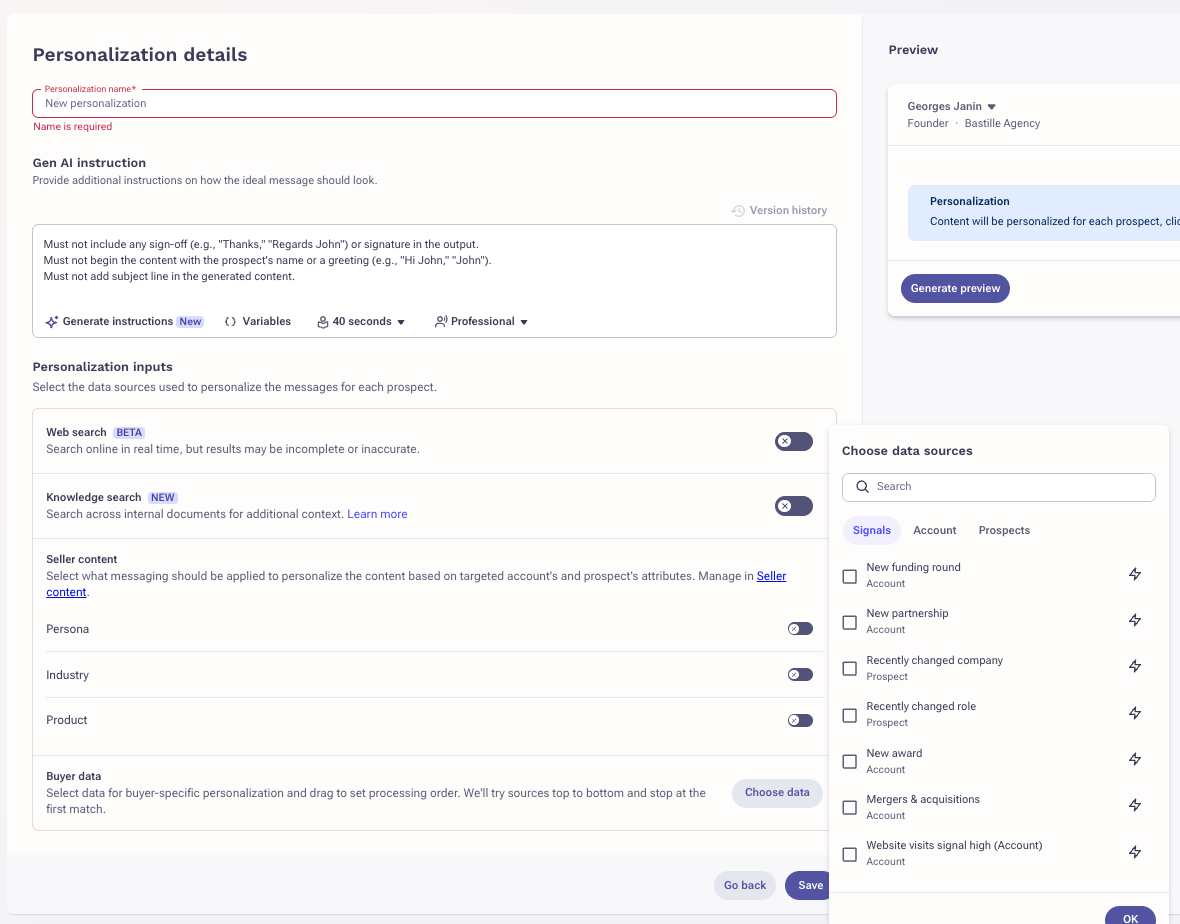
- Navigate to AI Agents → Personalization Agent.
- In the prompt configuration, select and include Buyer Data Signals.
- The agent will automatically incorporate relevant signal details into personalized outreach.
Including Website Activity
The Personalization Agent allows RevOps and Seller personas to personalize messages based on these signals. Once the prompt is modified to include the buyer data signals, the email personalization utilizes the website visit activity details — such as signal strength, URL visited, and date of visit — to augment the personalized message.
Trigger data enrichment as a User
Data enrichment in Outreach can happen automatically through the Agent or manually by users with the right permissions.
Enrichment via the Revenue Agent
The Revenue Agent automatically enriches records it targets — pulling available data from your connected provider.
- Accounts: Accounts that meet your targeting criteria and have a specified domain will be automatically added by the Agent and enriched with data, if available, from a third-party provider
- Existing Prospects: The Agent attempts to enrich all existing prospects it targets. If enrichment fails, the prospect is still included in the Agent's workflow.
- New Prospects: Prospects sourced by the Agent are automatically enriched upon creation.
Refer to How data enrichment works section, to learn more about what happens after the records are marked for enrichment.
Manual data enrichment
Users with appropriate permissions can manually trigger enrichment for both Accounts and Prospects:
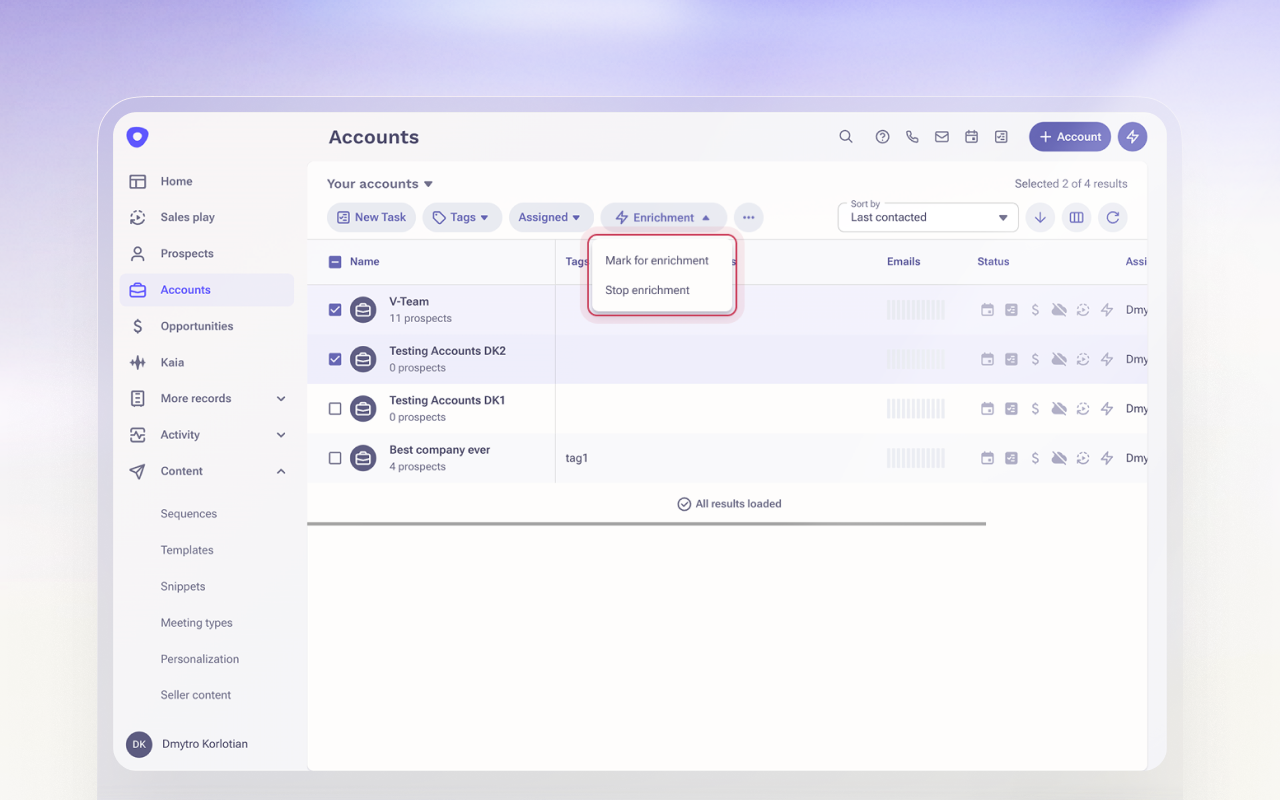
- From List View
- Select one or more records from the Account or Prospect list view
- Apply filters to target specific records
- Click to Mark for Enrichment or Stop Enrichment
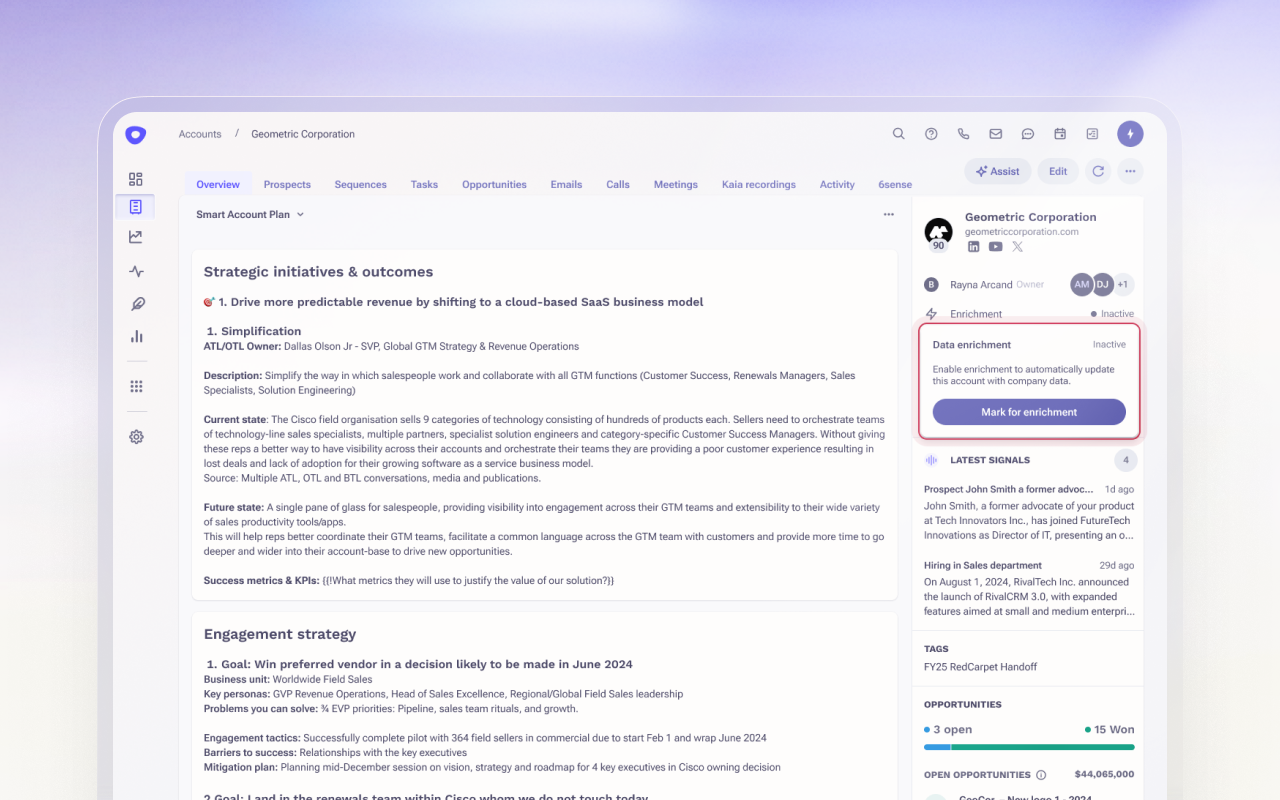
- From Record Detail View
- Open an individual Account or Prospect
- Use the enrichment controls to manually trigger or stop enrichment
Refer to How data enrichment works section, to learn more about what happens after the records are marked for enrichment.
10-k summary
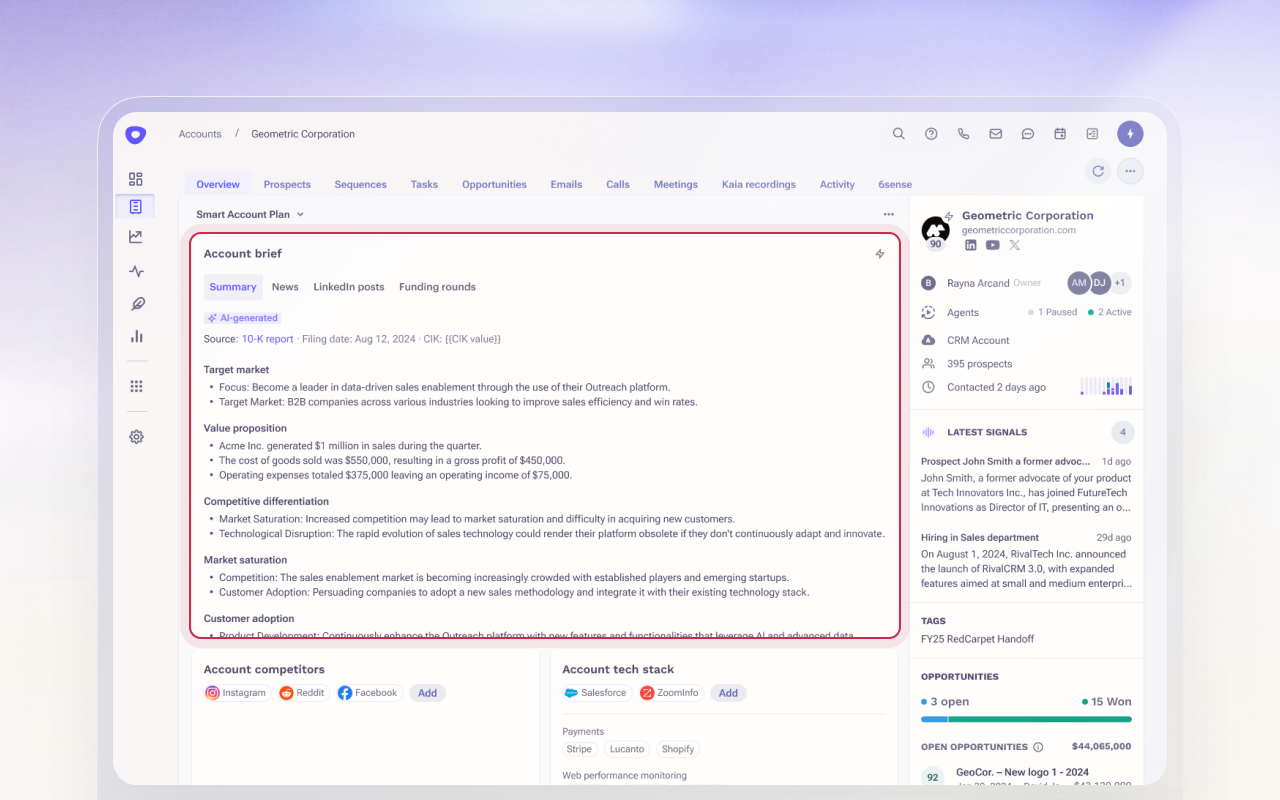
Outreach provides AI-generated summaries of public company accounts, sourced directly from SEC 10-K filings.
Sales reps often spend countless hours researching their target accounts - digging through financial reports, press releases, and market news. For public companies, much of this information is locked in long 10-K filings filed annually with the SEC.
With this release, Outreach automatically extracts the most relevant insights from these filings and delivers them in a clear, digestible format directly within the Account Brief tile.
No more jumping between tabs or getting lost in 100-page documents.
What’s included in the Account Summary
Using a company’s stock ticker symbol, Outreach pulls the latest 10-K from the SEC database and surfaces insights like:
- Executive Summary: A high-level overview of the company’s recent performance and direction.
- Financial Health: Key indicators of stability and performance.
- Strategic Initiatives: Business goals and plans to watch.
- Business Challenges & Risks: Major threats or hurdles outlined by the company.
- Market Conditions: Broader economic or industry trends impacting the company.
- Recent Business Events: Important developments over the past year.
- Outlook: The company’s own forward-looking statements and analyst expectations.
Availability & Access
- The 10-K summary feature is available exclusively for Amplify customers with data enrichment enabled.
- It appears as part of the new Account Brief tile, added by default to Smart Account Plan layout
- Admins can easily add this tile to existing account plans by pulling it from Smart Account Plan tile library.
Was this article helpful?
That’s Great!
Thank you for your feedback
Sorry! We couldn't be helpful
Thank you for your feedback
Feedback sent
We appreciate your effort and will try to fix the article