Objective:
- Customer has submitted a special number order or private offering request, and you need to process this for them with Twilio. They normally submit these when they can't do it in the portal or there are no avaialble numbers, therefore they're prompted in Outreach to submit a request like this to us, which we'll receive via the API as a Support ticket.
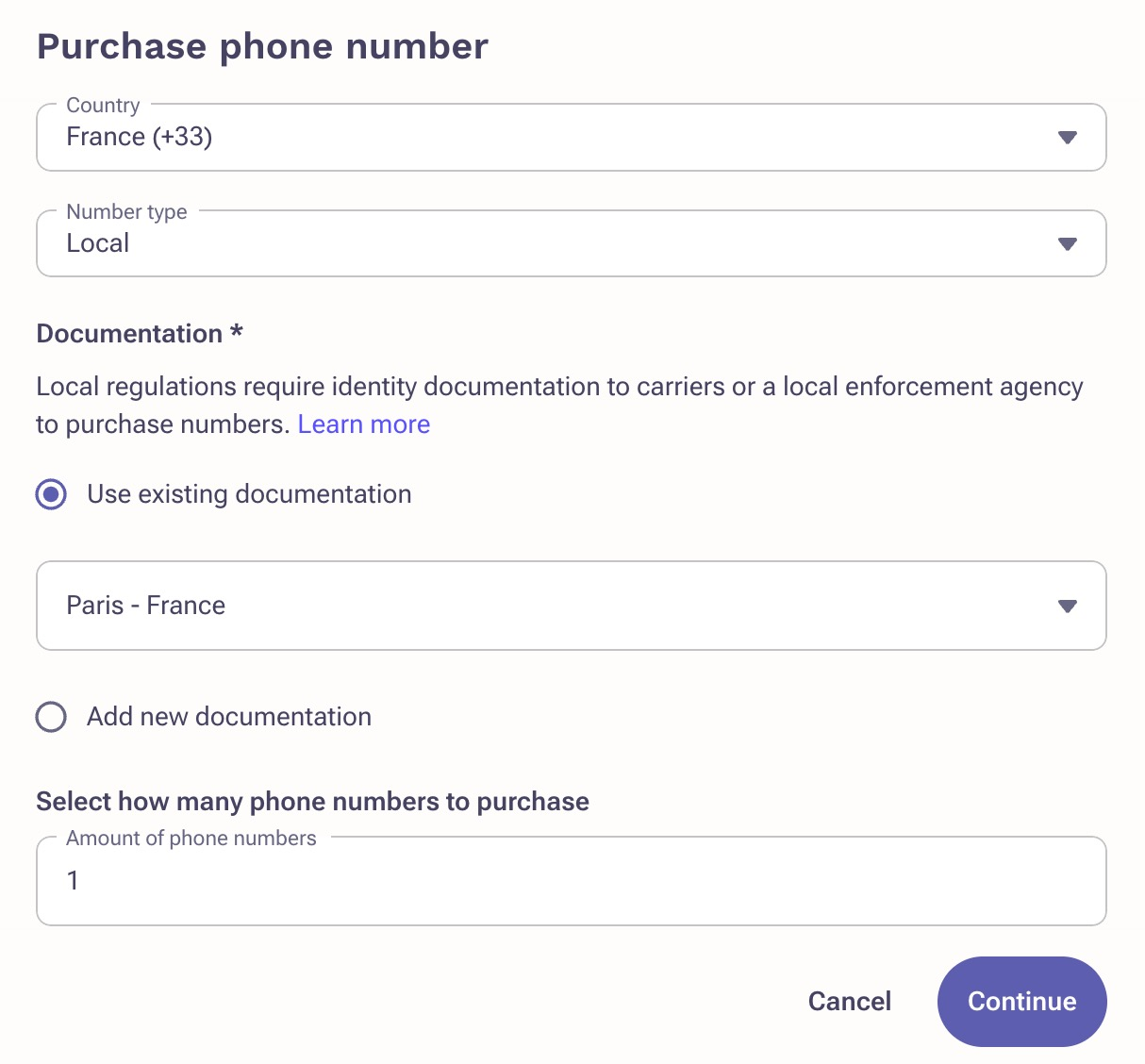
- Import Note - Never ask the customer to contact or work with Twilio. That is your job to do on behalf of the customer. The customer does not have a Twilio account nor do they have any type of communication with Twilio. Twilio is Outreach's voice provider that we work with, not the customer.
Applies To:
- Number Purchase Request
- Private Offering
Before You Begin:
- You'll need access to Twilio.
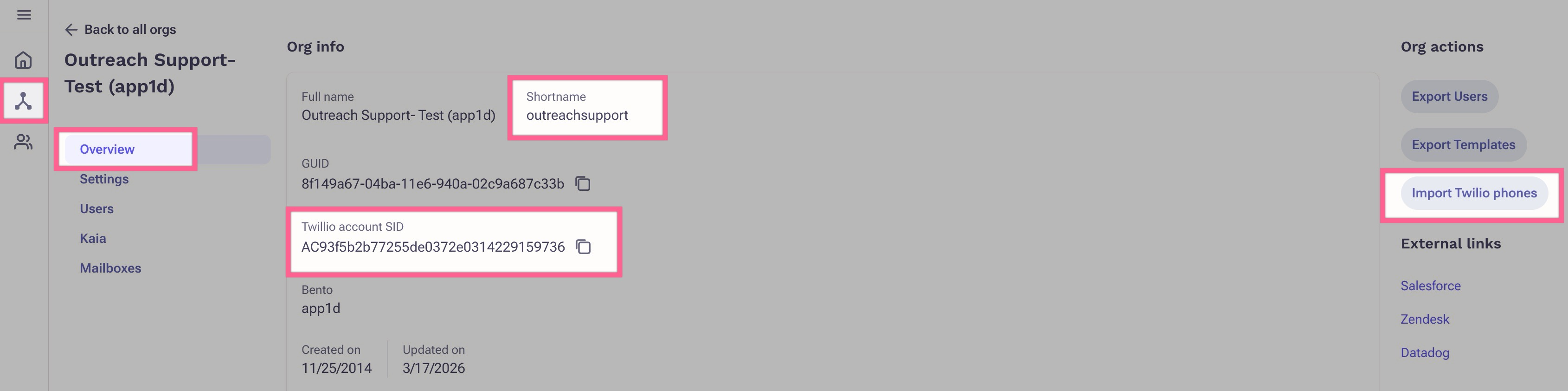
- Pull up the customer's Org in Support Admin Portal and go to the Overview page. You'll need to copy/paste some information here for the form with Twilio.
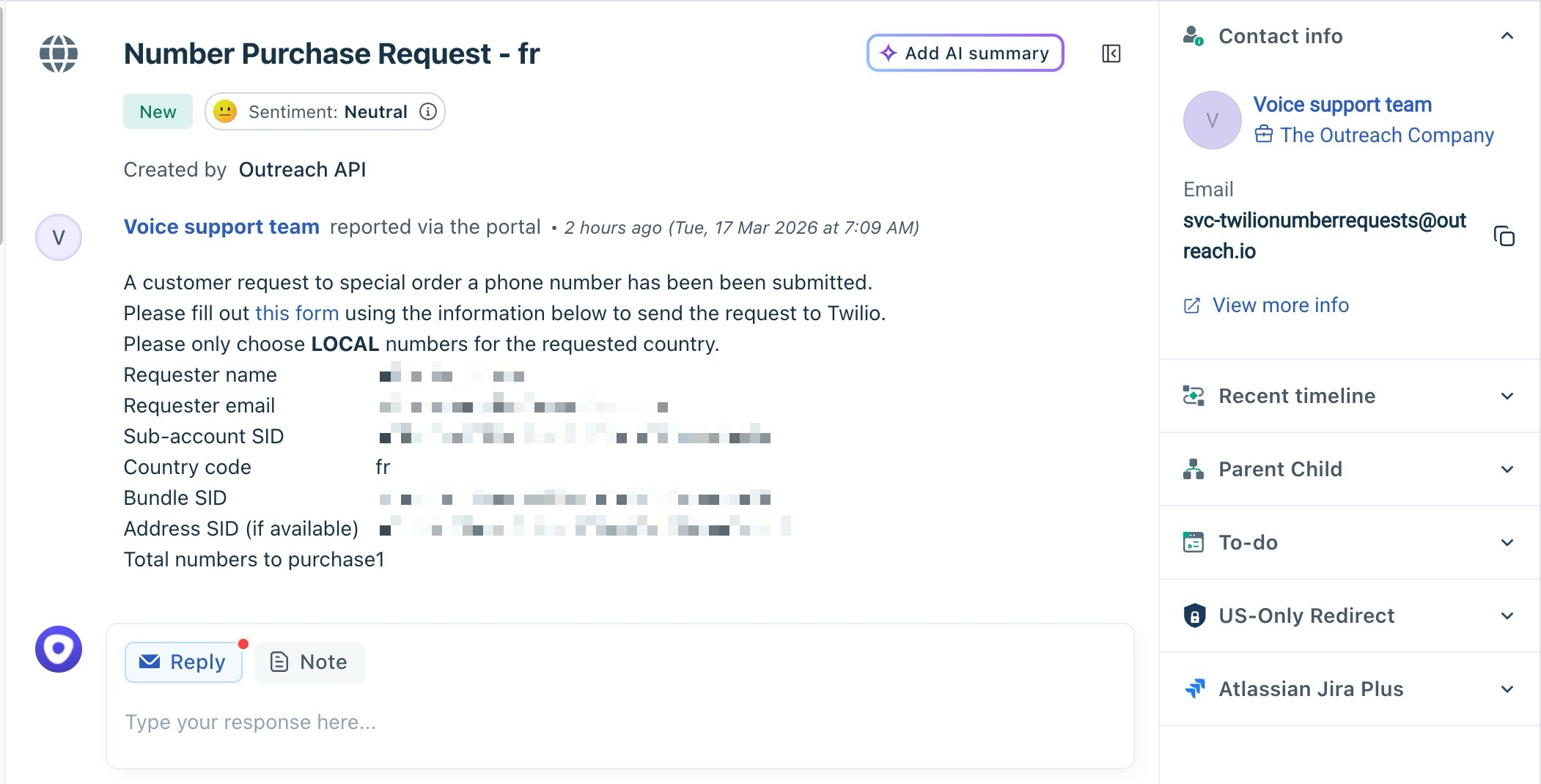
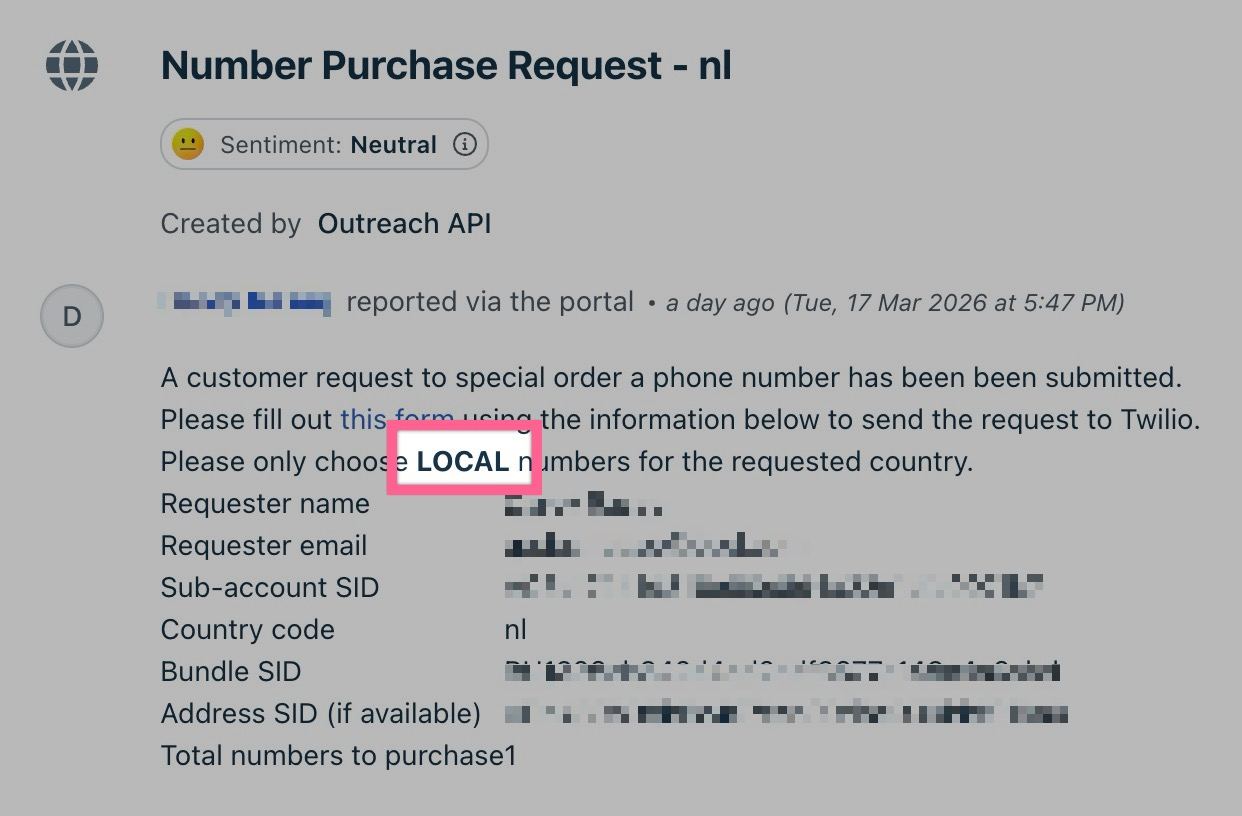
- Make sure you've received and read the Number Purchase Request ticket assigned to you. These will normally come from the Outreach API with the Email as svc-twilionumberrequests@outreach.io, and looks like the below screenshot.
Procedure:
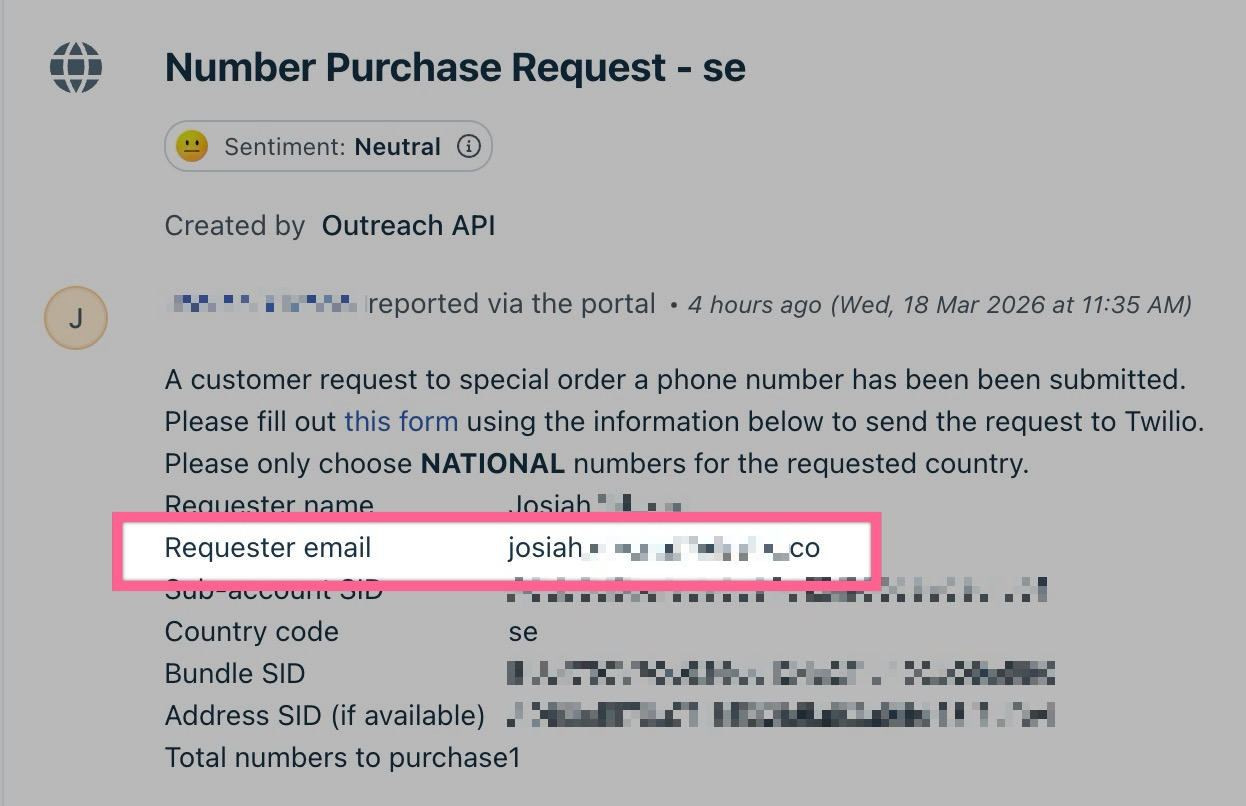
- Confirm the Requester email in the ticket is an active user seat in Outreach using the Support Admin Portal.
- Click on the this form hyperlink in the ticket and it should take you here.
- Toggle/click Agree.
- Using the country code provided in the ticket, choose the Country.
- Using the phone number type provided in the ticket (local or national), choose the Phone Number Type.
- If you do not see an option to choose the specified phone number type in the form, skip the remaining steps here and go to the next section below.
- If you do not see an option to choose the specified phone number type in the form, skip the remaining steps here and go to the next section below.
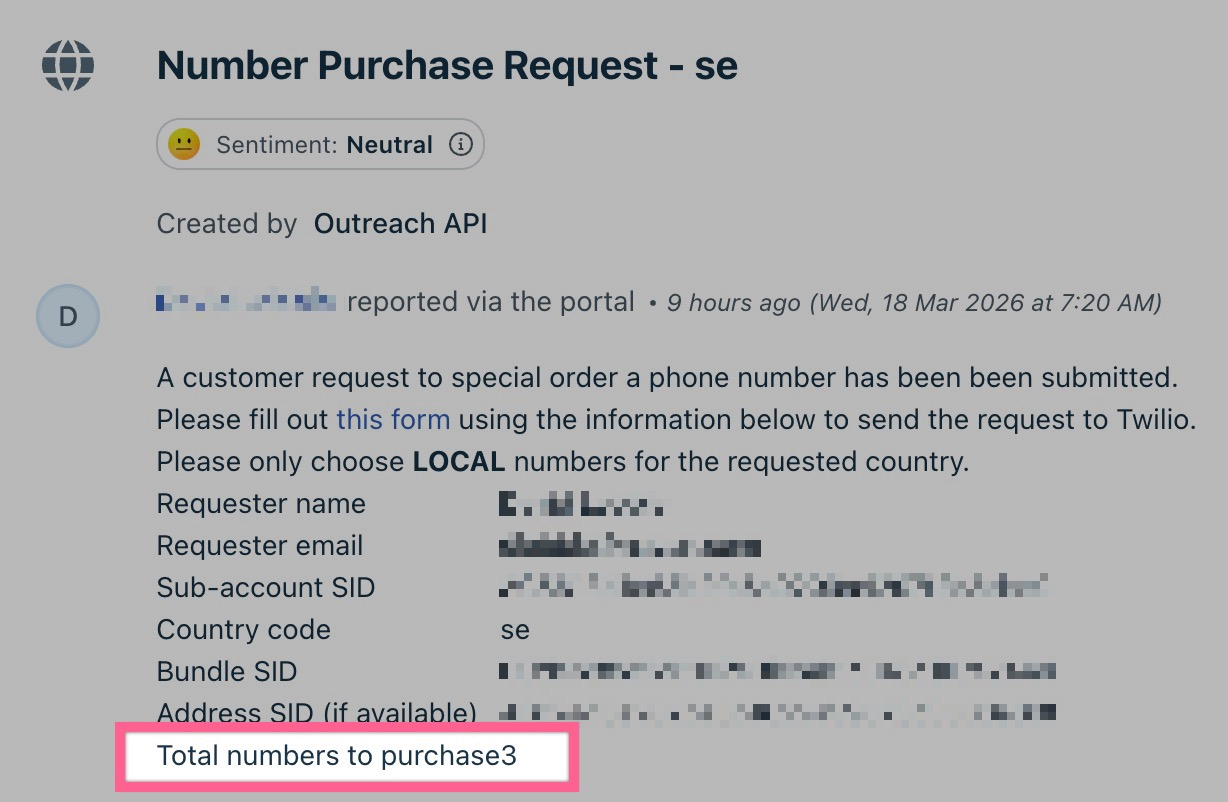
- Using the total numbers to purchase in the ticket, input the Quantity of Phone Numbers.
- Input your work email address (NOT the customer's) in the Email field. This allows Twilio to contact and update you once the numbers have been processed, then you can update the customer in the support ticket.
- Input the Org's shortname from the Support Admin Portal into the Twilio Account Name field.
- The Twilio Account SID (also known as Sub-account SID) can be found in the Support Admin Portal or the ticket. Copy/paste this into the Twilio Account SID field.
- Choose Sales and Support for the Main business use case field.
- Choose Sales Operations for the Specify business use case field.
- If you're prompted for the Bundles SID (always starts with BU), it can be found in the ticket.
- If you're prompted for the Address SID (always starts with AD), it can be found in the ticket.
- Review the Twilio form and confirm everything is correct, then click Submit.
- You'll receive an email from Twilio Support within a few minutes. Copy that Twilio ticket number and input this as an internal note in our support ticket so you and others can reference it. Keep in mind, you are the agent that requested this using your email address, so other TSEs will not have access or visibility to that Twilio Support ticket. In the case where you take over a ticket like this if a TSE is out, you'll have to contact Twilio Support and ask to be included on the original ticket for visisbility and updates.
- Using the Requester email in the ticket, copy/paste the customer's email, go to the ticket properties, and update the contact/requester from svc-twilionumberrequests@outreach.io to the customer's email.
- Update the customer that the request has been submitted to Twilio and that it may take a few days, but you'll provide them with an update and confirmation once available.
- Place the ticket on-hold and follow-up in a couple of days. Keep an eye on your emails for when Twilio updates you.
- Once you're updated with Twilio and they confirm the numbers have been purchased and processed, go to the Org in the Support Admin Portal, and on the Overview page, click on Import Twilio phones to import those Twilio numbers into their Outreach instance.
- Impersonate into the Org's instance and confirm you can see those new numbers in the Administration > Tools > Phone Numbers page.
- Once you confirm the new numbers are visible, update the customer and let them know the number(s) have been added to their account.
If you do not see the option to choose the specific phone number type requested in the ticket (local or national) in the Phone Number Type dropdown field in the Twilio form, you'll have to log into Twilio and purchase the number directly for the customer OR email Twilio Support directly and request this. The steps below will guide you on how to purchase directly in the Twilio console. You can also refer to the 15:50 mark in this video.
- Go to Okta and sign in to Twilio.
- Click on the Production dropdown at the top and go to View subaccounts (here).
- Copy the Twilio Account SID (also known as Sub-account SID) from the Support Admin Portal or ticket, and input this into the Search by name or SID field and hit enter.
- Confirm the correct account shows up and click on the account name. You're now taken to this sub account page (Outreach is the primary account, and our customer's are our sub accounts).
- On the left side under Develop tab, click on Phone Numbers > Regulatory Compliance > Bundles.
- Go back to the ticket and copy the Bundle SID, and paste this into the Friendly name or SID field and hit enter.
- Confirm the bundle's approved region (ex. France is the country, but Paris is the region, OR Germany is the country, but Berlin is the region), phone number type is local or national, and the status is approved.
- On the left-side, go to Phone Numbers > Manage > Buy a number.
- Click the requested Country in the Country dropdown.
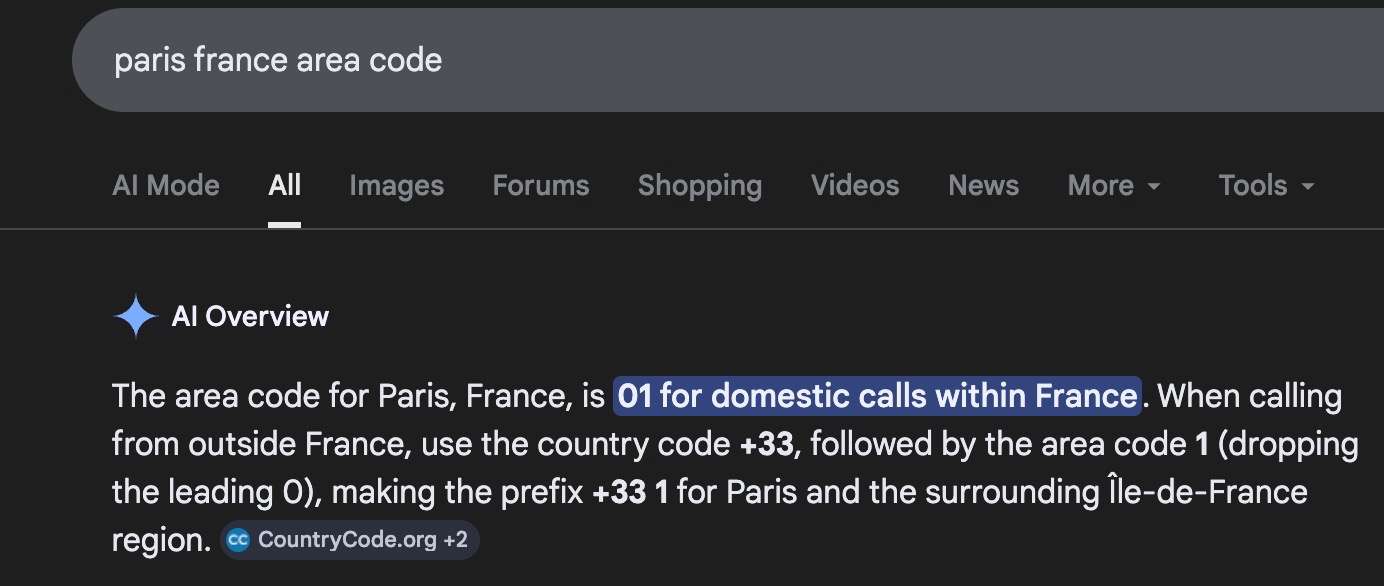
- Input the country and area code in the Search by digits or phrases field to narrow down the numbers for the correct region. To find the country and area code, simply search Google for this (ex. "paris france area code" = +33 1)
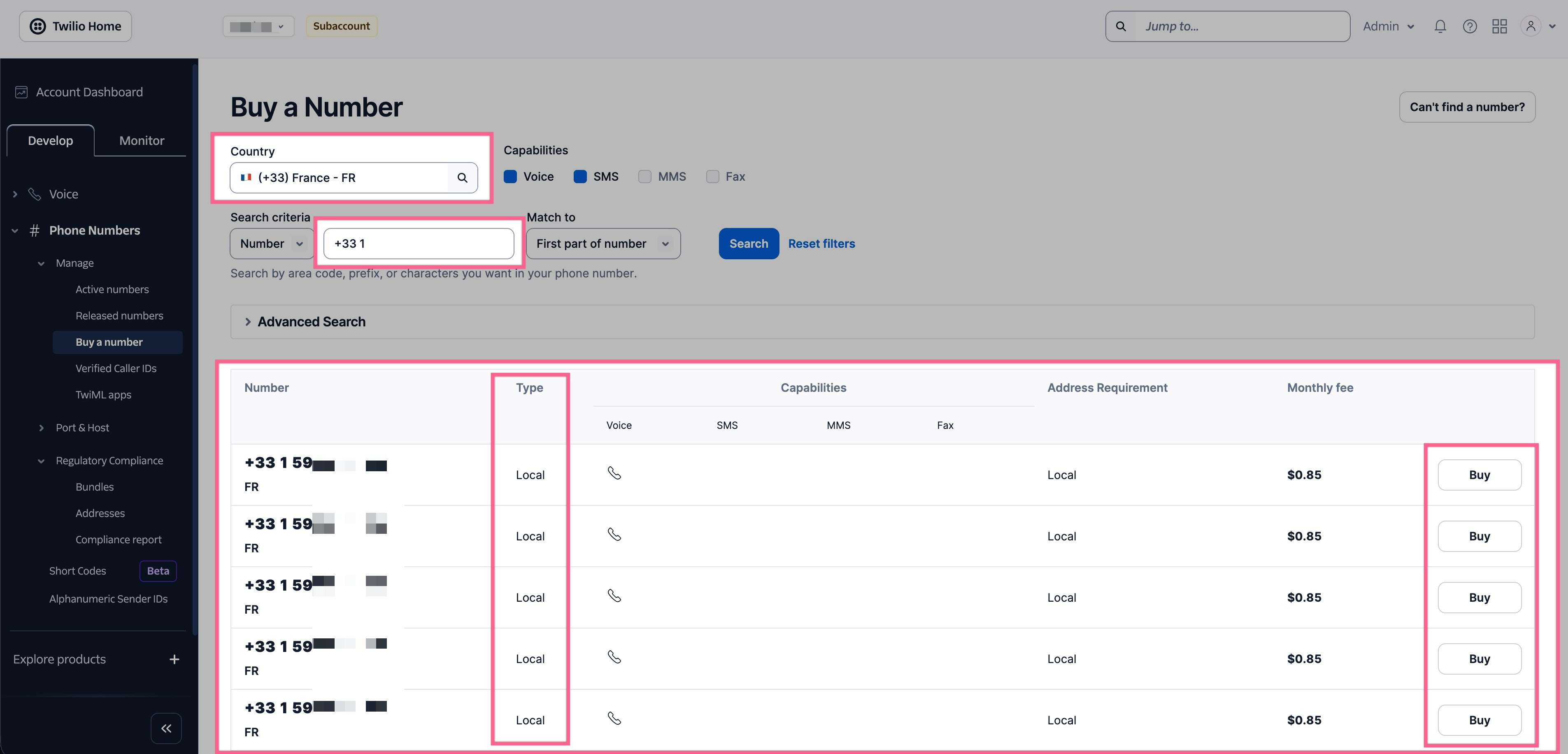
- Confirm the country and area code matches the results, and the phone number type is accurate for what they're requesting, and click Buy to the right of the number.
- If you do not see the correct phone number type, scroll down and click Refresh results. This will refresh the numbers and show a new batch of results. You may need to click this a couple of times until it shows.
- A pop-up will appear to review the number, click Next.
- A pop-up will appear to Select End-User, click Business, then click Next.
- A pop-up will appear to Comply with Regulatory Requirements, click the fields to choose the correct bundle and address, then click Buy.
- You'll see a number purchased confirmation, click Configure.
- Click the Configure with dropdown field and choose TwiML App.
- Click the TwiML App dropdown field and choose Outreach App.
- Click Save configuration at the bottom.
- Perform steps 16, 19, 20, and 21 from the above section to complete the process.
Additional Notes:
- If a VAT# is required in the Twilio form for certain countries, check the customer’s Twilio account in the Twilio Console site. It can be found under the approved regulatory compliance bundle for that country.
- Some countries may not be available via the form (ex. Singapore). If you come across these, confirm that we service these countries using available resources, and create a direct ticket to Twilio Support requesting for the numbers.
Additional Information:
Special Number Purchase Request Workflow Video
Outreach International Phone Number Overview and FAQ
Purchasing International Phone Numbers (Outdated but still helpful)
Ticket Examples:
Was this article helpful?
That’s Great!
Thank you for your feedback
Sorry! We couldn't be helpful
Thank you for your feedback
Feedback sent
We appreciate your effort and will try to fix the article