Objective
- There is a request from the customer to transfer and port their purchased phone numbers from one Outreach instance to another. This is also called a sub-account number transfer in Twilio.
Applies To
- Two active Outreach instances
- Purchased Twilio Phone Numbers
- Admins
Before You Begin
- You need a confirmation from an admin in both the losing and gaining instances. If one admin has an active seat in both instances, that is fine. If one admin is only active in one instance, then they need to include the other active admin from the other instance as well.
- You'll need the Twilio Account SID (sub-account ID) for both the losing instance (Outreach instance that is releasing the numbers) and the winning instance (Outreach instance that is receiving the numbers). This can be found in the Support Admin Portal under the Org's Overview page.
- Twilio Console access
Procedure
- Go to Okta and sign-in to Twilio Console (Twilio 2.0).
- Click on the Support button (question mark icon) in the top right, then click on Help Center.
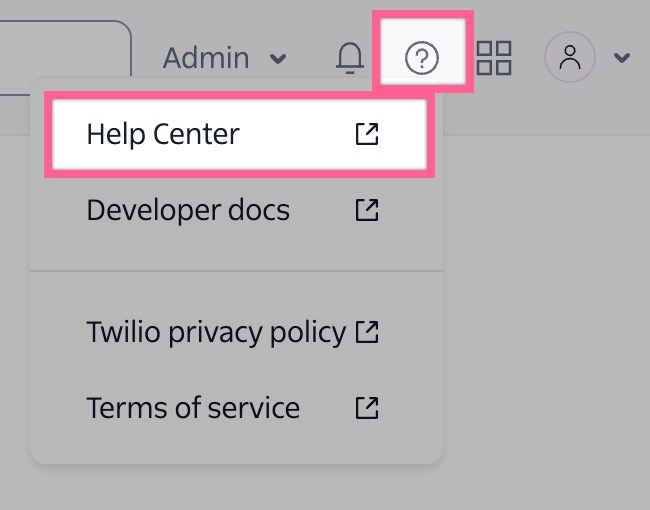
- Click Submit a ticket on the left side, it should take you here.
- Subject = Sub-account number transfer request
Business impact = P3
Description = make sure to include the request, losing sub-account ID, winning sub-account ID, and the phone numbers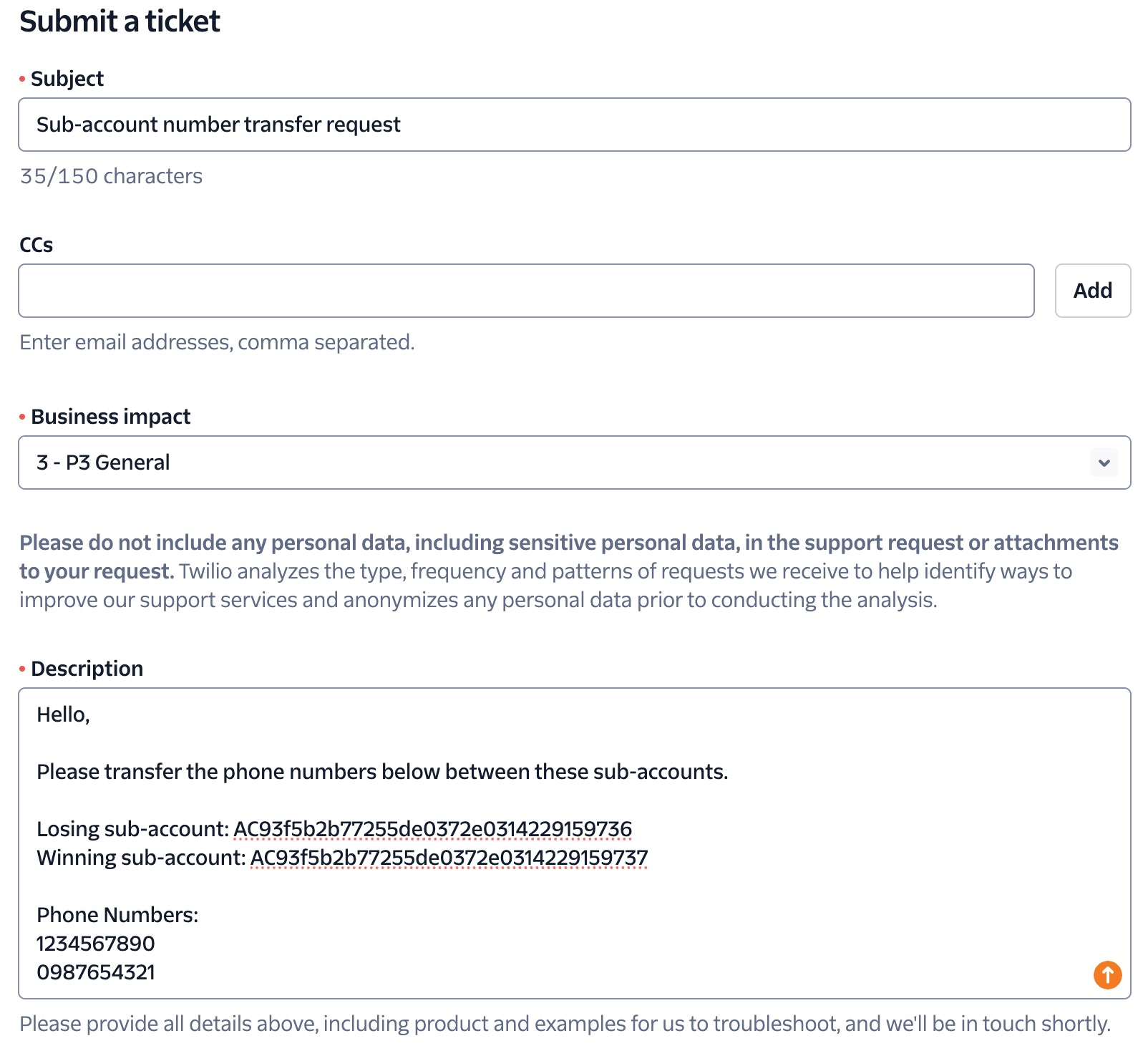
- Click Submit.
- Update the customer in the Support ticket, and continue keeping them updated.
- Keep an eye on your emails and the Twilio ticket for updates from them.
- Once Twilio confirms it's done, you can sign-in to that sub-account in Twilio and check.
- Get the winning sub-account ID, and in Twilio click on the Production dropdown at the top and click on View subaccounts.
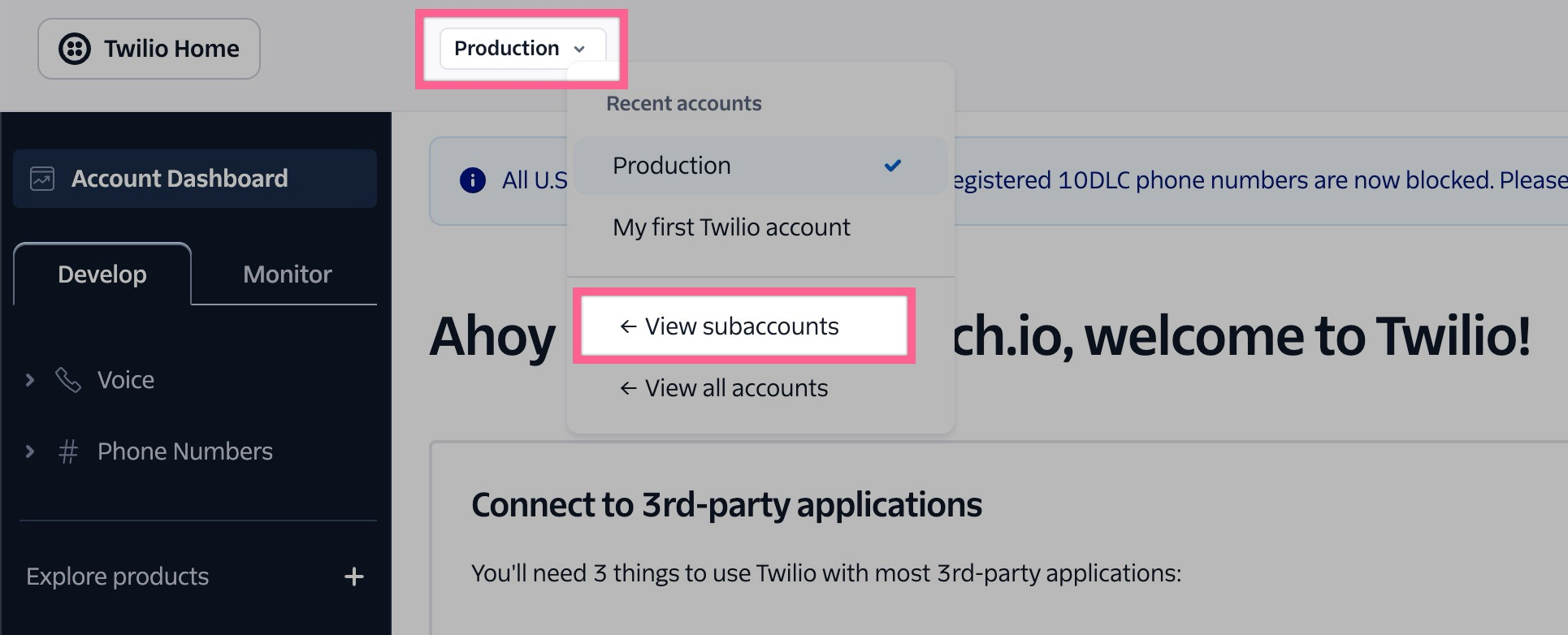
- Paste the sub-account ID in the Search by name or SID and hit enter.
- Click the account name and it will open up the sub-account's page.
- On the left-side, go to Phone numbers > Manage > Active numbers, and confirm you see those transferred numbers.
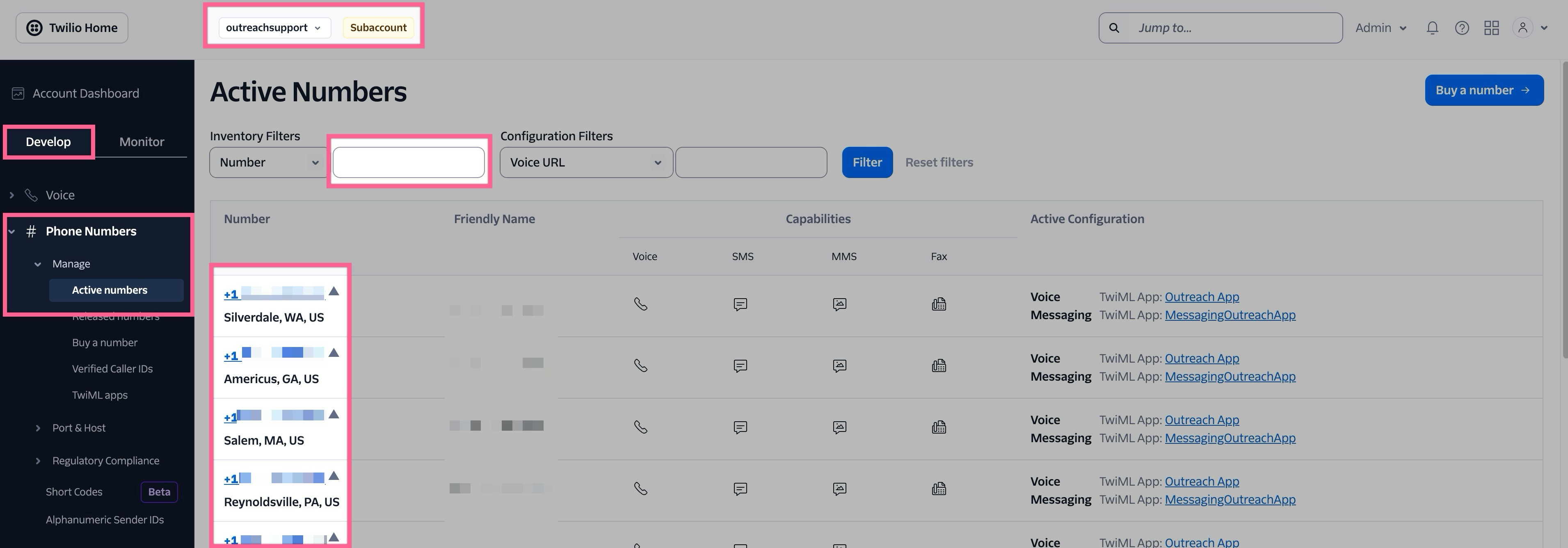
- Get the winning sub-account ID, and in Twilio click on the Production dropdown at the top and click on View subaccounts.
- Update the customer in the Support ticket.
Additional Information
Was this article helpful?
That’s Great!
Thank you for your feedback
Sorry! We couldn't be helpful
Thank you for your feedback
Feedback sent
We appreciate your effort and will try to fix the article