Objective
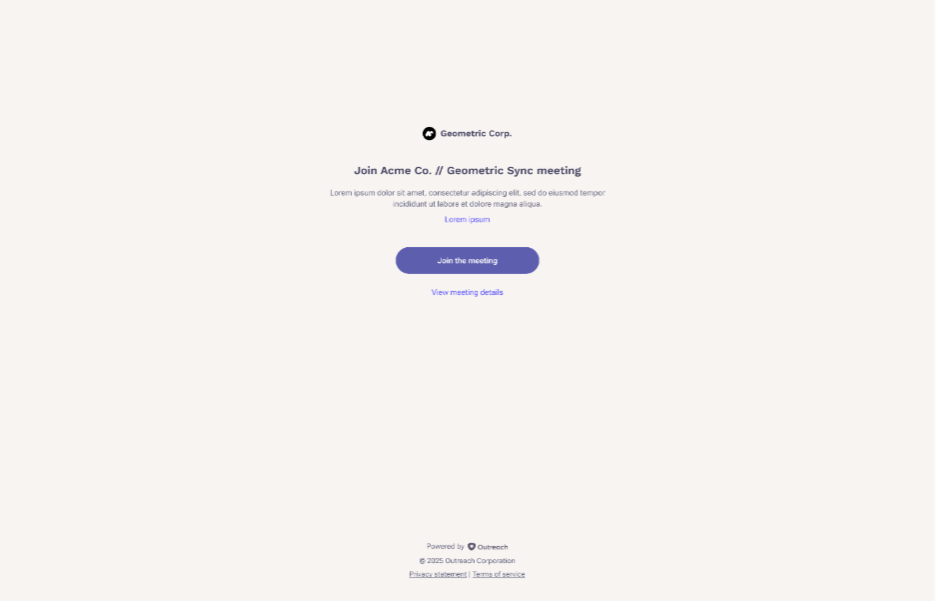
This article explains how to schedule meetings with the Kaia Consent Page enabled, across all supported scheduling surfaces and video conferencing providers.
Applies To
- Outreach Users (sales representatives)
Before You Begin
- Requires Kaia Meet license or equivalent.
- The Kaia Consent Page must be enabled for your organization by an admin for the relevant provider. That same provider must also be enabled by the end user in their Kaia settings: Personal settings > Meetings > Kaia > Your web conference apps.
- For Outlook add-in flows: requires Outreach Outlook add-in with calendaring support version 3.1.1.
- For Google Calendar flows: requires the Outreach Everywhere Chrome extension.
This article only applies to organizations with the Kaia Consent Page enabled. When enabled, all meeting participants joining a meeting recorded by Kaia are directed through the custom Kaia consent page. If your org does not use the consent page, your scheduling workflow and Kaia behavior are unchanged.
Which Scheduling Flows Support Consent?
Use the table below to check whether the consent page will be applied for your scheduling surface and video conferencing provider. If a combination is not supported, the meeting will not be wrapped in a consent link and Kaia will not join the meeting.
| Scheduling Surface | Flow Details | Google Meet | MS Teams | Webex | Zoom |
|---|---|---|---|---|---|
| Public calendar: Dynamic links | Prospect books a meeting via the Outreach public calendar using a dynamic link generated by a connected video conferencing provider (unique per meeting) | Supported | Supported | Not supported (scheduling with dynamic Webex links is not supported in Outreach) | Supported |
| Public calendar: Static links | Prospect books a meeting via the Outreach public calendar. Invite uses a static meeting room link from the rep's personal calendar settings, added via template variables ({{sender.conference_url}} or {{sender.conference_details}}) | Supported | Supported | Supported | Supported |
| Outreach web app: Dynamic links | Rep schedules a meeting in the Outreach web app using a dynamic link generated by a connected video conferencing provider | Supported | Supported | Not supported (scheduling with dynamic Webex links is not supported in Outreach) | Supported |
| Outreach web app: Static links | Rep schedules a meeting in the Outreach web app. Invite uses a static meeting room link from the rep's personal calendar settings, added via a meeting type with template variables ({{sender.conference_url}} or {{sender.conference_details}}) or via the 'Your personal meeting info' option in the video conferencing picker. | Not supported | Not supported | Supported | Not supported |
| Outlook calendar via Outreach add-in: Dynamic links (Outreach add-in with calendar support v3.1.1) | Rep schedules a meeting in Outlook using the Outreach Outlook add-in, with a dynamic link generated by a connected video conferencing provider | Not supported | Supported | Supported | Not supported |
| Outlook calendar via Outreach add-in: Static links (Outreach add-in with calendar support v3.1.1) | Rep schedules a meeting in Outlook using the Outreach Outlook add-in. Invite uses a static meeting room link from the rep's personal calendar settings, added via a meeting type with template variables ({{sender.conference_url}} or {{sender.conference_details}}) | Supported | Supported | Supported | Supported |
| Google Calendar via Outreach Everywhere extension: Dynamic links | Rep schedules a meeting directly in Google Calendar with the Outreach Everywhere extension, using a dynamic link generated by a connected video conferencing provider | Supported | Supported | Supported | Supported |
| Google Calendar via Outreach Everywhere extension: Static links | Rep schedules a meeting directly in Google Calendar with the Outreach Everywhere extension, using a static meeting room link added manually or via meeting type | Not supported | Not supported | Supported through Webex add-on Not supported via meeting type | Not supported |
Scheduling with Kaia Consent Page Enabled
- The scheduling experience may vary slightly depending on the surface the meeting is scheduled from and the video conferencing provider used.
- Phone dial-in and additional meeting details are not shown in the invite body. They are surfaced to the prospect on the Kaia consent page, accessible via a 'Join via phone or view meeting details' link on that page.
- The following details are added to the meeting description:
[Sales rep full name] is inviting you to join an online meeting with [Organization name].
Join via [video conferencing provider]
[Consent-wrapped URL]
Scheduling from the Outreach Web App
Dynamic Links
When scheduling a meeting through the Outreach web app, the consent link is added automatically without any additional steps required.
- Create the meeting.
- Select a video conferencing provider in the Video conferencing picker.
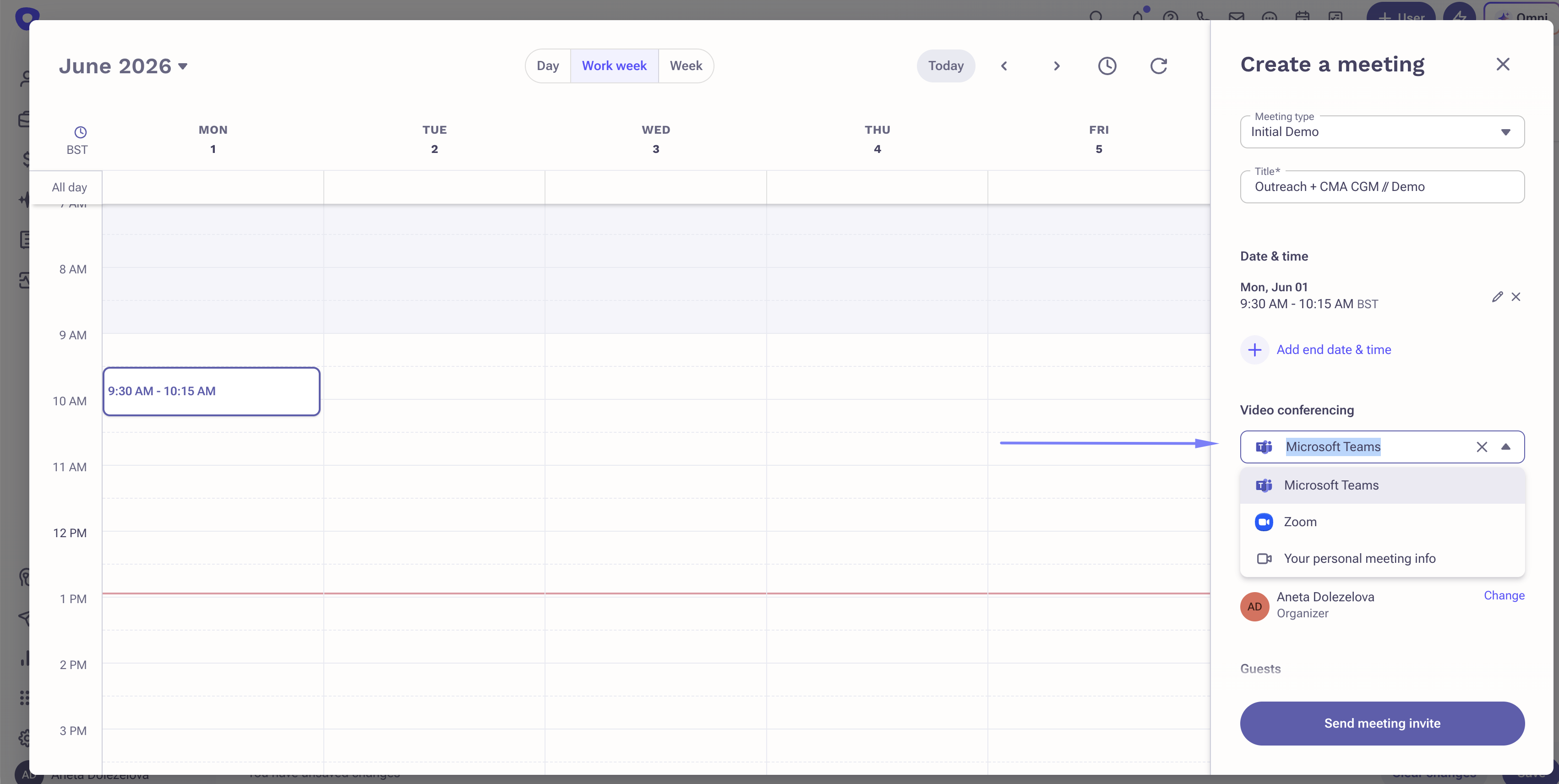
- Once the meeting is saved, the video conferencing link is wrapped in a consent link that leads to the Kaia consent page.
Static Links (Webex only)
Static Webex links (personal meeting room) are populated from the rep's calendar settings. They can be added to the meeting via the "Your personal meeting info" option in the Video conferencing picker, or via variables in a Meeting type.
- Create the meeting.
- Select "Your personal meeting info" in the Video conferencing picker, or select a Meeting type containing
{{sender.conference_url}}or{{sender.conference_details}}variables.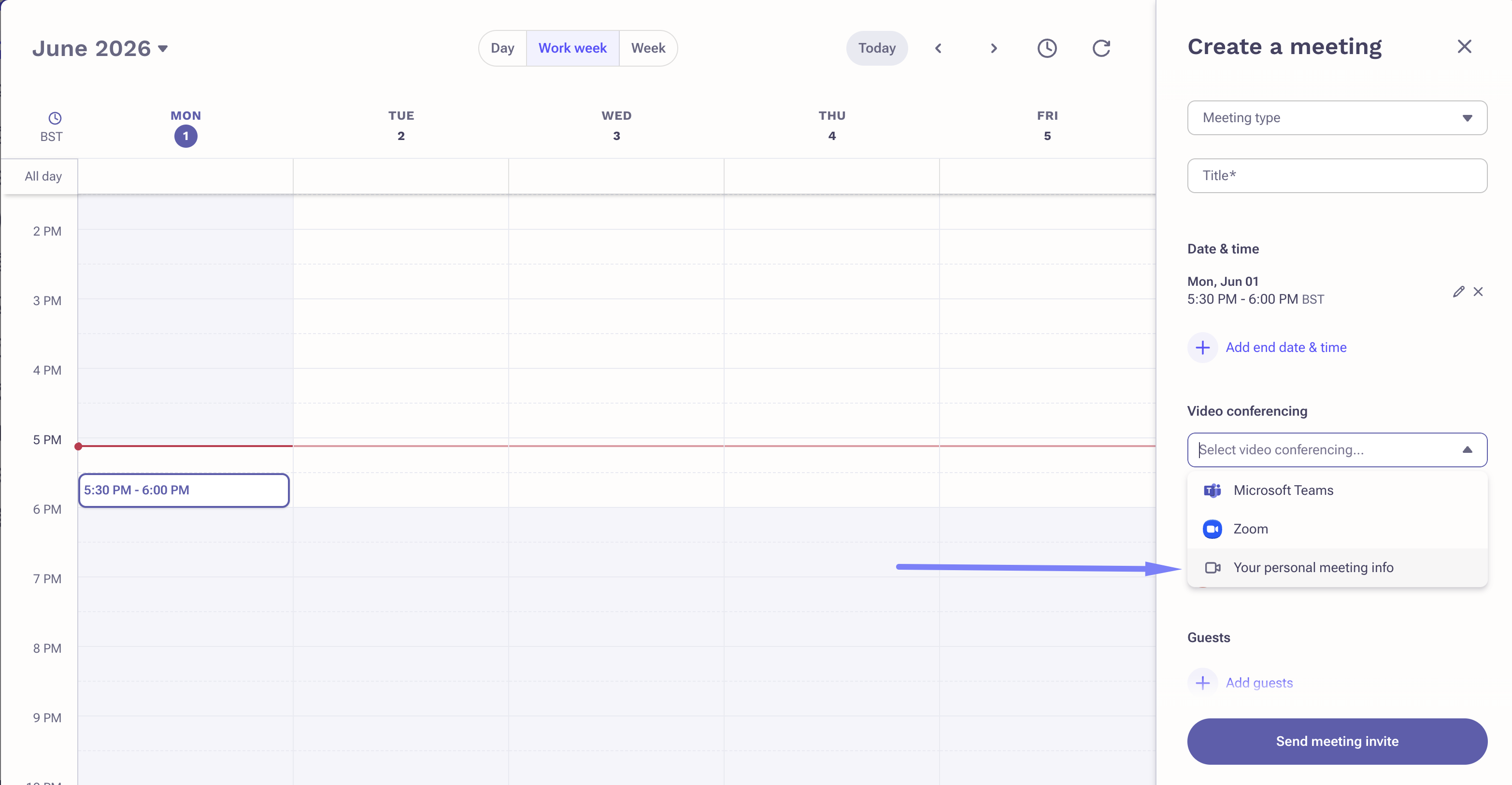
- Consent-wrapped links are automatically added to the meeting.
Details on variable behavior:
- Any additional content included in
{{sender.conference_details}}, such as dial-in numbers, is not shown in the invite body. It is surfaced on the Kaia consent page instead. - If both
{{sender.conference_url}}and{{sender.conference_details}}are included in the description, Outreach inserts the unified consent text only once. - Outreach recommends reviewing meetings after the consent details are populated to confirm that moving additional
{{sender.conference_details}}content to the Kaia consent page does not negatively impact the meeting invite experience.
Scheduling from the Outreach Public Calendar
Dynamic Links (Google Meet, MS Teams, and Zoom only)
Kaia consent links are added automatically. No additional steps are required. Once the meeting is booked, the video conferencing link in the invite is replaced by the Kaia consent link.
Static Links (Webex only)
Kaia consent links are added automatically. No additional steps are required. Once the meeting is booked, the video conferencing link in the invite is replaced by the Kaia consent link.
- Do not manually edit compiled conference variables. When availability is sent, the
{{sender.conference_url}}or{{sender.conference_details}}variables are compiled into the meeting description and location. If you manually edit the compiled output of these variables (for example, changing the meeting link or any text in conference details), the system will no longer be able to match them. The exact consequences vary depending on which variables you use, but may include the Kaia consent link not being inserted (Kaia not joining the meeting), or conference details in the invite becoming malformed. If this occurs, you will need to update the meeting manually in Outreach.- Safe edits: You may add text before or after the compiled variable blocks. Only the compiled variable values themselves should not be modified.
- Avoid changing Personal meeting room settings after sending availability. If you update your Personal meeting URL or Personal meeting details in Personal Settings > Calendar Settings after availability or a public calendar link has been sent, the newly compiled values will not match what is in the description or location. As a result, the consent link will not be added and the meeting will be created without consent, which means Kaia cannot join. If this occurs, you will need to update the meeting manually in Outreach.
Scheduling from the Outreach Outlook Add-in
MS Teams: Dynamic Links
Works when creating a new meeting or editing an existing one.
- Open or create a meeting in Outlook.
- Make sure there is no MS Teams link already in the invite before proceeding. If an MS Teams link is present, clicking Add Kaia will result in two separate links in the invite.
- Click the Outreach icon in the Outlook ribbon to open the Outreach ribbon menu.
- Click Add Kaia meeting in the Outreach ribbon menu. Alternatively, use the same button in the add-in sidebar.
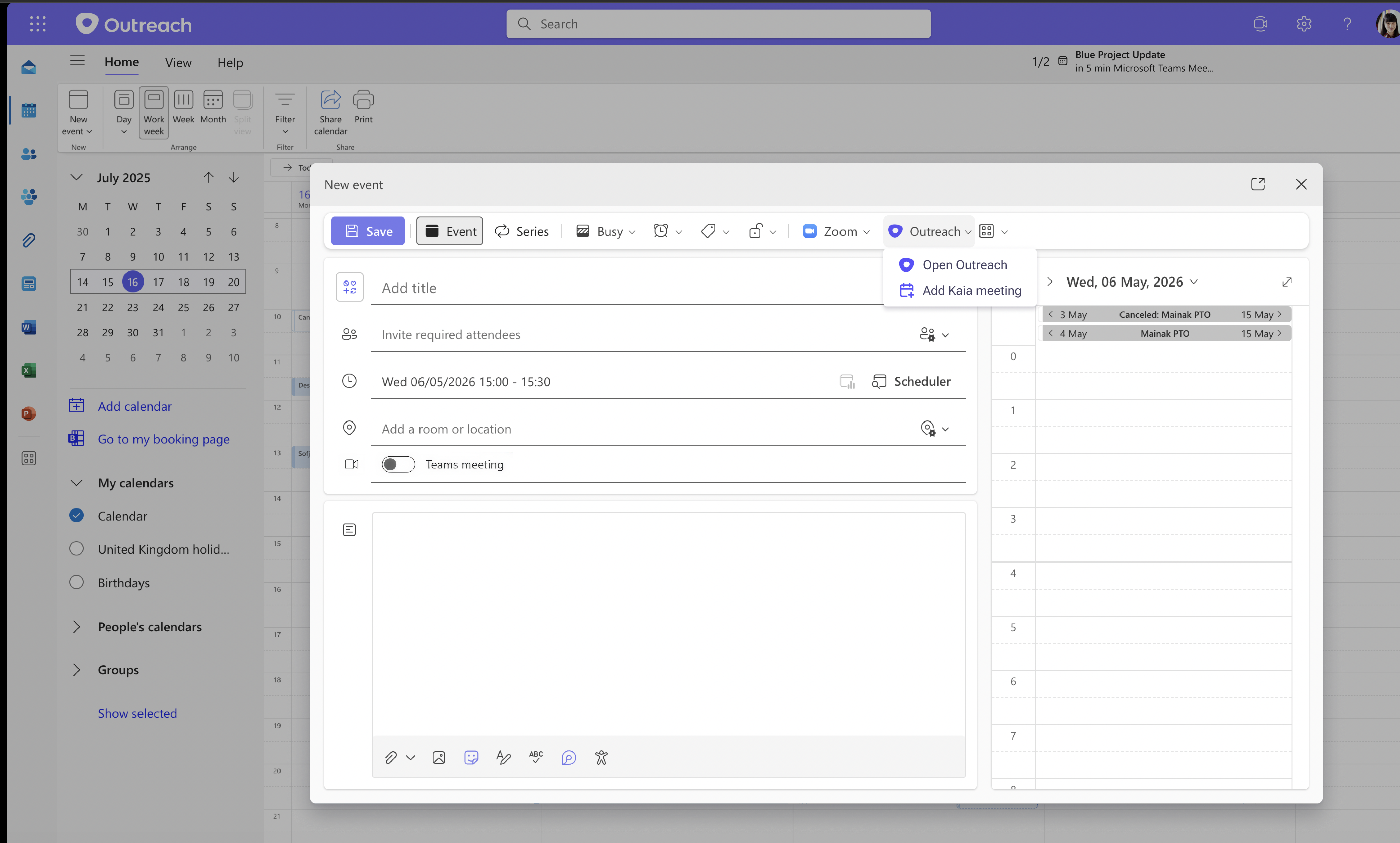
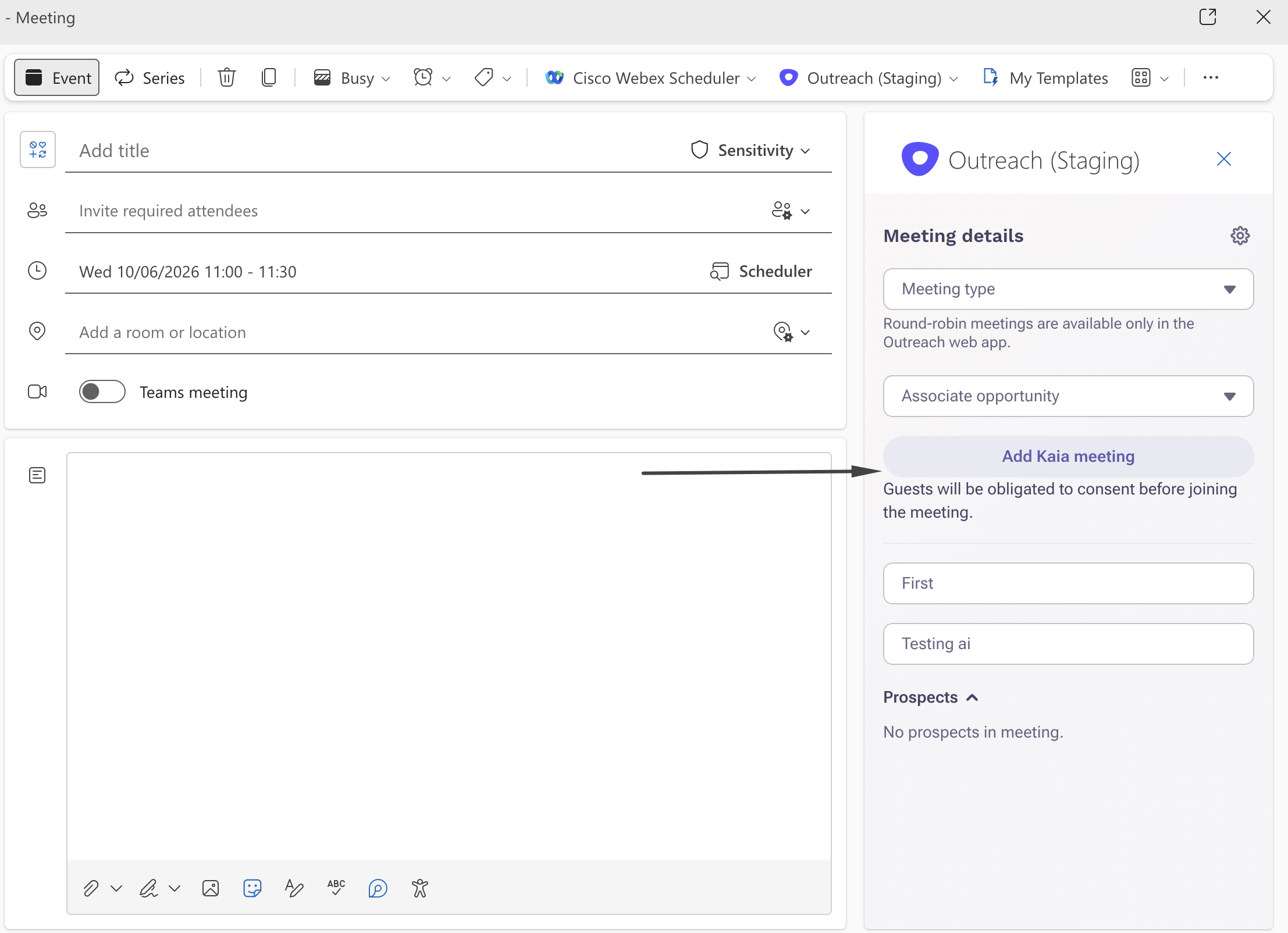
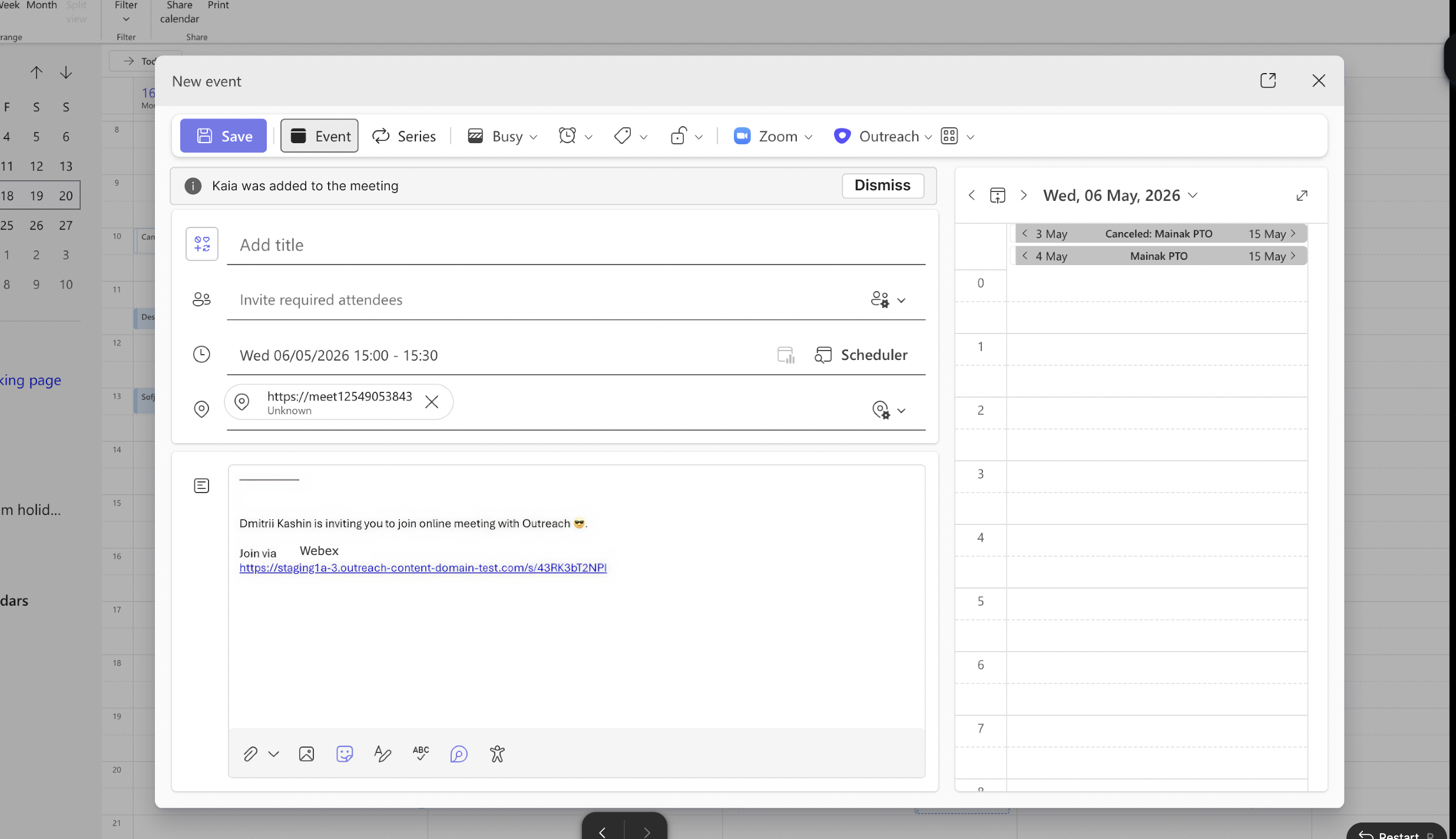
- Outreach adds the Kaia consent link to both the Location and Description fields of the invite. The Description text follows this format:
{Rep full name} is inviting you to join online meeting with {organization name}. Join via {video conference provider name}
https://[videoconferencing link wrapped in Kaia consent]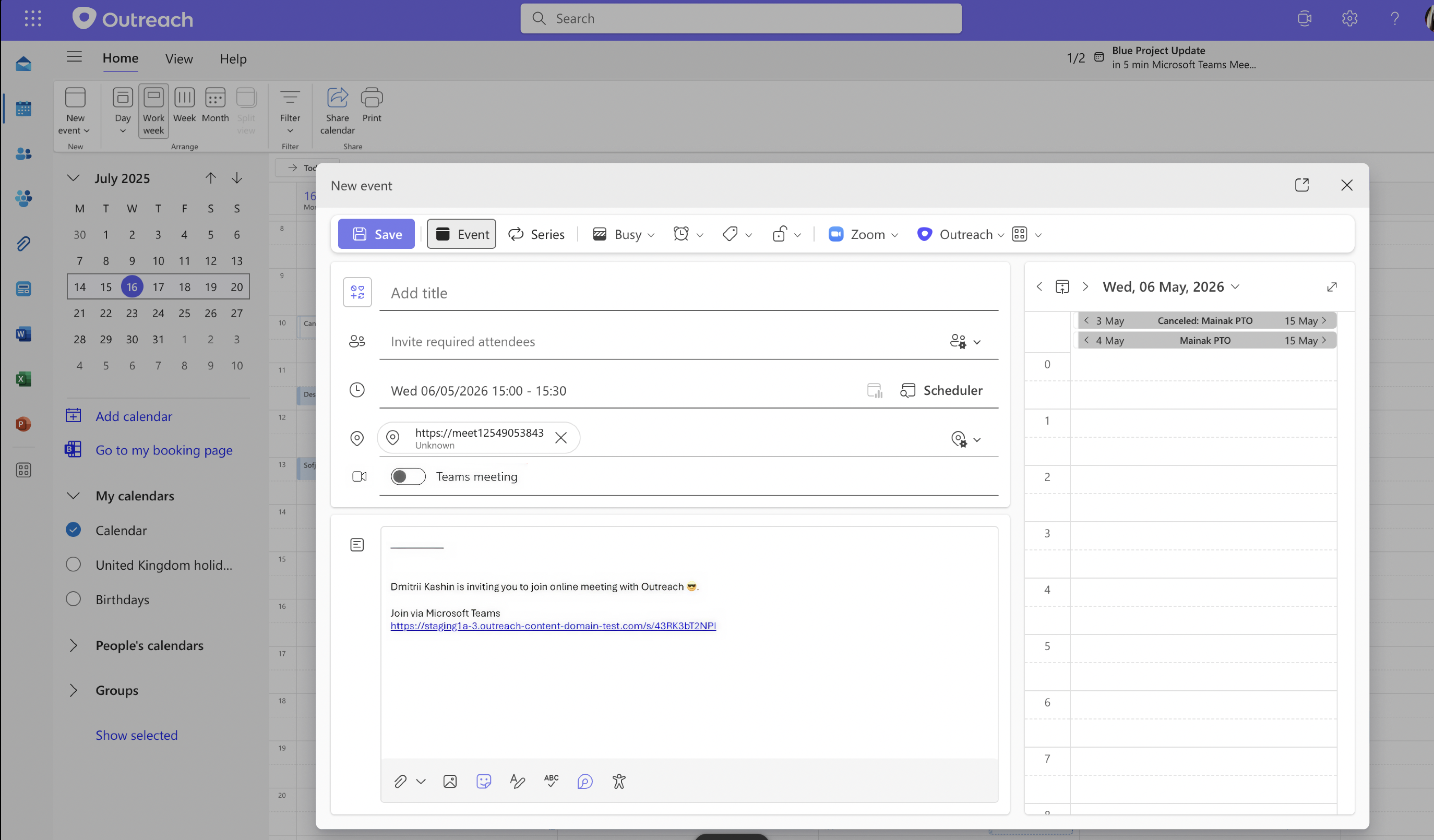
Webex: Dynamic Links
Works when creating a new meeting or editing an existing one.
- Open or create a meeting in Outlook.
- Add a dynamic Webex link to the invite using the Cisco Webex Outlook add-in. The Webex link is inserted into the Location or Description field (or both) depending on where the Webex add-in places it.
- Click the Outreach icon in the Outlook ribbon to open the Outreach ribbon menu.
- Click Add Kaia meeting in the Outreach ribbon menu. Alternatively, use the same button in the add-in sidebar.
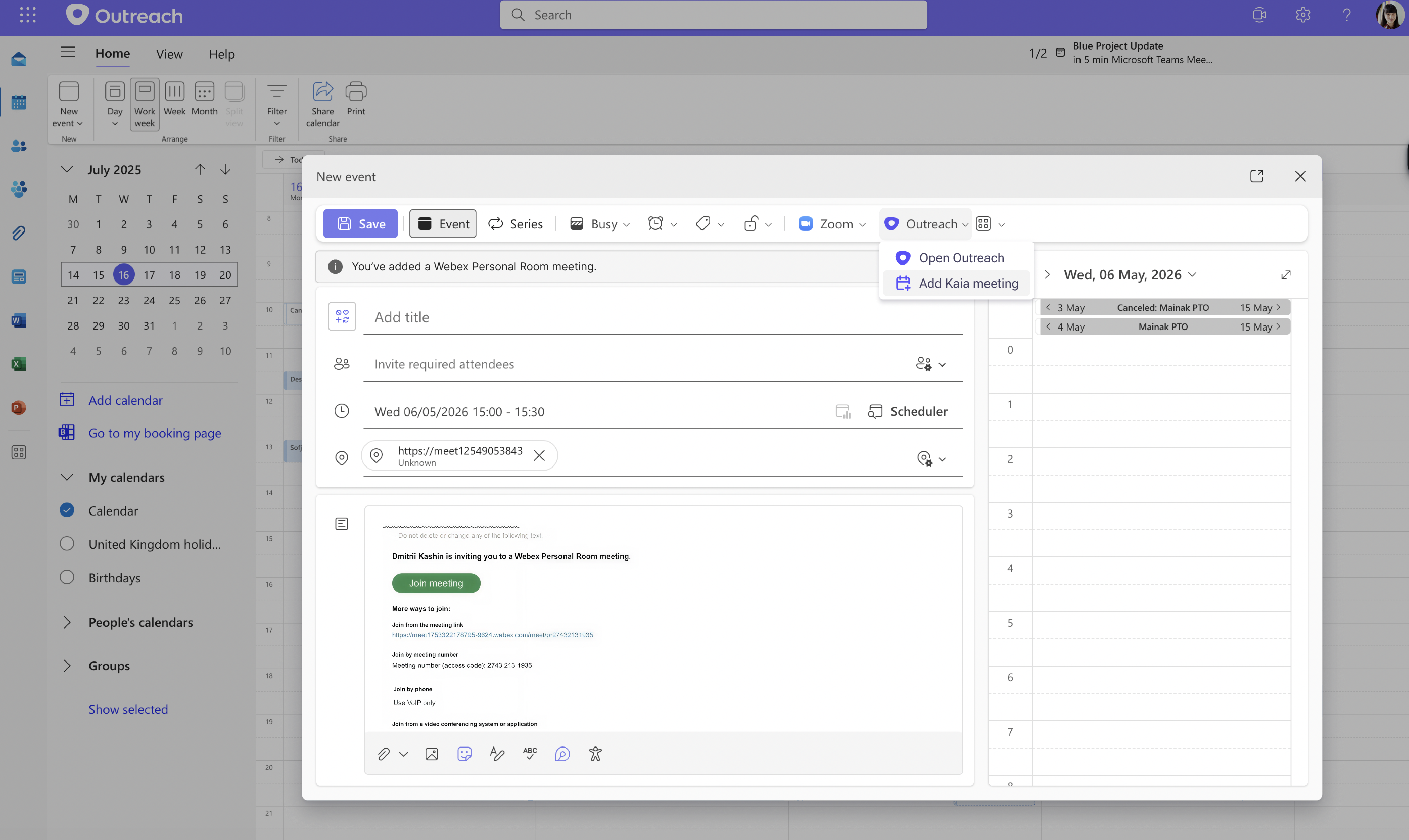
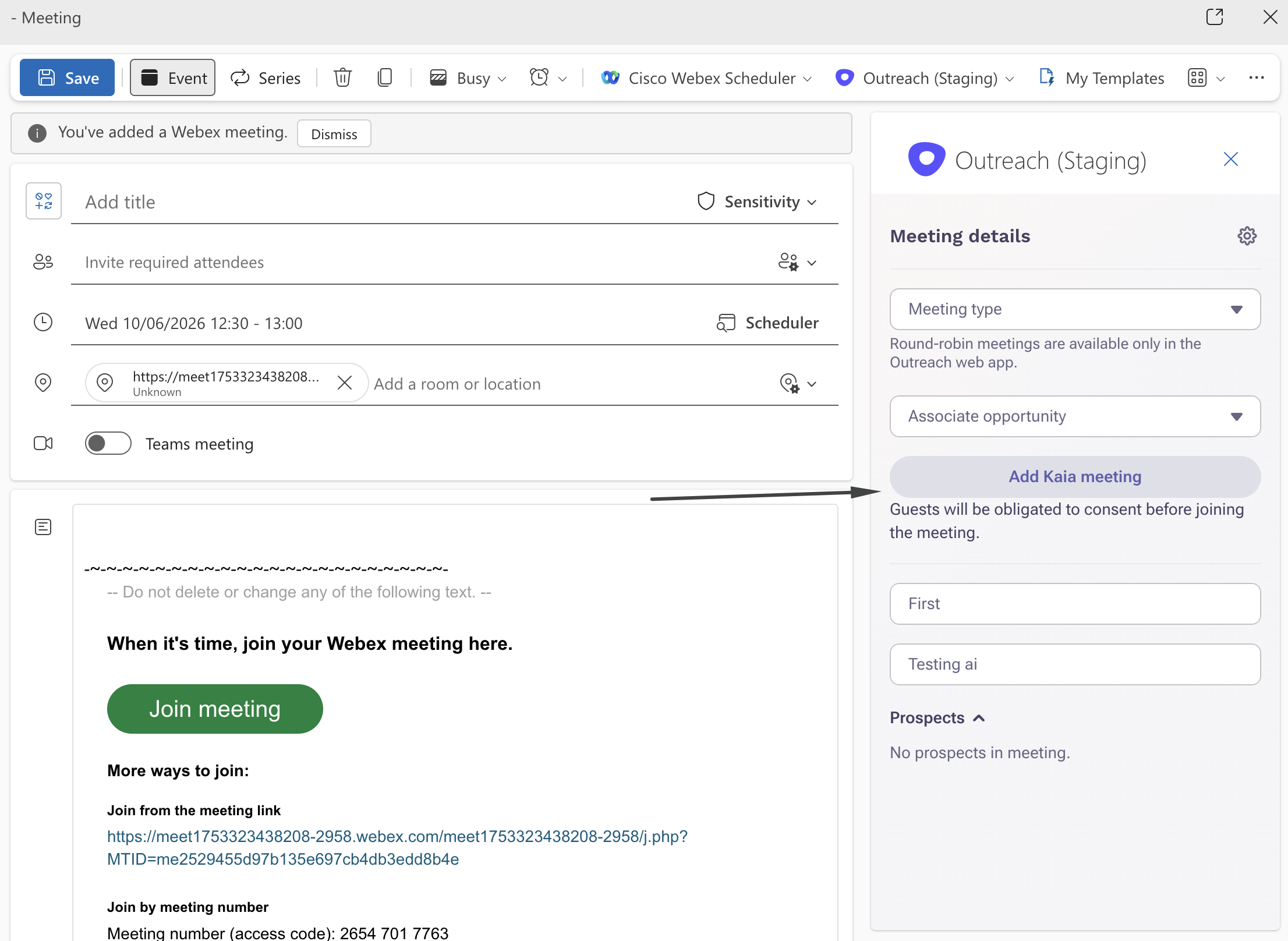
- Outreach finds and replaces the Webex link — in whichever field(s) it was inserted — with the Kaia consent-wrapped link.
Webex: Static Links
Works when creating a new meeting or editing an existing one.
- Open or create a meeting in Outlook.
- Open the Outreach add-in.
- Select the meeting type that uses
{{sender.conference_url}}or{{sender.conference_details}}with a static Webex room link. - Outreach automatically wraps the link with consent when the meeting is scheduled.
Details on variable behavior:
- Any additional content included in
{{sender.conference_details}}, such as dial-in numbers, is not shown in the invite body. It is surfaced on the Kaia consent page instead. - If both
{{sender.conference_url}}and{{sender.conference_details}}are included in the description, Outreach inserts the unified consent text only once. - Outreach recommends reviewing meetings after the consent details are populated to confirm that moving additional
{{sender.conference_details}}content to the Kaia consent page does not negatively impact the meeting invite experience.
Scheduling from Google Calendar with Outreach Everywhere
Dynamic Links (MS Teams, Zoom, Google Meet, Webex)
When scheduling a meeting directly in Google Calendar with the Outreach Everywhere extension enabled:
- Create a new meeting in Google Calendar.
- Add video conferencing.
- Ensure "Meet with Outreach Kaia" is checked.
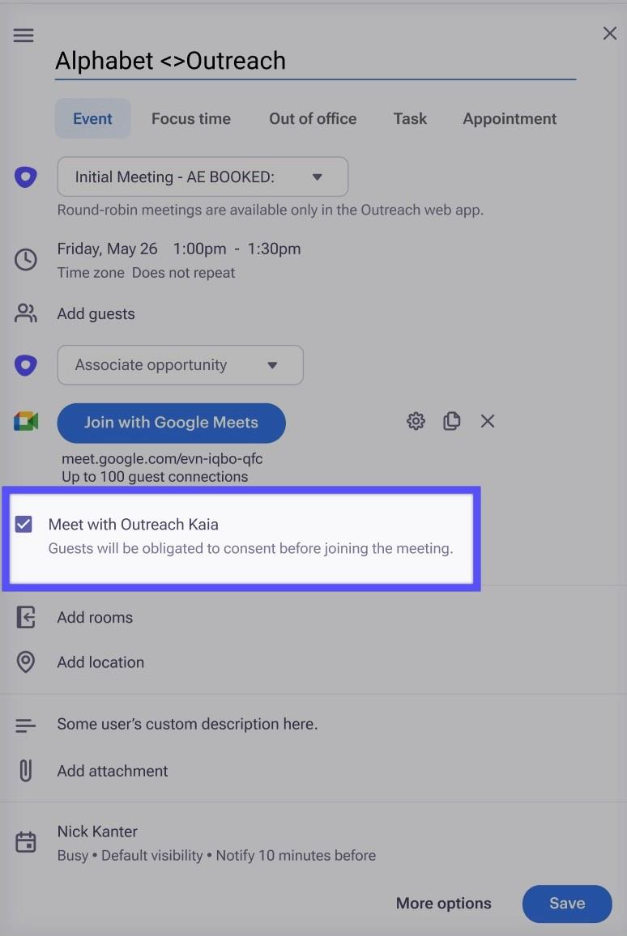
- Outreach replaces the standard join link with a consent-wrapped link. Attendees will see the Kaia consent page before joining.
Frequently Asked Questions
What happens if I schedule a meeting using a provider or surface that is not supported?
The meeting link will not be wrapped in a consent link and Kaia will not join the meeting. The rep can still schedule and send the invite as normal, but no consent page will be shown to attendees and no recording will take place. Refer to the supported experiences table above to confirm which combinations are covered.
Why can't I add Kaia to meetings manually?
When the consent landing page is enabled for at least one video conference provider, all options to manually add Kaia to meetings are removed. This prevents users from adding Kaia to meetings without going through the consent page.
How does this affect meetings scheduled before the feature was enabled but taking place after?
This feature only affects new meetings scheduled after the feature is enabled. For existing meetings, including recurring ones, you may wish to reschedule so that a consent-enabled link is used.
If an admin enables the consent feature, will Kaia still auto-join my meetings?
No. Enabling the consent feature automatically disables Kaia auto-join. A consent acknowledgment is now required from guests before any recording can occur.
I added an MS Teams link before clicking Add Kaia and now there are two links in my invite. What should I do?
Remove the native MS Teams link from the invite. For MS Teams, always click Add Kaia meeting before any Teams link is added to the invite.
I scheduled a meeting with consent via a supported flow but Kaia didn't join. What should I check?
First, confirm whether the invitee went through the consent page. If the consent page was not shown, the meeting may not have been scheduled with consent — this can happen when the meeting is scheduled through an unsupported flow. Refer to the table above to confirm your flow is supported.
If the meeting was scheduled through a supported flow and the consent page was completed, check when the meeting was scheduled. If it was scheduled less than 5 minutes before the start time, Kaia may not have had enough time to join.
When exactly does Kaia join a consent-wrapped meeting?
Kaia joins approximately 1 minute before the meeting start time. Make sure you are not testing with meetings scheduled far in the future or meetings that have already passed.
Why am I asked for admin approval after clicking "Add Kaia meeting" in the Outlook add-in?
The Outreach for Outlook add-in requires the OnlineMeetings.ReadWrite permission in Microsoft Entra ID to generate meeting links. This permission requires admin consent in your organization. Ask your Microsoft 365 admin to grant the permission on your behalf. Admins can follow this Microsoft guide to configure or grant consent.
Why am I asked to grant additional permissions after clicking "Add Kaia meeting" in the Outlook add-in?
The Outreach for Outlook add-in requires the OnlineMeetings.ReadWrite permission to create meeting links with consent. If your Microsoft admin allows users to grant this permission, approve the request and continue. If admin approval is required, refer to the question above for next steps.
A new 'Add Kaia meeting' button is appearing in my users' Outlook ribbon. What is it?
Add Kaia meeting is a new option in the Outreach Outlook add-in (version with calendaring support).
- For orgs with the Kaia Consent Page enabled, it allows reps to add a consent-wrapped video conferencing link directly from the ribbon in one click.
- For orgs without the consent page enabled, clicking it shows a contextual message explaining it is not configured. Existing scheduling workflows are completely unchanged — if your organization doesn't use the Kaia consent page, there is no need to use this option. Kaia will automatically join your meetings.
Additional Information
Was this article helpful?
That’s Great!
Thank you for your feedback
Sorry! We couldn't be helpful
Thank you for your feedback
Feedback sent
We appreciate your effort and will try to fix the article