Objective
The purpose of this article is to provide information to Outreach Users in configuring Sequence Rulesets in Outreach.
Applies To
- Outreach Users
Note: Some Outreach Views and Options require admin-level governance permissions. If the options outlined in this article are unavailable, contact the Org's Outreach Administrator as applicable. For more information regarding governance profile settings, refer to the Governance Profile Settings Overview article.
Sequence Rulesets Overview
Outreach provides Users the ability to apply customized Rulesets to Sequences without making manual adjustments as Prospects progress through a sales cycle.
To Access Sequence Rulesets:
- Access the Outreach Platform.
- Click the Sequences (paper plane) icon in the navigation sidebar.
- Find and click the applicable Sequence to open it. (Sort and filter as needed.)
- Along the top of the Sequence editing page, click the Settings tab.
- Click the Sequence ruleset field, then select the applicable ruleset.
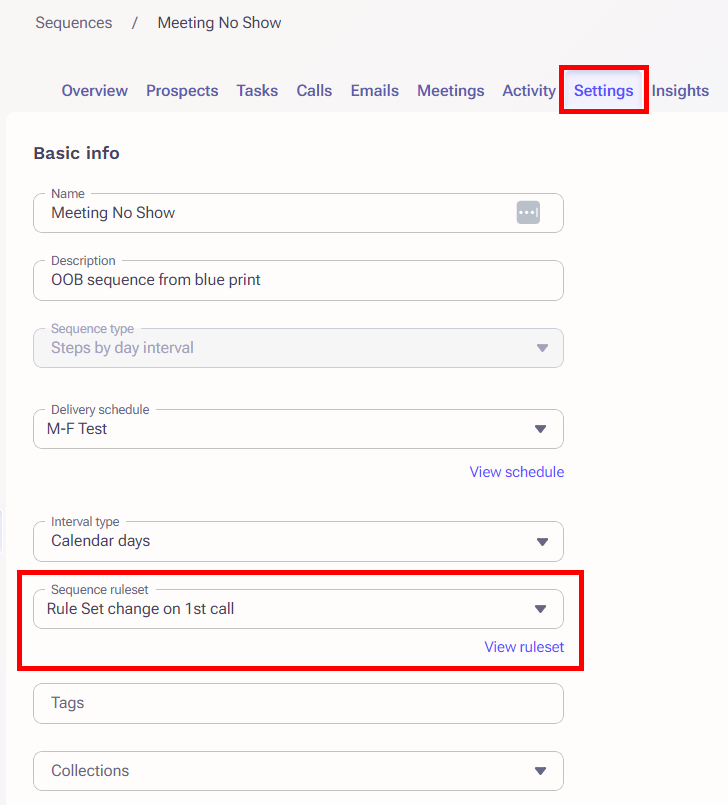
- Click Save.
To Update a Ruleset:
- Access the Sequence Settings as instructed above and select the applicable ruleset.
- Just below the Sequence ruleset field, click the View ruleset link.
- On the Edit Ruleset page, make any needed changes. (Review the Sequence Ruleset Settings section below for details on each configurable area.)
- Click Save.
To Delete a Ruleset:
Sequence Rulesets that are currently in use cannot be deleted. Fortunately, Outreach makes it easy to find out where your Rulesets are being used, by filtering Sequences based on Ruleset name.
- Navigate to Sequences.
- Click Add Filter.
- Search for and select "Ruleset."*
- Input the name of the Ruleset you want to remove to see all Sequences with that Ruleset assigned
- Change the Ruleset on the Sequences in question.
- Once you've confirmed your Ruleset is not in use, navigate to Administration>Workflow Automations>Rulesets.
- Click the dropdown menu next to the Ruleset in question and choose "Delete."
*Note: If your Ruleset is in use on any archived Sequences, you will also need a filter for "State is Archived" to see these Sequences.
Sequence Ruleset Settings (Edit Ruleset)
The Edit Ruleset page for a given Ruleset contains the following sections:
- Basic info
- Safety settings
- Opt out settings
- Prospect stage settings
- Out of the office settings
- Call task settings
- Actions outside of sequences
Basic info
Sequence Rulesets require a Name and a Ruleset Owner. In most instances, the Ruleset Owner is the User configuring the Ruleset.
Safety settings
The Safety settings section of a Sequence Ruleset provides Users the ability to configure Prospect engagement options. Users can define Safety Settings based on the information in the below table.
| Safety Setting | Description |
|---|---|
| Prospect Can be added to this sequence | Users can define how often a Prospect can be added to the sequence:
|
| Should active prospects be exclusive to this sequence? | Users can define whether a Prospect should be exclusive to this sequence or not. Information on sequence exclusivity is available here. |
| Prospects must not have been contacted within the last | Defines the latency period between Prospect contacts and adding a Prospect to this sequence. |
| Add unsubscribe link to emails |
Users can enable or disable this option. Enabled, an unsubscribe link is added to sequenced emails. For more information regarding unsubscribe links, refer to the applicable content Additional Information section of this article. |
| Allow users to customize step templates when adding to sequence | Users can enable or disable this option. Enabled, Users are able able to edit email step templates while adding Prospects to the Sequence. |
Opt out settings
Outreach provides Users the ability to configure how a Sequence responds to an opt-out by a Prospect.
Users can define opt out settings based on the information in the table below.
| Opt Out Setting | Description |
|---|---|
| When a prospect opts out of email | Defines the action Outreach takes when a Prospect opts-out of emails:
|
| When a prospect opts out of calling | Defines the action Outreach takes when a Prospect opts out of calling:
|
| When a prospect opts out of SMS | Defines
|
A Note About Opt-Outs: Outreach can support opting Prospects out of specific communication channels such as email, calls, or texts. For more information regarding how to manage opt-outs at a granular level, refer to the applicable content in the Additional Information section of this article.
Prospect stage settings
Prospect Stages are labels assigned to a Prospect's profile and visible throughout Outreach to identify where a Prospect is in a sales life cycle. Outreach provides Users the ability to have the platform automatically update the Prospect's stage when certain events happen.
As these events occur, the Prospect stage is updated and Users can define settings based on the information in the table below.
| Option | Description |
|---|---|
| Added to Sequence | Updates Prospect stage upon being added to sequence. |
| First email delivered or call placed | Updates Prospect stage when the first email or call step in the Sequence is completed. |
| Email Bounces | Updates Prospect stage if an email sent form the Sequence bounces. |
| Prospect replies | Updates Prospect stage if they reply to an email sent from the sequence or answer a call made as part of the sequence. |
| Prospect Opt-Out | Updates Prospect Stage if Opt-Out of communication through an email sent from the Sequence. |
| Marked as Finished with No Reply | Updates Prospect stage automatically upon finishing the last Sequence Step or when the Prospect is marked as finished no reply manually. |
| Prospect completes sequence with no reply | Choose which stage to set a Prospect to when they complete a Sequence with no reply. |
| Wait to update the stage after the sequence is completed | Updates Prospect stage after the specified time elapses with no reply after the last sequence step has finished. |
For more information regarding Prospect Stages, refer to the applicable content in the Additional Information section of this article.
Out of the office settings
Outreach has an algorithm that detects an out-of-office (OOO) reply from a Prospect in a Sequence based on specific phrases which appear in either the Subject or Body of the message.
Outreach's algorithm looks for phrases in English, a few phrases in German (abwesenheitsnotiz / automatische antwort), and one phrase French (absence du bureau).
Note: This algorithm is different than that of Outreach's Text Editor or Insights supported languages text. For more information regarding other supported languages, refer to the applicable content in the Additional Information section of this article.
When an OOO response is detected, Outreach pauses the Prospect in the Sequence and marks the applicable stage as Paused (OOTO).
Note: OOO replies do not count as a reply from a Prospect and do not count towards the reply rate.
Users can define how a Prospect is managed when the platform detects an OOO reply based on the information provided in the table below.
| Setting | Description |
|---|---|
| Automatically resume out of office Prospects | Users have the ability to enable or disable this option. Enabled, Users can define Outreach manages a Prospect when Out of Office settings are detected. |
| Default time to wait before resuming a prospect | Defines the number of units to wait before resuming a Prospect in a Sequence when an OOO reply is detected. |
| Maximum age threshold for resuming |
Outreach's algorithm looks at the paused mailings for a specified amount of time. Prospects paused for less than the specified amount of time are reactivated in the Sequence. Prospects paused for more than the specified amount of time, have to be manually resumed by the User. For more information on resuming paused Prospects, refer to the Additional Information section of this article. |
| Use Amplify Return Date |
Users have the ability to enable or disable this option. Enabled, Amplify's Return Date Extraction extracts contact information from a sender's email and sends the User a notification to their inbox. For more information on the Amplify Return Date Extraction, refer to the applicable content in the Additional Information section of this article. |
Call task settings
Outreach provides Users the ability to take action when a Prospect engages with a Sequence by creating a Call Task for Email Opens and Link Clicks.
Users can define how Call Tasks are managed when the platform detects an email-open or link-click based on the information in the table below.
| Option | Description |
|---|---|
| Enabled for email Open | Users have the ability to enable or disable this option. Enabled, Users can define the minimum number of email opens needed to create a Call Task and set the Task priority (Urgent, High, Normal, or Low). |
| Enabled for email clicks | Users have the ability to enable or disable this option. Enabled, Users can define the minimum number of email clicks needed to create a Call Task and set the Task priority (Urgent, High, Normal, or Low). |
The following logic applies when enabling the Sequence Call Task settings:
- The call task is due immediately.
- The task is assigned to the User who sequenced the Prospect.
- The call task is associated with the mailing; therefore, the task will be created on every task that is a mailing step.
Actions outside of sequences
The Actions outside of sequences settings provide users the option to mark Prospects finished in the sequence based on activity that occurs outside the sequence.
| Option | Description |
|---|---|
| When a meeting is booked with a prospect | Defines whether a Prospect should be marked finished or continue in the sequence when a meeting is booked with any Outreach user, regardless of whether the meeting was booked via the sequence. |
| When an SMS message is received from a prospect | Defines whether a Prospect should be marked finished or continue in the sequence when any Outreach user receives a text message from them. |
Additional Information
Was this article helpful?
That’s Great!
Thank you for your feedback
Sorry! We couldn't be helpful
Thank you for your feedback
Feedback sent
We appreciate your effort and will try to fix the article