Purpose:
The purpose of this article is to provide information to Outreach users regarding Meeting Booked Triggers.
For more information regarding triggers, refer to the Trigger Overview article.
Intended Audience
- Outreach Admins
- Outreach Users
How To Configure a Meeting Booked Trigger
- Access the Outreach Platform.
- Click on the user's initials in the bottom left-hand corner of the navigation sidebar.
- Go to Administration > Workflow automations > Triggers.
- Click Add Trigger in the upper right hand corner.
- Input the name of the new trigger in the Namefield.Example:Meeting Booked.
- Select Trigger Object as 'Meeting' and Event 'Booked'
- Select the applicable option from the Target dropdown menu to determine where the Trigger Actionwill be applied.

- Click to enable the Trigger only once per targetoption to set the trigger to execute only once per target that matches the conditions.Note:This trigger will continue to fire when new targets are added that match the conditions.
- Select the applicable conditions.See the following table for the available trigger conditions
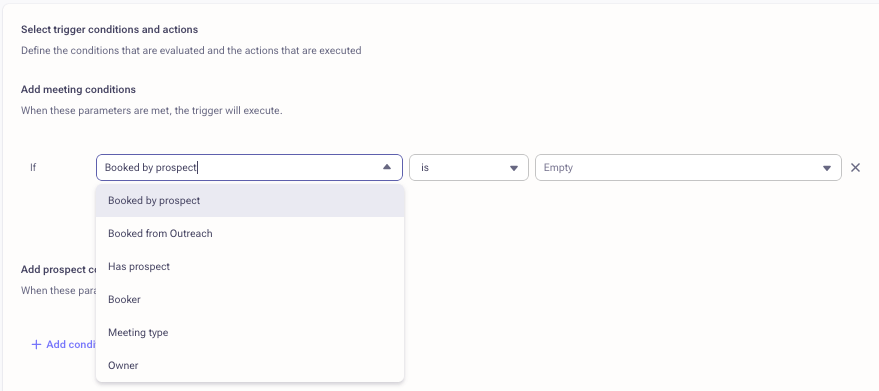
Term Definition Booked By Prospect The Meeting was booked by a Prospect using the Public Calendar Link. Booked From Outreach The meeting was booked using the Outreach Public Calendar Link, insert availability, or by sending an invite through Outreach. Has Prospect The meeting has at least one Prospect on the invite. Booker The Outreach user who booked the meeting. Meeting Type The Meeting Type name. Owner The owner of the booked meeting which can be different from the user who booked the meeting. - Configure Prospect and Account Conditionsas applicable.
- Configure the Trigger Action as applicable and click Done.
- Click Save.The Meeting Booked Trigger is now configured and ready to be enabled for use.


Note: The trigger will only work if the meeting was booked using the Outreach calendar. As multiple triggers are created, Outreach will fire triggers based on the order they are listed on the overview page.
Was this article helpful?
That’s Great!
Thank you for your feedback
Sorry! We couldn't be helpful
Thank you for your feedback
Feedback sent
We appreciate your effort and will try to fix the article