Objective
Learn how to access the Requests area of the Outreach Support Portal in order to view and update existing support tickets. Tickets are created for support requests and accessible from the Support Portal no matter what contact channel they are created by—online, chat, or phone. The Outreach Support Portal is easily accessible to any seated Outreach user.
| *** IMPORTANT *** Please do not include any non-essential personal identifying information (PII), or any protected health information (PHI) in any communications you send to us. Although data in the system is encrypted, it is not intended to store or process any PII or PHI information. Please keep in mind that information shared within these tickets is triaged and routed to the appropriate parties. There is a possibility that information you include in a ticket may be read by parties in addition to the person to whom it is addressed. |
Note:
- For more information regarding contacting support—including hours of operation, best practices, and contact options—refer to our Best Practices for Contacting Outreach Support.
- This article discusses contacting Outreach Support for technical troubleshooting. For information on requesting additional seats or for billing support, refer to Additional Information below.
Applies To
- Outreach Users
- Outreach Admins
Procedures
Access Your Support Requests Page
From the Outreach Support Portal
- Sign in to the Outreach Support Portal. (Learn how here.)
- In the upper right of the page, click your profile avatar or name.
- From the dropdown menu, click Support Requests.

From Your Outreach Instance
From within the Outreach application, click the question mark icon at the top to open the Resource center, then click Support Portal - Submit or view open tickets.
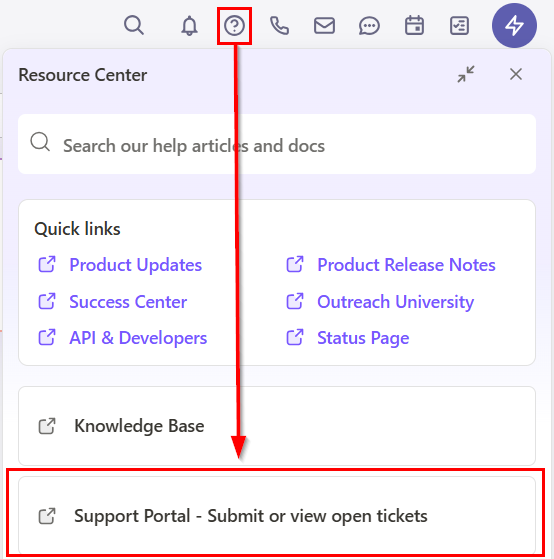
This will log you in to the Outreach Support Portal and redirect you to the Support Requests page in a new browser tab/window.
View & Manage Support Requests
Review the Support Requests page
By default, tickets you have created yourself (My requests) are shown, ordered by most recent activity.
Admins, as Support portal super users, will also have access to all tickets associated with the instances aligned to their login. See more here.
Review Individual Request Tickets
Click on a ticket subject to open it and review all details, including status, categorization, chat transcript (if applicable), and any communications between Outreach Support, yourself, and anyone else CC'ed.
- Messages are ordered with the most recent response on the top. You can adjust ordering by clicking Sorted By

- To add a reply, click Reply or scroll to the bottom, enter text in the Click here to add comment field, optionally add attachments, then click Reply.
- If you are satisfied that a working solution has been provided, indicate that by entering a reply, clicking Reply, and then clicking Close Issue at the top of the ticket.

Adding Additional CC's to Your Request
Click on a ticket subject to open it. At the top of the request, click Add People.

- After clicking Add People, a pop-up will appear where you can add additional emails as CC's on the ticket.
- To add multiple CC's, click "," after each email. When you are done, click Add to save.
Note:
- Replying via email to ticket update notifications will also append your responses to the ticket (including attachments).
- If prompted via email for a satisfaction rating, you can complete the survey via the links in the email.
- If contacting Outreach Support via chat or phone regarding an existing ticket, please have the request ID ready to share with the representative.
Escalate your Support Ticket
Outreach allows customers to raise their Support tickets to a higher level of attention from within the Outreach Support Portal via the Does your ticket require escalation? dropdown.
Note: This option will only appear if certain criteria are met, including that the ticket has not already been escalated.
- Sign in to the Outreach Support Portal.
- At the top right, click your avatar icon or name.
- From the dropdown menu, click Support Requests.
- Click to open the relevant ticket.
- On the Ticket Details section, click the dropdown field under Does your ticket require escalation?
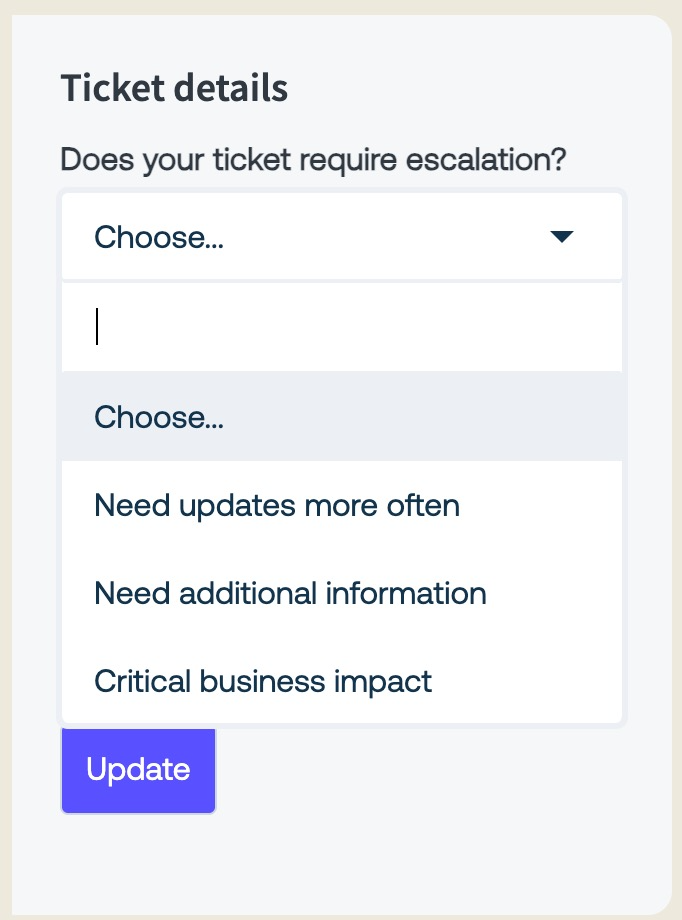
- Select the appropriate option from the list:
- Need updates more often
- Need additional information
- Critical business impact
- Other
- Click Update.
A banner will appear at the top of the page reading, "The ticket has been updated." You will also receive an email confirming that we have received your request to escalate.
You can continue to add any additional details to the ticket as needed via Reply or Click here to add a comment. You can also reply to the email notification, which will append any additional information to your original ticket.
A Support representative will reach out to work with you towards resolution.
Additional Information
How to Sign in to the Outreach Support Portal
How to Submit a Technical Support Request
Best Practices for Contacting Outreach Technical Support
How To Request Additional Outreach Seats Through the Support Portal
Was this article helpful?
That’s Great!
Thank you for your feedback
Sorry! We couldn't be helpful
Thank you for your feedback
Feedback sent
We appreciate your effort and will try to fix the article