Objective
Applies To
- Outreach admins
- Outreach users
Before you begin
- Once admin enables the integration, every user needs to connect their Outreach and Zoom account to be able to generate Zoom links for Outreach meetings.
- Before activating the integration, ensure that you meet the prerequisites for setting up Zoom.
- Meetings created before the feature was enabled will not have Zoom video conference links attached.
- Once the meeting is scheduled, it’s not possible to update the video conferencing method in Outreach (even when “no video-conferencing” is selected). You can still change it in the native calendar.
Integration
- When scheduling the meeting in Outreach app
- When sending available time slots via Outreach app / Gmail (via Outreach Everywhere extension)/ in Outlook (via new Outlook add-in)
- When sending a link to the public calendar
Prerequisites for enabling Zoom integration
Outreach admins to adjust existing Outreach Meetings Types containing {{sender.conference_url}} or {{sender.conference_details}}.
Zoom as the primary conferencing tool
The following is recommended for Admins at organizations that rely on Zoom as their primary conferencing tool.
This precaution is necessary to prevent situations where meeting invitations display two different video conferencing links. Such a situation can occur when users select Zoom for video conferencing and simultaneously use Outreach Meeting Type that includes static conference variables. To address this, individual users, who have their Zoom connected, can auto-remove static videoconference variables in their Meeting Types. In this case, admins should ensure that this auto-removal process does not change the context and accuracy of the Meeting Type content used in the meeting invitation. Admins are recommended to thoroughly examine Meeting Type content to ensure it is suitable for all scenarios.
Once all users enable Zoom integration, static videoconference variables can be removed from all Outreach Meeting Types. We do not recommend doing it right away, in case not all users have finalized the integration - this might result in sending meeting invites with no videoconferencing links attached.
Zoom and other video conference apps as the primary conferencing tools
The following is recommended for Admins at organizations that rely on Zoom and an additional video conferencing app as their primary conferencing tool.
- Users who have connected Zoom and selected it as their video conferencing tool will use the updated Outreach Meeting Types without video conferencing links. This way, users won't need to manually remove static video conference variables from their invitations every time they schedule a meeting.
- Users who have not yet linked Zoom with Outreach or those who do not plan to use Zoom will continue to use the 'old' Outreach Meeting Types that contain static video conferencing variables from their user settings. This ensures their meeting links remain intact. Once they connect Zoom and Outreach, they can switch to Outreach Meeting Types without video conferencing variables from user settings.
Procedure
Zoom admin to approve the Outreach Meetings app
Outreach admin to enable Zoom integration in Outreach
- Sign in to the Outreach Platform as an Admin.
- Click on the Administration in the left panel menu.
- Click Meetings under the Communication tools section of the Settings panel.
- Scroll down and enable the preferred video conferencing method.
- Click Save.
- Let all other Outreach users know that Zoom is available for them and they should connect their Zoom account with Outreach in User settings > Calendar (if they had already connected their Zoom with Kaia they will need to do it for Calendar as well, because Zoom calendar integration requires a different set of permissions). If you made any updates Outreach Meeting Types content, inform users about these changes.
Outreach user to connect Zoom integration with Outreach
- Log into Outreach.
- Navigate to Personal Settings > Calendar Setup.
- Navigate to Video Conferencing and click Connect next to the Zoom logo. Alternatively, select the video conferencing picker and enter the meeting scheduling or send availability flow in Outreach/Google extension/Add-in. Expand the video conferencing picker and click Connect Zoom.
- Click Allow.
If Zoom is the only video conference integration that the organization is using, Zoom will be automatically set as the user’s default videoconferencing app. This means that the Zoom link will be attached to all meetings booked via public calendar and will be preselected as a video conferencing option when the meeting is booked directly in Outreach Calendar. Users can change this in Personal settings > Meetings > Calendar setup > Default video conferencing app.
Additional Information
User Experience
- When Zoom integration is enabled and users connect Zoom, a dynamic Zoom link will be generated for meetings created with Outreach.
-
When scheduling a meeting directly in the Outreach web app or sending availability via Gmail, Outlook or Outreach app, the user has the following options for video conferencing:
- Zoom (or/and any other videoconferencing integration if enabled by admin)
- Personal meeting info (this is displayed only if the user has filled in the Conference URL or Conference details in personal settings)
- No video conferencing
- When sending a public calendar link and Zoom is set up as the primary video conferencing method, Zoom gets appended automatically once the buyer schedules the meeting via a public calendar. In case the Outreach Meeting Type contains {{sender.conference_url}} or {{sender.conference_details}}, these variables will be ignored to avoid situations with 2 links.
Scheduling on someone’s behalf with video conferencing
- When scheduling on someone's behalf, the Zoom account of the meeting host (the person you're scheduling for) will be used to generate the meeting link. If the host doesn't have Zoom connected, the picker will pre-select an alternative video conferencing option (if any available), accompanied by a note: "Host needs to connect Zoom."
- The video-conferencing picker will automatically pre-set the host's default video-conferencing option
Disconnect/Reconnect ZoomUser
To reconnect or disconnect, go to Personal settings > Calendar setup > Video conferencing, click the three dots next to the Zoom tile, and select Reconnect or Disconnect.
Frequently Asked Questions
A: Once the admin enables Zoom, every user needs to connect their Outreach and Zoom account. This can be done in Personal settings > Calendar > Video conferencing.
Q: As a user, I connected Zoom in Outreach Calendar settings but Zoom links are not being attached to meetings scheduled via public calendar and Zoom is not automatically pre-selected as a videoconferencing method for meetings directly scheduled with Outreach.
A: To support the case above, Zoom needs to be added as your Default video conferencing app. You can set up Zoom as your default videoconferencing app in Personal settings > Calendar > Default videoconferencing app. If you are scheduling the meeting on someone’s behalf, their Zoom needs to be connected to Outreach, otherwise, you won’t be able to schedule the meeting on their behalf.
A: To support above, Zoom should not be set as your Default video conferencing app. You can set up your default videoconferencing app in Personal settings > Calendar > Default videoconferencing app.
- If there were meetings created within Outreach before this feature was enabled - then those meetings will not be updated with the new link.
- Outreach will not add links to meetings that are synced to Outreach.
- Outreach will not add links to meetings that are synced in even if they are later updated within the Outreach calendar.
A: Add dynamic link manually outside of Outreach. To resolve this, go to Personal Settings > Video Conferencing > Click the three dots on the Zoom tile > Reconnect (if you organized the meeting). If you scheduled the meeting for someone else, inform them to reconnect Zoom in their settings.
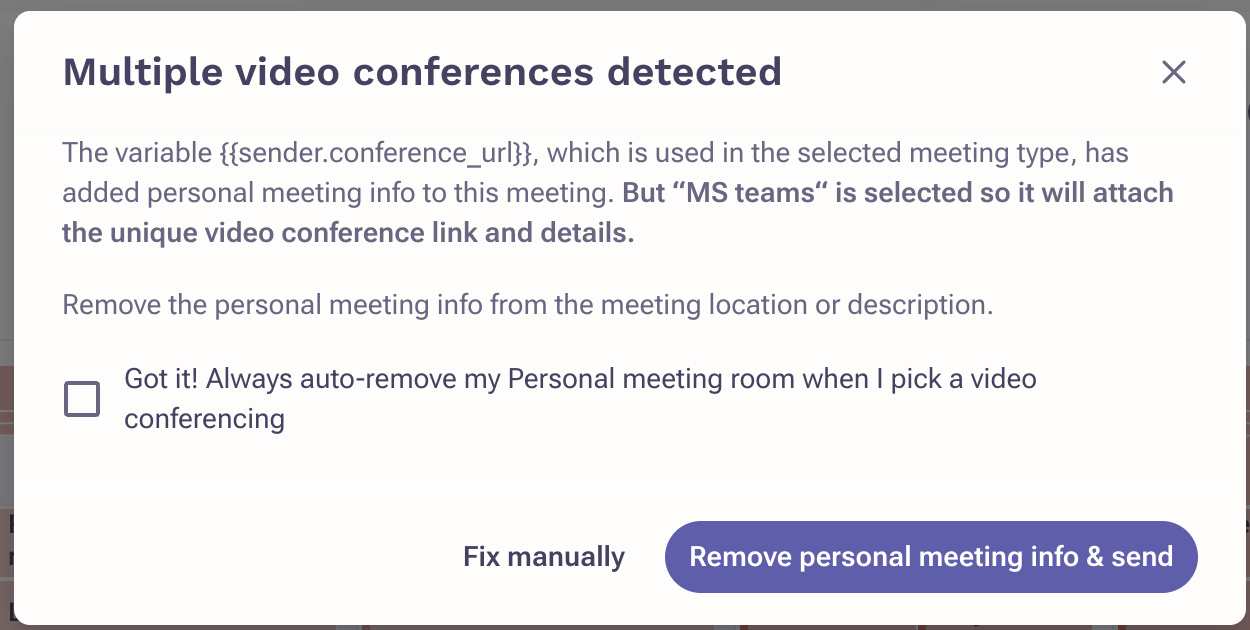
A: This dialog prevents sending the meeting invites with multiple different meeting links. To prevent the display of this warning message, you can opt to select the "Got it! Always auto-remove my Personal meeting room when I pick a video conferencing." option. This action will result in the automatic removal of static meeting variables from meeting invitations, ensuring the consistent utilization of the Zoom link integrated by default.
Other option how to avoid that is to reach out admins and request a review of the meeting types. Outreach recommends creating duplicated of meeting types with and without {{sender.conference_url}} or {{sender.conference_details}} variables. Or removing the {{sender.conference_url}} or {{sender.conference_details}} variables if they should no longer be used.
Was this article helpful?
That’s Great!
Thank you for your feedback
Sorry! We couldn't be helpful
Thank you for your feedback
Feedback sent
We appreciate your effort and will try to fix the article