Objective
The purpose of this article is to provide direction to Outreach Users in booking and configuring meetings from the Outreach Platform.
Applies To
- Outreach Users
Notes
- This article illustrates the process for scheduling and configuring direct meetings in the Outreach Platform.
- This process reflects direct bookings and does not include inserting availability through Gmail or Outlook. For more information regarding inserting availability in Outlook or Gmail, refer to the applicable articles.
- For more information regarding Meeting Types and booking team meetings, refer to the How To Create a Meeting Type article.
Procedure
Schedule a meeting
- Access the Outreach Platform.
- Click Activity and select the Meetings option in the left navigation bar..
- Click to select the applicable time slot or click +Meeting.
Outreach Meetings can be adjusted to display only booked Prospect meetings, shared calendars, and viewed by day, week, work-week, or month intervals. - Select a meeting type from the Meeting Typedropdown to auto-populate the meeting content and meeting categorization in reporting. Selecting Meeting Types do not auto-populate content in two scenarios where modifying meeting content is undesired. The Meeting Types you have favorited will show up at the top of the list.
- When selecting a Meeting Type for inbound meetings hosted by prospects or colleagues. (Use case: Inbound meeting categorization)
- When selecting a Meeting Type for meetings that occurred in the past. (Use case: Retrospective meeting categorization)
- If you select a meeting type with an attached reminder, the reminder is automatically added, requiring no further action. Information about the meeting reminder is displayed as soon as the meeting type is chosen.
- Input a meeting title in the Title field as applicable.
- Add/Remove guests as applicable.
Adding colleagues to a meeting invite provides users the ability to view a colleague's calendar or reassign the meeting owner as applicable. For more information regarding booking a meeting on behalf of another user and calendar visibility, refer to the How To Book a Meeting on Behalf of Another User article. - Update the date and time and add additional details as applicable.
- Click Send meeting invite.
Click a scheduled meeting to update details and reassign owners as applicable.
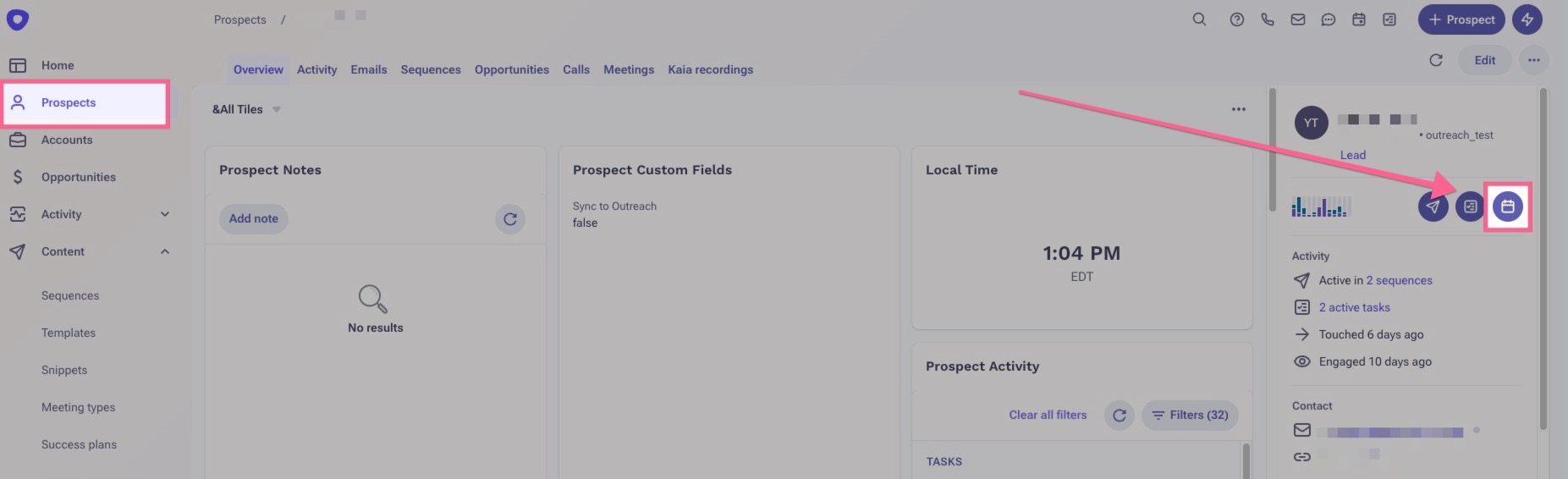
You can also schedule a meeting directly with a prospect from their prospects page. When viewing a prospect record, click on the Meetings icon under their profile on the right side. This will allow you to book a meeting and have it automatically associate with that prospect record, instead of having to manually choose them.
Schedule a meeting from the prospect list
- Click into Accounts.
- Select an Account and navigate to Prospects.
- Select the required prospects.
- Click More Options.
- Click Invite to meeting.
Reschedule a meeting
- Log in to Outreach.
- Click Prospects.
- Select the appropriate prospect.
- Select the meeting
- When the meeting popup shows click edit.
- Update the meeting time.
- Click Save.
Additional Information
Outreach University - Outreach Meetings
Was this article helpful?
That’s Great!
Thank you for your feedback
Sorry! We couldn't be helpful
Thank you for your feedback
Feedback sent
We appreciate your effort and will try to fix the article