Symptom
In the Calendar Setup area of your Outreach application, you see a notification indicating either:
-
Calendar failed to authenticate.

-
We couldn't connect most likely due to missing [provider] permissions.
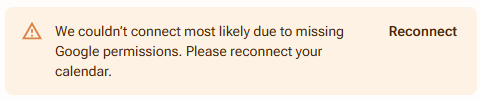
To your knowledge, no User or Admin action was purposely taken to disconnect the calendar or alter connection settings.
Applies To
- Outreach Admins
- Outreach Users
Resolution
Reconnect your calendar
- If not already there, access the Calendar setup page in Outreach by clicking your user initials > Personal settings > Meetings tile > Calendar setup.
- Do either of the following:
- Within the notification message, click the link to Reconnect.
- In the tile for the Connected calendar, to the far right, click ... > Reconnect.
- If prompted in a new window, complete steps to sign in to your calendar provider and grant permissions to Outreach.
Need to remove this calendar entirely?
If you need to remove a disconnected calendar due to problematic setup or to simply replace it:
- In the tile for the Connected calendar, to the far right, click ... > Remove calendar.
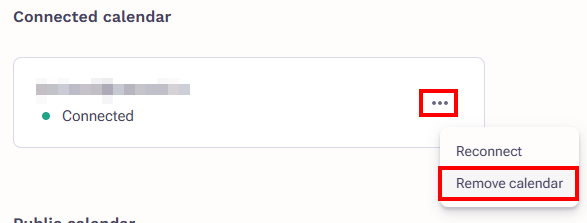
- Review the Remove calendar confirmation dialog, noting that it may take a few hours to complete the removal, after which you can add a new calendar.
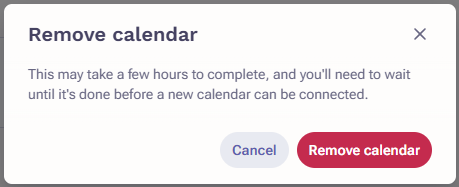
- Click the Remove calendar button to complete the removal submission procedure.
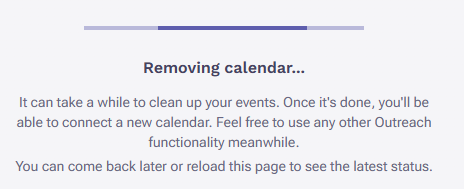
Note: While the removal procedure is in progress, you will see a Removing calendar... notice in the Calendar setup page. Once complete, this notice will disappear, and you may proceed to connect a new calendar in Outreach.
Was this article helpful?
That’s Great!
Thank you for your feedback
Sorry! We couldn't be helpful
Thank you for your feedback
Feedback sent
We appreciate your effort and will try to fix the article