Objective
Retroactively push activity in Outreach in bulk to a CRM as an Outreach Admin.
Applies To
- Outreach Admins
- Salesforce
- Microsoft Dynamics
Before You Begin
- While this article may refer to Salesforce, the process is the same with MS Dynamics.
- Completing this process requires Admin permissions.
- Completing this process requires admins to identify the type of task mapping the org uses for the activity in question. For more information on how to identify an advanced task mapping configuration and the differences between standard task mapping and advanced task mapping, refer to Outreach Advanced Task Mapping FAQs.
- If the task has already been created in your CRM by Outreach, by pushing activity retroactively, it will only update existing records with any updates that haven't synced yet but it will not create duplicates.
Procedures
Force-sync Activities to a CRM by Activity Type via Advanced Task Mapping
Note: When reviewing to determine if activity syncs after each of the below, synced activities appear in the blue cloud icon. (This is the hyperlink to the Task record in your CRM.)
Email Outbox
- Outreach Home Page>Activity>Email Outbox.
- Clear the default filter of Sender is you.
- Filter for Delivered emails.
- Filter your desired Delivered At time frame:
- Filter: Delivered At - Between
- Filter: Sender Is (If you are looking to push activity for only specific users).
- Select all mailings.
- Click the 3 dots on the top left.
- Select Synchronize with CRM.
- Select Push Up to CRM from the Action dropdown menu.
- Click to enable Force sync of all fields for selected tasks.
- Click Sync.
- Determine if the activity syncs.
Calls
- Outreach Home Page>Activity>Calls.
- Clear the default filter of User is You.
- Use an Advanced Search with the following text:
-prospect_id:"" AND salesforce_id:"" AND -call_disposition_id:""
Note: This is intended to match the corresponding conditions that are recommended in the CRM configuration for Task - Calls. (See also: Salesforce Advanced Task Mapping Settings for Call Tasks.)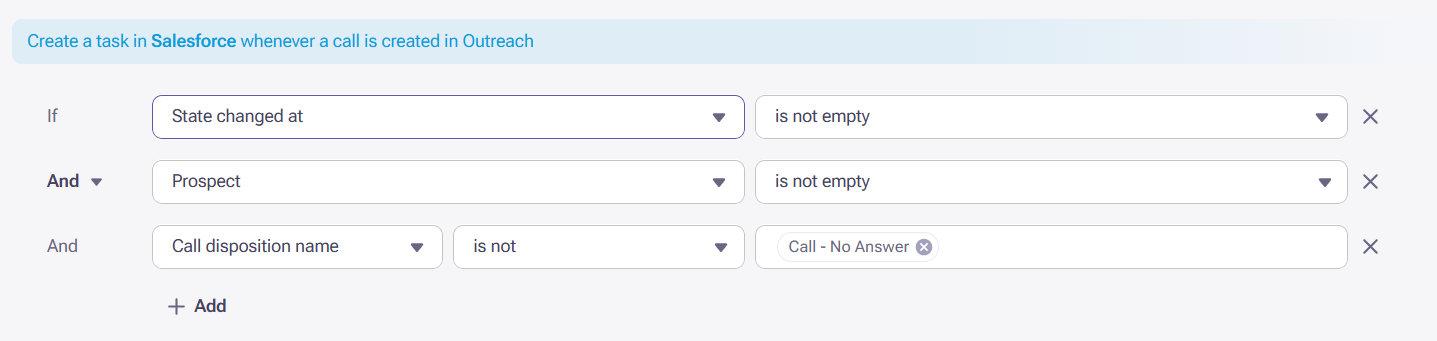
- Filter your desired call date time frame:
- Filter: Call Date - Between
- Filter: User Is (If you are looking to push activity for only specific users).
- Select all calls.
- Click the 3 dots on the top left.
- Select Synchronize with CRM.
- Select Push Up to CRM from the Action dropdown menu.
- Click to enable Force sync of all fields for selected tasks.
- Click Sync.
- Determine if the activity syncs.
Meetings
- Outreach Home Page>Activity>Meetings>Agenda.
- Add a filter of Prospect meetings only.
- Clear the default filter of Assigned Person is you.
- Apply the Assigned Person or Assigned Team filters as needed.
- Filter your desired Start time frame.
Note: Outreach pushes meeting records to the CRM at the time that the meeting is booked, not when the meeting is scheduled to be held. When pushing meeting data to the CRM retroactively, you may want to filter for meetings that are scheduled out in the future and not just the past. - Select all Meetings.
- Click Synchronize with CRM.
- Select Push Up to CRM from the Action dropdown menu.
- Click to enable Force sync of all fields for selected tasks.
IMPORTANT: DO NOT click Ignore integration filter and conditions!* - Click Sync.
*The reason we recommend to not ignore integration filters and conditions is because there are conditions that are generally configured as a best practice to avoid syncing duplicate meeting records to the CRM. Conditions:
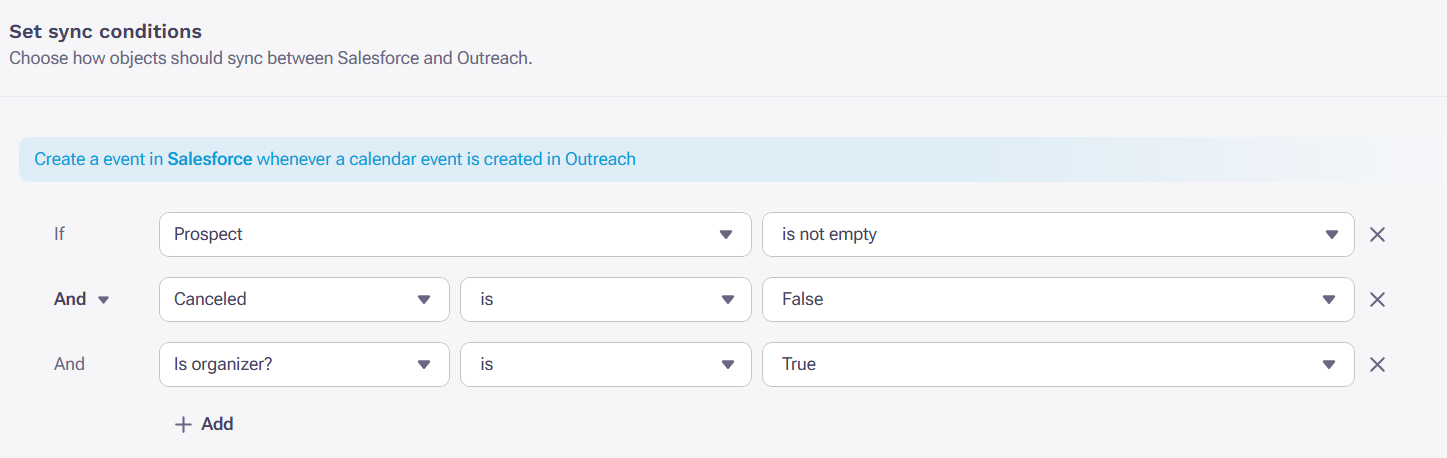
When there are multiple Outreach Users with a Calendar connection established invited to the same prospect event, technically the meeting is captured for each individual user. With the Is Organizer Conditions in place, it only syncs one meeting record for the Outreach User that is the host of the meeting as opposed to one per user. (See also: Sync Outreach Meeting Bookings to the CRM.)
Tasks (LinkedIn & Action Item)
The Tasks tab includes all activity types that you can see but the only activity types that sync via Task – Task should be LinkedIn & Action items. By filtering for those task types as categories, it will filter for the correct type of activity to match your CRM configuration:
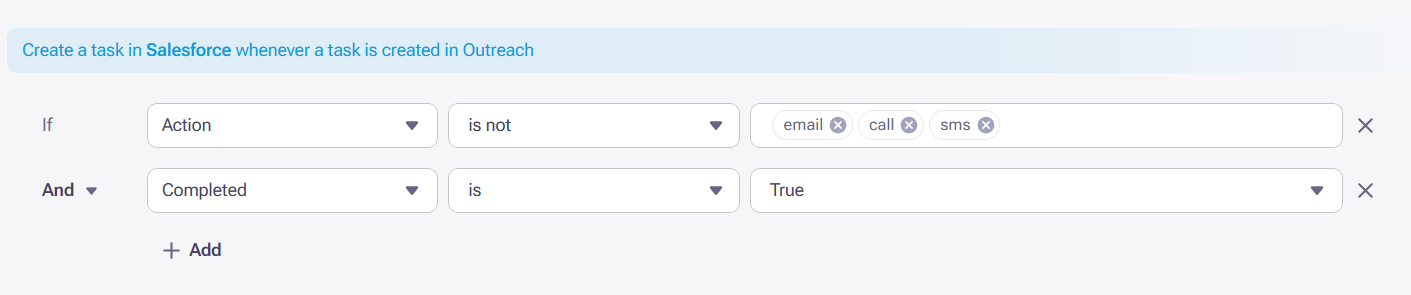
- Outreach Home Page>Activity>Tasks.
- Clear the default filter of Owner is you.
- Change the State is Incomplete default filter to is Complete.
- Filter for Category:
- Action item
- Filter your desired Completed date time frame.
- Apply an Advanced Search filter for:
salesforce_id:""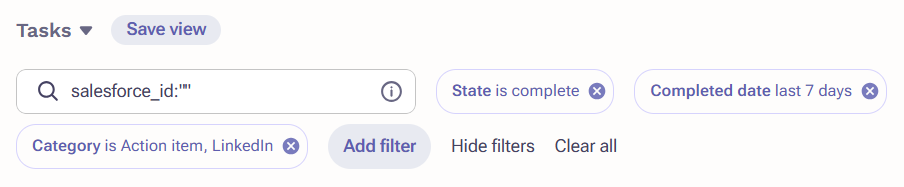
- Select all Tasks.
- Click the 3 dots on the top left.
- Select Synchronize with CRM.
- Select Push Up to CRM from the Action dropdown menu.
- Click to enable Force sync of all fields for selected tasks.
- Click Sync.
If the activity does not sync: Proceed to troubleshoot activities not syncing to the CRM.
Force-Sync Activities to a CRM via Standard Task Mapping
- Access the Outreach Platform.
- Click the Prospects icon (double silhouette) in the navigation sidebar.
- Click the applicable Prospect record.
- On the Prospect Profile, click Activity in the menu bar.
- Locate the failed activity and click the More Options (...) icon to the far right.
- Select Plugin Push Event from the dropdown menu.
- Click Yes.
- Access Salesforce and determine if the activity synced.
If the activity does not sync: Proceed to troubleshoot activities not syncing to the CRM.
Additional Information
Outreach Activities (Emails, Calls, etc.) Not Syncing to the CRM
Was this article helpful?
That’s Great!
Thank you for your feedback
Sorry! We couldn't be helpful
Thank you for your feedback
Feedback sent
We appreciate your effort and will try to fix the article