Objective
Learn how to configure and use Signals in Smart Data Enrichment to identify and act on buying intent across your accounts and prospects.
Outreach supports 20 new signals sourced from ZoomInfo Copilot, covering expansion events, leadership changes, intent spikes, competitive activity, and more. These signals give sales teams a richer picture of account activity — enabling smarter targeting, prioritization, and personalization through Revenue Agents and AI-powered outreach.
For a full list of signals supported, see also Smart Data Enrichment FAQ.
Applies To
- Outreach Admins
- Amplify package customers
- Revenue and other AI Agents
- Account and Prospect Management
- Smart Data Enrichment (ZoomInfo)
Before You Begin
- Two primary personas are involved: (1) the Admin configures signals in Data Enrichment settings, and (2) the Seller / Rev Ops persona utilizes the signals to perform outreach manually or automatically via agents.
- This feature requires an active ZoomInfo Copilot contract. No additional Outreach license is needed, but ZoomInfo Copilot access is required to retrieve these signals.
- Signals are refreshed weekly by ZoomInfo and remain valid for 7–90 days depending on the signal type.
Overview
Admin Setup
Admins must enable Data Enrichment and assign ZoomInfo as the signals provider before sellers can use this feature.
- Log in to Outreach as an Admin.
- Navigate to Administration → Integrations → Data Enrichment.
- Click Connect Provider and connect your ZoomInfo credentials (API key or OAuth).
- Once connected, go to Administration → Data Enrichment → Enrichment Settings.
- Select the Signals tab.
- Assign ZoomInfo to the signals you wish to enable.
- Click Save.
Note: Signal pace and frequency are not independently configurable at this time. They follow the Account-level pace and frequency settings.
Seller Experience
Account Activity
Filtering Accounts by Signal type:
- Navigate to Accounts.
- Click Add Filter and type
Signalsin the search field. - Select the signal type(s) you want to filter by and click done.
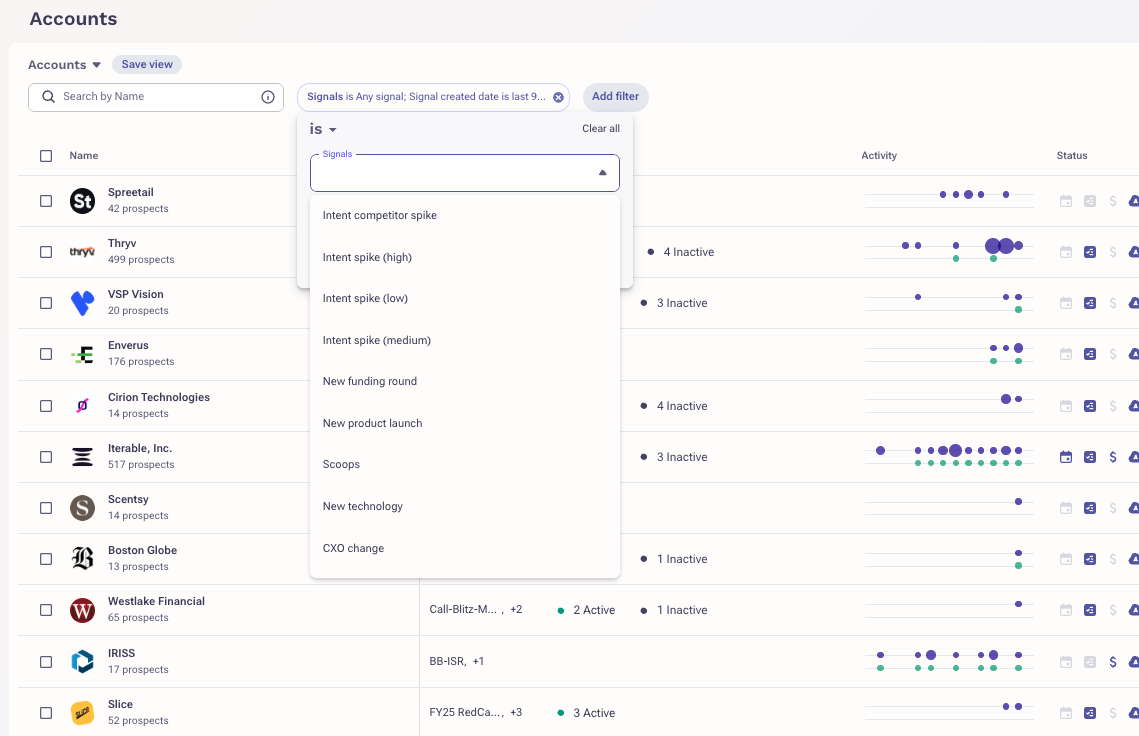
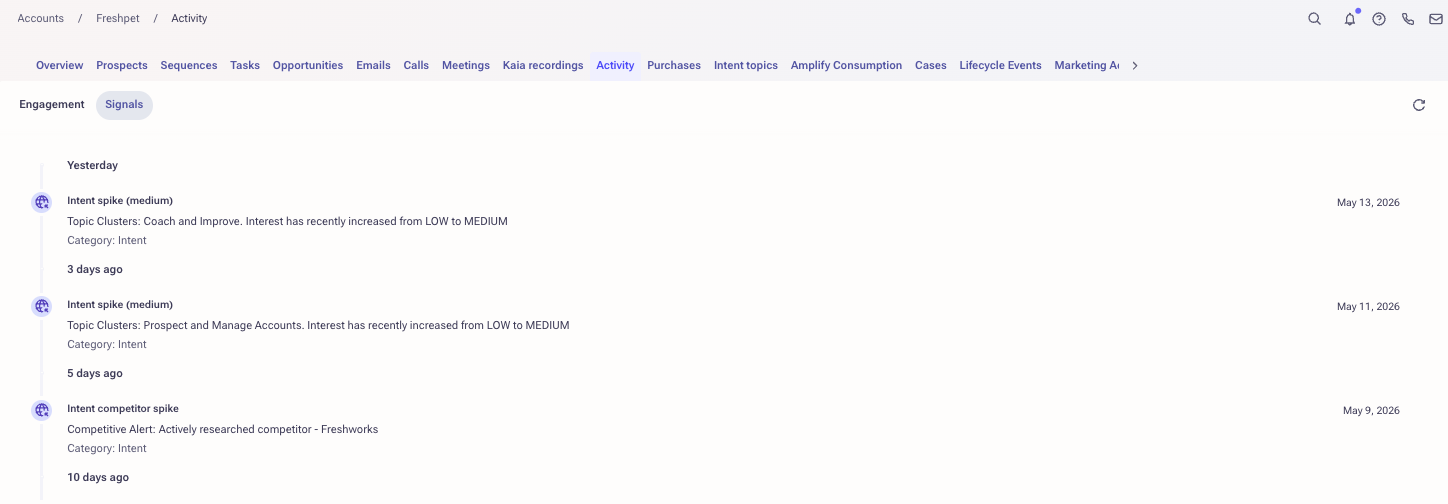
Viewing signal details in the Account Activity feed — active signals for an Account are visible directly in the Account’s activity stream:
- Navigate to an Account record.
- Open the Activity tab and select Signals.
- View signal details including type, strength (where applicable), and date.
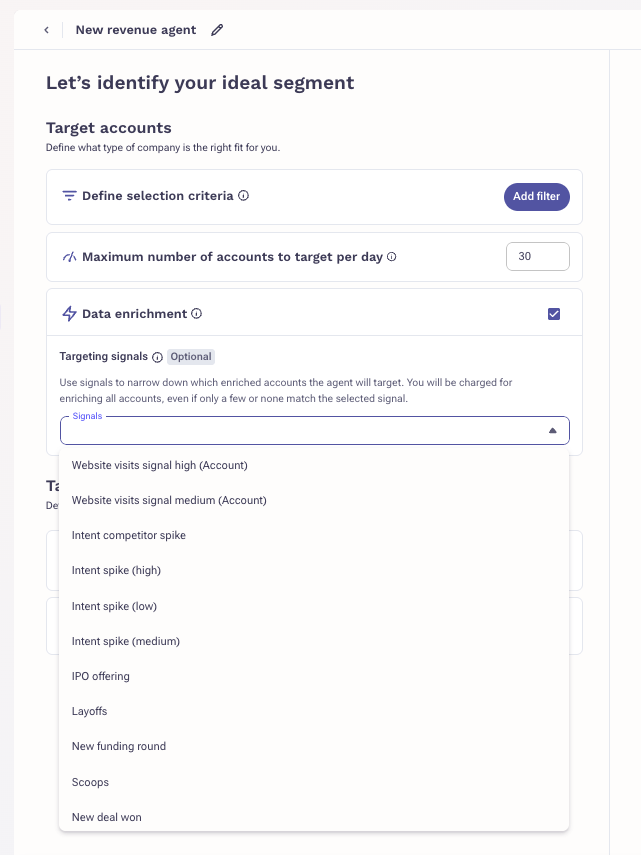
Revenue Agent
The Revenue Agent allows Rev Ops and Sellers to target accounts based on active signals. Signals such as funding rounds, leadership changes, or intent spikes serve as powerful targeting triggers.
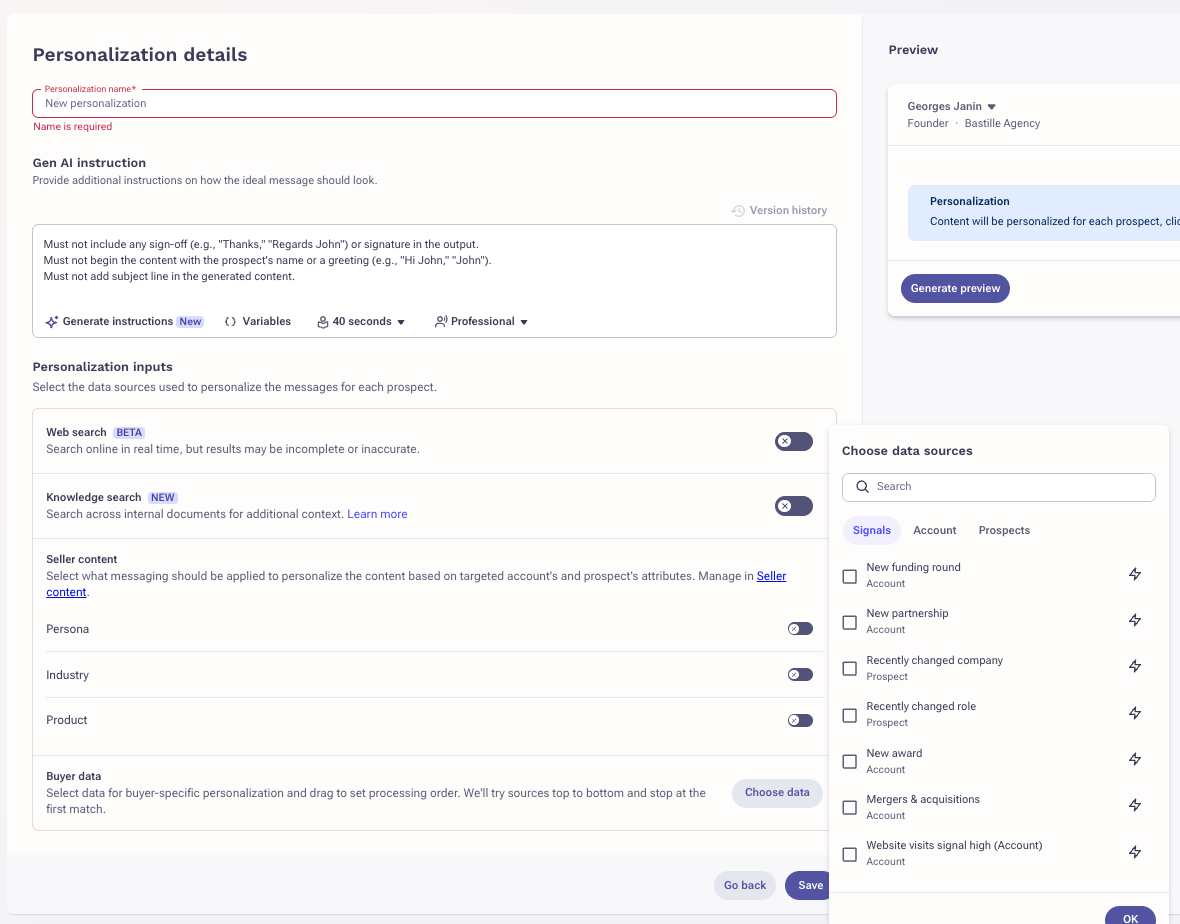
Personalization Agent
The Personalization Agent lets sellers craft personalized messages using live signal data, including signal strength and signal detail text.
- Navigate to AI Agents → Personalization Agent.
- In the prompt configuration, select and include Buyer Data Signals.
- The agent will automatically incorporate relevant signal details into personalized outreach.
Available Signals
The following 20 signals provided by ZoomInfo are available in the Signals tab as of the May 2026 release:
Signal | Description | Additional Attributes |
| Anomalous hiring | Abnormal hiring activity at the account, including by department. | Department |
| CXO change | Change in employment of C-level leaders. | — |
| Divestiture | Company announces the spinoff or sale of a division or asset. | — |
| Earnings | Summary of a public company’s earnings call revealing strategic direction and performance. | — |
| G2 visit | Visits to G2 or company product pages. | — |
| Intent competitor spike | Account is researching a competitor or competitive topic. | Strength (high/medium/low) |
| Intent spike | Account showing active intent on your topic clusters of interest. | Strength (high/medium/low) |
| IPO offering | Initial public offering or public market launch. | — |
| Layoffs | Publicly announced layoffs or contraction. | — |
| Mergers & acquisitions | Mergers, acquisitions, or other consolidation of companies or assets. | — |
| New award | Recognition of a company, product, or employee in formal awards or industry rankings. | — |
| New deal won | Recently announced deal won by the account. | — |
| New partnership | New service, outsourcing, or other collaborative agreements. | — |
| New product launch | Announcement of a new product or service. | — |
| New technology | Changes to a company’s tech stack indicating new opportunities. | — |
| Pain points | Pain points reported on the account. | — |
| Podcast mentions | Account, prospect, or contact featured in a podcast. | — |
| Scoops | News scoops associated with the account. | — |
| Senior job postings | Open senior leadership roles at the company. | — |
| Web form complete | Form submission or abandonment detected. | — |
Configuring Website Visit Signals
Website visit signals allow customers to identify companies and individuals at companies that are showing intent for their products or services by visiting the customers' web pages. Using these signals, sales teams can target, prioritize, and personalize outreach through sales plays.
Note: Website visit signals indicate increased web visit activity for an account or prospect.
Website visit signals are classified into the following types:
- Website visit signal high (Account): Indicates high activity of website visits for the Account.
- Website visit signal medium (Account): Indicates medium activity of website visits for the Account.
- Website visit signal high (Prospect): Indicates high activity of website visits from an identified Prospect in an Account.
- Website visit signal medium (Prospect): Indicates medium activity of website visits from an identified Prospect in an Account.
Note: This feature requires that the websites are set up for tracking using ZoomInfo (see implementation details here).
To setup, you must enable Data Enrichment for the Website activity category:
- Log in to Outreach as an Admin.
- Click Administration > Integrations > Data enrichment.
- Click Connect Provider.
Once enabled, the website activity signals are configured to be retrieved from ZoomInfo based on the overall pace and frequency of enrichment.
Frequently Asked Questions
How long are signals valid?
Signals may be valid for 7 to 90 days, depending on the signal type, based on information from ZoomInfo.
How frequently are signals refreshed?
ZoomInfo evaluates signals for freshness every 7 days.
Is an additional license required?
No additional Outreach license is required. However, customers must have an active ZoomInfo Copilot subscription to access these signals.
Are other data providers supported for signals?
Additional providers are under evaluation.
Where can I view full signal details?
Signal details — including the full signal text — are available under Account → Activity → Signals. Future updates will enable deeper analysis and insight generation from signal data.
Additional Information
Was this article helpful?
That’s Great!
Thank you for your feedback
Sorry! We couldn't be helpful
Thank you for your feedback
Feedback sent
We appreciate your effort and will try to fix the article