Objective
Learn about Outreach MCP Connectors and how they allow Outreach AI to bring knowledge, insights, and actions from the tools your team already uses directly into your Outreach workflows.
Applies To
- Outreach Admins who want to set up MCP Connectors for their organization
- Outreach Users who want to use MCP tools in their daily revenue workflows
Before You Begin
Outreach MCP Connectors require the following for users trying to access MCP Tools:
- The organization must have Amplify enabled
- The user must be active and have access to at least one Outreach instance and any MCP Connector they want to use
- MCP Connector vendors might require additional licenses, token requirements and environmental setups. Outreach does not control these. Please reach out directly to the vendors.
- At this time only read-only tools are supported over MCP Connectors
Note: If you do not have Amplify, or you are unsure if you do, reach out to your AE to inquire about it.
Overview
With MCP Connectors, Outreach acts as a client (consumer) of knowledge. Outreach MCP Connectors are built on Anthropic's open Model Context Protocol (MCP) standard and allow Outreach AI to call into third-party systems like Amplitude, Crayon, Demandbase, Glean, Mindtickle, Seismic, Slack, Snowflake, ZoomInfo, and other popular vendors, as well as your own custom agents, and fuse their responses into Outreach's AI workflows, starting with Omni.
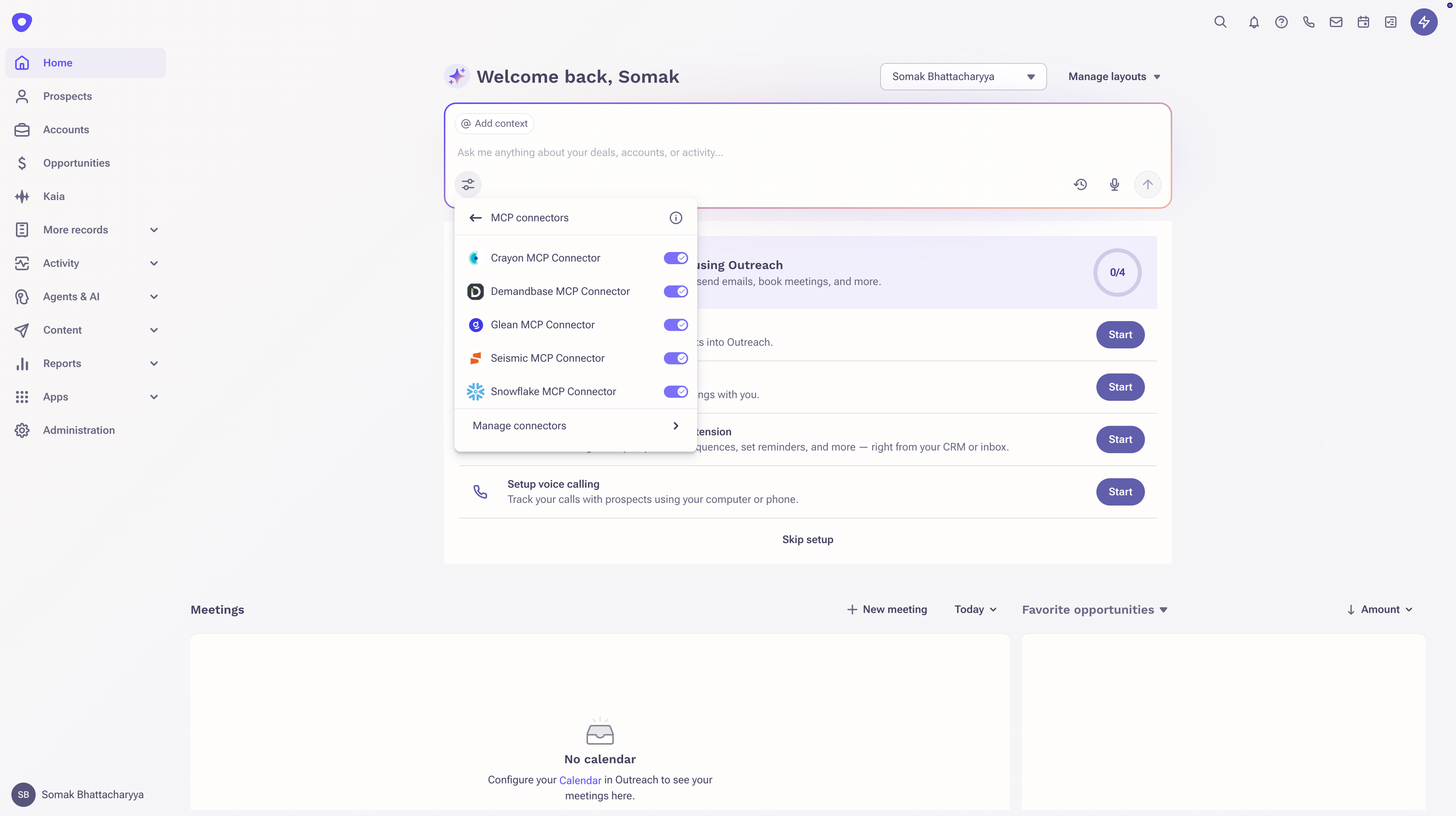
Any organization that wants to use Outreach MCP Connectors will need the Amplify add-on package enabled in their plan, and each user must be an active, licensed seat in an Outreach instance. If you do not have the Amplify add-on or are unsure, please reach out to your AE to inquire about it.
What is MCP?
AI applications are only as useful as the knowledge they can generate from the data they have access to. The real world is a landscape of disconnected data islands, hosted in their own servers and controlled by the hosting product. For useful and usable experiences, AI applications need to connect to these data sources. This is where MCP, or Model Context Protocol, comes in.
MCP is an open-source standard from Anthropic for connecting AI applications to external systems for knowledge and actions that the local system doesn't have. MCP standardizes how AI systems communicate with each other. Think of MCP as context in motion - your Outreach AI can share or draw to and from the broader ecosystem of tools your company already uses, and those systems can talk back to Outreach.
You can learn more about MCP from Anthropic's official documentation.
Outreach MCP Connectors
In simple terms, Connectors let Outreach AI reach out to the other tools your team uses, pull in the context it needs, and reason over it alongside what Outreach already knows about the account, deal, and prospect - all in one place, without switching tabs.
In a client capacity, Outreach is a consumer of knowledge and actions from MCP Servers. Sellers use a whole ecosystem of tools, internal and external, to make sales happen. Reps lose time switching tabs to gather context that should already be at their fingertips - pulling competitive intel from Crayon, account intel from ZoomInfo, content from Seismic, product usage from Amplitude, knowledge from Glean. Connectors bring that knowledge directly into Outreach, which benefits you in two ways: it removes the tab-switching tax for reps, and it gives Outreach AI the full picture in one pass, enabling more meaningful, actionable, and richer responses.

Note: Above is not an exhaustive list. We are constantly adding more Connectors through collaboration with our customers and by creating innovative scenarios with partners.
Under the hood, Connectors use the open MCP protocol, so any MCP-compliant server can plug in. To maintain a high quality and security bar, vendors publish their MCP Servers to the Outreach Marketplace, follow Outreach-provided guidance, and are vetted against our standards before customers are allowed to use the Connector. One exception: customers can publish their own MCP Server as a private Connector, restricted to their own instances only.
Note: In this release, only read-only tools are supported.
How Connectors Relate to the Outreach MCP Server
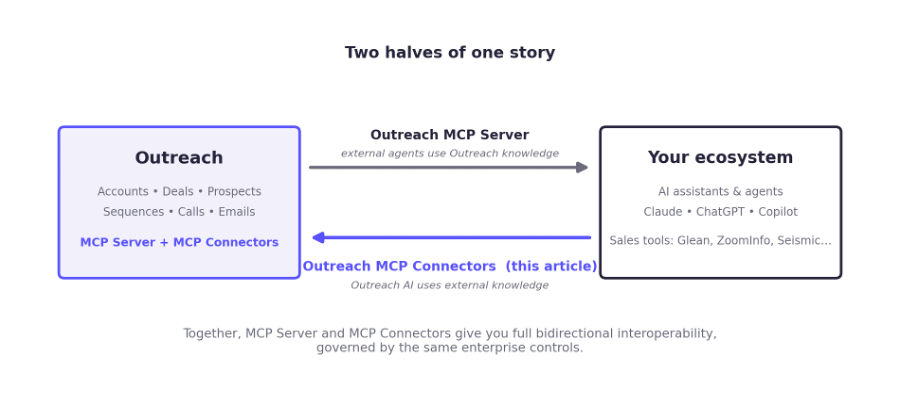
If you have read the Outreach MCP Server article, Connectors are the other half of the story. The MCP Server lets external agents (Claude, ChatGPT, Copilot, your own agents) act on Outreach data - knowledge flows outward. Connectors do the opposite - Outreach AI calls into external systems, and knowledge flows inward. Together, they give you full bidirectional agentic interoperability with your stack, governed by the same enterprise controls.
Procedure
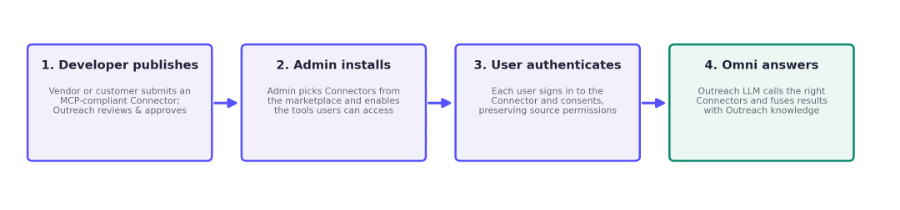
At a high level, four things happen before a Connector answers a question in Omni - a developer publishes the Connector to the marketplace, an admin installs it, the user authenticates to it, and Outreach AI calls it when answering queries.
Setup
Installing Connectors (Admins)
Note: The Amplify product add-on is required in your plan if you want to utilize Outreach MCP Connectors. If you do not see the below options available to you, you may not have the Amplify add-on. You'll simply need to reach out to your AE and inquire about the Amplify add-on product. |
Before users can take advantage of Connectors, an admin needs to install them from the marketplace. This setting is per organization, and the action is only available to organization admins.
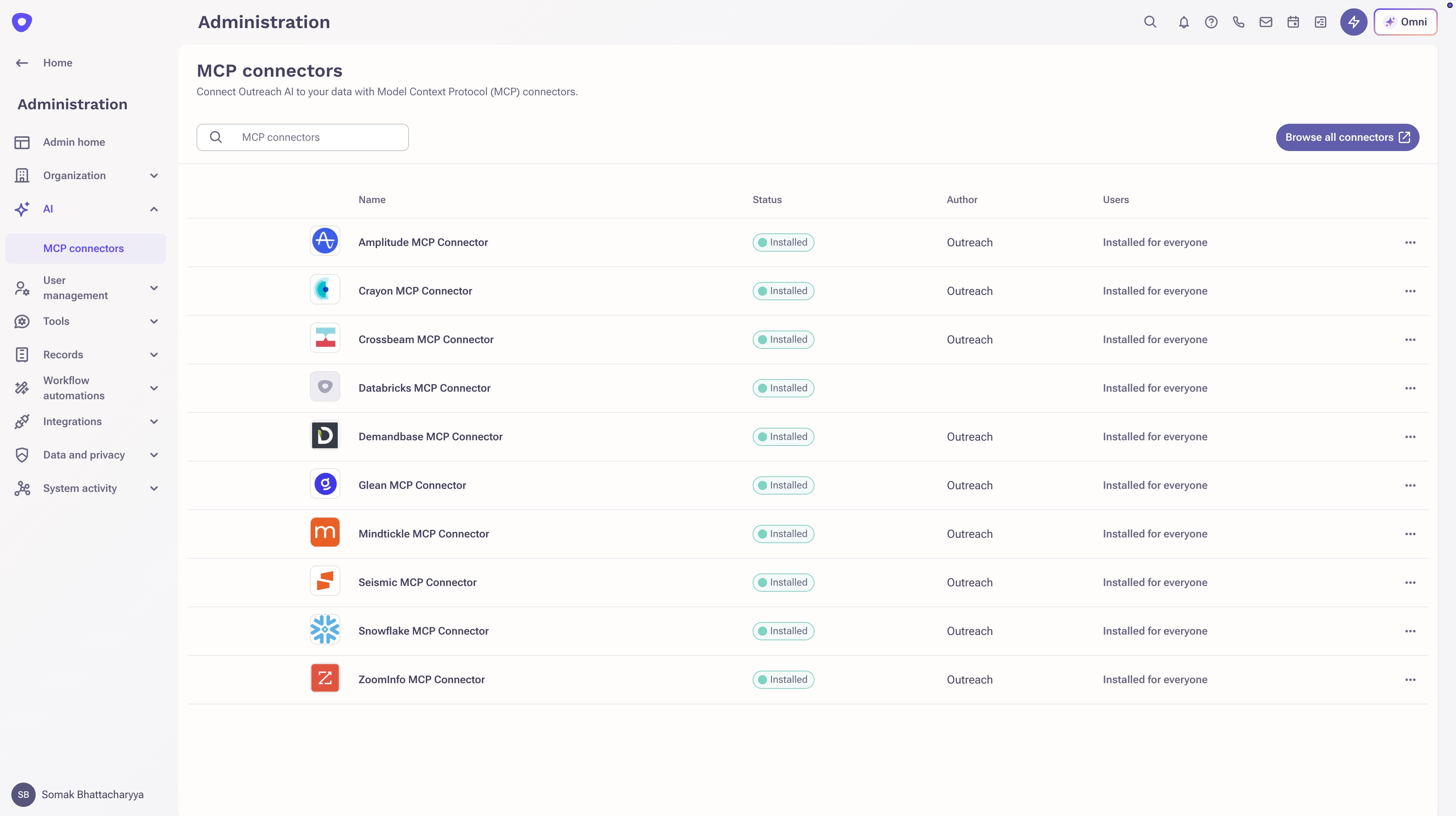
To install Connectors for your organization:
- Log in to Outreach as an Admin.
- Click Administration > AI > MCP connectors.
- Browse the marketplace and install the Connectors your organization needs.
- Under the Tools tab, sign in to the Connector and configure which tools the Connector can use.
- Under the Access tab, scope which users or groups can access the Connector.
When an admin enables tools on a Connector, all users with access see the same tool surface. Admins are the final arbiter of which Connectors, and which tools within those Connectors, are available to users in their org. This is a deliberate governance posture for enterprise environments.
Enabling Connectors (Users)
Once an admin has installed Connectors, users can control which ones are active for them - globally in their settings, and per query inside Omni.
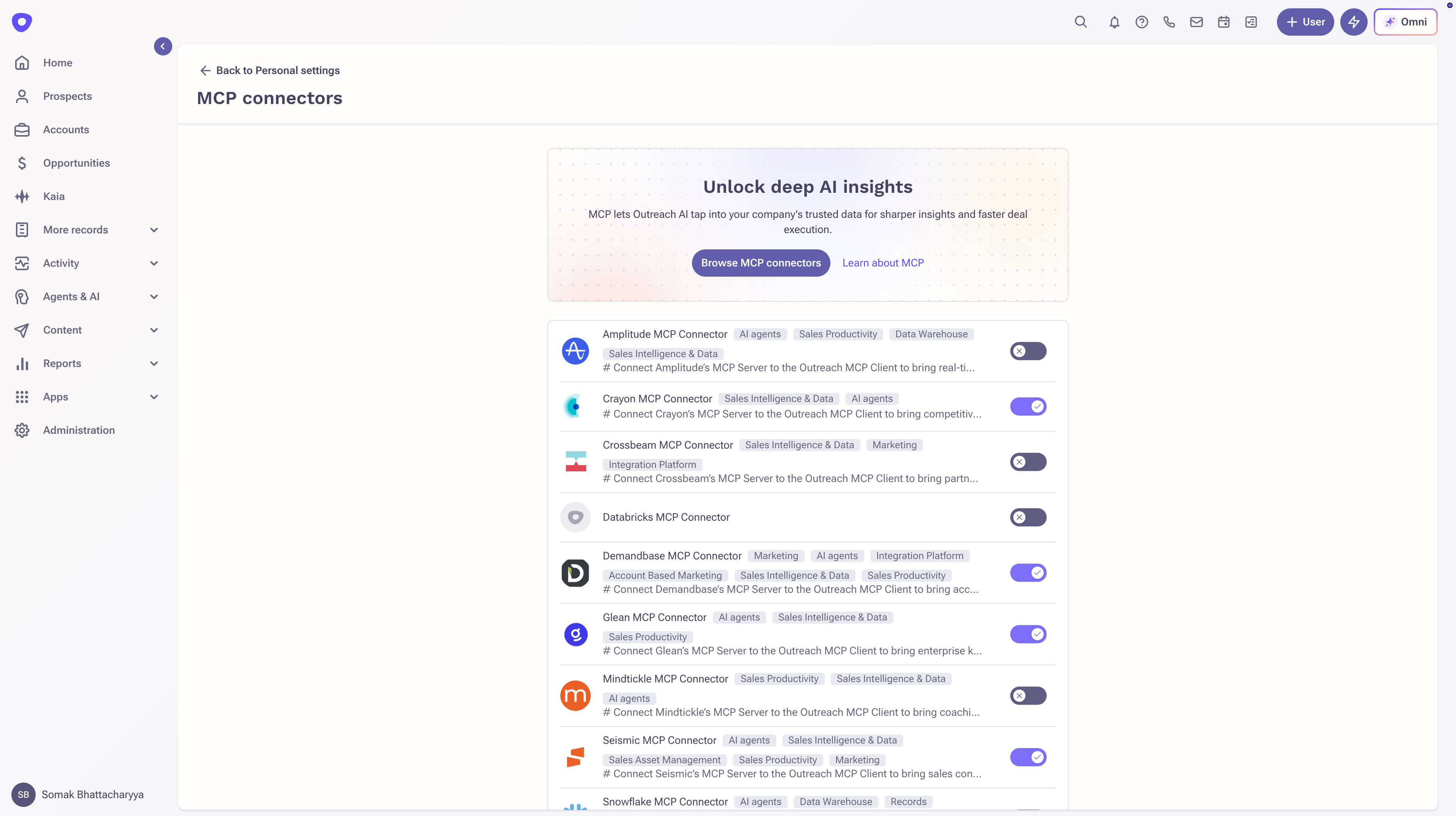
To enable Connectors for your personal use:
- Go to Personal settings > MCP connectors.
- Toggle individual Connectors on or off based on your preferences.
- Inside Omni, click the filter icon and enable MCP connectors for any specific query, based on how they want Omni to respond for that query.
Authentication
In simple terms, before a Connector can fetch anything for users, they must sign in to that tool with their own credentials. This is to make sure that users only ever see what they're already allowed to see in the source system. This is how governance translates from the underlying system to Outreach.
Users must authenticate to each Connector individually and consent to its use inside their workflows. This ensures that the tools are secured end to end and allows the vendor to enforce any permissions, policies, API keys, or licenses they need. The only exception is no-auth Connectors with public (open) endpoints, which don't require authentication. To change these permissions, admins will need to configure directly the user's permission in the vendor provided governance controls.
For supported features, Outreach follows MCP's authorization standards as published on November 11, 2025.
Single Sign On (SSO) vs. Basic Auth
Most enterprises require customers to go through some sort of Identity Provider (IDP) like Okta, Azure, AWS, Google etc. and users are required to authenticate through SSO. This can create problems for any Connector that requires Basic Auth (that is username and password) for sign in. This can create end user friction if they are not aware of the username they should be using or the vendor doesn't automatically redirect to an SSO session. Unfortunately, this is not something Outreach can control as this is a contract between the vendor, your organization and your IDP.
There are a few ways we recommend organizations can solve this problem:
- Ideal: Talk to the vendor and enable SSO session redirection from within their sign in UI when the user tries to sign in to their MCP Server
- Alternate: Have users sign in to a new tab > SSO and then try signing into the Connector again.
User Experience
With Connectors enabled, you use Omni exactly as you do today. The difference is what comes back. Answers will now blend Outreach's own knowledge with fresh context from your connected tools automatically. More details and examples below.
Connectors in Omni
Run queries as you would generally do as part of your daily revenue workflows, and Omni will connect automatically to the Connectors you've enabled, displaying their knowledge and insights fused with Outreach's own answer. Note that from time to time, depending on your setup, a Connector might require additional authorization. Not all queries require an MCP callout, and Outreach will automatically 'reason' when to and when not to call additional tools.
Here are some sample queries you can run:
- Pre-call prep with live external context:
“Prep me for the Geometric Corp call” - Outreach fuses internal opportunity history with fresh Glean knowledge, ZoomInfo signals, and Crayon competitive intel in one response. - Smarter content recommendations:
“Find the right deck for my outbound to a VP of Sales at a late-stage deal” — Outreach AI pulls the right Seismic asset for the persona and stage, instead of you hunting for it. - Signal-driven coaching:
“How is Acme actually using the product, and what should I focus my renewal pitch on?” — Snowflake and Amplitude product-usage data flows into Ask Outreach so deal coaching reflects real customer behavior, not just CRM state.
The quality of the response will be determined by the richness of data available to Outreach and your connected tools.
How Responses Appear
Outreach's AI is the orchestrator in this experience. It reasons over both Outreach data and Connector responses and chooses how to represent the combined output in the UI - sometimes a card, sometimes inline text, sometimes structured content or interactive output. The response type follows what's most useful for the query, not a fixed template. This ensures responses stay high quality; Outreach AI is the final arbiter of the responses users see. Where relevant, responses can also include deep-linked actions back into the source tools.
Connector Availability
Our up-to-date listing can be found in the Outreach Marketplace > MCP Connectors. If a Connector you need isn't listed yet, let your Outreach partner know. Customer requests directly shape which Connectors we onboard next.
The Outreach Advantage
Generic AI assistants can connect to the same systems too, but they don't know what Outreach knows - which account the rep is working, which deal is at risk, or what was said in the last call. Outreach does. These are proprietary, business critical data, that is stored safely inside Outreach. Connectors multiply this domain context with additional knowledge from other tools to create a coherent, single pane of glass for revenue execution.
Here's how it compares:
Dimension | Generic AI Assistants | Outreach MCP Connectors |
Domain context | None - every query starts cold | Outreach knows the rep's accounts, opportunities, prospects, sequences, and calls, then fuses the most relevant external data with that context |
Workflow surface | Separate tool, separate chat | Embedded directly into Outreach Omni, where reps already work |
Curation | Raw MCP server URLs, DIY configuration | Curated marketplace of pre-vetted sales tech integrations, with reasoning and responses fine-tuned by Outreach |
Interoperability | One-way (client only) | Bidirectional. Outreach is both an MCP Server and a consumer of Connectors, enabling full agentic interoperability with your stack |
For Developers and Partners
If you're a partner with an MCP Server, or a customer building agentic capabilities you want to expose inside Outreach, you can publish your integration to the Outreach Marketplace as a Connector.
Planning Your Connector
If you are familiar with Outreach Marketplace process, it is the same for Connectors. MCP Connector is simply a capability of any app.
There are however some MCP specific requirements you need to be aware of. The high-level path (which applies to both new Connectors and updates to existing ones):
- Build to the MCP spec. Connectors are MCP servers under the hood. Your implementation must comply with the open MCP protocol. This includes tools, prompts, resources, and OAuth 2.1 or Client ID based auth. If your server already works with Claude, ChatGPT, or Copilot, you're most of the way there.
- Apply via the Outreach Developer Portal. Submit your Connector listing following our guidelines, including name, logo, short and long descriptions, tool inventory with descriptions, auth setup instructions, and the public endpoint URL.
- Pass review. Outreach reviews the Connector for protocol compliance, scoping, performance, and security posture. Expect 2–4 weeks for first-time submissions; updates may have a smaller window depending on the complexity of the change.
- List in the marketplace. Once approved, your Connector appears in the Outreach Marketplace for admins to install, initially in a Coming Soon state, transitioning to Available once you've completed launch checks (sandbox validation, support contact, GA readiness).
Exact technical details on how to build and publish a Outreach app can be found in our developer documentation.
The Review Process
Outreach will strictly enforce developer guidelines and completely reserves the right to approve or deny any app or MCP Connector for any reason. You can find the complete app lifecycle details in our developer documentation including how to set visibility of your app as you take it through development > testing > Outreach review > launch.
To make this process seamless, Outreach provides a 3-level visibility for your review process:
- Internal - app is installable/usable in your organization only. No one outside of your organization has access to it. There's no review requirement
- Unlisted - app is installable by org admin of any Outreach organization if you share a link to the app with them. It is not discoverable. This requires you to agree to some additional terms and conditions and provide all required fields
- Public - app is listed in Outreach Marketplace and available to anyone. The full review happens here.
| Note: The above process is indicative only. Outreach can change the process without notice. |
Security
Note: Every customer, IDP, and user is different, and there's no common deployment pattern Outreach can provide guidance on. These should not be treated as recommendations or guidance. Please ensure you follow your own security and access best practices. |
In simple terms, Connectors are governed at three layers - Outreach vets every Connector before it reaches the marketplace, your admin decides which Connectors and tools your organization can use, and each user authenticates individually so source-system permissions are always respected.
Marketplace Vetting
All Connectors go through Outreach's marketplace guidelines before they are available to customers, ensuring MCP compatibility. SDLC, security, and compliance practices are applied to every Connector. Customer-published private Connectors are restricted to that customer's instances only.
Admin Governance
Admins must install and enable Connectors before they are available to users in their organization, ensuring any additional, customer-specific vetting happens first. Beyond installation, admins can configure which tools within a Connector are enabled and scope access per user or group. In this release, only read-only tools are supported, which further limits the surface area.
Per-User Authentication
Each user authenticates to each Connector individually (except no-auth or Public Connectors). This gives vendors the opportunity to preserve the source system's permission and licensing model end to end. Outreach access itself continues to be governed by the user's Outreach profile (RBAC) permissions.
Outreach expects that a user can never retrieve data through a Connector that they couldn't access in the source tool directly. This is however something Outreach cannot guarantee as the the onus of enforcement is on the vendor. Outreach recommends customers verify this directly with the vendor.
Your Own Controls
As with any client application, you can layer your own protections on top. Consider the following:
- Use your IDP tools. Most IDPs will allow you to restrict access to specific URLs and control access for specific clients, users, or employee groups for the source systems behind your Connectors.
- Use your MDM/MAM tools. To manage endpoints, enforce data or account security policies, or enforce proxy restrictions.
- Use vendor recommendations. Most tools in your stack have their own security guidance and admin controls you can apply to the accounts your users authenticate with.
Note that it's up to you to test and verify that Connectors continue working, and all enabled tools remain usable, after setting up restrictions.
Additional Information
Frequently Asked Questions
What are MCP Connectors in simple terms?
Connectors let Outreach's AI talk to the other tools your company uses - like ZoomInfo, Glean, or Seismic - and bring their knowledge into your Outreach answers automatically. Instead of you switching tabs to gather context, Outreach gathers it for you.How is this different from the Outreach MCP Server?
The MCP Server lets external agents (Claude, ChatGPT, Copilot, customer agents) act on Outreach data. Connectors do the opposite - Outreach AI calls into external systems and uses their responses inside Outreach AI workflows. Together they give customers full bidirectional agentic interoperability with their stack, governed by Outreach.How is a Connector different from an API integration?
APIs are point-to-point connections between two systems, built and maintained individually. Connectors use MCP, a shared protocol that lets many AI agents and platforms collaborate dynamically without custom integrations. Think of it as interoperability of AI agents at scale.Which Connectors are available at launch?
Please check our marketplace for available Connectors and those coming soon. At launch the catalog includes Amplitude, Crayon, Demandbase, Glean, Mindtickle, Seismic, Slack, Snowflake, and ZoomInfo, plus the ability for customers to add their own custom Connectors.Why use Outreach Connectors instead of Claude or ChatGPT?
Because Outreach knows the rep's actual work - their accounts, deals, prospects, sequences, and calls - and can fuse external context with that domain knowledge automatically. Generic AI assistants start every conversation cold.Who installs Connectors?
Admins. Once installed, individual users can enable or disable specific Connectors from their personal settings and toggle them on or off per query in Outreach Omni.Can Connectors be installed only for a sub set of Outreach users?
Yes. Admins can control which specific users or specific Outreach profiles can see and access these Connectors. Admins can also choose to install different sets of Connectors per instance.Do users need to authenticate separately for each Connector?
Mostly yes. Each Connector has its own auth, and the user authenticates per Connector. This preserves the source system's permission and licensing model end to end. Some Connectors might have public (open) endpoints, which don't need authentication; developers pre-configure what type of auth their Connector
requires. Organization IT might also enforce SSO, token, license, network, access or other restrictions which can influence type and frequency of authentication.Can different users see different tools on the same Connector?
No. When an admin enables tools on a Connector, all users with access to those Connectors will be able to use the same tool surface. Per-user tool personalization is not available in this release. Ability of the users to actually use those tools is controlled by individual Connectors and their internal governance permissions.How do Connector responses appear in Omni?
Outreach AI reasons over the response and chooses the best representation - sometimes a card, sometimes inline text, sometimes structured content or interactive output. The response type follows what's most useful for the query, not a fixed template.Can Connectors take actions in external systems?
In this release, only read-only tools are supported. Connectors can bring knowledge and insights into Outreach and surface deep-linked actions into the source tools, but they do not write data into external systems yet.Can we connect our own internal agents or MCP servers?
Yes. Customers can publish their own MCP Server as a private Connector to the marketplace. Private Connectors are restricted to your own organization's instances only.How does a partner get their Connector listed?
Through the Outreach Developer Portal. See the For Developers and Partners section above, or reach out to your Outreach partner team to get into the developer pipeline.Is this gated by Amplify?
Yes. Connectors are part of the Amplify package, same as the MCP Server. Once enabled by an admin, Connectors are available to licensed, active users. If you're not sure whether you have Amplify or want to inquire about it, please reach out to your AE.Are there any limits to usage?
Yes. Outreach will utilize Amplify credits per Omni query. Connector vendors might require token usage or have API rate limits that Outreach doesn't control. Please check in with your Outreach partner if you are hitting limits.
Outreach has usage throttles to prevent abuse or DDOS just like any other vendor who would have the same restrictions. In normal usage situations these throttles are rarely hit.With Connectors, are existing integrations like APIs, SDES, and Snowflake Enrichment still relevant?
Yes. Connectors are not designed to move large datasets or store third-party insights inside Outreach. You still need traditional integrations like SDES and Snowflake Enrichment when you want reps to see enriched data directly inside Outreach, when you want enrichment to run automatically at scale, and when you want permanent fields populated for reporting or workflows. Connectors are ideal for letting Outreach AI fetch just-in-time context from another system, generate guidance, and reason across platforms. Connectors complement, not replace, persistent, visible, governed data inside Outreach.How can Connector access be controlled?
At three layers - Outreach vets Connectors before marketplace listing; admins control which Connectors are installed, which tools are enabled, and who can access them via the Access tab; and each user must authenticate to each Connector with their own credentials, so source-system permissions always apply.Can a specific user's Connector access be revoked?
Yes. Admins can scope or remove a user's access to a Connector in Outreach, and access to the underlying source system can be revoked through that system or your organization's Identity Provider (IDP). Once source credentials are revoked, the Connector can no longer retrieve data for that user.How do I find the list of Connectors I can use with my organization?
All Connectors available to use are available in our public MCP Connectors category. Your organization specific internal Connectors will be available under the Org apps category.
We are always refreshing the list of available Connectors and capabilities, so please keep an eye on this documentation and the marketplace for future enhancements.
Was this article helpful?
That’s Great!
Thank you for your feedback
Sorry! We couldn't be helpful
Thank you for your feedback
Feedback sent
We appreciate your effort and will try to fix the article