Objective
The purpose of this article is to provide instructions on how to connect the Outreach MCP Server to the ChatGPT Desktop and Web apps.
Applies To
- Outreach customers who want to access the Outreach MCP Connector inside ChatGPT workflows
- Customers using OpenAI-based workflows in their line-of-business apps who want to integrate the Outreach MCP Server
Before You Begin
This article assumes basic familiarity with ChatGPT. Before getting started:
- Read the Outreach MCP Server overview to understand what functionality is available.
- Confirm that the Outreach MCP Server has been enabled on your instance.
- Confirm that ChatGPT is fully set up, including any licensing and environment requirements from OpenAI to enable MCP.
- Enable Developer Mode in ChatGPT before proceeding. If you have not done this yet, see Enabling ChatGPT Developer Mode below.
Add the Outreach MCP Custom Connector
- Go to chatgpt.com/apps and select Create app.
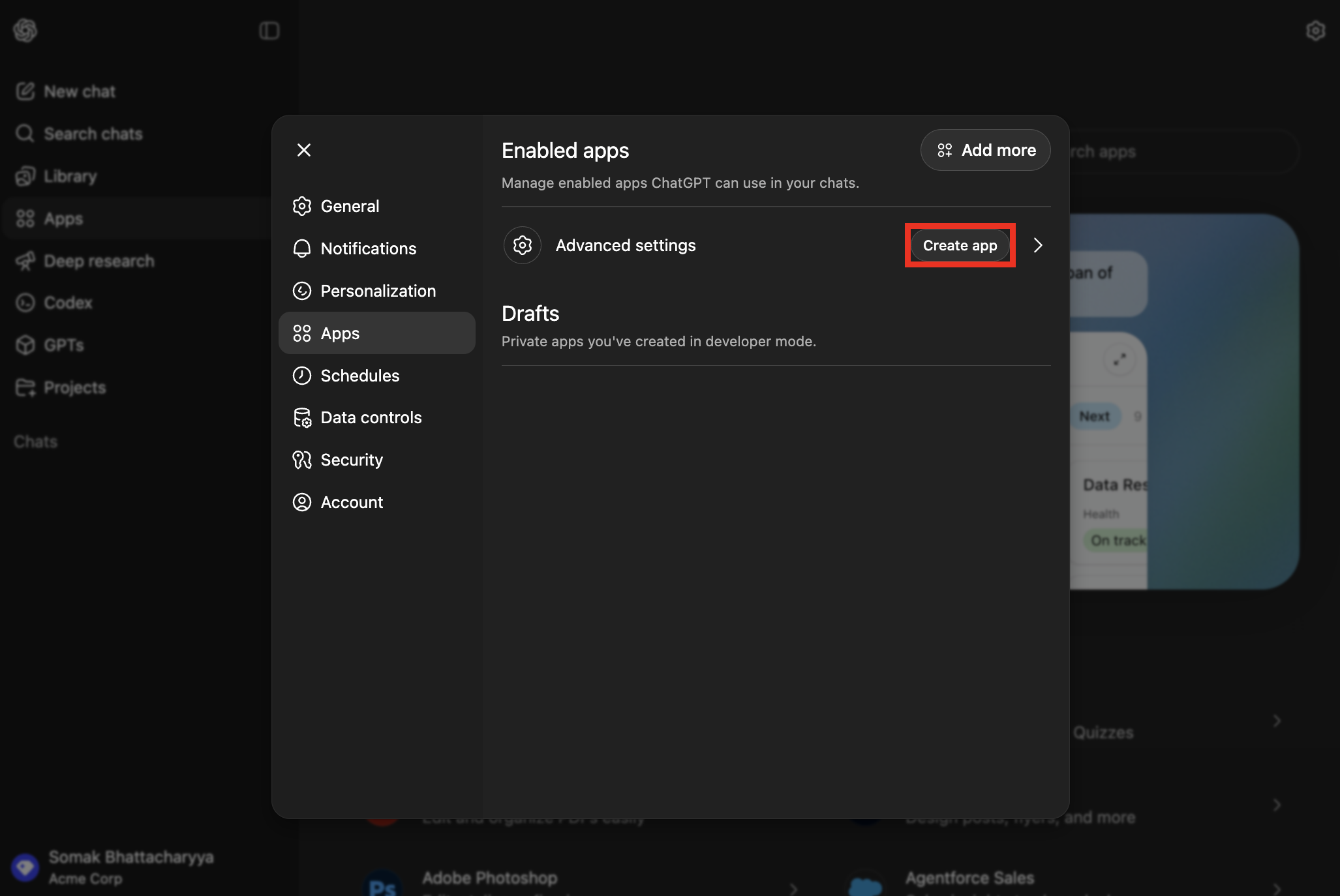
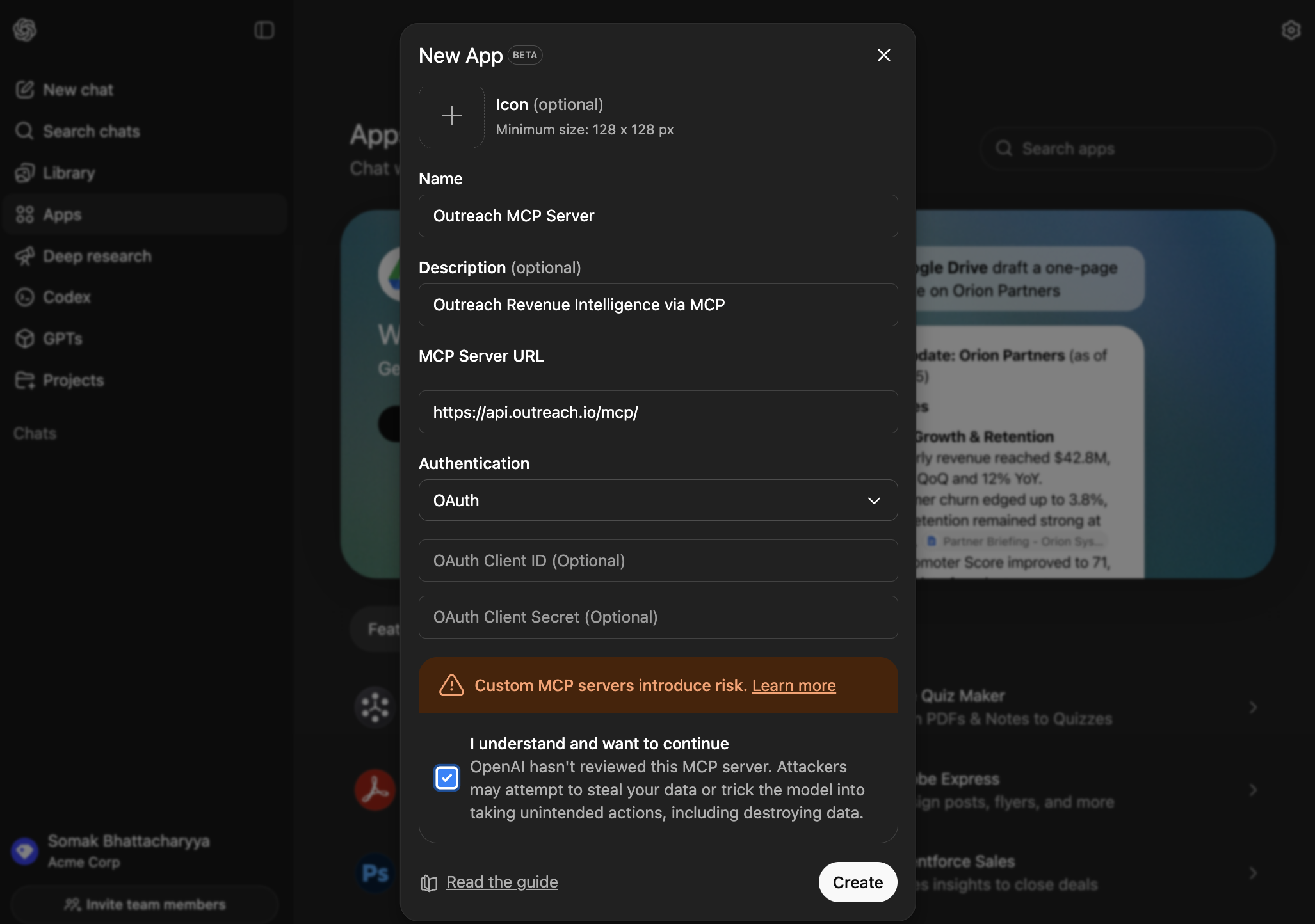
- In the dialog that opens, enter the following details:
- Icon — Add the Outreach icon
- Name — Outreach MCP Server (or your preferred name)
- Description — Outreach Revenue Intelligence via MCP (or your preferred description)
- Server URL — https://api.outreach.io/mcp/
- Authentication — OAuth
- Leave all remaining fields blank.
- Accept the terms and conditions, then select Create and confirm the connector saves successfully.
Verify the Connection
- Open your ChatGPT window and select the Outreach MCP Connector.
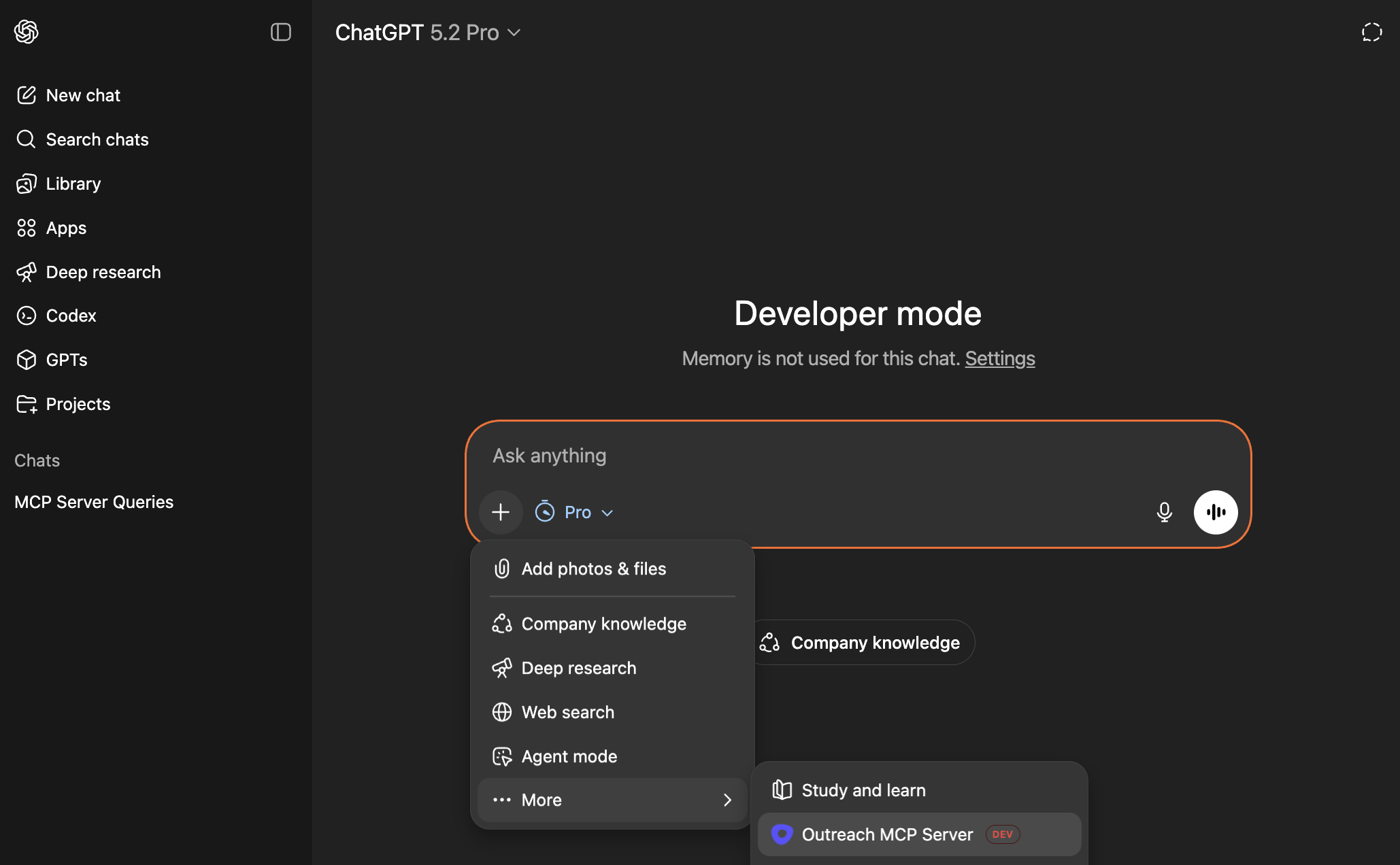
- Enter the following query: @Outreach MCP Server Who am I in Outreach?
- ChatGPT should reason and respond with your Outreach account details.
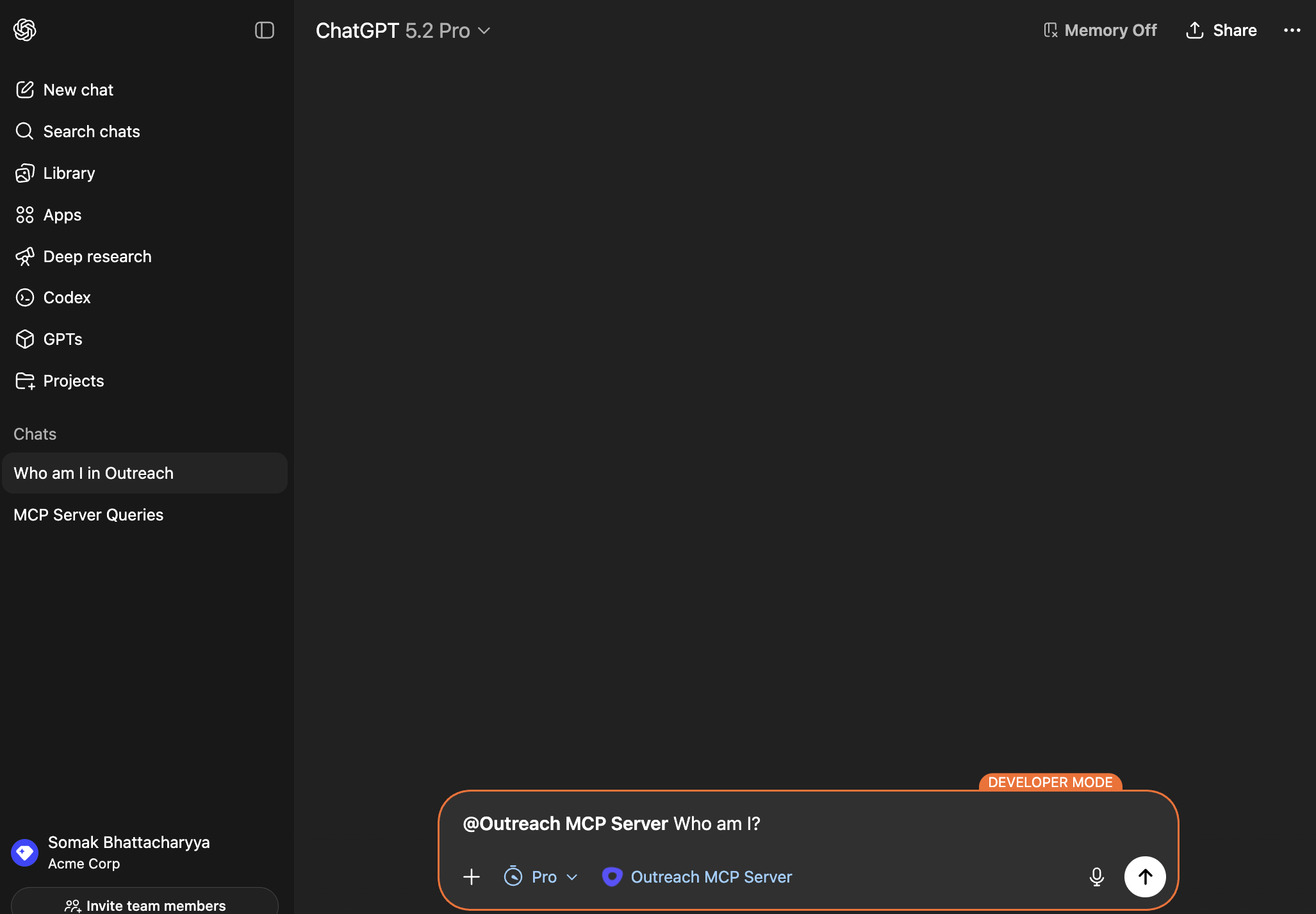
- You can observe ChatGPT reasoning in the sidebar as it connects to Outreach via MCP to retrieve your account information.
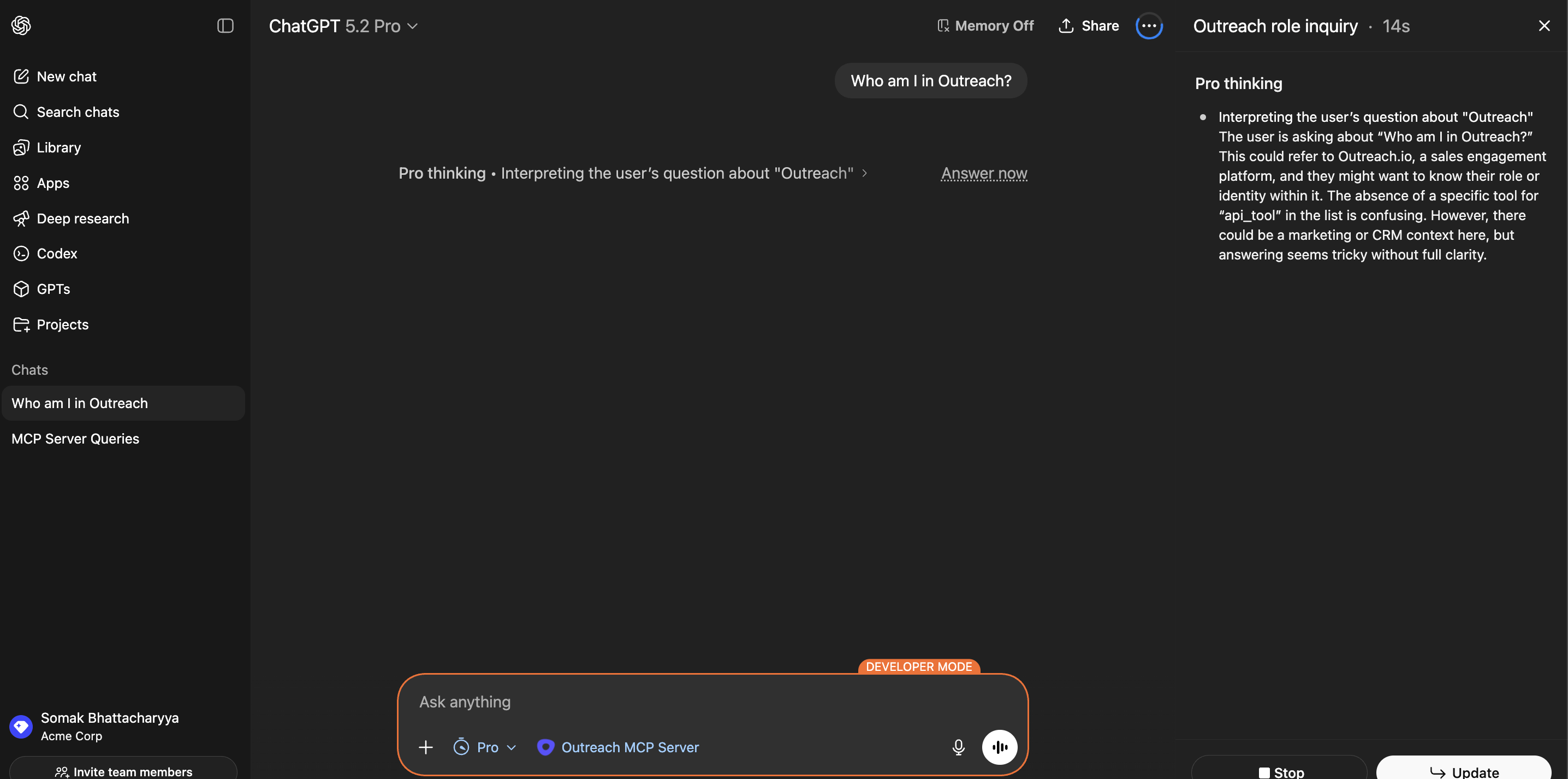
Note: It is not required to explicitly select or tag the Outreach MCP Server. ChatGPT can determine on its own when to call Outreach via MCP. However, tagging Outreach directly is a useful way to skip ChatGPT's reasoning and query Outreach immediately.
Enable ChatGPT Developer Mode
ChatGPT requires Developer Mode to be enabled before you can use Custom Connectors. If you have already enabled Developer Mode, skip this section.
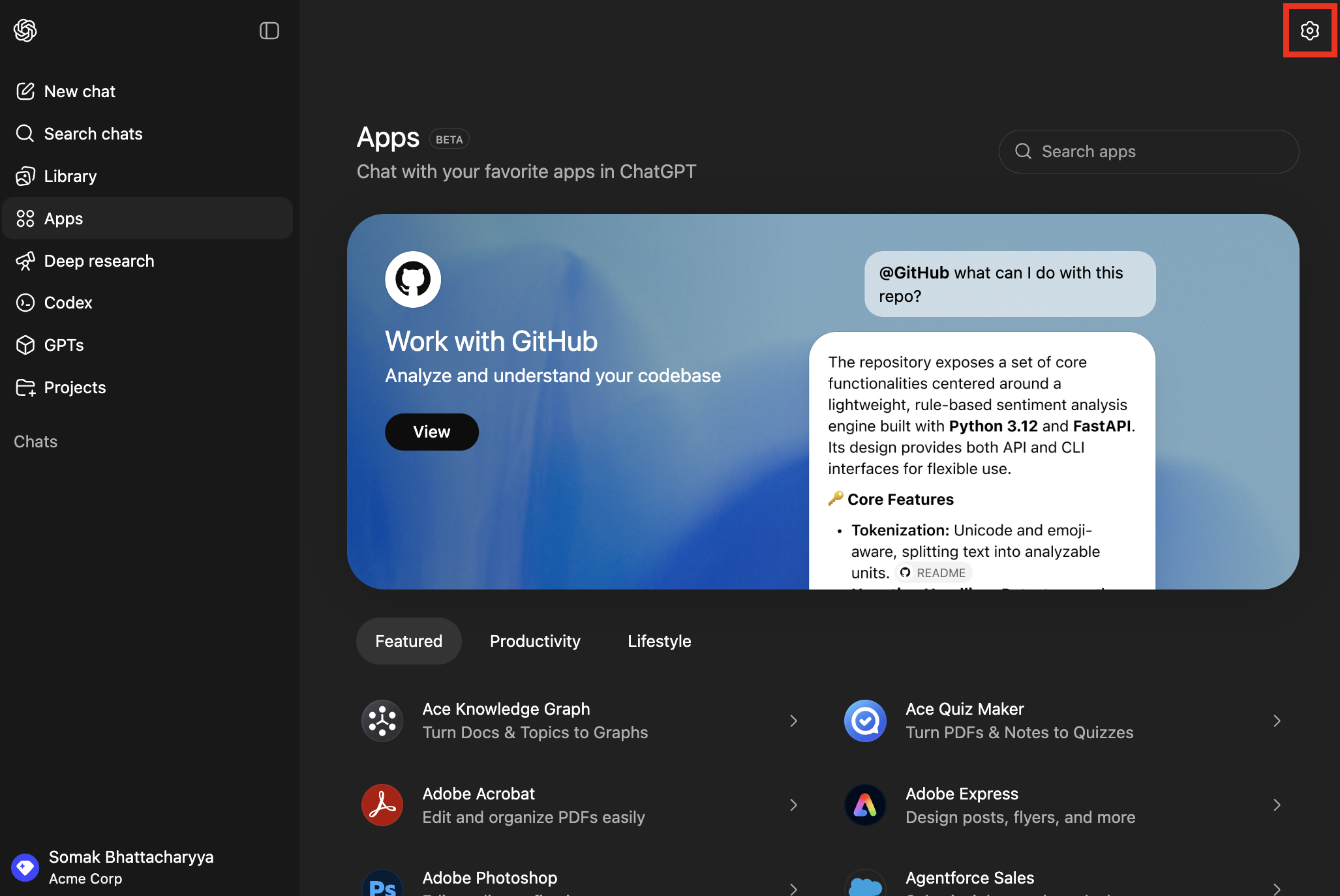
- Go to chatgpt.com/apps and select the gear icon in the top right corner.
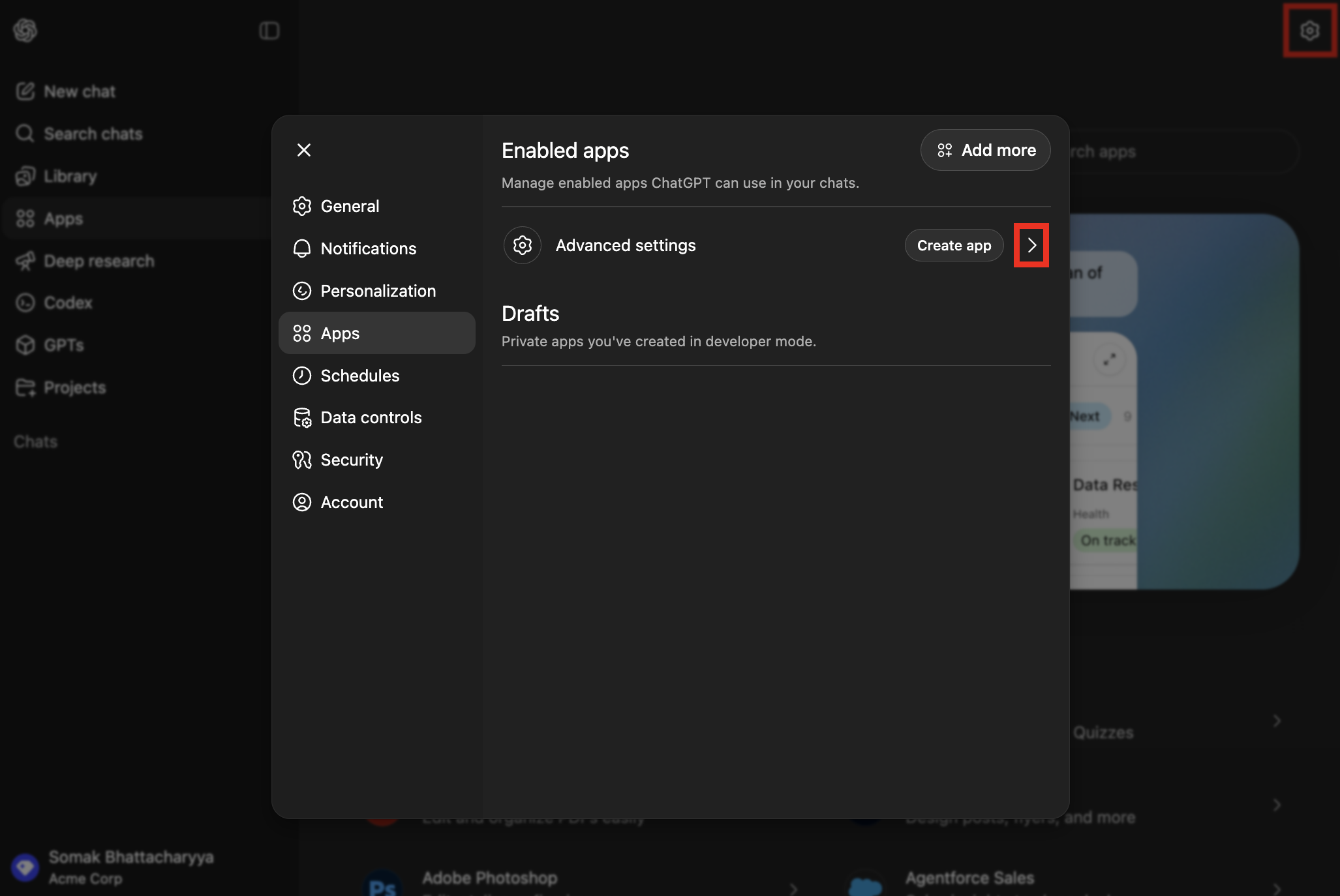
- Select the Advanced Settings arrow.
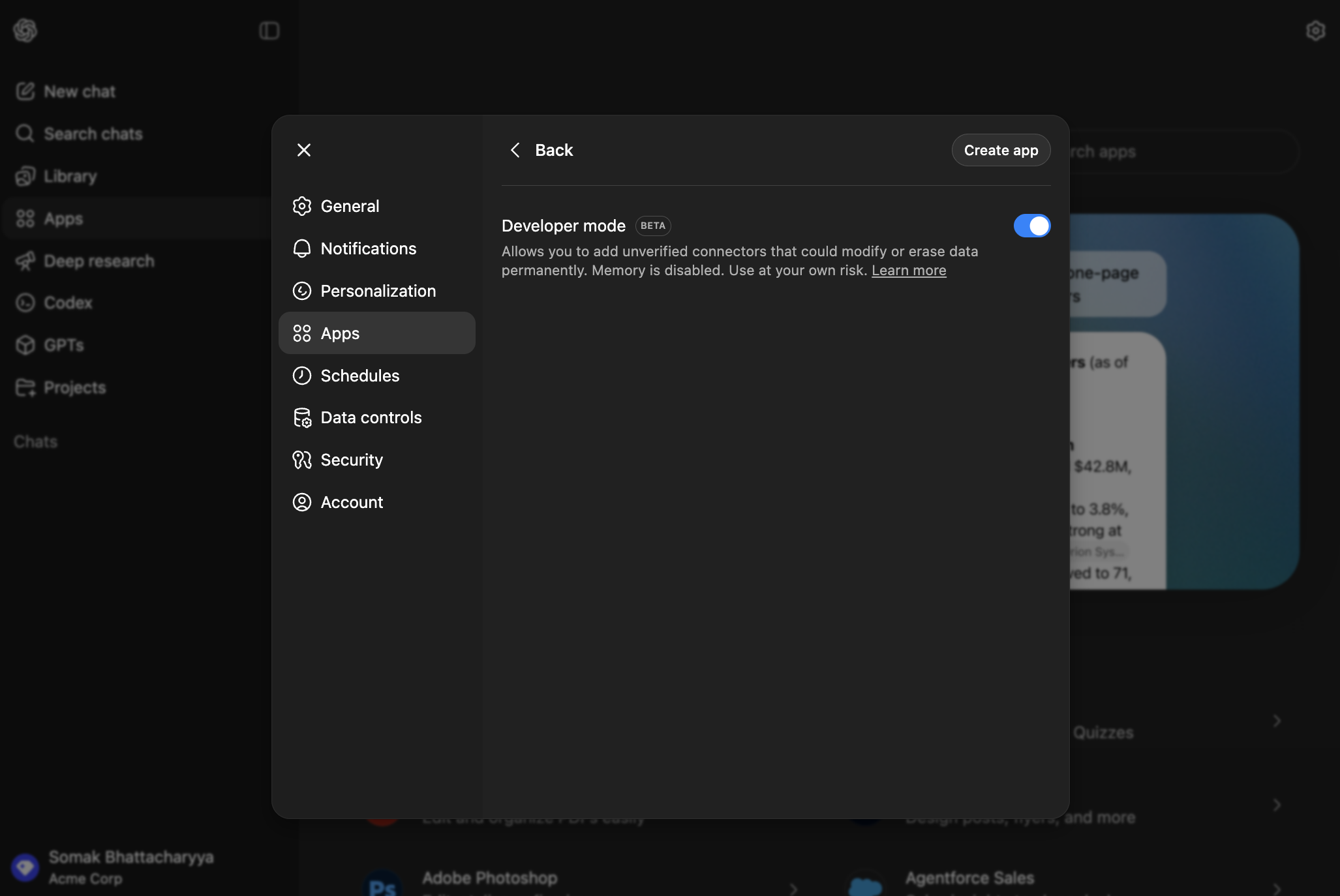
- Enable the Developer Mode toggle.
Next Steps
If everything is configured correctly, ChatGPT Desktop and Web should now be able to connect to Outreach via MCP. To fully verify the integration, follow the verification steps in the Outreach MCP Server article.
Was this article helpful?
That’s Great!
Thank you for your feedback
Sorry! We couldn't be helpful
Thank you for your feedback
Feedback sent
We appreciate your effort and will try to fix the article