Objective
When a prospect has been sitting in the same sequence for months without moving forward or hearing from you, they're effectively stuck. This can ultimately block the prospect from being added to a new sequence. This article walks you through how to review and clean up sequence states for prospects who have stalled (for example, those with no progress or contact for around three months), so you can remove the blocker and they can be add them to a new sequence. Cleaning up sequence states is regular part of Outreach maintenance and we recommend doing this on a regular cadence to ensure the success of your org.
Applies To
- Outreach Admins & Leaders
Before You Begin
Related Article: Outreach Sequence States Overview
Relevant Sequence State Definitions
- Disabled: A prospect who was enrolled in a sequence when the sequence became paused will have a state of disabled. (This state technically wraps up under the Paused bucket but is it's own Sequence State and should be filtered separately)
- Paused: A prospect who was enrolled in a sequence and manually paused by a rep will have a state of paused. Additionally, if a user deletes one of their assigned sequence tasks then the related prospect will be paused automatically.
- Paused (OOTO): An out of the office reply was detected for a prospect and therefore the prospect was paused. Typically rulesets are configured so that prospects with this state will automatically resume in sequence upon their return to the office or when X period of time passes. Therefore, no clean up action is required and this Sequence State should be filtered out from your process by using the filter Pause Reason is not OOTO
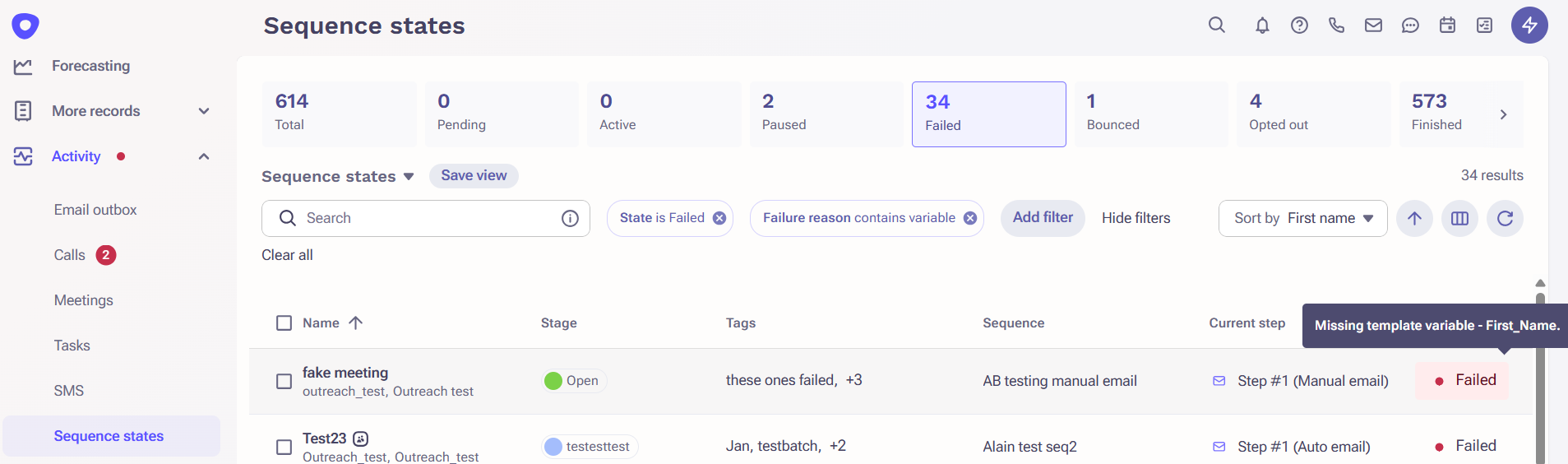
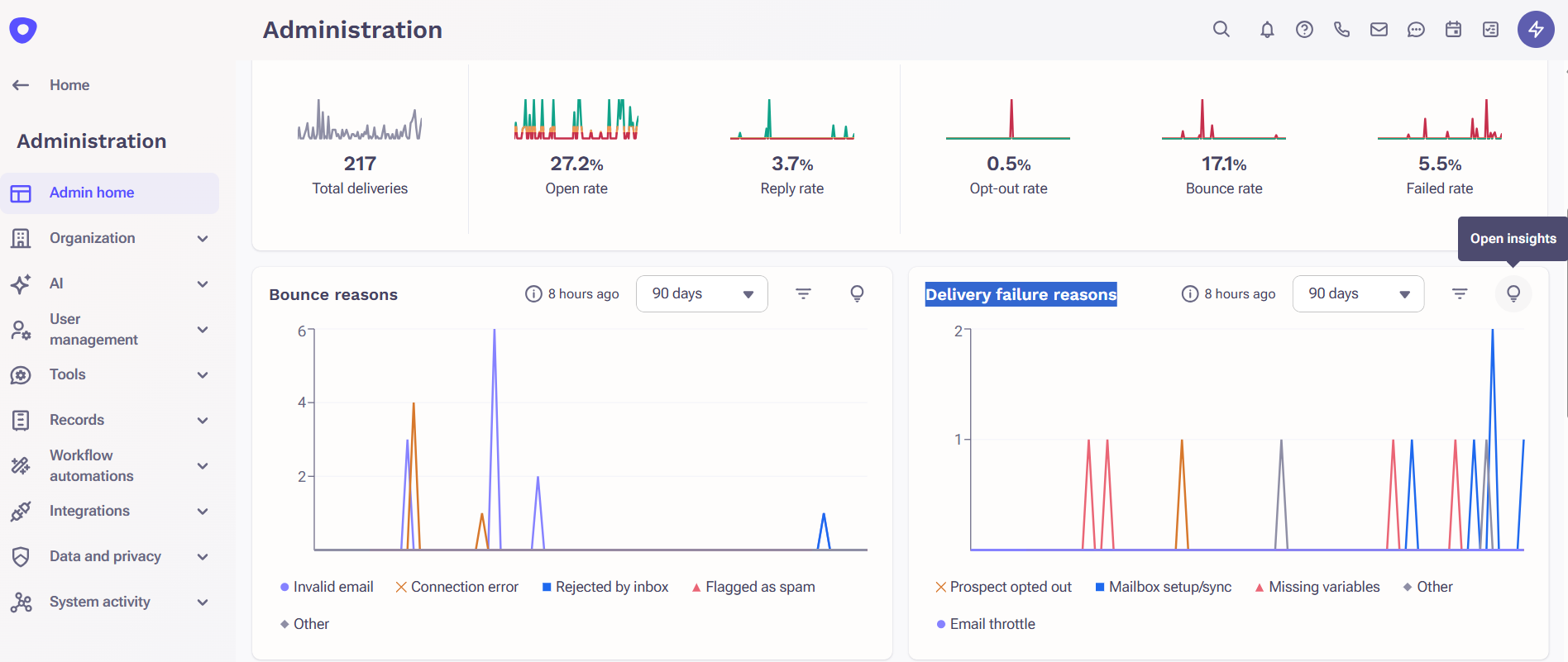
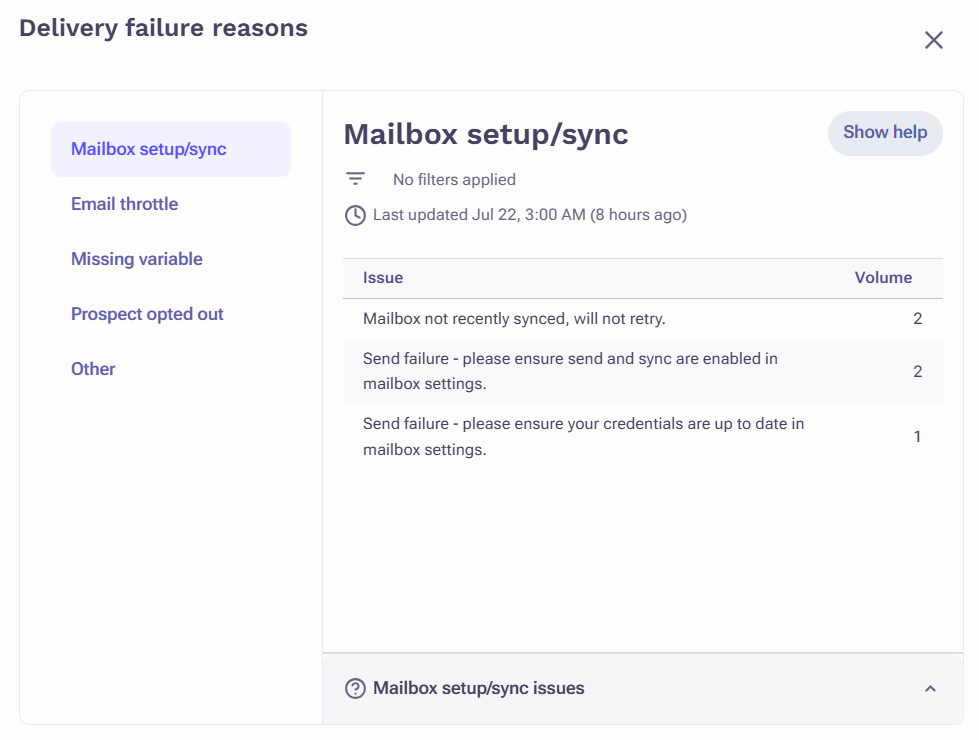
- Failed: A prospect who was enrolled in a sequence but failed on a step will have a state of failed. Common failure reasons include: missing variable, missing parent template (i.e., initial new thread email skipped), and user mailbox setup. Use the filter Failed At to filter for a specific date range and the filter Failure Reason Contains to search for prospects that have failed for a specific reason. You can see a list of your org's recent Failure reasons in the Delivery Failure Reasons tile. Use the "Open Insights" button to view the granular reasons:
Considerations
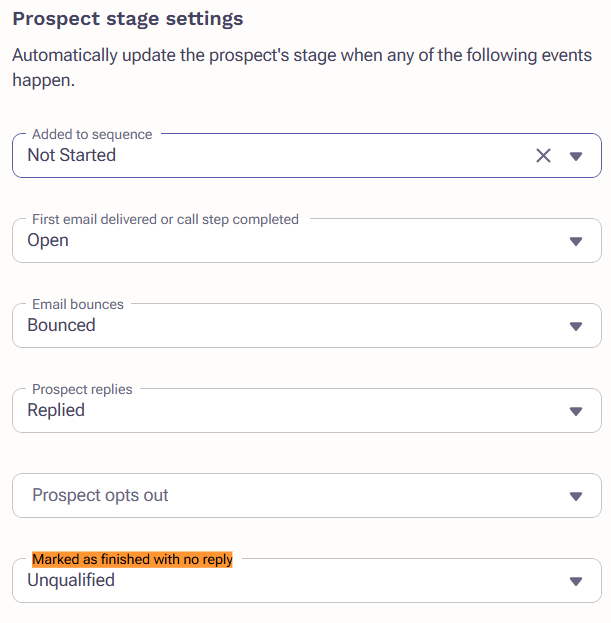
When you are mass finishing prospects in sequence, the stage assigned to these prospects will automatically
update based on the ruleset associated with the sequence they're being finished from. For example: if a
ruleset is configured in the Prospect stage settings under Marked as Finished with No Reply, their stage will update to "Unqualified", and when you mark a prospect as finished from a sequence with this ruleset, then the prospect's
stage will become "Unqualified".
Procedure
Prospects in a Disabled Sequence State:
- Activity>Sequence States
- Clear the default filter of Sequencer is you
- Add Filter: State is Disabled
- Add Filter: Disabled At is Not last 90 days
- Select all and Click the 3 dots on the top left
- Click Mark as Finished
Prospects in a Paused Sequence State:
- Activity>Sequence States
- Clear the default filter of Sequencer is you
- Add Filter: State is Paused
- Add Filter: Paused At is Not the Last 90 days
- Add Filter: Paused Reason is Not OOTO
- Select all and Click the 3 dots on the top left
- Click Mark as Finished
Prospects in a Failed Sequence State:
- Activity>Sequence States
- Clear the default filter of Sequencer is you
- Add Filter: State is Failed
- Add Filter: Failed At is Not the Last 90 days
- Select all and Click the 3 dots on the top left
- Click Mark as Finished
Consideration:
For prospects that are in a failed state, you may want to identify the failure reasons to resolve prospects that have failed recently to get them back in the sequence. Once you resolve the overall Failure reason for those prospects, you can Retry them in Sequence which will reactivate them.
Common Failure Reasons:
- Missing template variable error on sequence step
- How to fix the failed sequence error: "Malformed href - sender.custom1"
- Unpopulated template variable found error
- Sequencing Error: Template syntax error or Internal error
- Sequencing Error: Mailing cannot be scheduled to deliver on a past date
- Emails in Outbox show error "Couldn't send: Send failure - please ensure your credentials are up to date in mailbox settings"
General Note for all Procedures:
- Click Confirm: Are you sure you want to mark 1 prospect as finished?
- It may ask you to verify the number of records first if it's a larger volume
Additional Information
Was this article helpful?
That’s Great!
Thank you for your feedback
Sorry! We couldn't be helpful
Thank you for your feedback
Feedback sent
We appreciate your effort and will try to fix the article