Objective
See and choose from the list of available Outreach email variables when composing a template, snippet, or single/bulk email.
Applies To
- Outreach Users
Procedure
- Access the Outreach Platform.
- Create a new Template, Snippet, Single or Bulk email.
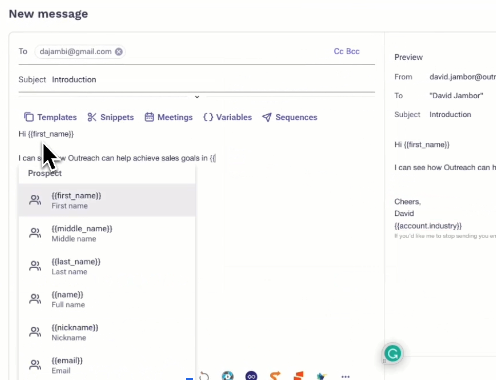
- On the compose window, click on the brackets and select the list of variables you're interested in adding. We provide prospect, sender, account, and a list of other variables to choose from.
Note: Make sure you scroll all the way through the list to see all of your options. - As you create your content, optionally select variables manually or type "{{" to select variables from the variable menu.
Considerations When Using Variables
- Variables can be used in the body of the email, the subject line, and URLs. Make sure to correctly type the variable to avoid any errors.
- All prospect fields, including custom fields, will be auto-populated. When the variable pulls the field into the template, the message will be personalized for each prospect that is scheduled to receive the email template/snippet.
- You can reference the preview panel on the right, which pulls in a few of your prospects so you can see exactly how the text will appear. If the field is populated in the prospect profile, the variable will turn yellow.
Note: If the information is not populated, the field will turn red. As a safeguard, emails with red highlighted variables, or no information to populate, will not be delivered.
Additional Information
For a comprehensive explanation of the variables available in the Outreach platform, how to use them, and common issue troubleshooting, see our Outreach Variables Overview.
Was this article helpful?
That’s Great!
Thank you for your feedback
Sorry! We couldn't be helpful
Thank you for your feedback
Feedback sent
We appreciate your effort and will try to fix the article