Note: Feature(s) Pending Rollout Features and functionality described on this page are part of our October 2026 release, which is rolling out to eligible customers October 8-October 27, 2026. See our Release Notes here to learn more. |
Objective
Learn how to use the Outreach Mobile App to manage tasks, make and receive calls, and work with meetings, emails, records, Kaia recordings, SMS, and Omni from a mobile device. The app complements the Outreach web application and focuses on core sales tasks rather than complex workflows.
Applies To
- End users
- iOS
- Android
Before You Begin
The Outreach Mobile App is built and optimized for mobile phones. Keep the following in mind:
- The app supports viewing tasks, prospects, and accounts, and executing call tasks (through Outreach Voice), email tasks, and SMS tasks. Other task types can be viewed in a list but cannot be actioned.
- The app is not intended for replacing the primary Outreach web application.
- The app is not intended for managing complex admin tasks, such as triggers or creating sequence content.
Download and Install the Mobile App
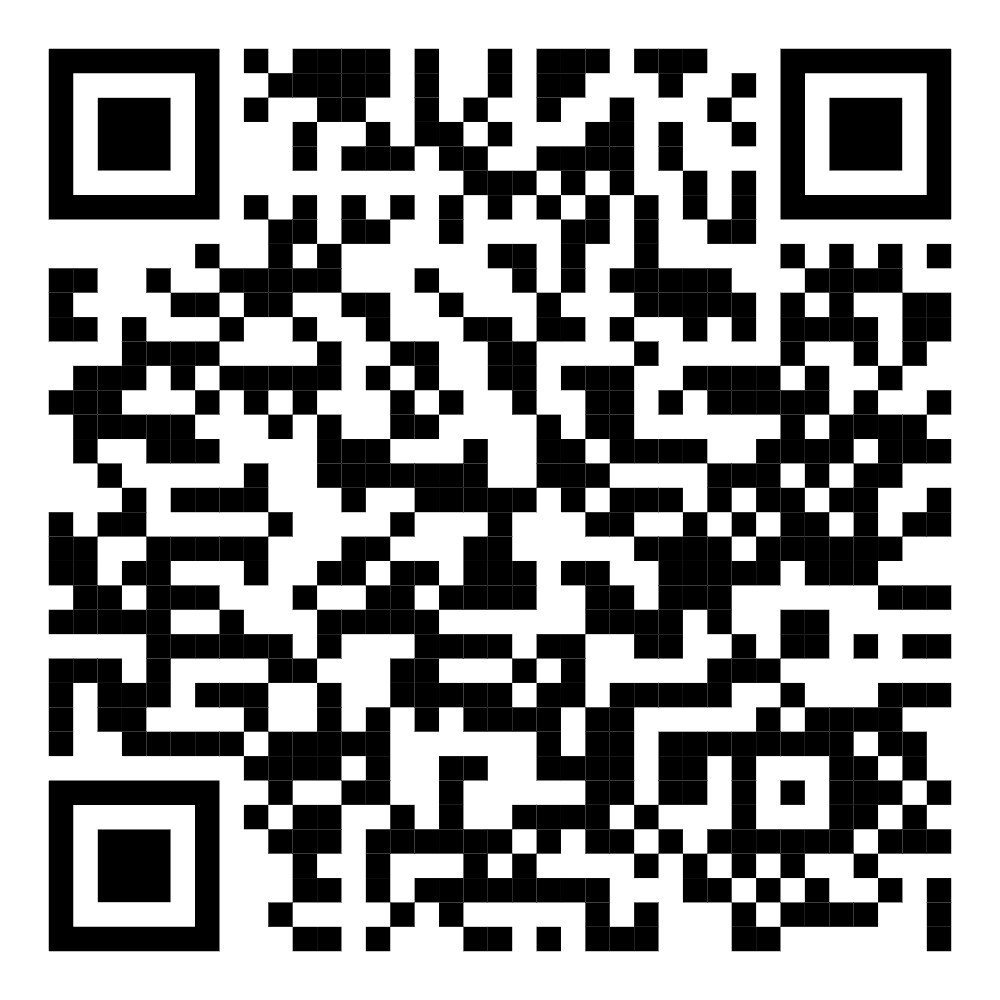
The app is available for both iOS and Android phones.
- iOS: Download and install from the App Store.
- Android: Download and install from the Google Play Store.
Overview
The Outreach Mobile App lets sales representatives manage tasks and execute calls directly from their mobile devices, so they can stay productive without access to a laptop. Key features include:
- Task Management: View and sort tasks assigned to you, and execute call, email, and SMS tasks.
- Call Capabilities: Make and receive calls, including hold, audio preferences, and mute.
- Manual Calling: Use the dialer to make direct calls from within the app.
- Recording: Record calls, with transcripts and recordings accessible in the web (desktop) experience. Record in-person meetings with the in-person recording feature.
- Prospect and Account Management: Search for and view details related to Prospects and Accounts.
- Email Inbox: View incoming emails and send replies.
- Meetings: View your agenda and create, view, and edit meetings.
- Smart Views: Customize your Prospects, Accounts, Opportunities, and Kaia list views with your preferred Smart Views.
- Omni: Ask questions and take action in conversations with Omni.
- SMS: Send and receive text messages with prospects.
Feature Details
Login
Users are routed to the web login page from the app to enter their credentials. SSO login is supported.
Tasks
Task Types (Homepage)
The homepage presents a list of task types and meetings. Each task type shows a count of the tasks assigned to the user.
- The task list displays 3 tasks by default, with filters for All Tasks, Calls, and Emails.
- Additional task types become visible when you select Show More.
- All task types can be accessed from this section.
Today's Meetings
View and access all your remaining meetings for the day. You can also create a new meeting from this section.
Task List
When a user selects a task type, the app presents the list of tasks assigned to them. In each list, the user can view:
- Prospect name
- Due time
- Priority
- Account name (if available)
- Sequence name
Tasks can be sorted by Due and Priority.
Call Task Details
When a user selects a call task from the task list, the detailed view is presented. From this view the user can:
- Make a call and execute call tasks
- Add phone numbers and set a status
- Log and complete the task
- Skip the step
- Delete the task
- Reschedule the task
- Change the priority
- View Prospect details
- View Account details (if available)
Email Task Details
When a user selects an email task from the task list, the detailed view is presented. From this view the user can:
- Send an email and execute email tasks
- Mark the task as complete
- Skip the step
- Delete the task
- Reschedule the task
- Change the priority
- View Prospect details
- View Account details (if available)
Templates added to sequenced manual emails for tasks auto-populate when the user views or executes those tasks.
SMS Task Details
When a user selects an SMS task from the task list, the detailed view is presented. From this view the user can:
- Select the prospect's phone number to open the relevant SMS conversation
- View the conversation history and send a new SMS
- Mark the task as complete
- Skip the step
- Delete the task
- Reschedule the task
- Change the priority
When an SMS task is configured with a sequence template, the template message auto-populates the message entry box when the task is opened.
US and Canada phone numbers can be entered with or without the +1 country code. The app formats and processes the number correctly before the SMS is sent, and numbers already formatted with +1 work as before.
Other Task Types
Task types other than call, email, and SMS can be viewed in the task list but cannot be actioned in the app.
Calls
Making Calls
- Only calls via Outreach Voice are allowed.
- When the user is on a call and minimizes the app, the call continues and can be managed from the notification bar.
- Local presence is enabled.
- Dialpad IVR is supported.
Receiving Calls
Users receive calls in the app if the call is made to their Outreach number that is set as default or was purchased.
- If the app is open, the call screen appears on top of whichever screen is currently being viewed.
- If the app is not open, the user receives a call notification on their device.
- If the caller is an existing prospect, the caller's name is displayed. Otherwise, only the number is displayed.
Manual Calling
The dialer is in the Recents tab of the bottom navigation bar. It enables direct calls from within the app.
Call Recording
Call recording behavior in the Mobile App depends on how recording is configured for the organization:
| Recording setting | Behavior in the Mobile App |
|---|---|
| Automatic recording enabled at the organization level | A consent warning appears when placing the call. Choosing Yes starts the call with recording enabled. Choosing No starts the call without recording. |
| Manual recording enabled | The user must manually turn on recording for each call. |
| Recording disabled by the organization | Users do not have the option to turn on recording. |
Note: All call recordings are accessible only in the Outreach web (desktop) experience.
Call Logs
All calls that are made or received are recorded in the Calls tab, accessible from the bottom navigation bar.
- Tapping the hamburger menu on the right side of each row presents three options:
- View Prospect: Opens the prospect details page. This option is visible only if the number is associated with a prospect.
- View Call Logs: View and fill in the call logs.
- Callback: Call the number.
- If there are unlogged calls, a banner appears at the top of the page. Tapping the banner opens a call log page that shows only the calls without logs.
Meetings
Agenda View
In the Meetings tab, users can see the Agenda view of their meetings, starting from the current day.
- Tapping a meeting opens the Meeting Detail page.
- If there are no meetings for a date, the date is displayed with a "No meetings" message.
- If a meeting is scheduled for multiple days, the same meeting appears on each of those days.
- Tapping the New Meeting floating icon opens the Create New Meeting view, where users can fill in the details and create a meeting.
Meeting Details
Users can view and edit the meeting from the Meeting Detail page. If a video conference is set up:
- Users can join the meeting with Kaia if Kaia is available.
- If Kaia is not available, users can join using the configured Video Conference option.
The meeting duration includes an All day option. Selecting it assumes the meeting lasts the entire day, and users select only the start date and end date, not the time.
The Meeting Detail page contains the following information:
- Meeting type
- Title
- Start and end time
- Video conference option
- Host
- Guests
- Associated Opportunity
- Location
- Description
Emails
Messages Tab
All received emails are visible in the Messages tab, accessible from the bottom navigation bar.
- The inbox list shows the From, Subject, and a short snippet of the email content.
- Tapping an email opens it. If the email is part of a thread, the latest message opens.
- Reply, Reply All, and Forward options are available.
- To compose a new email, tap the email icon at the bottom right.
Send an Email to a Prospect
If the prospect details page has an email address saved, the user can use it to send an email to that prospect.
Compose an Email
When composing an email, the To, From, CC, and BCC fields can be viewed and edited alongside the compose box.
- Apple users can add their own hyperlinks and images when composing emails. This function is not available on Android.
- Variable inputs auto-populate in the compose window. If a variable cannot auto-populate because of missing data, the user is warned when sending the email.
Templates, Snippets, and Variables
Templates, snippets, and variables are all accessible from the compose view. List and search are available for all three, and preview is available for templates and snippets.
Records
The Records tab, accessible from the bottom navigation bar, provides access to Prospects, Accounts, Kaia recordings, Opportunities, and Forecasts.
Prospects
Prospect List Page
- Users can see all the Prospects they own (or have access to via Smart Views).
- Tapping a Prospect opens the prospect details page.
- Users can view the name of each Prospect and, if available, the associated account name and stage.
- The search functionality finds a Prospect using various properties, not just the Prospect's name.
Prospect Details Page
- Users can view all available information about the Prospect.
- If any data is unavailable, the corresponding field is hidden.
- Prospect data cannot be edited, except for adding phone numbers.
- Users can call the Prospect directly from this page.
- If there are active tasks associated with the Prospect, users can view all of them here.
Accounts
Accounts List Page
- Users can view all the Accounts they own (or have access to via Smart Views).
- Tapping an Account opens the Account details page.
- Users can see the Account name, company logo (if available), and the count of associated prospects.
- The search functionality finds accounts using various properties, not just the Account name.
Account Details Page
- Users can view all available information about the Account.
- If any data is unavailable, the corresponding field is hidden.
- Account data cannot be edited.
Kaia
Kaia List
Users can view Kaia recordings from the Records tab in the bottom navigation bar. Tapping a recording opens it.
- Each row shows the title of the recording, participants, account name, length of the recording, and the recording type (a mic icon for audio and a camera icon for video).
- Search applies only to recordings in the recording list, not to playlists.
- Users can sort the list by date.
Kaia Playlists
- Users can view their playlists.
- Tapping a playlist opens the recordings in that playlist.
- For each recording in a playlist, users can see the title, the name of the person who added the recording and their notes, the length of the recording, and the recording type.
View a Recording
Header section
- The title of the recording is displayed. If the title does not fit the screen, it is truncated automatically.
- Tapping the recording info icon opens the recording details, which are divided into two tabs:
- About: General details, including recording title, creation time, account name, and deal info (opportunity, stage, and amount). Notes created when the recording was added to a playlist are also shown here, but only if the recording was accessed through the playlist.
- Speakers: Participant details, including name and account name. For call recordings with limited participant names, phone numbers are displayed.
Recording section
- Tapping the recording screen pauses or plays the recording.
- A button in the top right corner maximizes the recording to full screen. In full screen mode, users can pause or play, use the scrubber, see the video timer, and minimize the recording.
Mid section
Users have access to three tabs:
- Assist: If Assist is available, users see the summary of the recording and can use the Ask a question function to interact with Kaia. If Assist is not available, the message "Meeting assist is not available" is displayed.
- Speakers: Shows the speaker name (or number for a call) with their talking engagement times highlighted.
- Topics: Shows the topics discussed and their engagement times.
Bottom section
- A scrubber to move the recording ahead or backward to a particular time
- The current time and end time of the recording
- A pause/play button
- An option to mute or unmute the recording, independent of the device controls
- Playback speed controls
- An option to skip to the next speaker or topic
Minimized App: Kaia Media Player
When viewing a recording, the app can be minimized and the recording continues to play in the background. In this mode, users can pause or play, scrub, and view the recording title. The media player is visible and controllable on both the locked screen and the unlocked screen (minimized app). Closing the application or leaving the Kaia recording page removes the background media.
Add a Recording to a Playlist
- If users have access, an option to add a recording to a playlist is in the top right corner of the recording page.
- Recordings can be added to an existing playlist. Users can choose a starting point (Start at beginning or Start at current time) and add a note.
- After a recording is added, users can open the playlist to find it.
- If users do not have access, a button to view recording info is available instead of the playlist option.
Opportunities
Opportunities List Page
- Users can view all the opportunities they own (or have access to via Smart Views).
- Each row shows the Opportunity name, the Account name, and five fixed properties (hidden if not applicable): Amount, Close date, Stage, Prospect count, and Forecast category.
- The total amount is visible at the bottom of the screen.
- The currency displayed is based on the selection made in the web application.
- The search functionality finds opportunities using various properties, not just the opportunity name.
Opportunity Details Page
Users can view limited information about the opportunity:
- Deal info
- Next steps
- Alerts
- Health insights
- Custom fields
Forecasts
On the Forecast page:
- Users can see their Forecasts with all metrics displayed.
- Metrics can be edited and submitted.
- Users can select and view the Rollup menu (for managers), Sales Period, and Currency (if enabled).
- Submission history can be viewed and downloaded.
- Selecting a selectable forecast metric opens the Opportunity List to show the metric breakdown.
Smart Views
Smart Views are available on Prospects, Accounts, Opportunities, and Kaia.
- Tapping the page title opens the Smart Views menu.
- When a user opens one of these pages, the view defaults to Your Prospects, Your Accounts, Kaia Recordings, or Your Opportunities.
- Applied filters from the selected Smart View are displayed when the user taps the icon below the title.
Smart View options include:
- Set as Default / Unset Default
- Edit Smart View
- Save Smart View
- Delete Smart View
Filters: Add and edit filters. Filters include a built-in search to quickly find specific filter options. Filters can be saved as Smart Views.
Sort: Sort fields available in the app are Amount, Close date, Stage, Name, Prospect, and Forecast category. The selected sort item can be saved and loaded as part of a Smart View.
Search: To start a search, enter the query and press Enter on the onscreen keyboard. The searched query can be saved and loaded as part of a Smart View.
In-Person Recording
This feature is available only to users who have access to in-person recording (the Meet SKU is enabled).
Start an In-Person Recording
- Log in to the Outreach Mobile App.
- In the bottom navigation bar, tap Meetings.
- Tap New Meeting. Two options are displayed: Schedule a Meeting and Record In Person.
- Tap Record In Person to start the in-person recording flow.
- When the consent modal appears, accept it to start the recording.
Note: The recording captures audio only, using the mobile device.
Recording Controls
- Pause: Puts the recording on hold.
- Resume: Continues recording from where it was paused.
- Change title: Changes the default title to a custom title.
- "i" icon: Opens the details of the recording, with the option to edit the details.
- Add guests: Search existing users and add them to the guest list. If the user does not exist, enter a valid email address to add to the guest list.
- Meeting description edit: Opens the section to update the meeting description.
- Stop: Stops the recording. A warning modal appears before the user confirms.
Notification Bar
The recording continues when the app is minimized or the device is locked. From the notification bar, users can view the duration of the recording and pause or play it.
Save and Upload a Recording
When the recording ends, the app automatically saves it on the device, even if the app was closed unexpectedly. After the upload completes successfully, the recording is automatically deleted from the device.
Note: Make sure the device has enough memory to store the recording while recording.
| Upload state | Description |
|---|---|
| Uploading | The upload is in progress. |
| Uploaded | The recording uploaded successfully to Outreach servers. |
| Recording will be available soon | After the upload, the recording is being prepared for display on the Kaia list page. |
| Upload failed | The upload failed. If the automatic retry also fails, the user is prompted to Retry. |
| Upload reconnecting | The user selected Retry on a failed upload. The app tries to resume the upload from the point of failure. If it cannot, it starts the upload over. |
In-Person Recording Details Page
This page is similar to the Kaia details page, with three differences:
- A video plays that shows the audio amplitude.
- The recording info view includes the speakers list and the description (if one was added during the recording).
- Speakers can be attributed:
- Unattributed speakers show as "Speaker 1," "Speaker 2," and so on.
- Speakers can be attributed from the guest list by selecting a guest.
- Speakers can be reassigned and unassigned.
- More guests can be added with the Add guest button.
Omni
Open Omni
- Omni is accessible directly from the homepage. A prominent input box serves as the primary entry point, so users can start a query without additional navigation. Submitting a query opens the conversation page.
- Omni can also be opened from almost anywhere using the Omni button icon at the bottom left of the screen.
Input Box
- The input box supports text input and speech-to-text input.
- Add Context, in the top left corner of the input box, links CRM data such as Prospects, Accounts, and call recordings directly to the chat.
Conversation Page
- The page displays the submitted query along with the responses. While a response loads, loading animations and status text show progress.
- Users can ask follow-up queries within the same conversation.
- Users can start a new conversation at any time with the new chat icon in the top right corner. When a new conversation starts, three suggested prompts are displayed. If a prompt has a unique icon, it is shown. Otherwise, a default icon is shown.
- If a user has a profile picture set, it is shown in the conversation in place of their name initials.
- Responses can include emoji.
- Source counts are displayed below each response. Tapping the count shows the sources used to generate that response.
- Navigating to a Kaia recording from sources, pills, or other entry points opens the recording at the referenced timestamp.
- Users can download files directly from source chips within a conversation.
Conversation History
- Conversation history is accessible from both the homepage input box and the conversation page.
- History lists past conversations. Users can select any conversation to reopen and continue it.
- Users can delete conversations from the history.
- If a user closes a conversation and reopens it within 5 minutes, the previous conversation reloads automatically. This applies while the app remains open or in the background. Force-quitting the app or restarting the device starts a new conversation.
Supported Response Formats
The mobile app supports the following content formats in Omni responses:
- Markdown (text, titles, paragraphs, bullet points, and tables)
- Email templates, including email compose
- Survey questions
- Confirmation widgets
MCP Connectors
Omni can use your enabled MCP connections to access relevant information. All available MCP connections are enabled by default. You can turn individual connections on or off at any time. Omni does not use connections that are turned off.
Note: To add or remove MCP connections, use the Outreach web application.
Knowledge Search
You can turn Knowledge Search on or off from the mobile app. It is enabled by default. When it is enabled, Omni searches available knowledge to provide relevant responses. When it is turned off, Omni does not search your knowledge content.
SMS
Navigation
- Access SMS conversations from the bottom navigation and the dedicated messaging tab.
- Send and receive text messages with prospects and manually entered phone numbers.
- Search and browse existing SMS conversations.
- View the prospect name (or phone number), last message preview, timestamp, and unread message indicators.
Messaging
- Start a new SMS conversation by selecting a prospect or manually entering a phone number.
- View the full conversation history for existing SMS threads.
- Send and receive SMS messages.
- Delete individual messages or entire conversations.
Prerequisites
- SMS must be enabled for the organization.
- Users must have access to purchased platform numbers.
Limitations
- SMS notifications are not supported.
- Emojis, attachments, and MMS sending are not supported.
Settings
Users can open Settings with the cog icon in the top right corner of the home screen. From Settings, users can:
- Change the app theme (dark mode or light mode).
- View the name of the org they are logged into.
- View the email ID associated with the logged-in account.
- Sign out.
- View the app version.
Known Issues and Limitations
- Information in the app may occasionally not show or may display incorrectly. To resolve this, refresh the page by sliding down. If that does not work, close the app and try again.
- Navigation is limited while on a call and during an in-person recording.
- Calls can be made only via Outreach Voice.
- Only call, email, and SMS tasks can be executed. Other task types can be viewed in a list but cannot be actioned.
- The Forecast view may load slower when the rollup data volume is high.
- When viewing in-person recordings, the speaker count may not match the actual number of speakers.
The following features are not currently supported:
- Smart Views on Tasks
- Creating and editing Accounts, Prospects, and Tasks, other than the task actions and prospect phone number additions described above
- Adding prospects to sequences
- Keypad in the dial screen
- Adding participants to a call
- Importing a phone number
- Kaia transcripts and @mentions
- Sharing Kaia recordings
- SMS notifications
- Mobile notification settings (sound, vibration)
Frequently Asked Questions
If I have imported my phone number on the Outreach platform, will calls to that phone number ring in the mobile app?
No. The Outreach Mobile App receives calls only via Outreach Voice (Twilio VoIP). It does not receive or deliver any notification for calls to an imported number.
Can I initiate a conference call, add participants, or bridge calls together?
No. Bridging and conference calls are not currently supported.
If I want to receive calls in the Outreach app, what number should others dial?
Any number provided by Outreach, including default or purchased numbers, works. Numbers not issued by Outreach (for example, imported numbers) do not receive calls in the app.
How do I use variables and templates when writing an email?
Templates, variables, snippets, and preview are accessible when you compose a new message.
If an Omni response does not load automatically, do I need to resubmit my prompt?
No. You can refresh the query to reload the response.
Is there any difference between Omni on mobile and web?
The mobile app supports specific content formats in Omni responses. See Supported Response Formats under Omni for the list.
Was this article helpful?
That’s Great!
Thank you for your feedback
Sorry! We couldn't be helpful
Thank you for your feedback
Feedback sent
We appreciate your effort and will try to fix the article