IMPORTANT NOTICE: From June 15 through September 30, 2026, we will begin migrating all remaining users to the personalized homepage and deprecate the legacy 360 homepage experience. Please contact your account rep or support for more information.
Objective
Provide an overview of the personalized homepage experience and widgets available for use.
Applies To
- Outreach Users
Before You Begin
- Have Outreach Omni (if available)/Smart Account Assist/Deal Assist enabled by an admin to access the full capabilities of the homepage.
- If you have Pipeline Summary access enabled, that page will remain your default landing page at log in.
Overview
The Personalized Homepage Experience introduces a customizable and active homepage for Outreach users. It is designed to surface the most relevant information, workflows, and insights individual for each user, all in one place, helping them start their day faster and stay focused on what matters.
This page replaces the static "360" homepage with a tile-based layout users can self-customize to match their daily sales workflows.
- A simple one step onboarding process that sets up a default homepage layout based on the user's core priorities, helping them get productive from day one.
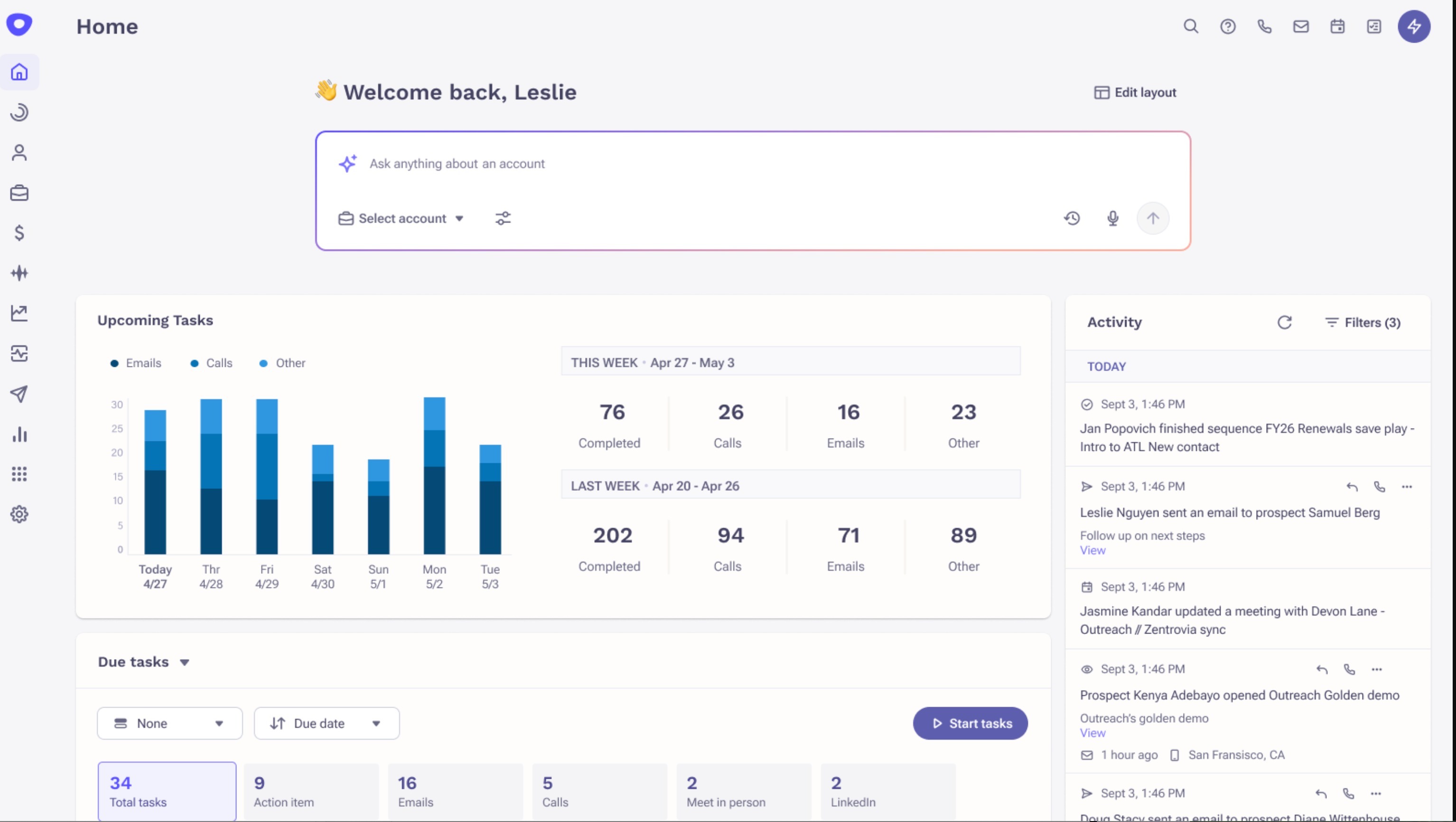
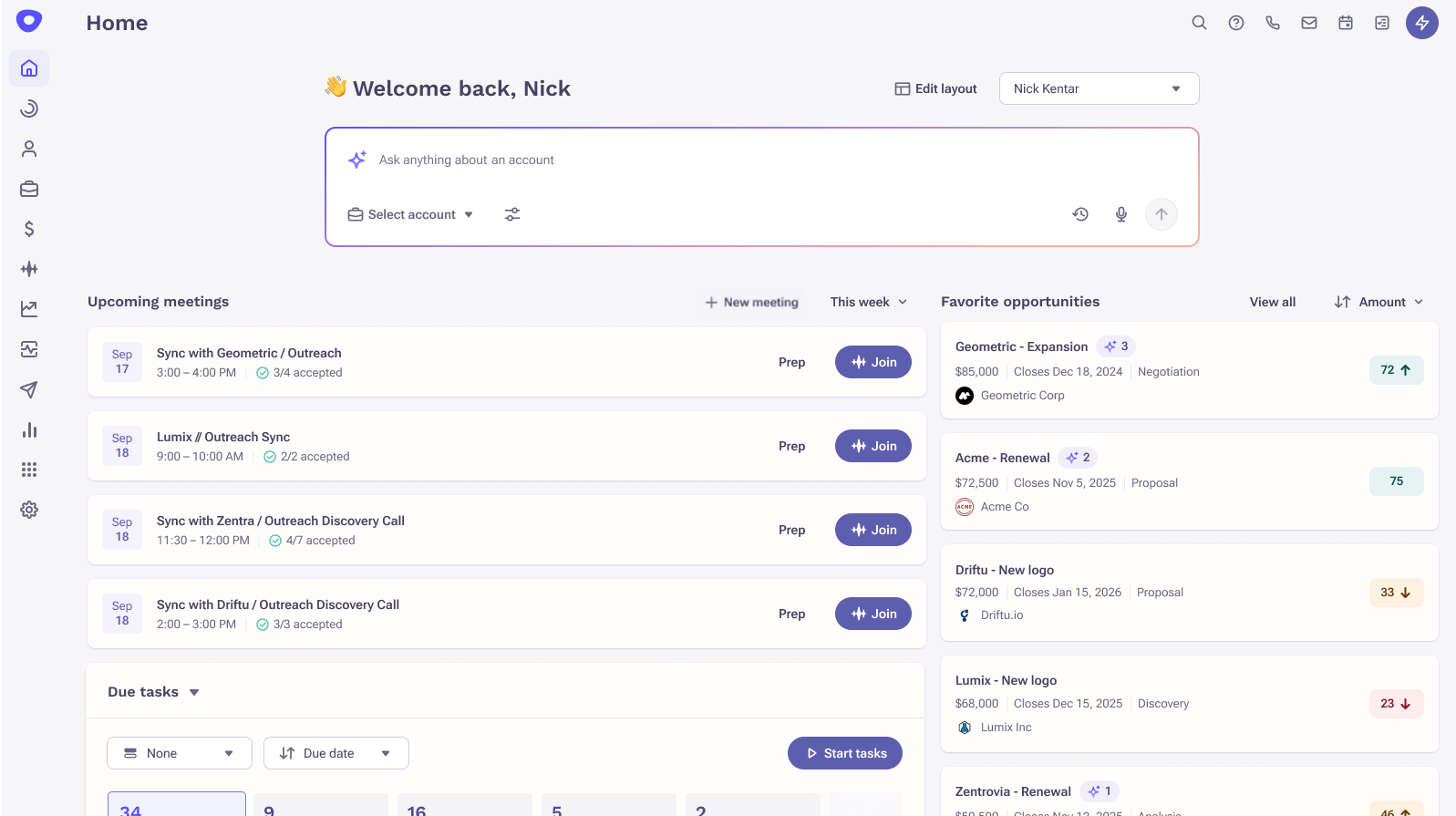
- This homepage currently supports pre-built layouts suited for XDRs and AEs roles to start their day focused. They can instantly view their tasks, scheduled emails, upcoming meetings, and key deals without navigating to another page.
- Users can further personalize their homepage with tiles like "Team Activity Leaderboard" or "Favorite Accounts" to keep their most relevant metrics front and center.
- The homepage also brings an AI conversational chat directly to the homepage, so users can access information about the accounts/opportunities.
Procedure
Once the feature is enabled, the next time users return to the homepage, they are greeted with a one-click onboarding experience.
- Log in to Outreach.
- Select a preferred template for the default homepage.
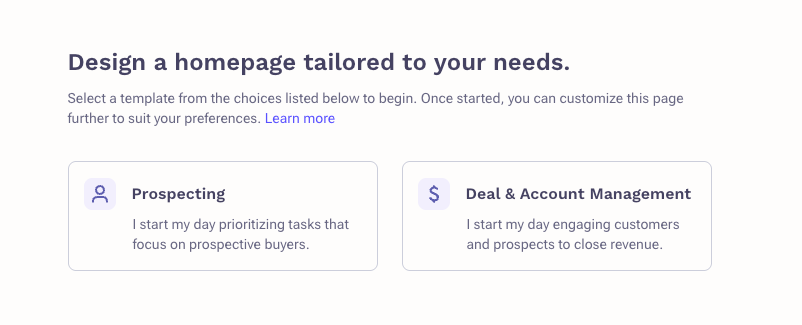
- Click Next.
- Below is the Prospecting template with conversational AI enabled.
- Below is the Deal & Account Management template with conversational AI enabled.
- Below is the Prospecting template with conversational AI enabled.
Note: If Admins set a default homepage layout for the organization or your profile group, the onboarding survey will be skipped. However, if you've already set up your own personalized view, then it will take precedence over your admin's selection of the default starting layout in the Org settings and governance profiles as this is your personalized homepage experience.
Customize the homepage
You can personalize your default layout by clicking Edit Layout, allowing you to:
- Add tiles from the tile library
- Remove tiles from the homepage
- Rearrange and adjust sizing of desired tiles
Note: If Admin removes permission to create new tile layouts for your profile group, you will not see the Edit Layout button and will not be able to customize your homepage.
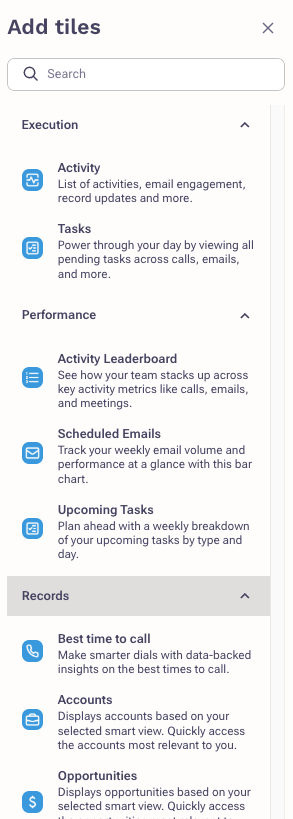
The tile library currently supports the following tiles:
| Tile Name | Description |
|---|---|
| Today's scheduled emails | View all the emails scheduled to be sent today for your sequences. Quickly scan what's going out and stay on top of your outreach. |
| Scheduled emails (chart) | A weekly bar chart showing the total scheduled emails coming from your sequences for each day of the week. Includes key metrics like total volume, sequence distribution, and delivery stats, helping you plan your sending strategy at a glance. |
| Tasks | See your pending tasks for the day across emails, calls, and other activity types, all in one place, so you never miss a step. |
| Upcoming tasks (chart) | A weekly chart breaking down upcoming tasks (emails, calls, others) by day. Get a clear picture of your task load to plan ahead effectively. |
| Activity | A list of all activities across the platform with filter options to customize the feed as per individual user's needs. |
| Meeting management | Shows your meetings for today or the week, sorted by time, with the associated account name displayed on each meeting. By default the tile shows only meetings with a prospect attendee; switch to All meetings to see personal and internal events too, and your selection is remembered across sessions. Click a meeting to open its details in a slideout, where you can review and edit it without leaving the homepage. Create new meetings, join meetings, and listen to recordings of past meetings from this tile. You can also create a meeting brief with the Meeting Agent via the Prep button (Available with Amplify Pro). |
| Pipeline | Track your revenue, open pipeline & gap to quota at a glance with this chart (Available with Deal SKU or Amplify Pro). |
| Accounts | Displays accounts from your saved views, sorted by options like last updated, account plan updated, last contacted, and name. Slideout panel accessible by clicking on an account to access overview, account plan, activity and prospects. |
| Opportunities | Displays the opportunities from your saved views, sorted by options like amount, last updated, close date, and last contacted. Slideout panel accessible by clicking on an opportunity to access deal insights, alerts & health, activity, prospects, methodology and next steps. |
| Activity leaderboard | See how you and your teammates are performing across key metrics like calls made, emails delivered, meetings booked/held, and prospects added. Switch between metrics to view different leaderboards. |
| Best time to call | A heatmap showing the best times to call based on historical answer rates for outbound calls. Time zones are localized to each viewer, helping you identify the most effective calling windows. |
Meeting Management Tile
The Meeting management tile shows the account name for each meeting, filters to prospect meetings by default, and opens a detail slideout when a meeting is clicked.
Prospect-only meetings toggle
- Open the Outreach homepage. The Meeting management tile shows only meetings that include at least one prospect attendee.
- The Prospect-only meetings selector at the top of the tile is enabled by default for all users, including existing customers who were already using the homepage.
- To see all calendar events (personal, internal, etc.), switch to All meetings. The tile refreshes immediately.
- The selected state persists across page reloads and future sessions. You do not need to re-configure it on every visit.
Calendar event slideout
- Click any meeting row in the homepage tile.
- A calendar event slideout opens from the right side of the screen, following the same visual pattern as the opportunity and account slideouts.
- Review and edit meeting details, attendees, and context without navigating away from the homepage.
Account name on meeting tile
- Every meeting row in the homepage tile displays the account name associated with that meeting.
- No additional configuration is needed. The account name appears automatically for all meetings that have an associated account in Outreach.
Outreach Conversation AI on the homepage
If any of the conversational AI is enabled, it appears on the top of the homepage for easy access at login.
Outreach Omni
Outreach Omni is a conversational assist that looks across all your Accounts, Opportunities, and Kaia Recordings to surface insights and action. Use Omni to explore themes across conversations and opportunities, draft an email based on context, and more. The conversational chat experience includes:
- Ability to select multiple accounts, opportunities, and Kaia recordings from a drop down list to add as context for the question
- Previous conversation history stored in separate chat tabs to be continued at a later time
- Voice-to-text
For best practices and details on how to use Outreach Omni, read the support article.

Unified AI Assist

The AI Assist can be used to inquire about any specific Account or Opportunity in the organization. The assist consists of:
- A topic selector: you can select either Account or Opportunity from a dropdown to inquire specific questions about it.
- A conversational dialog box: you can write free form questions or select from the list of pre-defined questions upon typing.
Note: If Outreach Omni is enabled, it replaces Unified Assist on the homepage (if it is already enabled).
Additional Information
Frequently Asked Questions
Are there any capabilities lost switching from the legacy 360 page to the personalized homepage?
No. All capabilities from the 360 homepage carry over, with the option for users to control the placement and sizing of each tile. For teams that prefer minimal change, we recommend the Prospecting template as it mirrors the 360 homepage.
What if the Admin enables the homepage but does not enable any conversational AI?
The conversational chat will not appear on the homepage. If you only have one Assist turned on, the chat is still usable but will only provide the capability of the selected Assist that was turned on. Turning on Omni will replace Assist chat.
Note: Smart Deal Assist is only available as an Admin-accessible toggle if you have the Deal SKU or Amplify Plus purchased.
Who will have access to add Pipeline chart on the homepage?
Pipeline chart will only be accessible if you have forecasting enabled and you are part of the user rollup hierarchy as an Account Executive.
Note: Pipeline chart is not available for territory based rollup hierarchy. You also need Deal SKU or Amplify Plus purchased in order to access the setup required to enable this tile.
My homepage at log in is the Pipeline Summary page, will enabling Personalized Homepage change my experience?
No. If you have access to Pipeline Summary, that page will remain your default page at log in.
Was this article helpful?
That’s Great!
Thank you for your feedback
Sorry! We couldn't be helpful
Thank you for your feedback
Feedback sent
We appreciate your effort and will try to fix the article