Objective
Create and customize a public calendar link within Outreach.
Applies To
- Outreach Users
Before You Begin
- A calendar must be connected and synced with Outreach prior to completing this process.
- Outreach uses the Outreach profile username by default as a public calendar link unless the URL is otherwise updated.
Procedure
Create a Public Calendar Link
- Access the Outreach Platform.
- Click on the User's initials (avatar) in the bottom left corner of the navigation sidebar
- Select Personal Settings.
- Navigate to Meetings > Calendar setup.
- Input the applicable information in the Public Calendar URL field.
- Click Save. The Public Calendar Link has been updated as configured.
Prospect Experience
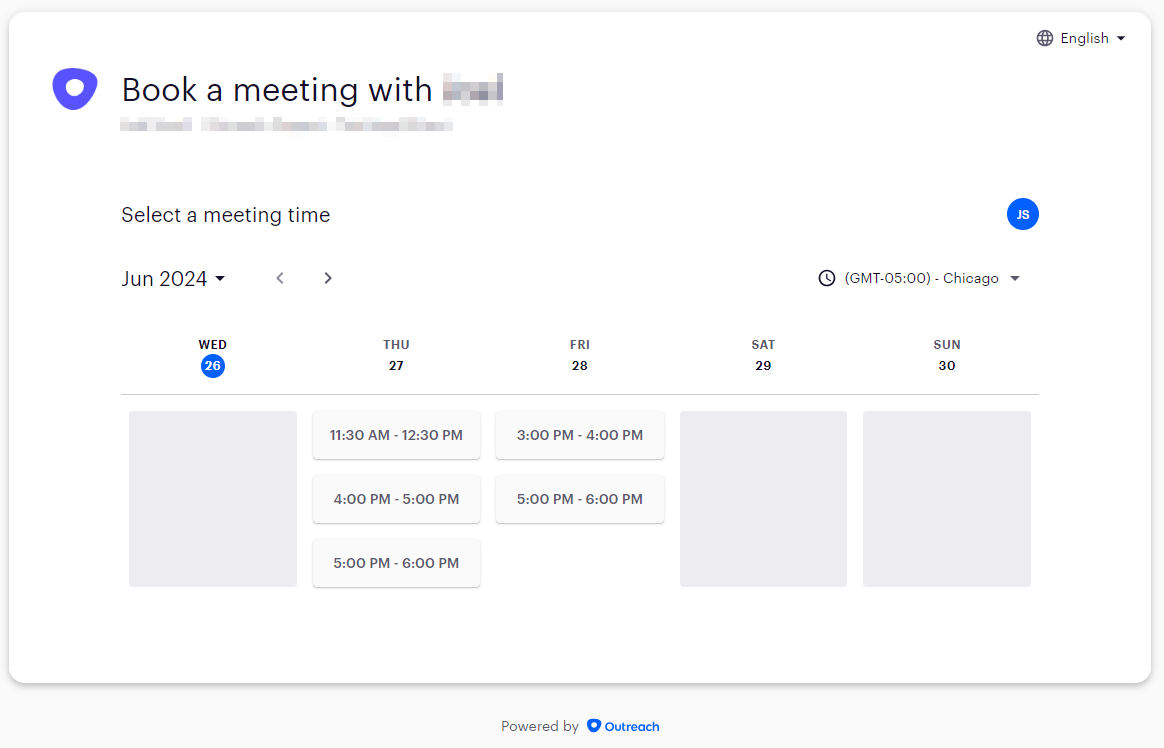
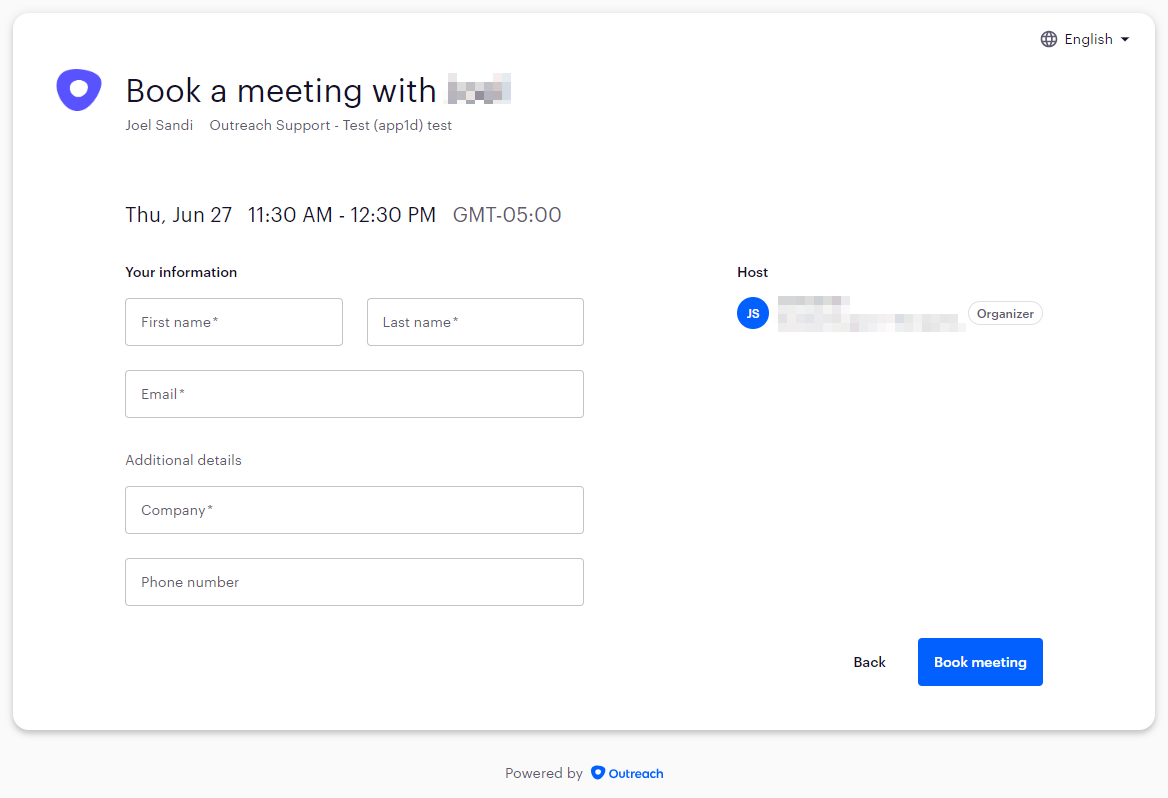
When a Prospect receives your invite (either through a public calendar link as illustrated above, or through inserting availability in Gmail/Outreach Everywhere or Outlook emails) they'll be able to:
- select from a series of dates and times
- change time zones*
- view time in 24 hour format
- reschedule if a conflict was discovered
*A note on time zone display: When a Prospect schedules a meeting via the public calendar link, the calendar displays the time zone as set by the Prospect's browser. E.g., if the Prospect is in Seattle, WA (USA), it will display times in PST/PDT.
Adding Additional Invitees
While prospects cannot currently add other guests via your Outreach meeting calendar link interface, once the invite and event are on their own calendar, they can add additional participants from there.
Additional Information
How To Insert Meeting Availability into Outlook Emails
How To Insert Meeting Availability into Emails sent via Gmail or the Outreach Application
How To Connect a Calendar to Outreach
Was this article helpful?
That’s Great!
Thank you for your feedback
Sorry! We couldn't be helpful
Thank you for your feedback
Feedback sent
We appreciate your effort and will try to fix the article