Objective
Add meeting opportunities for Prospects into emails sent via Outreach or Gmail.
Not using Gmail or the Outreach application? Click here for instructions for Outlook.
Applies To
- Outreach Users
- Outreach web application
- Gmail
Before You Begin
Requirements
For sharing availability through Gmail, the Outreach Everywhere Chrome extension must be installed and enabled.
A note on time zone display
As email content is static in nature, time windows in email will display in the Outreach user's time zone.
On the Book a Meeting page, the times will display in the Prospect's (viewer's) system time zone.
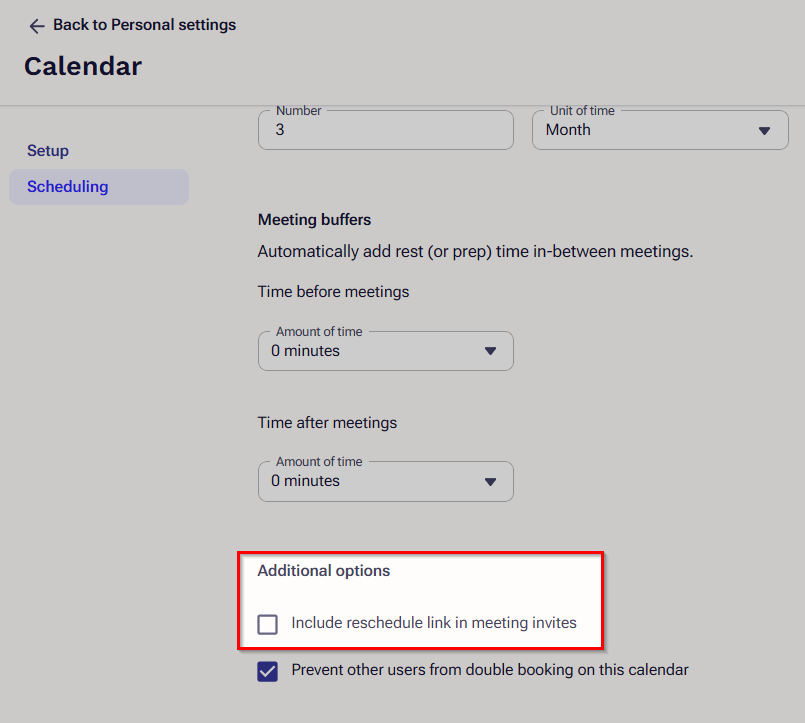
Optionally prevent prospects from booking an alternative time
-
- In Outreach, click your user initials in the bottom left > Personal settings.
- Navigate to Meetings > Calendar scheduling.
- Under Additional options, uncheck the box next to Include reschedule link in meeting invites.
- Click Save.
Procedure
- Compose a new email or access an existing email.
- Click the Meetings (calendar) icon in the email composition window.
- Select an option as applicable. See below for details.
- Insert proposed times - Allows you to manually select when you are available and share these specific times with the prospect.
- Link to your calendar - Offers a public calendar link that displays all available time slots for prospects to book from.
- Once your availability is inserted as into the email, continue to compose and save or send the draft as needed.
Insert proposed times
- When the calendar page loads, select all times you want to make available to the Prospect.
Note: Add a colleague's name as a guest (+ Add guests) to view their calendar while configuring the meeting. - Review and complete all other invite configuration options in the right-hand panel.
- Click the Insert proposed times button.
- Once your availability is inserted as into the email, continue to compose and save or send the draft as needed.
Link to your calendar
This option drops a plain text link or button directly into the email body. To modify the design of the link, the button language, or the meeting type:
- Hover over the link/button.
- Click Edit.
- Adjust configuration options as needed.
- Click Save changes.
Once your availability is inserted as into the email, continue to compose and save or send the draft as needed.
Additional Information
Installing Outreach Everywhere Chrome Extension
How To Book Meetings on Behalf of Another User
Was this article helpful?
That’s Great!
Thank you for your feedback
Sorry! We couldn't be helpful
Thank you for your feedback
Feedback sent
We appreciate your effort and will try to fix the article