Objective
The purpose of this article is to provide information to Outreach users and admins in the configuration and use of Sequential Dialing in call tasks. Sequential Dialing provides increased efficiency to Outreach Users by greatly reducing the number of clicks to make a large amount of calls.
Applies To
- Outreach Voice
- Outreach Users
- Outreach Admins
Before You Begin
Ensure you are setup to make calls using Outreach Voice.
Procedure
Sequential Dialing allows for the automation of call tasks. When entering Sequential Dialing mode in call tasks, the system will automatically dial the first number listed in in the prospect's profile. If no answer is detected, the call is hung up, logged, and the next phone number listed for the prospect is called automatically. When no additional prospect numbers remain, the task is completed and the system starts to call the prospect in the next call task. If a prospect answers, you are able to speak with them and log the call normally.
You can access sequential dialing from 2 places - your home page, or your task list view. When you begin to select tasks to take action on, you will see the Start sequential dialing button next to Start tasks. Note: the sequential dialing button will only become active once 2 or more call tasks are selected.
- Log in to Outreach.
- Select a task.
- Select Start sequential dialing.
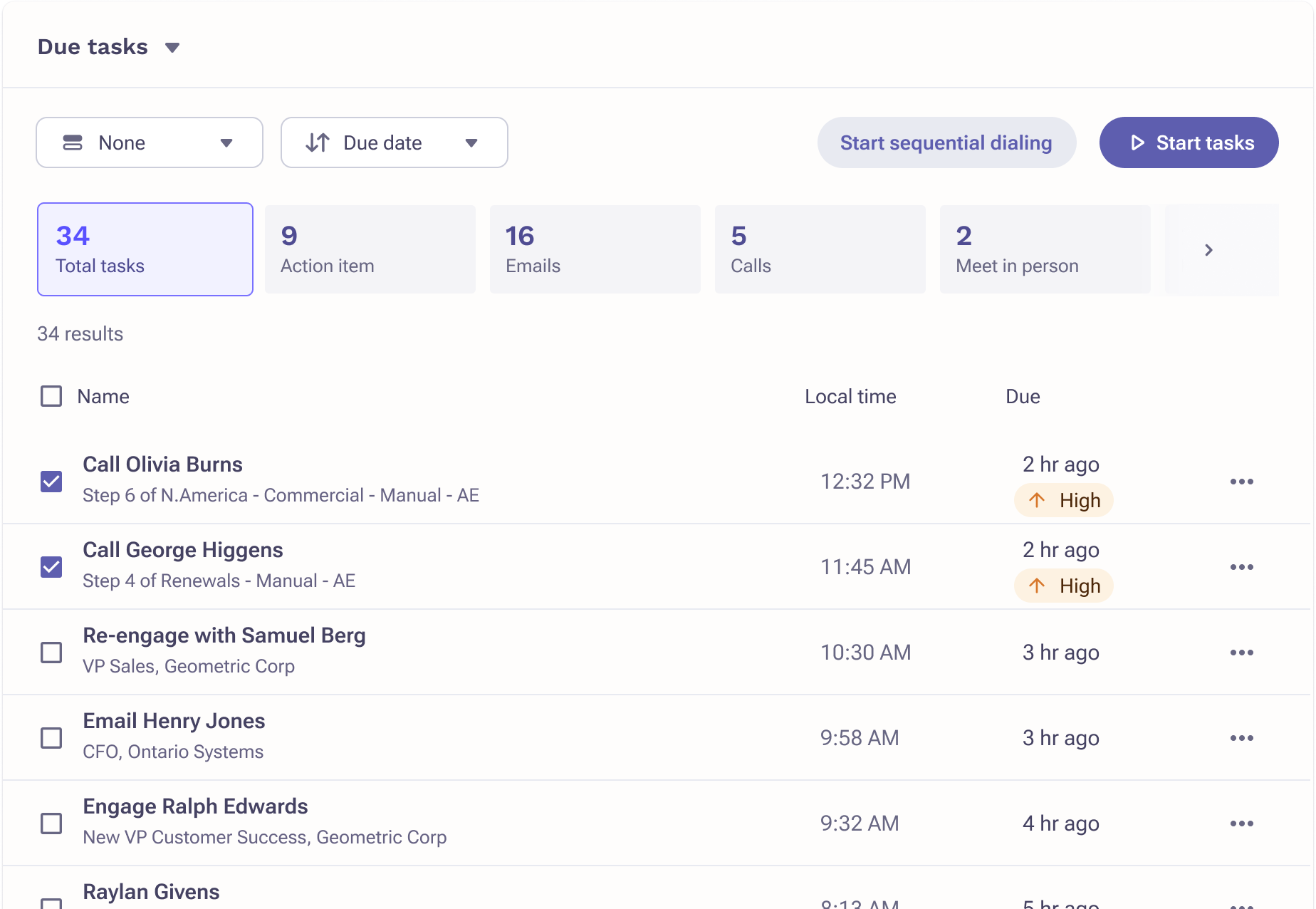
If your selection includes tasks of other types, they will be filtered out from your task flow once the button is clicked as sequential dialing only supports call tasks.
Once task flow comes up, you will see a play icon in the header of task flow. Click it and sequential dialing will begin. If you need to stop, simply click it again.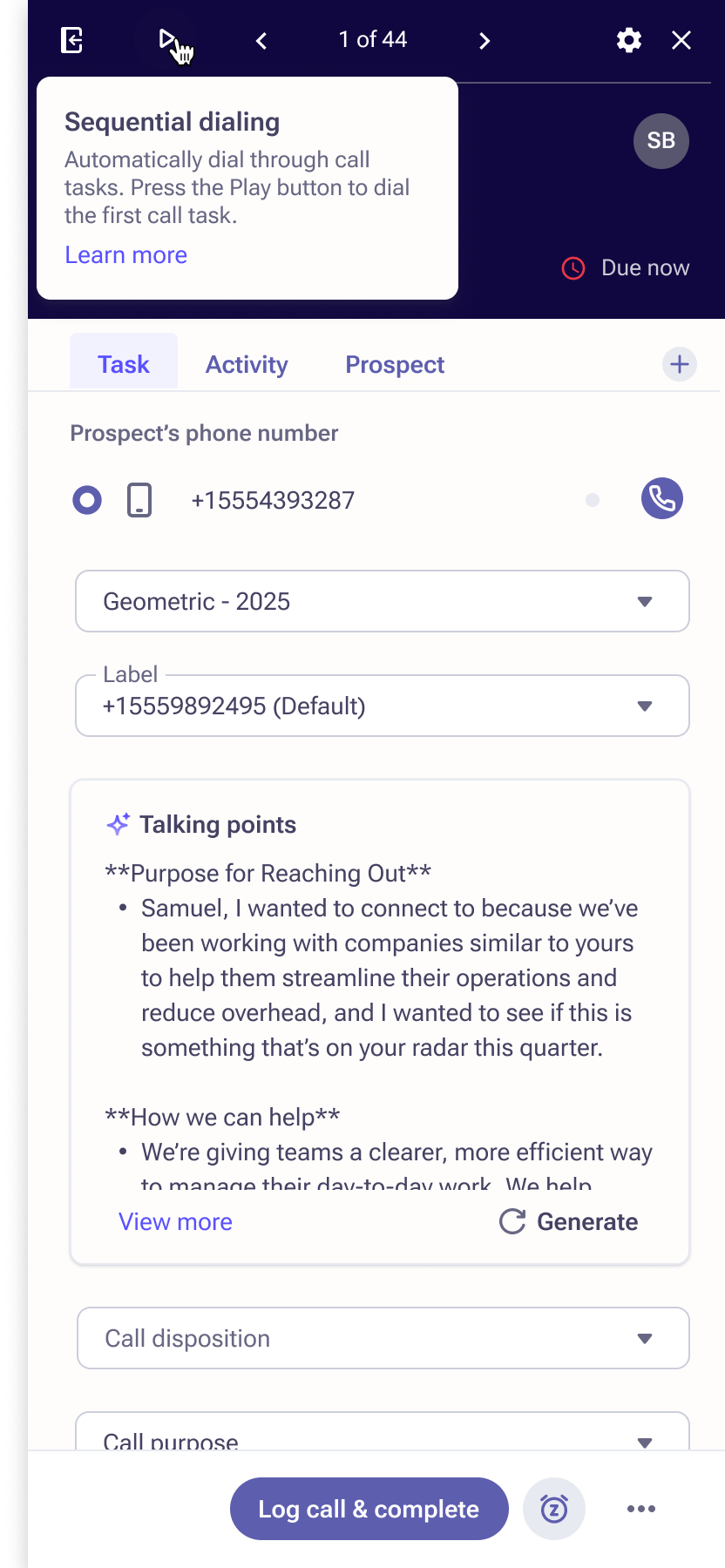
If a prospect answers a call, sequential dialing mode will be automatically paused allowing you to have a conversation with the prospect and log it normally. Once logged, you will need to click the play button again to continue sequential dialing.
Additional Information
- Access to sequential dialing is controlled by admins via the user profile permission "Use sequential dialing in call tasks"
- This mode is only supported for call tasks
- To support full automation and reduce user interaction when dialing, it is suggested that admins configure automatic call dispositions by call state for all available call states as detailed here.
Was this article helpful?
That’s Great!
Thank you for your feedback
Sorry! We couldn't be helpful
Thank you for your feedback
Feedback sent
We appreciate your effort and will try to fix the article