Objective
The purpose of this article is to provide Microsoft Teams and other M365 users the ability to directly use Outreach Revenue Intelligence inside their daily sales workflows.
Applies To
- Outreach customers who want to access Outreach MCP Connector inside their Microsoft 365 workflows including Microsoft Teams
- Customers who are using Microsoft Copilot agents inside their LOB or 3rd party apps and want to integrate Outreach MCP Server
- Developers who are using or building Microsoft Copilot Agents through Copilot Studio
- Customers who are using Microsoft 365 Applications, such as Microsoft Teams or Microsoft Dynamics, as part of their daily sales workflows
Before You Begin
This article expects basic familiarity with ChatGPT apps and Copilot Agents. For Outreach via MCP:
- Please read Outreach MCP Server overview to understand what functionalities are available from Outreach.
- Outreach MCP Server must be enabled on the instance you are trying to connect.
- Microsoft or non-Microsoft apps must be fully set up to work with Copilot agents, including any licensing and environmental requirements required by Microsoft or others to enable MCP
|
Note This document assumes that a Copilot Agent that integrates with Outreach MCP Server has already been created and published to necessary channels. If you want to build a Copilot agents from scratch, please read the article on how to integrate Outreach MCP Server to Copilot agents first. |
Microsoft Teams
Availability of Agents
Once a Copilot Agent has been set up with Outreach MCP Server Tools and has been published into required channels it is expected to be available to use across Microsoft 365 ecosystem or any other channels that the Copilot supports.
Note that your organization might have policies or restrictions on Agents. If you are not seeing Outreach MCP enabled Agents, please follow up with your Admin directly.
Installing the Agent
If you have not already added the Outreach MCP enabled Agent, click Get agents > Search for the Agent > Add the Agent: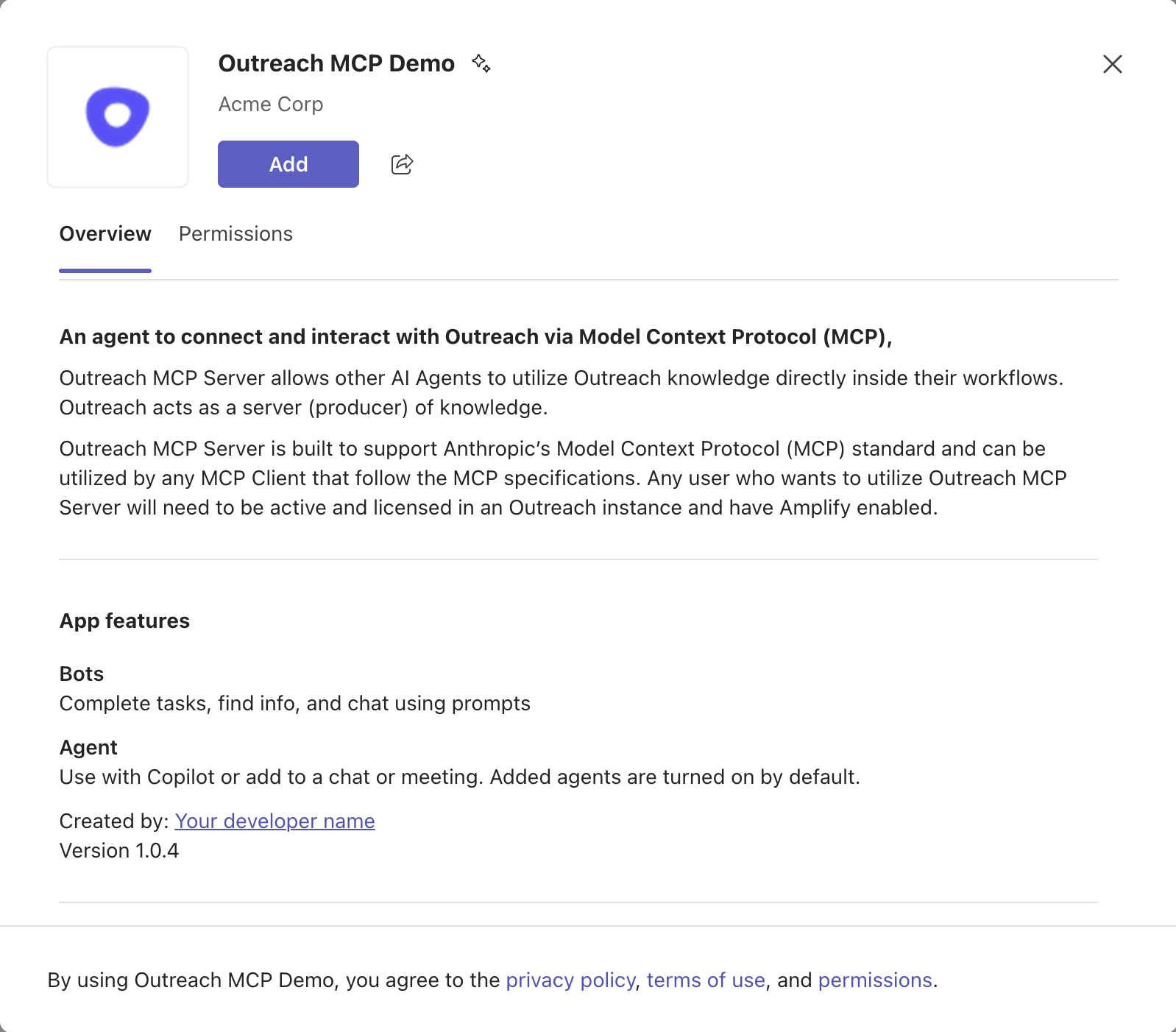
Once added, the Agent will be available across Microsoft Teams depending on what permissions the Agent developer and your organization has provided.
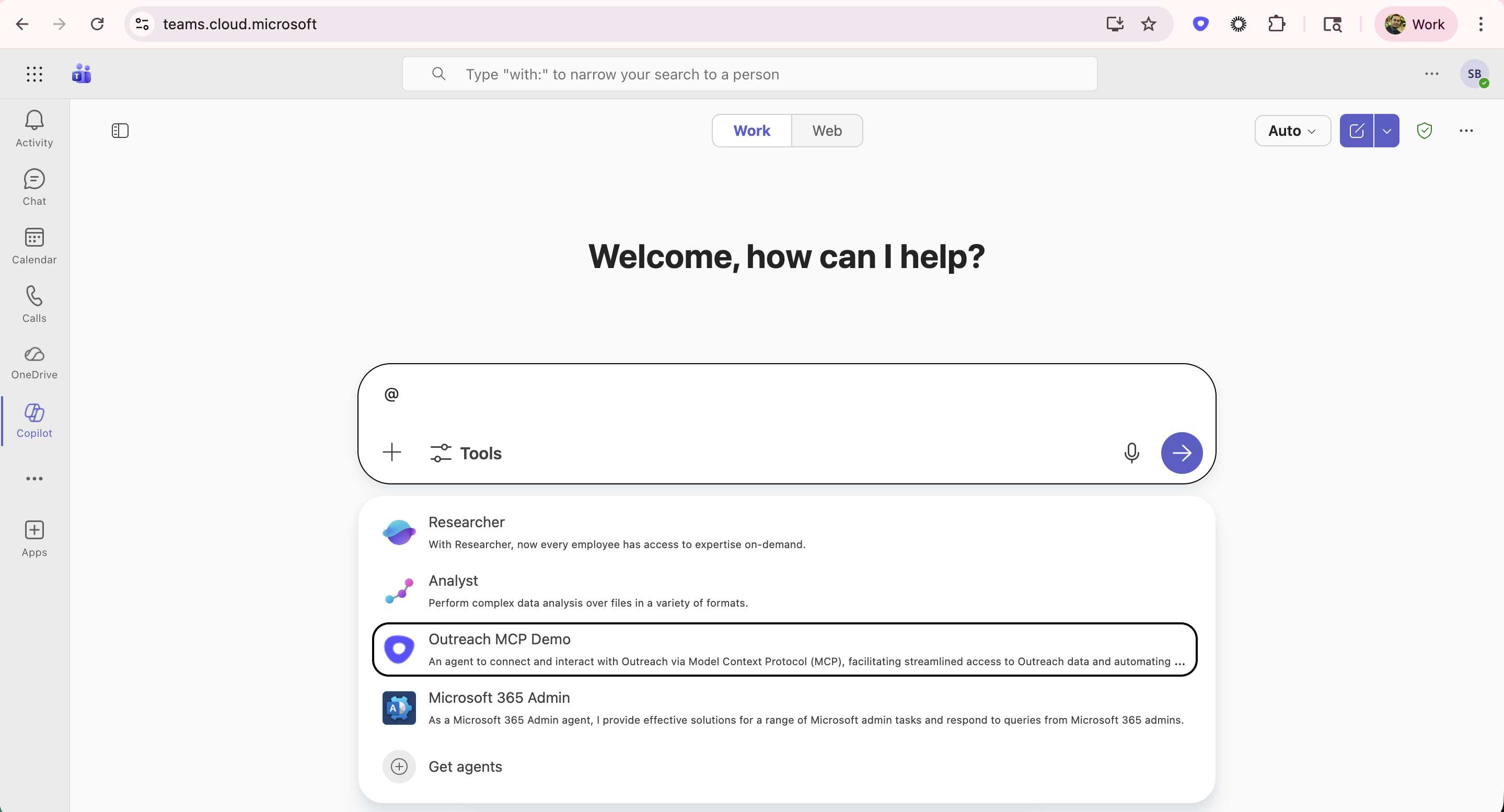
Open Microsoft Teams > Copilot and make sure the Outreach MCP agent is showing up:
You can ask Outreach any questions from wherever the Agent is available inside your Teams experience - Directly chat with it, add it to a Team or Channel or converse with it through CoPilot: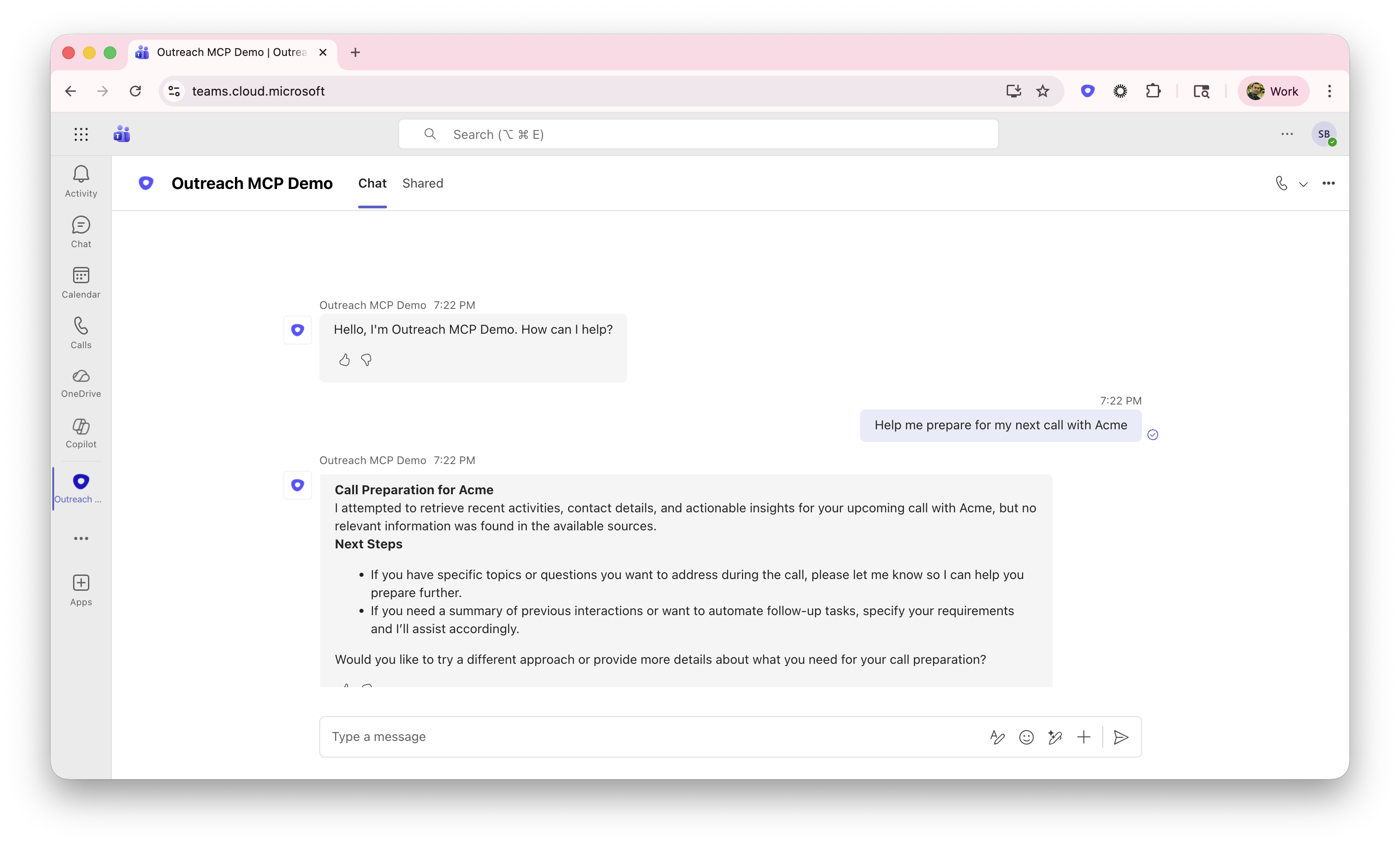
Troubleshooting
If you are seeing Authentication failures, such as below, it could mean your Studio is not connected to Outreach actively. You might need to sign in again by following the 'Open connection manager' link.
Was this article helpful?
That’s Great!
Thank you for your feedback
Sorry! We couldn't be helpful
Thank you for your feedback
Feedback sent
We appreciate your effort and will try to fix the article