Objective
The purpose of this article is to provide direction to Outreach Admins on how to map a user from Microsoft Dynamics in the Outreach platform.
Applies To
- Outreach Admins
Procedure
- Access the Outreach Platform.
- Access the Dynamics Plugin.
- On the Dynamics settings page, click the Systemusers object in the Types list.
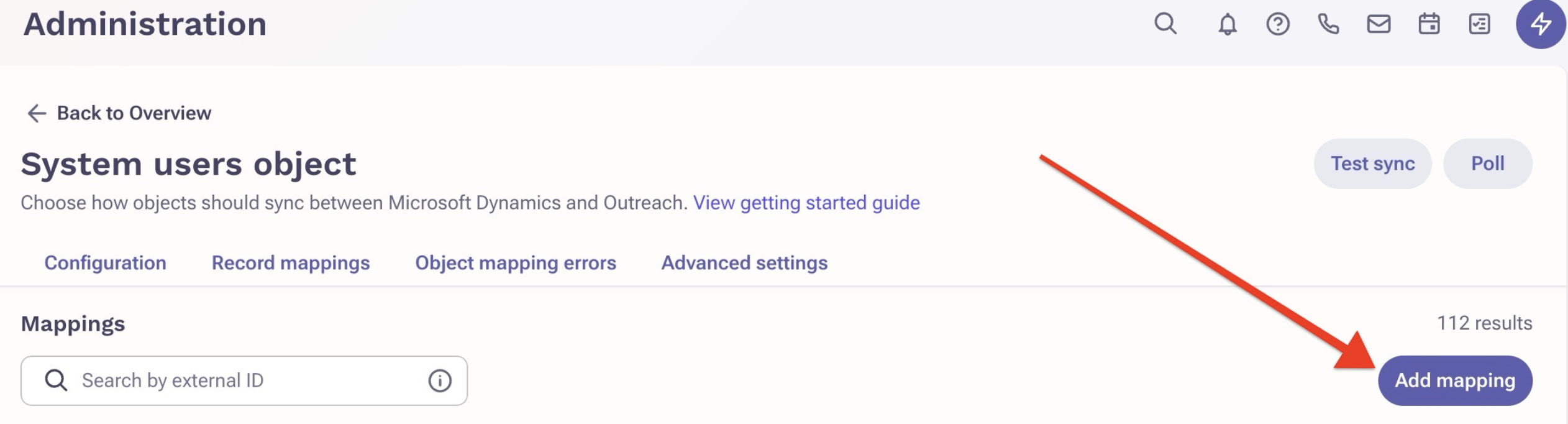
- Click the Record mappings tab.
- Click the Add mappings option to add the user ID copied from Dynamics.
- Select the corresponding Outreach user.
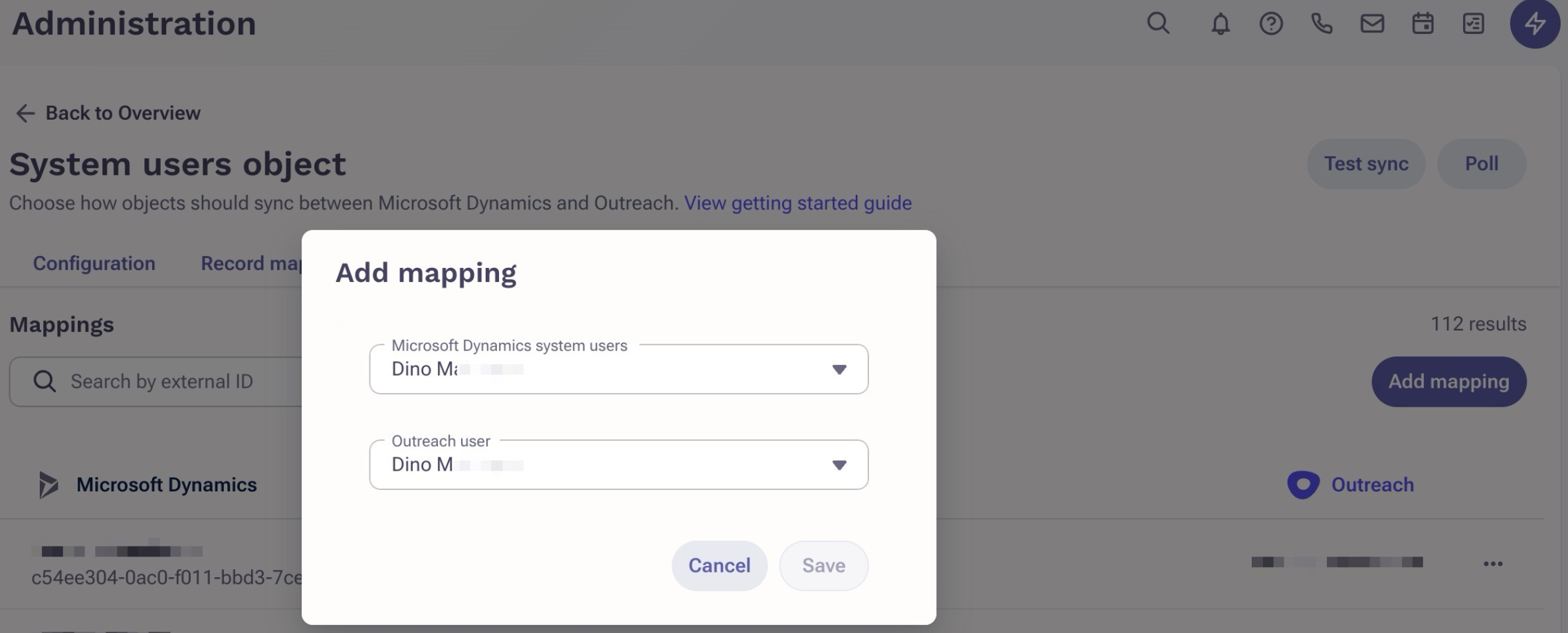
- Click Save.
Was this article helpful?
That’s Great!
Thank you for your feedback
Sorry! We couldn't be helpful
Thank you for your feedback
Feedback sent
We appreciate your effort and will try to fix the article