Objective
The purpose of this article is to provide guidance to Outreach Users and Admins in configuring and using Outreach Notifications. The Outreach Notification Platform provides streamlined communication and increased awareness for Users by delivering alerts through multiple channels such as Email, Browser, Slack, and an In-App Notification Feed.
Applies To
- All Outreach Users and Admins
- Notification Settings in User Profile
Before You Begin
- Some notification channels (e.g., Slack) require admin setup before users can enable them.
- Not all notifications support all channels.
- Browser notifications require OS-level permission to work properly.
Overview
The new Outreach Notifications enhance how users receive updates, alerts, and task reminders by offering four distinct channels:
- In-App Notification Feed: Centralized feed within Outreach where users can view, manage, and act on notifications.
- Slack: Notifications delivered directly into Slack.
- Email: Notifications sent to the user's login email.
- Browser Notifications: Alerts that appear via native browser/OS notification systems.
- Toast Notifications (in-app popups): Toast for urgent tasks displayed within the Outreach UI.
Procedure
- Log in to Outreach as a User.
- Navigate to your user name.
- Click Personal Settings > General > Notifications.
- Toggle on the appropriate notifications for Slack.
Notifications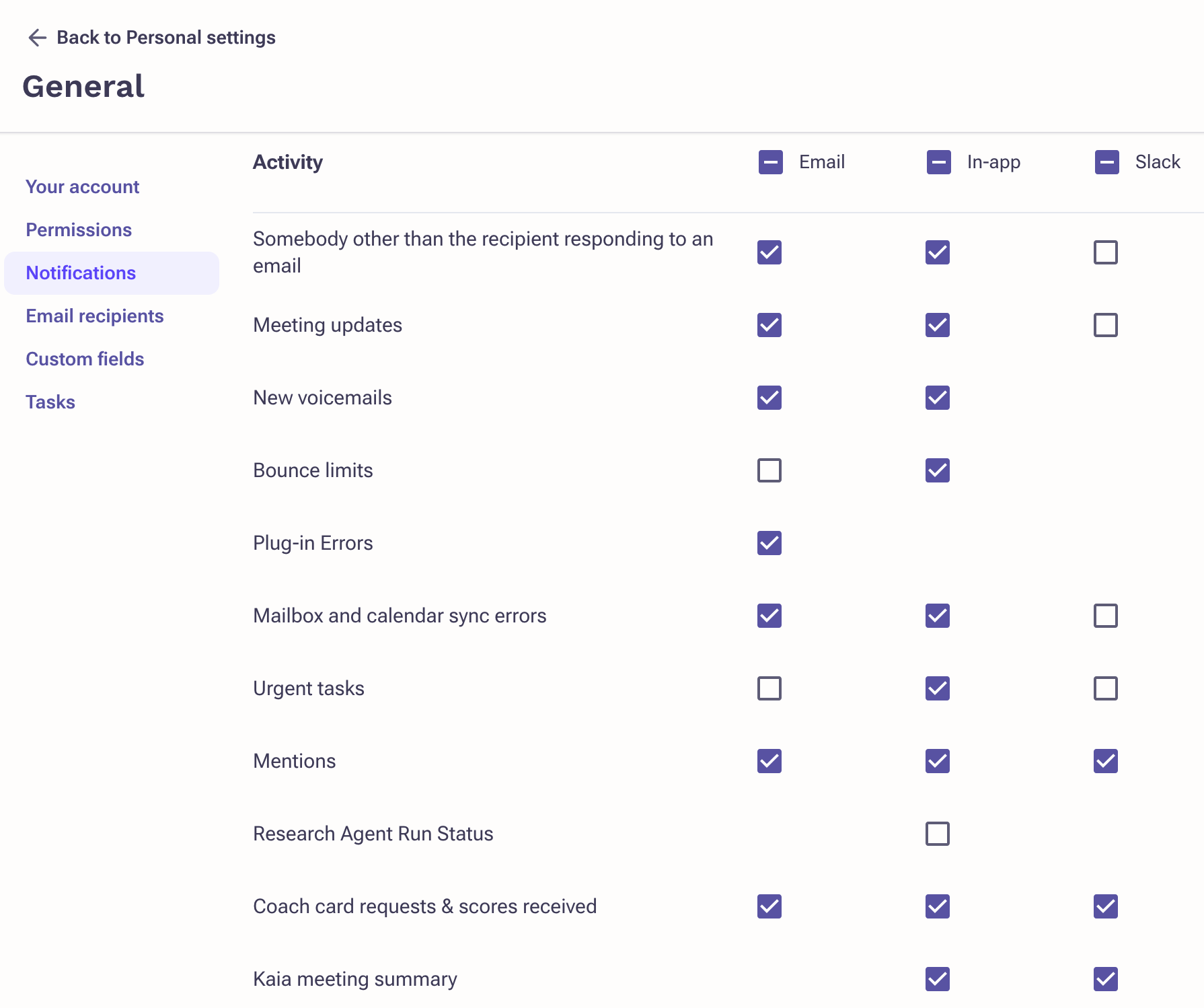
| Notification | When it is triggered |
|---|---|
| Somebody other than the recipient responding to an email |
|
| Meeting updates |
|
| New voicemails |
|
| Bounce limits |
|
| Plug-in Errors |
|
| Mailbox and calendar sync errors |
|
| Mentions |
|
| Urgent tasks notification |
|
| Kaia Meeting Summary |
|
Browser Notifications
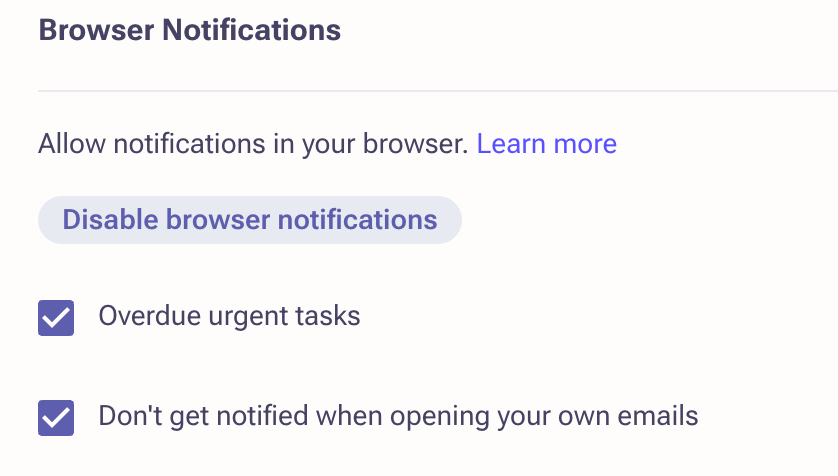
Browser notifications are displayed by your browser in your OS notification area.

Please make sure you enable notifications on your browser level. You will be asked for permission via the browser after pressing the "Enable browser notifications" button.
| Browser Notifications | When it is triggered |
|---|---|
| Overdue urgent tasks |
|
| Incoming call |
|
| Engagement with outgoing emails |
|
Toast Notifications

This notification shows as a toast in the top right corner of Outreach.
| Notification | When it is triggered |
|---|---|
| Overdue urgent tasks |
|
Integration for Slack
Admins can configure Slack connection at the General Org configuration page in the administration.
Additional Information
- Why don't I see Slack as an option?
Slack must be enabled by your Outreach admin and mapped to your account. - Can I receive browser notifications if I block popups?
No. Ensure permissions are granted in your browser and OS settings. - What's the difference between Toast and Browser notifications?
Browser notifications appear outside Outreach in your OS; Toasts show in-app.
Was this article helpful?
That’s Great!
Thank you for your feedback
Sorry! We couldn't be helpful
Thank you for your feedback
Feedback sent
We appreciate your effort and will try to fix the article