Overview
The Revenue Agent automates and enhances your team's selling efforts by using AI to source, enrich, and engage accounts and prospects based on predefined criteria.
Set up by admins or authorized users, the Agent follows custom targeting guidelines to enrich accounts and existing prospects using third-party data, identify new prospects within your ICP, and engage them with personalized messaging.
Agents can support both fully automated and semi-automated workflows, allowing reps to stay focused on high-value accounts while the Agent handles time-consuming research and outreach for lower-priority or uncovered accounts. By mimicking a rep's prospecting behavior at scale, the Agent ensures consistent pipeline generation without disrupting the existing rep experience.
Introduction
This document provides step-by-step instructions on how to build out an AI Revenue Agent in Outreach.
Key Parts of Revenue Agent Configuration
- Pre-requisites for setup
- Defining your target accounts
- Identifying your target prospects
- Setting up sequences and sequencer
Pre-requisites for Setup
- This feature is included as part of the Amplify package.
- Data enrichment: If you want Revenue Agent to mark records for enrichment or create new prospects, enrichment through a third-party provider must be set up and enabled. Read more about setting up and combining multiple enrichment providers through Smart Data Enrichment.
- Domain: If the account needs to be matched in a third-party enrichment provider's database (for example, when targeting signals are used or when sourcing new prospects is enabled), it must have a valid domain associated with it. If the account uses a subdomain, make sure that subdomain is entered. Third-party vendors use this information to identify and match account records with their data.
- Access control: Access to Agent is granted to specific user profiles that you designate. Navigate to Administration > User management > Access control > Specific profile > Prospecting Agents. Available options:
- Can view prospecting agents
- Can create and edit prospecting agents (recommended for admins)
Create Revenue Agent
This is a multi-step workflow that only works well if you have set up all the prior steps. How you target accounts for the Agent should follow your sales strategy. In the upper right corner, click +Revenue Agent to set up a new Agent in the system.
You can also Clone an existing Agent if you are creating a similar one:
- In the options menu (...) of an existing Agent, select Clone.
- A new Agent will be created with the same configuration. Its default name will be
Clone of "{Previous_agent_name}", and you'll be taken to the first configuration step. - Update the Agent name, adjust the Agent's setup as needed, and launch or save the Agent.
Identify Accounts and Prospects
Target Accounts
The first step in defining your agent strategy will be to determine which accounts you would like the agent to target for the given sales use case. Knowing which accounts you will be going after will help inform the content strategy that you use in later steps.
Account filters: Determine the specific account-level field(s) in Outreach that can be used to help the agent identify the right accounts. It can be helpful to play around with available filters in the Outreach account list view to determine which the AI Revenue Agent should use. If you have a saved view on the account page, you can apply the same filters in this step.

Define How Many Accounts the Agent Should Target Daily
Throughput settings provide you with control over the Agent's pace regarding the number of accounts that should be targeted daily. The default value is 30.

Enrichment
If enrichment through third-party data providers is enabled for your organization, you can choose whether the Agent should mark targeted accounts for enrichment. Think of enrichment as research that sales reps would normally do manually — it helps gather additional, relevant data that can later be used for personalization and more precise targeting.
You can also use enrichment to refine your audience by applying targeting signals from third-party providers. This ensures your outreach reaches the right audience at the right time.
Targeting signals:
- You can further narrow your account list by adding specific third-party signals (e.g., IPO announcement). This is useful if you want the Agent to engage only with accounts where a particular signal is detected.
- When targeting signals are used, the Agent first enriches all accounts visible in the preview. The speed of this process depends on your enrichment rate, which can be managed through the enrichment configuration.
- After enrichment, the Agent will only pick accounts that match at least one of your selected signals.
- If you select multiple signals, an account only needs to match one of them to be included.
- Please note that adding signals will not immediately update the account preview in the Agent setup. The preview only displays accounts that meet your internal targeting criteria based on data already available in Outreach. It does not reflect third-party data (targeting signals), as Outreach does not have visibility into that information until enrichment is completed.

What the Agent will do: Accounts matching your criteria will be added to the Agent's target list. If you have enrichment enabled in your organization, the Agent will mark accounts for enrichment by the third-party provider's data. The rate at which accounts are picked up by the Agent will depend on your throttle settings.
Target Prospects
Once you've established which accounts the agent should be going after, the next thing you will need to define is specifically who it should target within those accounts.
When configuring your agent, you will be able to tell it whether it should:
- Target existing prospects — prospects that already exist in Outreach
- Find new prospects (available only if enrichment is enabled for your organization) — identify new prospects via your third-party data provider that meet specified criteria and bring them into Outreach
- Do both
Target Existing Prospects
If you plan to target existing prospects, you will need to identify the specific prospect-level field(s) in Outreach that can be used to help the agent identify the right people. It can be helpful to play around with available filters in the Outreach prospect list view to determine which the agent should use.
You can preview the prospects that match these filters and belong to the targeted accounts on the right side of the filter configuration. Note: At least one prospect filter is required.
Enrichment for Existing Prospects
Select whether you want the Agent to mark targeted prospects for enrichment (if enrichment is enabled for your organization). Enrichment helps collect more relevant data that can later be used for sequence personalization.
What the Agent will do: Existing prospects that meet your targeting criteria are picked up by the Agent. If you choose to enrich existing prospects, the Agent marks those prospects for enrichment. The enrichment process searches the connected third-party database for a record that matches the prospect's email. If a match is found, the prospect is enriched. The Agent waits for at least one enrichment attempt and then adds the prospect to a sequence, regardless of the enrichment outcome. If no match is found, the prospect is not enriched but is still sequenced.
Target New Prospects
Available only if enrichment is enabled for your organization.
Revenue Agents can also discover new prospects based on the criteria you set. Use filters from the third-party data provider to define your ideal prospect profile. Available filters:
- Department — should the agent focus on prospects from specific departments?
- Seniority — should the agent target prospects at certain seniority levels?
- Location — are there certain countries that the agent should focus on?
- Time in current role — should the agent look for prospects that have been in their current role for a specific amount of time?
- Total work experience — should the agent look for prospects that have a certain amount of total work experience?
- Include only prospects with known phone number and/or known email — these options help ensure that only prospects with the needed contact information are enrolled in a sequence.
Notes:
- New prospects are identified using the third-party data provider's Account ID, which is retrieved during account enrichment, to determine if the prospect belongs to the account.
- In order to ensure smooth automation, required fields or required field validation can be bypassed when prospects are created by the Agent.
What the Agent will do: The Agent will continuously search for new prospects matching your targeting criteria in the specific accounts. Matching prospects are added to the Agent, enriched, and engaged via the sequence.
Assign owner to newly sourced prospects:
- Account owner: Newly sourced prospects will be assigned to the respective account's owner. Prospects belonging to accounts without an owner will be assigned to the agent creator.
- Specific user: New prospects will be assigned to the selected user.
Engage Sequence
Tell the agent which sequence to use for each prospect group (existing and new), and how many prospects to sequence at a given account per day. Consider the size of your sales team and your outbound strategy when establishing your throttles.
When selecting the right sequence, it's important to consider the types of accounts the Agent will target and the audience it will be reaching out to. Different prospect personas may require varying levels of automation, and your messaging may need to be more or less personalized depending on your overall strategy.
Best practice: Create a new sequence that the agent can leverage and include "AI Agent" in the sequence name. This will make it easier to report on the success of your AI Agent(s) in the future. To create this sequence, you can either clone an existing sequence, leverage a sequence blueprint, or create one from scratch.
- Assign the relevant sequence to each prospect group.
- Set up sequencing and sourcing limits at a given account per day. Consider the size of your sales team and your outbound strategy when establishing your throttles.
These settings will determine how many new prospects are created and added to the Agent daily, as well as how many existing prospects are added to the sequence.

Define who the agent should sequence prospects on behalf of:
For Existing Prospects:
- Prospect owner's mailbox (selected by default)
- Account owner's mailbox
- Mailbox by job role (MUA or Account Team user job role)
- Specific user with specific mailbox
- Mailbox by team (choose an Outreach team and the sequencer will be assigned to a member of that team via round robin)
- Mailbox by prior engagement in team (choose an Outreach team; the first qualifying prospect from a new account is assigned to a team member using the same round-robin logic as Mailbox by team, and every later prospect, task, or sequence enrollment from that same account and team is automatically routed to that same seller. This mapping expires after 60 days without engagement, or if the assigned seller becomes inactive or leaves the team — at which point the account is redistributed using standard round-robin logic and a new mapping is created.)
For New Prospects:
- Account owner's mailbox (selected by default)
- Mailbox by job role (MUA or Account Team user job role)
- Specific user with specific mailbox
- Mailbox by team (choose an Outreach team and the sequencer will be assigned to a member of that team via round robin)
- Mailbox by prior engagement in team (choose an Outreach team; the first qualifying prospect from a new account is assigned to a team member using the same round-robin logic as Mailbox by team, and every later prospect, task, or sequence enrollment from that same account and team is automatically routed to that same seller. This mapping expires after 60 days without engagement, or if the assigned seller becomes inactive or leaves the team — at which point the account is redistributed using standard round-robin logic and a new mapping is created.)
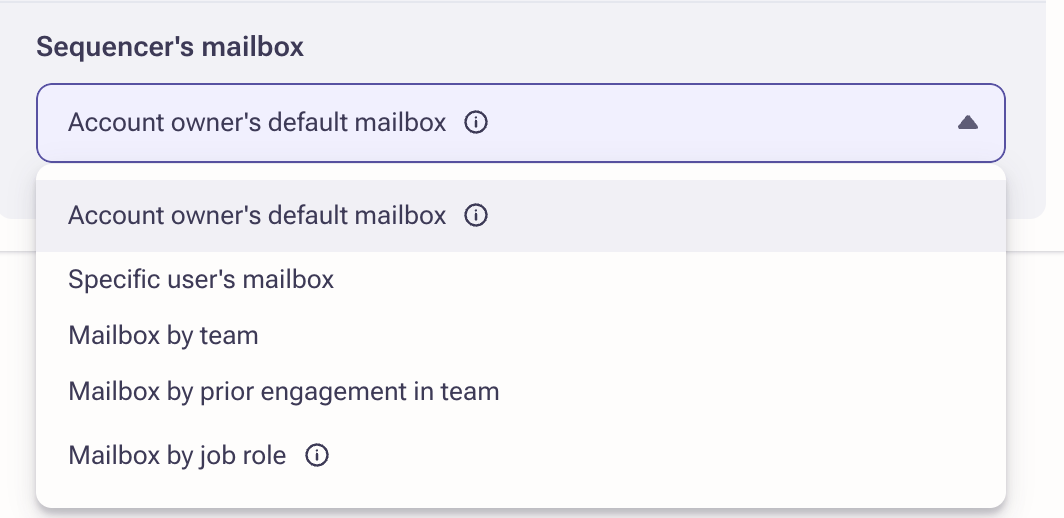
Note: Mailbox by prior engagement in team is best suited for signal-based or intent-driven prospecting at scale, where most qualifying accounts don't have a directly assigned owner. It keeps the same seller working an account over time to reduce duplicate outreach and preserve account context, without changing account ownership in your CRM.
Review and Launch
Review the Agent's settings.
Once you have fully configured your agent, you can choose to "Prepare for launch" if you are ready to activate the agent.

Otherwise, you can choose to "Save and quit" and activate the agent later when you are ready from the Prospecting Agent library.

Enabling the Team
Once your agent is up and running, the day-to-day experience for your reps will remain largely the same, except that they will have an AI agent bolstering their sales activities.
Any manual sequence tasks will be assigned to the end user for completion, including any manual emails. Reps will be able to easily detect if an email step was drafted with AI personalization by the "Personalized" label at the top of the compose window, and any personalized content will be highlighted in purple so that it can be reviewed and adjusted by the rep if needed.

Reporting on Agent Performance
In the agent list view, you can find the Agent outcome metrics for each agent:

These metrics are relevant for each particular agent regardless of what sequence is being used. If you change the sequence while the agent runs, the metrics will not be impacted.
If you need to export Agent metrics and use them in reports, below is the recommended best practice:
- Create dedicated sequences specifically for Agents and make sure you can distinguish them (include "AI Agent" in the sequence name, tag them, or add them to a unique collection).
- In the Sequence Performance Report, use the identifier as a filter to evaluate the impact of sequences used by the Agent.
The Sequence Performance Report provides valuable insights, including the number of prospects added, email engagement metrics, meetings booked, and opportunity attribution. By isolating Agent sequences in a collection, you can gain a clear view of their contribution to your pipeline.
Best Practices
- For target accounts, it's a good idea to organize them into smart views. In the smart view, you'll see the list of accounts, perform the final cleanup, and you can easily replicate the same filters in the Agent setup. Alternatively, you can tag the accounts you want the Agent to pick up — the Agent can use the tag in the targeting criteria.
- It's recommended to have the first step of the sequence set as a manual email so your reps can double-check the AI personalized content and confirm the accounts and prospects are accurate. Once the Agent Play is active, you can see the accounts and prospects associated on the Prospecting Agents list view.
- Always ensure that the sequence being used by the Agent is Active and is shared with reps. Navigate to Sequence settings > Ownership > Sharing and select "others can see and use it."
- It's recommended to review Sequence settings > Ownership > Throttle newly added prospects to ensure the sequence has expected settings. These settings help you set up throttling limits and choose whether the Agent should put prospects automatically into the sequence or whether the rep needs to activate them first. For more information, read How to Configure Outreach Sequence Throttles.
- Review Sequence exclusivity settings (Sequence settings > Ruleset > Safety settings) of your sequence before you launch the Agent. If a prospect is already active in an exclusive sequence, the Agent will not add them to its sequence and will not attempt to do so again once the exclusive sequence is finished. To prioritize the Agent's sequence, the existing exclusive sequence must be completed first, after which the prospect must be manually added to the Agent's sequence.
- If the Agent's sequence is exclusive, and the prospect is already in a non-exclusive sequence when the Agent tries to add them, the Agent will not add the prospect to its sequence. The best practice is to run only one sequence at a time per prospect, though this may vary depending on the nature of your sequence.
- Always preview sequence steps that have AI Personalization in them. This ensures the messaging is in line with the Agent Play and strategy. To preview, click the "Preview" button, find a prospect, and click generate.
Was this article helpful?
That’s Great!
Thank you for your feedback
Sorry! We couldn't be helpful
Thank you for your feedback
Feedback sent
We appreciate your effort and will try to fix the article