Objective
This documentation provides best practice steps when removing and re-adding Kaia to a Zoom or Microsoft Teams meeting.
Applies To
- Kaia
- Outreach Users
Before You Begin
- [Zoom only] If the user who added Kaia leaves the meeting, Kaia is automatically removed.
Procedure
Stop Kaia Recording
- Open the Kaia app in your meeting provider.
- Select Stop recording.
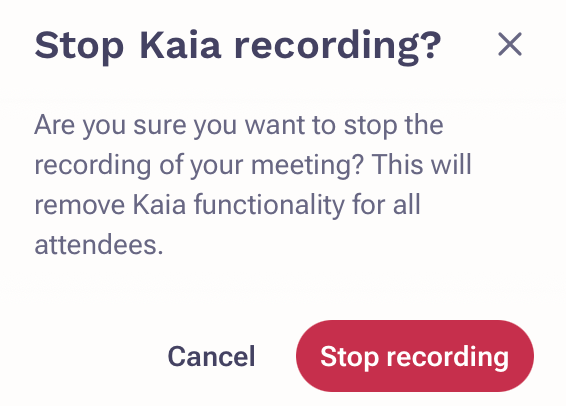
When you select this icon, Kaia functionality will no longer be available for the meeting. You can then re-enable Kaia by simply clicking on the same icon.
Kaia removal/kick out workaround
If you remove or "kick out" Kaia as a participant from a meeting, Kaia will not be allowed to rejoin that meeting. This applies to both Zoom and Microsoft Teams meetings.
As a workaround, navigate to the Kaia section from the Actions menu (lightning bolt in the upper right hand corner) in Outreach, and enter in the Conference URL, click Add Kaia, and then a new meeting will be created and open immediately that will allow the Kaia functionality.

Additional Information
Was this article helpful?
That’s Great!
Thank you for your feedback
Sorry! We couldn't be helpful
Thank you for your feedback
Feedback sent
We appreciate your effort and will try to fix the article